SVG to PNG Converter
You just finished a beautiful logo in your design tool, and it looks razor sharp on your website. Then your client asks for a PNG version for their presentation, the print shop wants one for business cards, and the app developer needs an icon file. Suddenly your perfect vector graphic has to become pixels, and it has to happen in five different sizes by tomorrow.
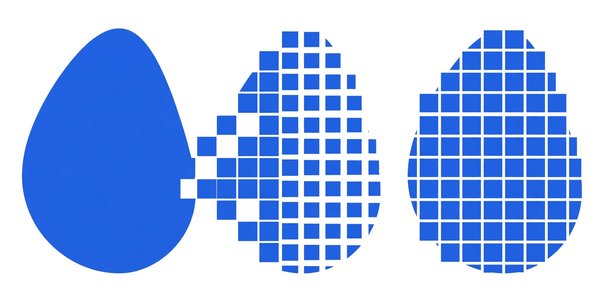
That is where format conversion comes in. SVG files describe shapes with math, which means they scale forever without losing sharpness. PNG files describe images pixel by pixel, which makes them compatible with just about everything: PowerPoint, Word, social media, printers, and app stores. The two formats solve different problems, and moving between them is a daily task for designers, marketers, and developers.
Our SVG to PNG Converter makes that jump effortless. Upload your SVG, pick the exact pixel size you need, and download a crisp PNG in seconds. Transparency stays intact, edges stay sharp, and you can convert as many files as you want. It is free, runs entirely online, and never asks you to install anything or create an account.
If you have ever received a blurry logo from a colleague and wondered why it looked fine on their screen, the answer is almost always a bad conversion. Someone exported too small, stretched the result, or saved over transparency they needed. Those mistakes are easy to make inside professional design software, which is why a dedicated converter that nails the three key choices of size, background, and sharpness saves so much frustration.
How to Use SVG to PNG Converter
Converting a vector file to a raster image sounds technical, but the tool handles all the hard parts for you. You only make three simple choices: which file, what size, and what background. Here is the full walkthrough.
- Upload your SVG file. Drag your SVG into the upload box or click to browse your folders. You can convert one file at a time or drop in a whole batch of icons and logos together. The tool reads the vector data instantly and prepares it for rendering.
- Preview the render. Before you convert, the tool shows you exactly how your SVG will look as a PNG. Check that shapes, colors, and spacing all look right. If any text looks wrong or has been replaced by a fallback font, go back to your design tool and convert the text to outlines first, then upload again.
- Set your output size. Type in the exact width and height in pixels, or pick a handy preset like favicon, social media post, or presentation slide. The aspect ratio lock keeps your proportions correct automatically, so your logo never comes out stretched or squished. When in doubt, go bigger: you can always shrink a PNG later, but you cannot add sharpness back.
- Choose a background. Transparent is the default and the best choice for logos, icons, and overlays, since it lets your graphic sit cleanly on any background. Pick solid white or a custom color when the PNG is headed for print, a document, or anywhere transparency might render as black.
- Pick your scale for sharpness. For everyday web use, standard 1x resolution is fine. If the PNG will appear on retina or high density screens, export at 2x or 3x so it stays crisp on modern phones and laptops. The tool renders the vector fresh at whatever size you choose, so larger exports are genuinely sharper, not just stretched.
- Convert and download. Hit the convert button and your PNG is ready in a second or two. Single files download immediately, and batch conversions are bundled into one tidy ZIP file. Rename and organize them however your project needs.
- Name and organize your exports. A clear naming habit like logo transparent 2000px.png saves future you a lot of confusion. Keep web, print, and social versions in separate folders so you always grab the right file. Since conversions are free and instant, there is no reason to reuse one PNG for every purpose when each destination deserves its own perfect size.
Key Features
- Exact pixel control: type any width and height you need, from a tiny 16 pixel favicon to a giant 4096 pixel banner, with no preset limits holding you back.
- Transparency preserved: alpha channels carry over perfectly, so logos and icons keep their clean transparent backgrounds in the final PNG.
- High resolution export: render vectors at up to 4096 pixels on the longest side for print quality output and retina displays.
- Batch conversion: convert dozens of SVG files in one go and download them all together as a single ZIP archive.
- Aspect ratio lock: proportions stay mathematically correct as you resize, so graphics never stretch or distort by accident.
- Background options: choose transparent, white, or any custom color to match exactly where the PNG will be used.
- Retina ready scaling: one click 2x and 3x export options give you razor sharp assets for high density screens without manual math.
- Private and free forever: conversion happens in your browser, files are never uploaded, and there are no watermarks, accounts, or usage caps.
- SVG validation on upload: malformed vector files are flagged immediately with a clear explanation instead of producing a broken download.

Why Use Our SVG to PNG Converter?
Designers live in vector tools, but the rest of the world runs on PNG. Every time you hand off a logo to a client, send assets to a developer, or prepare slides for a talk, someone needs a raster version at a specific size. Doing that inside heavy design software for every single export is slow, and asking a non designer teammate to do it is a recipe for stretched, blurry results.
Our converter removes that friction completely. A freelance designer can export an entire logo package, favicon to billboard, in under a minute and send it to the client the same afternoon. A social media manager can grab the company logo as a transparent PNG sized perfectly for each platform without ever opening design software. A teacher can turn a diagram into a crisp image for slides without learning a new tool.
Print workflows benefit just as much. Print shops and merchandise vendors almost always ask for PNG or JPG at specific pixel dimensions, and guessing wrong means blurry business cards or pixelated t-shirts. Rendering directly from the vector source at the exact requested size gives you the sharpest possible result every time, because the shapes are drawn fresh at full resolution rather than scaled up from something smaller.
Developers use it constantly too. Favicons, app icons, Open Graph images, and placeholder graphics all start life as SVGs in a design system and end up as PNGs in production. A fast, free converter that preserves transparency and nails exact dimensions saves real time across every project.
There is a quieter benefit too: consistency. When every team member exports logos through the same simple tool with the same settings, brand assets stop drifting. No more stretched headers on the blog, no more pixelated icons in the app, no more white boxes behind the logo on dark slides. Marketing teams especially love this, because the logo looks right everywhere without anyone needing design training or expensive software licenses.
Speed matters as well. A task that used to mean opening a heavy design application, finding the right artboard, and fiddling with export dialogs now takes about twenty seconds. Multiply that by every logo request in a busy week and the hours add up fast. For agencies juggling dozens of clients, that reclaimed time goes straight back into billable creative work instead of file wrangling.
Finally, there is the collaboration angle. Clients often need PNGs but do not own design software, and developers need exact sizes but do not want to guess. Sending them a link to a free converter with three simple choices empowers everyone to help themselves. Fewer back and forth emails, fewer wrong sized assets, and a smoother handoff from design to the rest of the world.
The converter is simple by design, but output quality still depends on a few decisions you make before clicking convert. Keep these pointers in mind and every export will look its best.
Tips for Best Results
- Convert text to outlines first. If your SVG uses live text, the converter may not have your exact font. Outlining text in your design tool locks the letter shapes in permanently.
- Export bigger than you need. Rendering at 2x or 3x your target size gives you a master file you can shrink for any use without ever losing sharpness.
- Keep transparency for logos. A transparent PNG works on light and dark backgrounds alike, while a white background version will show an ugly box on dark designs.
- Test tiny sizes visually. A detailed logo that looks great at 1000 pixels can turn to mush at 32. Preview favicon sizes and simplify the artwork if details disappear.
- Keep your SVG as the master. Always archive the original vector file. Future size needs are one free conversion away when you still have the source.
- Match the background to the destination. Use transparency for web overlays, but choose solid white for Word documents and print layouts where transparency can misbehave.
- Export a favicon set, not just one file. Browsers and devices request several icon sizes. Generate 16, 32, 48, and 180 pixel versions in one batch so your site icon looks sharp in tabs, bookmarks, and phone home screens alike.
- Check edges at full zoom. After downloading, view the PNG at 100 percent and look closely at curved edges and fine lines. If anything looks soft, re-export one size larger. Catching it now beats discovering it on a printed banner.
If you are unsure about formats, transparency, or resolution, start here. These answers cover the essentials of vector to raster conversion.
Complete List of All Free Online Tools
Browse the full directory of 450+ free tools. Click any tool name to use it instantly - no signup required.
| # | Tool Name | Category |
|---|---|---|
| 1 | A B Test Significance Calculator | Calculators & Converters |
| 2 | Acronym Generator | Utility Tools |
| 3 | Ad Copy Generator | Utility Tools |
| 4 | Add Page Numbers To PDF | PDF Tools |
| 5 | Add Subtitles To Video | Media Tools |
| 6 | Add Subtract Days Calculator | Calculators & Converters |
| 7 | Age Calculator | Calculators & Converters |
| 8 | Angle Converter | Calculators & Converters |
| 9 | API Request Tester | Utility Tools |
| 10 | Area Converter | Calculators & Converters |
| 11 | Article Rewriter | Utility Tools |
| 12 | Audio Converter | Calculators & Converters |
| 13 | Audio Merger | Media Tools |
| 14 | Audio Metadata Editor | Media Tools |
| 15 | Audio Pitch Changer | Media Tools |
| 16 | Audio Speed Changer | Media Tools |
| 17 | Audio To Text Converter | Calculators & Converters |
| 18 | Audio Trimmer | Media Tools |
| 19 | Avatar Maker | Utility Tools |
| 20 | Background Remover | Utility Tools |
| 21 | Backlink Checker | SEO Tools |
| 22 | Banner Maker | Utility Tools |
| 23 | Barcode Generator | Developer Tools |
| 24 | Base64 Encoder Decoder | Developer Tools |
| 25 | Bass Booster | Utility Tools |
| 26 | Bibliography Generator | Utility Tools |
| 27 | Bill Splitter | Utility Tools |
| 28 | Binary Converter | Calculators & Converters |
| 29 | Binary To Text Converter | Calculators & Converters |
| 30 | Birthday Countdown | Date & Time Tools |
| 31 | Bmi Calculator | Calculators & Converters |
| 32 | Bmr Calculator | Calculators & Converters |
| 33 | Body Fat Calculator | Calculators & Converters |
| 34 | Body Surface Area Calculator | Calculators & Converters |
| 35 | Book Title Generator | Utility Tools |
| 36 | Brand Color Finder | Color Tools |
| 37 | Brand Kit Generator | Utility Tools |
| 38 | Break Even Calculator | Calculators & Converters |
| 39 | Broken Link Checker | Utility Tools |
| 40 | Browser Info Checker | Utility Tools |
| 41 | Budget Planner | Utility Tools |
| 42 | Business Card Designer | Utility Tools |
| 43 | Business Card Maker | Utility Tools |
| 44 | Business Days Calculator | Calculators & Converters |
| 45 | Business Name Generator | Utility Tools |
| 46 | Business Proposal Generator | Utility Tools |
| 47 | Button Generator | Utility Tools |
| 48 | Buyer Persona Generator | Utility Tools |
| 49 | Calorie Calculator | Calculators & Converters |
| 50 | Captcha Generator | Utility Tools |
Frequently Asked Questions
What is the difference between SVG and PNG?
SVG is a vector format that describes images with mathematical shapes, so it scales to any size without losing quality and usually has a tiny file size. PNG is a raster format that stores images as a fixed grid of pixels, which makes it universally compatible with apps, browsers, printers, and social platforms. Use SVG for scalable web graphics and PNG whenever you need a fixed size image that works everywhere.
Will converting from SVG to PNG lose quality?
No, as long as you export at a large enough size. Because the PNG is rendered fresh from the vector shapes at whatever pixel dimensions you choose, edges stay perfectly crisp. Quality only suffers if you export too small and then stretch the PNG larger afterward, so always pick generous dimensions up front.
What is the maximum export resolution?
You can render PNGs up to 4096 pixels on the longest side, which is more than enough for large prints, hero banners, and high resolution displays. For most web uses like logos and icons, 1000 to 2000 pixels is the sweet spot between sharpness and file size.
Does the converter keep transparent backgrounds?
Yes. Transparency is preserved by default, so logos and icons with see through areas stay see through in the PNG. If you prefer a solid background for print or documents, you can switch to white or pick any custom color before converting.
Can I convert animated SVGs?
The converter renders the first frame of an animated SVG as a static PNG, since the PNG format does not support vector animation. If you need the animation itself in raster form, export it as a GIF or video from your design tool instead.
Can I convert multiple SVG files at once?
Absolutely. Drop in as many SVG files as you like and the tool converts them all with the same size and background settings. Everything downloads together in a single ZIP file, which is perfect for exporting full icon sets or logo packages.
Can I convert PNG back to SVG?
Not with this tool, and you should be cautious about the idea in general. Turning pixels back into vectors requires tracing, which is an approximation and never as clean as the original vector artwork. Always keep your source SVG files so you never need to go backward.
Will my PNG look the same in every app?
Essentially yes. PNG is one of the most universally supported formats in existence, rendering consistently across browsers, Office apps, design tools, and printers. Colors may shift very slightly between a calibrated design monitor and an uncalibrated screen, but that is true of every image format. For layout, transparency, and sharpness, what you preview is what you get.
Table of Contents
What is Svg to PNG Converter?
The svg to png converter is a free online tool that helps you with svg to png converter tasks quickly and accurately. Our svg to png converter is designed to be simple, fast, and reliable. Whether you need a svg to png converter for personal use or professional work, this free svg to png converter delivers instant results without any signup or download required.
How to Use the Svg to PNG Converter
Using our svg to png converter is easy. Simply open the svg to png converter tool above, enter your input, and get instant results. The svg to png converter processes everything in your browser for maximum privacy and speed. No technical knowledge is needed to use this svg to png converter effectively.
Benefits of Using Our Svg to PNG Converter
Our free svg to png converter offers many advantages. It is completely free to use, requires no registration, works on all devices, and provides accurate results instantly. The svg to png converter is updated regularly to ensure the best performance. For more information about svg to png converter, you can Learn more about svg to png converter on Wikipedia.
Frequently Asked Questions About Svg to PNG Converter
Is the svg to png converter really free? Yes, our svg to png converter is 100% free with no hidden costs or premium tiers.
Do I need to create an account to use the svg to png converter? No, the svg to png converter works instantly without any signup or login required.
