Image to WebP Converter
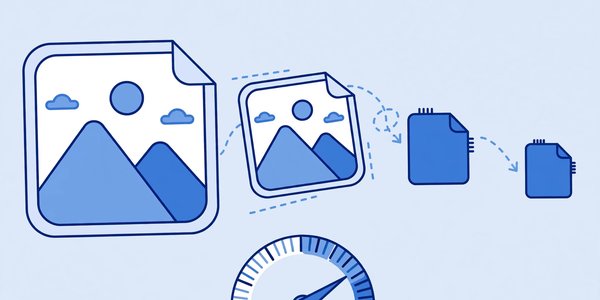
You spent an hour getting the perfect product shot. The lighting was soft, the colors were rich, and it looked stunning on your screen. Then you uploaded it to your website, ran a speed test, and watched your score tumble. That painful moment is something almost every site owner knows, because oversized images are the single biggest reason pages load slowly, and slow pages quietly drain your traffic, your sales, and your search rankings. WebP was created to end that frustration. Google designed this modern format to match the visual quality of JPEG and PNG while cutting file sizes dramatically, and in everyday use converted images commonly shrink by 25 to 35 percent, with simple graphics shrinking far more. The old way to convert meant installing heavy software, opening yet another account, or sending your private photos to a server you will never see. Our Image to WebP Converter takes a simpler path. Everything happens right in your browser, so your files convert in seconds and never leave your device. It is free, it needs no signup, and it works on any phone, tablet, or computer you own.
How to Use the Image to WebP Converter
You can finish your first conversion in under a minute. The steps below walk you through the whole process, with a few pro tips baked in along the way.
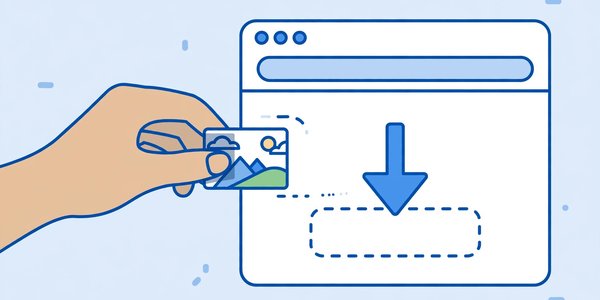
- Upload your image. Click the upload zone or drag and drop your file straight from a folder. JPG, PNG, GIF, and BMP files all work, so you can convert whatever you already have without any prep work. On a phone, the file picker opens your photo library with one tap.
- Check the preview and file details. Your image appears right away along with its current size and dimensions. This quick glance confirms you grabbed the right file, which matters a lot when you are working through a folder of similar product shots.
- Set your quality level. The slider controls the balance between file size and sharpness. A value near 80 hits the sweet spot for most web photos, looking crisp while staying light. Lower it toward 60 for thumbnails and previews, or raise it past 90 when the image is the star of the page.
- Resize before you convert if the image is oversized. A 4000 pixel wide photo displayed at 800 pixels is pure wasted weight. Trim the dimensions to match how the image will actually appear, and you will stack the savings of a smaller canvas on top of WebP compression itself.
- Click convert and watch it happen. The tool encodes your image locally in your browser, so most files finish in a couple of seconds. There is no upload bar, no waiting room, and no queue ahead of you.
- Download and compare. Save your new WebP file with one click, then compare the old and new file sizes side by side. Most people smile at this step. Repeat the process as many times as you like, because there are no daily caps and no watermarks.
Key Features of the Image to WebP Converter
Every part of this tool was designed to make conversion fast, private, and painless. Here is what you get.
- Completely free, forever. Convert as many images as you want without hitting a paywall, a trial timer, or a monthly quota. The tool costs you nothing today and nothing a year from now.
- True in-browser processing. Your images are converted locally on your own device instead of being uploaded to a remote server. That means faster results and total privacy for sensitive photos. Even large batches feel instant because nothing ever waits on a network.
- No signup or installation. There is no account to create, no app to download, and no browser extension to manage. Open the page and start converting within seconds.
- Adjustable quality control. A simple slider lets you choose exactly how much compression to apply. Preview the tradeoff yourself instead of accepting a one-size-fits-all setting.
- Wide input support. Drop in JPG, PNG, GIF, or BMP files and get a clean WebP out the other side. You never have to pre-convert your files into some intermediate format first.
- Optional resizing built in. Shrink oversized dimensions before encoding to multiply your file size savings. One tool handles both jobs, so you can skip your desktop editor entirely.
- Instant size comparison. See the original and converted file sizes side by side before you download. You always know exactly what you gained, with no guesswork involved. This transparency builds trust and helps you fine tune your quality setting with real data.
- Works on every device. The converter runs smoothly on desktops, laptops, tablets, and phones. Start a batch on your computer and finish it on your phone without missing a beat.
Why Use Our Image to WebP Converter?
Faster websites rank higher and convert better. Google treats page speed as a ranking signal, and its Core Web Vitals metrics punish pages weighed down by heavy images. Swapping your JPEGs and PNGs for WebP versions is one of the highest impact speed wins available, often cutting total image weight by a third with zero visible change. Visitors on mobile connections feel the difference instantly, and faster pages mean lower bounce rates and more completed checkouts. If you run a blog, a portfolio, or an online store, this single change can lift both your search visibility and your revenue at the same time.
The benefits reach far beyond websites too. Smaller files upload faster to marketplaces, social platforms, and email attachments, which saves you real time every single week. Designers delivering assets to clients can send lighter files without the dreaded attachment too large bounce. Photographers sharing proofs can keep quality high while making downloads painless for their clients. And because everything runs in your browser, you can convert on a borrowed laptop, a tablet at a photo shoot, or your phone on the train, with no software to install and no IT department to ask for permission.
There is also a quiet cost and environmental angle most people overlook. Smaller images mean less bandwidth consumed, which lowers hosting bills for high traffic sites and reduces data usage for visitors on metered mobile plans. If you manage a site with thousands of images, converting the library to WebP can cut your delivery costs noticeably while making every page snappier. Social media managers benefit too, since platforms recompress uploads anyway, and starting from a clean efficient WebP gives their algorithms better source material to work with. Whatever your situation, the pattern is the same. Less weight, same beauty, happier visitors.
Tips for Best Results
A few small habits will help you squeeze the most out of every conversion. Keep these in mind.
- Start at quality 80, then compare. Convert once at 80 and zoom into the result at full size. If it looks perfect, try 70. If you spot any softness, nudge it up to 85. Two minutes of testing beats guessing forever. Once you find your ideal number for one photo, reuse it confidently across similar images from the same shoot.
- Resize to display size first. Find the largest size your image will actually appear at, then resize to match. Converting a 5000 pixel original for an 800 pixel slot wastes most of your savings before compression even begins.
- Keep your originals archived. WebP is excellent for delivery, but keep a master copy of each important image in its original format. Future edits, prints, and format changes should always start from the best source. Cloud backups of originals are cheap insurance, and they let you re-export in whatever format the future demands.
- Use high quality for graphics with text. Photos forgive heavy compression, but logos, screenshots, and infographics with small text show artifacts sooner. Keep the slider at 85 or above for anything with sharp edges or fine lettering.
- Serve WebP with a fallback for ancient browsers. Every modern browser released in recent years displays WebP natively. If a slice of your audience uses truly old software, keep a JPEG copy handy as a backup source. Picture elements with multiple source tags make this fallback pattern straightforward to implement on any site.
- Give converted files descriptive names. Rename image1.webp to something like handmade-ceramic-mug.webp before uploading. Search engines read file names, and descriptive names keep your media library easy to search later on.
Frequently Asked Questions
What exactly is WebP, and why should I switch to it?
WebP is an image format developed by Google that delivers high visual quality at much smaller file sizes than JPEG or PNG. It supports both lossy compression for photographs and lossless compression for graphics, plus transparency and animation, which makes it a true all rounder. The practical payoff is speed. Smaller images load faster, consume less mobile data, and improve the Core Web Vitals scores that Google uses in rankings. Because every major browser now supports WebP, you gain these benefits with no compatibility headache for the vast majority of your visitors.
Will my images look worse after converting to WebP?
Not when you choose sensible settings. At quality levels around 75 to 85, WebP output is visually indistinguishable from the original for almost every viewer on every screen. The format was engineered to preserve the details human eyes actually notice while discarding data they do not. Problems only appear when the quality slider is pushed very low, which is why the tool lets you preview and compare before downloading. Convert at 80, zoom in, and judge with your own eyes. If you cannot spot a difference, neither can your visitors, and you still pocket the smaller file.
Is this converter really free? What is the catch?
Yes, it is completely free, and there is no catch hiding in the fine print. You can convert unlimited images without creating an account, without entering payment details, and without hitting a daily quota. Your converted files carry no watermark, and the tool never locks useful features behind an upgrade screen. A Tool Today keeps its utilities free because helpful tools should be available to everyone, from students to small business owners. Bookmark the page and use it as often as you like.
Complete List of All Free Online Tools
Browse the full directory of 450+ free tools. Click any tool name to use it instantly - no signup required.
| # | Tool Name | Category |
|---|---|---|
| 1 | A B Test Significance Calculator | Calculators & Converters |
| 2 | Acronym Generator | Utility Tools |
| 3 | Ad Copy Generator | Utility Tools |
| 4 | Add Page Numbers To PDF | PDF Tools |
| 5 | Add Subtitles To Video | Media Tools |
| 6 | Add Subtract Days Calculator | Calculators & Converters |
| 7 | Age Calculator | Calculators & Converters |
| 8 | Angle Converter | Calculators & Converters |
| 9 | API Request Tester | Utility Tools |
| 10 | Area Converter | Calculators & Converters |
| 11 | Article Rewriter | Utility Tools |
| 12 | Audio Converter | Calculators & Converters |
| 13 | Audio Merger | Media Tools |
| 14 | Audio Metadata Editor | Media Tools |
| 15 | Audio Pitch Changer | Media Tools |
| 16 | Audio Speed Changer | Media Tools |
| 17 | Audio To Text Converter | Calculators & Converters |
| 18 | Audio Trimmer | Media Tools |
| 19 | Avatar Maker | Utility Tools |
| 20 | Background Remover | Utility Tools |
| 21 | Backlink Checker | SEO Tools |
| 22 | Banner Maker | Utility Tools |
| 23 | Barcode Generator | Developer Tools |
| 24 | Base64 Encoder Decoder | Developer Tools |
| 25 | Bass Booster | Utility Tools |
| 26 | Bibliography Generator | Utility Tools |
| 27 | Bill Splitter | Utility Tools |
| 28 | Binary Converter | Calculators & Converters |
| 29 | Binary To Text Converter | Calculators & Converters |
| 30 | Birthday Countdown | Date & Time Tools |
| 31 | Bmi Calculator | Calculators & Converters |
| 32 | Bmr Calculator | Calculators & Converters |
| 33 | Body Fat Calculator | Calculators & Converters |
| 34 | Body Surface Area Calculator | Calculators & Converters |
| 35 | Book Title Generator | Utility Tools |
| 36 | Brand Color Finder | Color Tools |
| 37 | Brand Kit Generator | Utility Tools |
| 38 | Break Even Calculator | Calculators & Converters |
| 39 | Broken Link Checker | Utility Tools |
| 40 | Browser Info Checker | Utility Tools |
| 41 | Budget Planner | Utility Tools |
| 42 | Business Card Designer | Utility Tools |
| 43 | Business Card Maker | Utility Tools |
| 44 | Business Days Calculator | Calculators & Converters |
| 45 | Business Name Generator | Utility Tools |
| 46 | Business Proposal Generator | Utility Tools |
| 47 | Button Generator | Utility Tools |
| 48 | Buyer Persona Generator | Utility Tools |
| 49 | Calorie Calculator | Calculators & Converters |
| 50 | Captcha Generator | Utility Tools |
Are my images uploaded to your servers during conversion?
No. The entire conversion happens locally inside your own browser using your device’s processor. Your files are never transmitted to any server, stored anywhere, or seen by anyone else. This design brings two big advantages. First, conversions start instantly with no upload waiting time. Second, your privacy is absolute, which matters when you are working with client photos, unreleased products, or personal images. You can even disconnect from the internet after the page loads and keep converting without interruption. For businesses handling confidential material, this local only approach also sidesteps compliance headaches around third party data processing.
Will WebP images work in all browsers and on social media?
All modern browsers, including Chrome, Edge, Firefox, Safari, and Opera, display WebP images natively, and so do current versions of Android and iOS. That covers the overwhelming majority of real world traffic. Some older software and a few social platforms still prefer JPEG or PNG for uploads, so check the requirements of any platform where you plan to post. For your own website, you can serve WebP with a JPEG fallback to cover every possible visitor without any downside at all.
Can I convert PNG images with transparency to WebP?
Absolutely. WebP fully supports transparency, including the smooth partial transparency that PNG is famous for. When you convert a transparent PNG, the alpha channel carries over cleanly, so logos, icons, and cutout graphics keep their see through backgrounds. You also keep the option of lossless encoding for pixel perfect graphics. The result is a transparent image that looks identical to the original PNG while weighing far less, which is ideal for logos and overlays on fast loading websites. Just remember that converting a flat JPG will not invent transparency where none existed, since the format can only preserve what the source already contains.
What quality setting should I use for website images?
For most website photos, a quality setting between 75 and 85 gives the best balance of small size and crisp detail, with 80 being the classic starting point. Thumbnails and background textures can drop to 60 or 65 without anyone noticing, while hero images and product close ups deserve 85 to 90. Graphics containing text, logos, or sharp lines should stay at 85 or higher to keep edges clean. The fastest approach is to convert at 80, view the result at full size on your screen, and adjust up or down based on what you actually see.
Table of Contents
What is Image to Webp Converter?
The image to webp converter is a free online tool that helps you with image to webp converter tasks quickly and accurately. Our image to webp converter is designed to be simple, fast, and reliable. Whether you need a image to webp converter for personal use or professional work, this free image to webp converter delivers instant results without any signup or download required.
How to Use the Image to Webp Converter
Using our image to webp converter is easy. Simply open the image to webp converter tool above, enter your input, and get instant results. The image to webp converter processes everything in your browser for maximum privacy and speed. No technical knowledge is needed to use this image to webp converter effectively.
Benefits of Using Our Image to Webp Converter
Our free image to webp converter offers many advantages. It is completely free to use, requires no registration, works on all devices, and provides accurate results instantly. The image to webp converter is updated regularly to ensure the best performance. For more information about image to webp converter, you can Learn more about image to webp converter on Wikipedia.
Frequently Asked Questions About Image to Webp Converter
Is the image to webp converter really free? Yes, our image to webp converter is 100% free with no hidden costs or premium tiers.
Do I need to create an account to use the image to webp converter? No, the image to webp converter works instantly without any signup or login required.
