Image Splitter
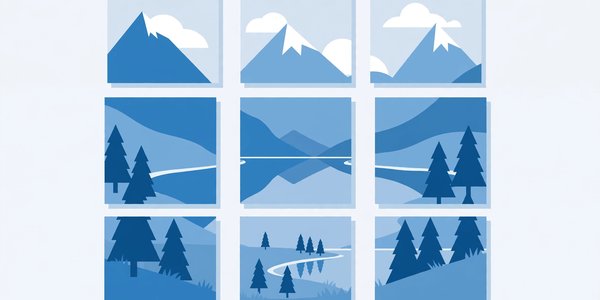
You have seen those stunning Instagram profiles where nine square posts combine into one giant image. You have watched a puzzle come together from pieces of a single photo. You have wondered how designers turn one banner into a neat grid of tiles for a website. The secret is image splitting, and it used to require careful manual work in Photoshop. The Image Splitter from A Tool Today does it for you in seconds. Upload any photo, choose how many rows and columns you want, and download perfectly cut tiles ready to post, print or play with. Everything runs in your browser with no software to install, no account to create and no cost at all. Whether you are a creator building an eye-catching Instagram grid, a teacher making a custom photo puzzle for the classroom, a designer preparing tiled graphics for a website, or a print shop customer splitting a panorama across multiple sheets, this free online tool turns one image into many flawless pieces. Precise cuts, zero hassle, instant downloads.
The precision is what makes the difference. When tiles are cut by hand, tiny measurement errors create visible seams and misaligned edges that ruin the effect. Our splitter calculates mathematically exact divisions, so every tile is identical in size and the full image reassembles without gaps. You get professional results that look like they took hours, in less time than it takes to make coffee.
How to Use Image Splitter
Splitting an image into a perfect grid takes less than a minute from upload to download. The tool handles all the measuring and cutting math for you. Follow these steps and your tiles will be ready to use.
- Upload your image. Drag and drop your photo into the tool or click to browse your device. JPG, PNG and WebP files all work. Tip: start with the highest resolution version you have. When one image becomes nine or sixteen tiles, each piece needs enough pixels to stay sharp.
- Choose your rows and columns. Set how many horizontal rows and vertical columns you want. A 3 by 3 grid gives you the classic Instagram profile mosaic, while 2 by 2 works for simple four-panel collages. Tip: think about where the tiles will live. Instagram posts are square, so square-friendly grids like 3 by 3 look best there.
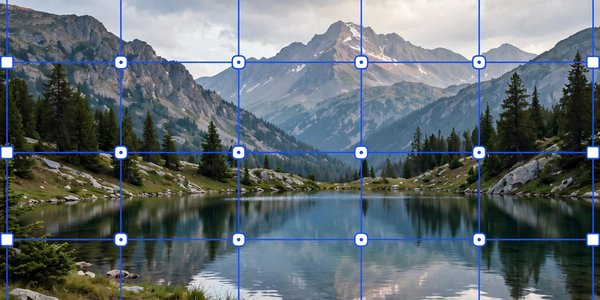
- Adjust the split lines. The preview shows exactly where each cut will fall. Drag the grid lines if you need to shift a cut away from an important detail like a face or a logo. Tip: keep faces and key subjects inside a single tile rather than sliced across a boundary. Viewers notice awkwardly cut faces immediately.
- Preview every tile. Click through the tile previews to inspect each piece at full size. This is your quality checkpoint before downloading. Tip: check the edges where tiles meet. Straight lines and horizons that continue smoothly across tiles are the sign of a clean split.
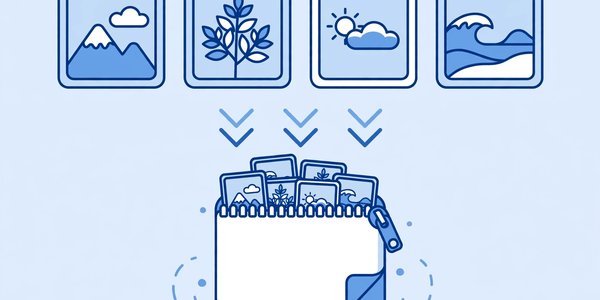
- Pick your download format. Choose to download all tiles together in a single ZIP file or grab individual tiles one by one. PNG keeps maximum quality while JPG gives smaller files. Tip: the ZIP option is fastest for full grids, since tiles download in correct numbered order and you never lose track of which piece goes where.
- Download and use your tiles. Save the files to your device and put them to work. Upload them as an Instagram carousel or profile grid, print them as separate sheets, or use them as puzzle pieces. Tip: for Instagram profile grids, post the tiles in reverse order, starting with the bottom-right piece, so they land in the correct positions.
Key Features
- Custom row and column grids. Split into any configuration from a simple 2 by 2 up to large multi-tile grids. You define the exact layout instead of being stuck with presets, so the tool fits Instagram grids, banners, puzzles and print projects alike.
- Live visual preview with draggable lines. See exactly where every cut will fall before you commit. Drag split lines to protect important details, and watch the grid update in real time as you adjust rows and columns.
- Pixel-perfect equal tiles. The tool calculates mathematically even divisions, so every tile is exactly the same size with no slivers or rounding errors. Your grid reassembles seamlessly with no gaps or overlaps.
- Batch ZIP download. Download the entire set of tiles in one organized ZIP archive with sensible numbered filenames. No clicking through dozens of individual downloads when you split a large grid.
- Individual tile downloads. Prefer to grab just one or two pieces? Download any single tile on its own. Handy when you only need a cropped section or want to replace one tile in an existing set.
- Quality-preserving output. Tiles are cut from your original image without recompression damage. What you upload is what each tile contains, so prints stay crisp and social posts stay sharp.
- Works with all common formats. Upload JPG, PNG, WebP and other standard image formats. No conversion step needed, and you can choose your preferred output format for the tiles.
- Free, private and signup-free. Split unlimited images at no cost with no account. All cutting happens locally in your browser, so your photos never travel to a server and stay completely private.
Why Use Our Image Splitter?
Splitting images by hand is tedious and error-prone. Measuring pixels, drawing guides, slicing and exporting each piece individually can eat up half an hour for a single grid, and one miscalculation ruins the whole set. Our Image Splitter reduces that entire process to a few clicks with mathematically perfect results every time. Content creators use it to build those scroll-stopping Instagram profile grids and multi-image carousels that make followers pause. A single panorama split across three carousel slides gets dramatically more engagement than one cropped square, because viewers swipe to see the whole scene. Teachers and parents turn family photos or educational images into custom puzzles that kids assemble, which is far more personal than a store-bought puzzle. Web designers split hero banners into tiles for creative layouts and loading effects. Print enthusiasts divide large artwork across multiple sheets for impressive wall displays assembled from standard printer paper. Event organizers create tiled photo walls from a single group picture. Because the tool is free and runs entirely in your browser, there is no reason to do this painful manual work ever again. Upload, set your grid, download, done. Your tiles are pixel-perfect in seconds, and you can get back to the creative part of your project.
Beyond social media, the practical uses keep growing. Real estate agents split wide property panoramas into swipeable carousel slides that showcase a room far better than a single cropped square. Restaurants turn a long menu board photo into readable tiled posts. Crafters print tiled patterns across multiple sheets for large templates. Anytime one image is too wide, too tall or too detailed for a single frame, splitting it into tiles is the answer, and doing it with exact precision is what makes the result look intentional rather than accidental.
Tips for Best Results
- Use high-resolution source images. Splitting divides your pixels among the tiles, so a 900 pixel image cut into nine tiles gives you tiny 300 pixel pieces. Start big and your tiles stay sharp everywhere they appear.
- Plan for square outputs on Instagram. Instagram displays grid tiles as squares, so compose or crop your source image with square tiles in mind. Wide panoramas work beautifully for carousels but get awkwardly cropped in profile grids.
- Keep important subjects off the cut lines. Faces, text and logos look broken when sliced across tiles. Use the draggable grid lines to nudge cuts into background areas, skies or other forgiving zones.
- Mind the visual flow across tiles. The most impressive grids tell a visual story across the whole image. Check that colors, lines and subjects flow naturally from tile to tile in the preview before downloading.
- Name and organize your downloads. The numbered ZIP filenames preserve tile order, which is gold when you are uploading nine pieces to Instagram. Keep that order intact and the reassembly is foolproof.
- Test one tile before committing. Download a single tile first and view it at its final size, whether that is an Instagram post or a printed sheet. Confirming sharpness on one piece saves you from redoing the whole set.
Frequently Asked Questions
Is the Image Splitter really free?
Yes, completely free with no limits that matter. You can split as many images as you like into any grid size, download full ZIP archives of tiles, and use the results for personal or commercial projects. There is no account to create, no watermark added to your tiles and no premium tier. A Tool Today keeps everyday utilities like this free because splitting an image is a simple task that should never require expensive software or a subscription. Open the page and start splitting immediately.
What grid sizes can I create?
You can create any rectangular grid by setting the number of rows and columns independently, from a simple 2 by 2 all the way up to large multi-tile layouts. The classic 3 by 3 is the most popular choice for Instagram profile grids, 1 by 3 or 1 by 5 work beautifully for swipeable panoramas, and bigger grids suit puzzles and print projects. Because rows and columns are set separately, you are not limited to square grids. Design whatever layout your project needs and the tool cuts it precisely.
Will splitting reduce my image quality?
No. The splitter cuts tiles directly from your original image data without recompressing or degrading it. Each tile contains the exact pixels from its region of the source photo at full quality. The only real consideration is resolution math: dividing an image into many tiles means each tile has fewer pixels, so starting with a high-resolution source is important. As long as your original is large enough for the final use, whether Instagram posts or prints, your tiles will look crisp and clean.
How do I post the tiles as an Instagram grid?
Download your tiles as a ZIP, extract them, and note the numbered filenames which preserve the correct order. For a profile grid, upload the tiles starting with the bottom-right piece and working backward to the top-left, because Instagram displays newest posts first at the top left. For a carousel post, upload in normal numbered order so viewers swipe left to right through the scene. Keep each tile square, add your caption to the final post, and your mosaic will assemble perfectly on your profile.
Complete List of All Free Online Tools
Browse the full directory of 450+ free tools. Click any tool name to use it instantly - no signup required.
| # | Tool Name | Category |
|---|---|---|
| 1 | A B Test Significance Calculator | Calculators & Converters |
| 2 | Acronym Generator | Utility Tools |
| 3 | Ad Copy Generator | Utility Tools |
| 4 | Add Page Numbers To PDF | PDF Tools |
| 5 | Add Subtitles To Video | Media Tools |
| 6 | Add Subtract Days Calculator | Calculators & Converters |
| 7 | Age Calculator | Calculators & Converters |
| 8 | Angle Converter | Calculators & Converters |
| 9 | API Request Tester | Utility Tools |
| 10 | Area Converter | Calculators & Converters |
| 11 | Article Rewriter | Utility Tools |
| 12 | Audio Converter | Calculators & Converters |
| 13 | Audio Merger | Media Tools |
| 14 | Audio Metadata Editor | Media Tools |
| 15 | Audio Pitch Changer | Media Tools |
| 16 | Audio Speed Changer | Media Tools |
| 17 | Audio To Text Converter | Calculators & Converters |
| 18 | Audio Trimmer | Media Tools |
| 19 | Avatar Maker | Utility Tools |
| 20 | Background Remover | Utility Tools |
| 21 | Backlink Checker | SEO Tools |
| 22 | Banner Maker | Utility Tools |
| 23 | Barcode Generator | Developer Tools |
| 24 | Base64 Encoder Decoder | Developer Tools |
| 25 | Bass Booster | Utility Tools |
| 26 | Bibliography Generator | Utility Tools |
| 27 | Bill Splitter | Utility Tools |
| 28 | Binary Converter | Calculators & Converters |
| 29 | Binary To Text Converter | Calculators & Converters |
| 30 | Birthday Countdown | Date & Time Tools |
| 31 | Bmi Calculator | Calculators & Converters |
| 32 | Bmr Calculator | Calculators & Converters |
| 33 | Body Fat Calculator | Calculators & Converters |
| 34 | Body Surface Area Calculator | Calculators & Converters |
| 35 | Book Title Generator | Utility Tools |
| 36 | Brand Color Finder | Color Tools |
| 37 | Brand Kit Generator | Utility Tools |
| 38 | Break Even Calculator | Calculators & Converters |
| 39 | Broken Link Checker | Utility Tools |
| 40 | Browser Info Checker | Utility Tools |
| 41 | Budget Planner | Utility Tools |
| 42 | Business Card Designer | Utility Tools |
| 43 | Business Card Maker | Utility Tools |
| 44 | Business Days Calculator | Calculators & Converters |
| 45 | Business Name Generator | Utility Tools |
| 46 | Business Proposal Generator | Utility Tools |
| 47 | Button Generator | Utility Tools |
| 48 | Buyer Persona Generator | Utility Tools |
| 49 | Calorie Calculator | Calculators & Converters |
| 50 | Captcha Generator | Utility Tools |
Are my images uploaded to a server?
No, never. The entire splitting process happens locally inside your browser on your own device. Your photos are not uploaded, stored or transmitted anywhere, which means personal photos, client work and unreleased creative projects remain fully private. This local processing also makes the tool fast, since there is no waiting for uploads and downloads to a remote server. Close the tab when you are done and nothing of your image remains behind. This makes the tool safe for client projects, unreleased creative work and personal photos alike, with zero risk of leaks.
Can I split an image for printing across multiple pages?
Yes, and it works wonderfully for that. Split a large photo or poster design into a grid, download the tiles, and print each one on standard paper. Trim the margins and assemble them on a wall for an impressive large-format display from an ordinary home printer. Use high-resolution source images for the sharpest prints, choose PNG output to avoid compression artifacts, and consider adding a small overlap plan when trimming. Many users create striking wall art this way for a fraction of professional printing costs.
Which file formats are supported for upload and download?
You can upload JPG, JPEG, PNG, WebP and other common image formats with no conversion needed beforehand. For downloads, you can choose between PNG and JPG tiles depending on your needs. PNG preserves maximum quality and is ideal for graphics, text-heavy images and anything you plan to print. JPG produces smaller files which upload faster to social media. The ZIP archive option bundles all tiles regardless of format, keeping everything organized in correct numbered order. If you are unsure which to pick, choose PNG for graphics and text, and JPG for photographs destined for social media.
Can I split an image into unequal or custom-shaped pieces?
The tool specializes in clean rectangular grids with equal tiles, which covers the vast majority of needs from Instagram mosaics to print tiling. If you need unequal sections, a practical workaround is to split into a finer grid and then combine adjacent tiles for the larger areas you want. For truly custom shapes like circles or jigsaw pieces, you would need dedicated graphic software. But for grids, carousels, banners and puzzles, equal tiles give the most professional and predictable result, which is why the tool focuses on doing them perfectly.
Table of Contents
What is Image Splitter?
The image splitter is a free online tool that helps you with image splitter tasks quickly and accurately. Our image splitter is designed to be simple, fast, and reliable. Whether you need a image splitter for personal use or professional work, this free image splitter delivers instant results without any signup or download required.
How to Use the Image Splitter
Using our image splitter is easy. Simply open the image splitter tool above, enter your input, and get instant results. The image splitter processes everything in your browser for maximum privacy and speed. No technical knowledge is needed to use this image splitter effectively.
Benefits of Using Our Image Splitter
Our free image splitter offers many advantages. It is completely free to use, requires no registration, works on all devices, and provides accurate results instantly. The image splitter is updated regularly to ensure the best performance. For more information about image splitter, you can Learn more about image splitter on Wikipedia.
Frequently Asked Questions About Image Splitter
Is the image splitter really free? Yes, our image splitter is 100% free with no hidden costs or premium tiers.
Do I need to create an account to use the image splitter? No, the image splitter works instantly without any signup or login required.
