Image Color Picker
You are scrolling through photos and one image stops you cold. The sunset in that travel shot has the exact orange you want for your website button. The deep forest green in a product photo matches your brand perfectly. The soft beige in an interior design picture would look amazing as your blog background. But how do you find the precise code for that color? Guessing never works. Close enough always looks wrong sitting next to your real brand palette. That is exactly why the Image Color Picker from A Tool Today exists. Upload any image, click on any pixel, and instantly reveal its HEX, RGB and HSL color codes. No software to install, no account to create, and no design experience needed. Whether you are a web designer matching client branding, a developer styling a button, a blogger building a cohesive color scheme, or just someone who fell in love with a shade in a photo, this free online tool gives you the exact color data you need in seconds, right in your browser.

How to Use Image Color Picker
Pulling the exact color from any image takes less than a minute. There is no learning curve and no settings to configure first. Follow the steps below and you will have professional color codes ready to paste into your project.
- Upload your image. Drag and drop a photo into the tool area, or click to browse your device and select a file. The tool accepts JPG, PNG, WebP and other common formats. Tip: use the highest resolution version of the image you have. More pixels mean you can zoom in further and sample the exact shade you want instead of a blurry average.
- Zoom into the area you want to sample. Use the built-in magnifier to zoom in on the part of the image that holds your target color. At normal size a single pixel is easy to miss, especially on detailed photos. Tip: zoom to around 200 to 400 percent before you click. The magnifier shows you a close-up grid so you can see exactly which pixel your cursor is over.
- Click the exact pixel. Move the eyedropper over the zoomed image and click the pixel that holds your color. The tool instantly reads the color data from that single point and displays it in every supported format. Tip: avoid clicking right on edges, text outlines or gradients where two colors blend. Sample from a flat, solid area for the cleanest reading.
- Review the color codes. The results panel shows your picked color as a large swatch plus its HEX code, RGB values and HSL values side by side. Each format has its own job. HEX is perfect for CSS and web design, RGB works great in graphic software, and HSL makes it easy to create lighter or darker variations. Tip: glance at the swatch next to the original image to confirm the match looks right before you copy anything.
- Copy the code you need. Hit the one-click copy button next to any format to send that code straight to your clipboard. Then paste it into your stylesheet, design tool, presentation or document. Tip: build a small palette by sampling several colors from the same image. Colors pulled from one photo naturally harmonize, which is a classic designer trick for cohesive schemes.
- Save or download your palette. Your recently picked colors stay visible in the history panel during your session, and you can download your palette as a handy reference file. Tip: name each color as you save it, like hero-button orange or footer background. Future you will thank present you when the project grows.

Key Features
- Precision eyedropper with live magnifier. The zoom lens follows your cursor and shows a pixel-level grid, so you never have to guess which pixel you are sampling. This is the difference between a professional color match and an almost match.
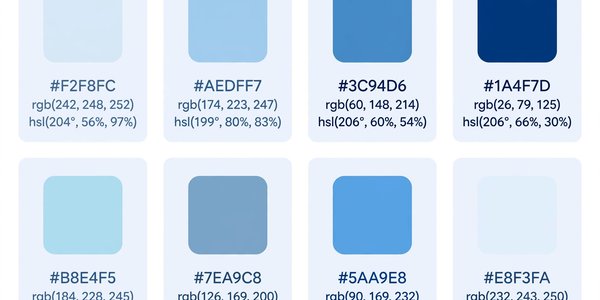
- Every color format you need. Each click returns the color in HEX, RGB and HSL formats at the same time. Web developers can grab the HEX code for CSS, print designers can work with the RGB values, and anyone can use HSL to tweak lightness and saturation.
- One-click copy buttons. Every code has its own copy button. One tap sends the exact value to your clipboard with no extra spaces or formatting to clean up. Paste directly into Figma, Photoshop, VS Code or Canva.
- Color history and palette builder. Every color you pick is stored in a session history, so you can sample a dozen shades from an image and compare them side by side. Build full palettes from a single photo in minutes.
- Works with all common image formats. Upload JPG, PNG, WebP, BMP or GIF files straight from your phone, camera or downloads folder. No conversion step needed before you start picking colors.
- 100 percent private processing. Your images never leave your device. All color sampling happens locally in your browser, so client artwork, unreleased product shots and personal photos stay completely private.
- Free forever with no signup. There are no accounts, no trial periods and no locked premium formats. Open the page and start picking colors immediately, as many times as you like.
- Fully mobile friendly. The touch-friendly eyedropper works on phones and tablets too. Sample colors from a photo you just took while you are still on location, with pinch zoom for precision.
Why Use Our Image Color Picker?
Color is one of the fastest ways to make a design feel professional or amateur, and the difference usually comes down to precision. When a brand color is slightly off, visitors sense that something is wrong even if they cannot name it. Our Image Color Picker removes the guesswork. A freelance designer can pull the exact brand blue from a client’s old logo file instead of asking for a brand guide that may not exist. A front-end developer can match a button to a hero image in seconds instead of opening heavyweight software. A blogger can build a Pinterest graphic palette straight from their own photography, which keeps their whole feed looking intentional. Small business owners use it to keep their website, social posts and printed flyers in the same family of colors, which builds recognition over time. Students and hobbyists use it to learn how real-world photos translate into digital color codes, which is a genuinely fun way to train your eye. Because the tool runs entirely in your browser, it fits into any workflow. Keep the tab open next to your editor, sample as you work, and paste codes without ever switching apps. It is the kind of small utility that quietly saves you an hour a week.
Tips for Best Results
- Sample from flat, solid areas. The middle of a wall, a clear patch of sky or a solid shirt gives the truest reading. Edges and fine details blend neighboring colors together through anti-aliasing, which skews your sample.
- Zoom in before you click. A pixel that looks pure blue at full view might be a mosaic of blue, purple and gray up close. The magnifier is your best friend for landing on the true dominant shade.
- Watch out for JPEG compression. Heavily compressed photos contain blocky artifacts and color noise. If the reading looks off, try sampling a few nearby pixels and pick the one that appears most often.
- Remember that lighting changes color. A white shirt in warm sunset light will sample as cream, not pure white. That is accurate to the photo, but if you need the real-world color, sample a neutrally lit area or adjust afterward.
- Test the color in context. A shade that looks perfect inside a photo can behave differently on your background. Paste the code into your actual design and check contrast and harmony before committing to it.
- Save palettes, not just single colors. One great color is useful, but a set of five pulled from the same image gives you backgrounds, accents and text colors that already work together. Future projects will go twice as fast.
Frequently Asked Questions
Is the Image Color Picker really free to use?
Yes, completely free with no catches. You can pick as many colors as you want from as many images as you want, and every format, HEX, RGB and HSL, is included at no cost. There is no account to create, no trial clock ticking down, and no premium tier hiding the features you actually need. A Tool Today keeps this utility free because color picking is one of those everyday tasks that should never sit behind a paywall. Just open the page in your browser and start sampling colors immediately.
Are my images uploaded to a server when I use the tool?
No. Your images are never uploaded anywhere. The Image Color Picker processes everything locally inside your browser on your own device. The file you select stays on your computer or phone from start to finish, and the color sampling math runs in the page itself. This means client artwork, unreleased product photos, personal pictures and confidential mockups remain fully private. Nothing is stored, logged or transmitted, so you can safely use the tool with sensitive images. Even on shared or public computers, your files remain visible only to you during your session and vanish the moment you close the tab.
Which image formats does the tool support?
The tool accepts all the formats you are likely to have: JPG and JPEG photos from cameras and phones, PNG files including ones with transparency, modern WebP images from the web, plus BMP and GIF files. You do not need to convert anything before uploading. If your image opens in a normal image viewer or web browser, it will almost certainly work here. For the most accurate sampling, use the highest resolution original rather than a thumbnail or a heavily compressed social media copy.
What is the difference between HEX, RGB and HSL color codes?
They are three ways of describing the exact same color. HEX is a six-character code like #3B82F6 that web developers paste directly into CSS, and it is the most common format for websites. RGB describes a color as amounts of red, green and blue light, like rgb(59, 130, 246), and it is widely used in graphic design software. HSL describes hue, saturation and lightness, like hsl(217, 91%, 60%), which makes it intuitive for humans: you can easily create a lighter or darker version by changing one number. Our tool shows all three at once so you can grab whichever fits your workflow.
How accurate is the color sampling?
The sampling is pixel-perfect: the tool reads the exact digital value of the pixel you click, with zero estimation involved. What you see in the result is precisely what that pixel contains. The only thing to keep in mind is that the pixel itself reflects the photo, including its lighting, shadows and compression. So if you click a shaded part of a red shirt, you will get the accurate code for that shaded red, not the shirt’s color in daylight. Zoom in with the magnifier and sample from well-lit, flat areas for readings that best represent the true color.
Complete List of All Free Online Tools
Browse the full directory of 450+ free tools. Click any tool name to use it instantly - no signup required.
| # | Tool Name | Category |
|---|---|---|
| 1 | A B Test Significance Calculator | Calculators & Converters |
| 2 | Acronym Generator | Utility Tools |
| 3 | Ad Copy Generator | Utility Tools |
| 4 | Add Page Numbers To PDF | PDF Tools |
| 5 | Add Subtitles To Video | Media Tools |
| 6 | Add Subtract Days Calculator | Calculators & Converters |
| 7 | Age Calculator | Calculators & Converters |
| 8 | Angle Converter | Calculators & Converters |
| 9 | API Request Tester | Utility Tools |
| 10 | Area Converter | Calculators & Converters |
| 11 | Article Rewriter | Utility Tools |
| 12 | Audio Converter | Calculators & Converters |
| 13 | Audio Merger | Media Tools |
| 14 | Audio Metadata Editor | Media Tools |
| 15 | Audio Pitch Changer | Media Tools |
| 16 | Audio Speed Changer | Media Tools |
| 17 | Audio To Text Converter | Calculators & Converters |
| 18 | Audio Trimmer | Media Tools |
| 19 | Avatar Maker | Utility Tools |
| 20 | Background Remover | Utility Tools |
| 21 | Backlink Checker | SEO Tools |
| 22 | Banner Maker | Utility Tools |
| 23 | Barcode Generator | Developer Tools |
| 24 | Base64 Encoder Decoder | Developer Tools |
| 25 | Bass Booster | Utility Tools |
| 26 | Bibliography Generator | Utility Tools |
| 27 | Bill Splitter | Utility Tools |
| 28 | Binary Converter | Calculators & Converters |
| 29 | Binary To Text Converter | Calculators & Converters |
| 30 | Birthday Countdown | Date & Time Tools |
| 31 | Bmi Calculator | Calculators & Converters |
| 32 | Bmr Calculator | Calculators & Converters |
| 33 | Body Fat Calculator | Calculators & Converters |
| 34 | Body Surface Area Calculator | Calculators & Converters |
| 35 | Book Title Generator | Utility Tools |
| 36 | Brand Color Finder | Color Tools |
| 37 | Brand Kit Generator | Utility Tools |
| 38 | Break Even Calculator | Calculators & Converters |
| 39 | Broken Link Checker | Utility Tools |
| 40 | Browser Info Checker | Utility Tools |
| 41 | Budget Planner | Utility Tools |
| 42 | Business Card Designer | Utility Tools |
| 43 | Business Card Maker | Utility Tools |
| 44 | Business Days Calculator | Calculators & Converters |
| 45 | Business Name Generator | Utility Tools |
| 46 | Business Proposal Generator | Utility Tools |
| 47 | Button Generator | Utility Tools |
| 48 | Buyer Persona Generator | Utility Tools |
| 49 | Calorie Calculator | Calculators & Converters |
| 50 | Captcha Generator | Utility Tools |
Can I use the Image Color Picker on my phone or tablet?
Absolutely. The tool is fully responsive and the eyedropper is touch friendly. You can open it in your mobile browser, upload a photo from your camera roll or take a fresh picture, then tap to sample colors. Pinch to zoom works for precision just like on desktop. This is genuinely handy for on-the-go work: interior designers sample paint colors from inspiration photos at a client’s home, and social media managers grab brand colors while shooting content. Everything works the same as the desktop version.
Can I save or download my color palette?
Yes. Every color you sample is kept in a visible history panel during your session, so you can build up a palette from one image or several without losing earlier picks. When you are happy with the set, you can download the palette as a reference file to keep with your project assets. This is perfect for handing off to a teammate or client: instead of saying the blue from that photo, you send exact codes everyone can use. Naming your colors as you save them makes the palette even more useful later.
Can I use the Image Color Picker for print design work?
Yes, and many print designers do exactly that. While screens use RGB and printers use CMYK, starting from an exact RGB reading gives you a precise foundation to convert from. Sample the color from your reference image, copy the RGB values, then convert them to CMYK in your design software or with a free converter. Because you are starting from the true pixel value rather than a guess, your printed colors land much closer to the original. Just remember that screens and printers reproduce color differently, so always request a proof from your printer for critical brand work.
Table of Contents
What is Image Color Picker?
The image color picker is a free online tool that helps you with image color picker tasks quickly and accurately. Our image color picker is designed to be simple, fast, and reliable. Whether you need a image color picker for personal use or professional work, this free image color picker delivers instant results without any signup or download required.
How to Use the Image Color Picker
Using our image color picker is easy. Simply open the image color picker tool above, enter your input, and get instant results. The image color picker processes everything in your browser for maximum privacy and speed. No technical knowledge is needed to use this image color picker effectively.
Benefits of Using Our Image Color Picker
Our free image color picker offers many advantages. It is completely free to use, requires no registration, works on all devices, and provides accurate results instantly. The image color picker is updated regularly to ensure the best performance. For more information about image color picker, you can Learn more about image color picker on Wikipedia.
Frequently Asked Questions About Image Color Picker
Is the image color picker really free? Yes, our image color picker is 100% free with no hidden costs or premium tiers.
Do I need to create an account to use the image color picker? No, the image color picker works instantly without any signup or login required.
