MAC Address Lookup
There is a mystery device on your WiFi network. Your router’s client list shows a string like 8C:3B:AD:4F:22:19, but that tells you nothing about what the device actually is. Is it your smart TV, a neighbor borrowing your connection, or something you should worry about? Our free MAC Address Lookup turns that cryptic code into useful information in seconds. Paste any MAC address and the tool identifies the manufacturer behind it by matching the address against the official OUI registry. Suddenly that unknown device has a name, like a known phone maker or network brand, and you can decide what to do next. No signup, no software, no guesswork.

How to Use the MAC Address Lookup
Looking up a MAC address is one of the simplest network tasks there is. If you can copy and paste, you already know everything required. Here is the full process.
Most people go from confused to confident in under a minute.
Keep this page bookmarked and the next mystery device will take seconds to identify.
- Find the MAC address you want to identify. Check your router’s connected devices page, your phone’s WiFi settings, or the label on the device itself. On Windows, the ipconfig command with the all flag shows it. On Mac and Linux, the network settings or the ifconfig command reveal it. Copy the full address exactly as shown.
- Paste it into the lookup box. The tool accepts every common format, so do not waste time reformatting. Addresses with colons, hyphens, dots, or no separators at all all work fine. Uppercase and lowercase letters are both accepted.
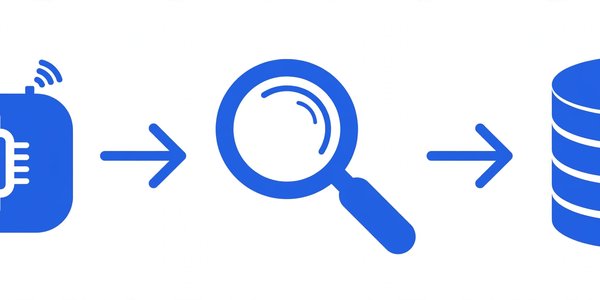
- Run the lookup. Hit the search button and the tool extracts the first half of the address, known as the OUI, and searches the manufacturer registry. The match happens almost instantly.
- Read the vendor result. The report shows the company that registered that block of addresses, along with the OUI prefix itself. For example, you might learn the device was made by a well known smartphone brand, a laptop manufacturer, or a maker of smart home gadgets.
- Match the vendor to your devices. Compare the manufacturer name against the gadgets you own. If the vendor matches your smart TV brand and the device joined your network yesterday, mystery solved. If nothing you own comes from that company, keep investigating.
- Decide what to do next. For a device you recognize, consider giving it a friendly name in your router settings so you spot it instantly next time. For a device you do not recognize, change your WiFi password, enable MAC filtering, or block the device while you dig deeper.
- Build your device inventory. Repeat the lookup for the other devices on your network and save the results in a simple list. A documented inventory makes future troubleshooting dramatically faster, because the next unknown address gets compared against known devices instead of investigated from scratch.
Double check you grabbed the WiFi address and not the Bluetooth one, since many devices show both.
There is no waiting room and no progress bar to watch.
The vendor name appears immediately below the input box.
Key Features
A MAC lookup is only as good as its database and its ease of use. Ours is built to give you the right manufacturer on the first try, without friction.
Everything is tuned for the moment you are staring at a mystery address and need an answer now.
- Huge up to date OUI database. The tool matches addresses against the official registry of manufacturer assignments, refreshed regularly. New device makers and new address blocks are included, so even recent gadgets get identified correctly.
- Accepts any address format. Colons, hyphens, Cisco style dots, or plain hex with no separators. The parser normalizes whatever you paste, so you never have to retype an address to make the tool happy.
- Instant results. The lookup completes in a fraction of a second. Paste, click, and read the vendor name. It is fast enough to use while you are staring at your router’s device list.
- Shows the OUI prefix clearly. Beyond the vendor name, the report displays the exact OUI prefix that matched. This helps advanced users verify results and document their network inventory with precision.
- No signup and no install. The whole tool lives in your browser. There is no account to create and nothing to download, which means you can use it on a work computer or a phone just as easily.
- Completely free with no limits. Look up one address or one hundred. There is no quota, no paywall, and no feature locked behind registration. Network troubleshooting should not cost money.
- Privacy friendly. We do not ask who you are or log your lookups against an identity. A MAC address lookup reveals only public manufacturer data, and we keep it that simple.
- Works great on mobile. The layout is fully responsive, so checking a suspicious device while standing next to your router with your phone is quick and painless.
Why Use Our MAC Address Lookup?
Your home and office networks are filling up with connected things. Phones, laptops, TVs, thermostats, cameras, speakers, light bulbs, and gadgets you forgot you even owned all join your WiFi and appear in your router as anonymous strings of hex digits. When something looks unfamiliar, most people either ignore it or panic. Neither reaction is useful. A quick vendor lookup is the calm middle path. It turns an anonymous address into a manufacturer name, and that single clue is often enough to identify the device or confirm it deserves a closer look.
Network admins use this trick daily. They audit company networks, track down rogue access points, and build accurate device inventories without walking to every desk. Parents use it to figure out which mysterious device is hogging bandwidth at homework time. Security conscious folks use it to spot intruders after noticing an unknown client on their guest network. In each case the lookup takes seconds and replaces speculation with a concrete lead.
That is why this free tool from A Tool Today keeps things radically simple. No bloated network suite, no command line, no registration wall between you and the answer. Paste the address, learn the maker, and move on with your troubleshooting. It is a small tool that solves a surprisingly common headache, and it is ready whenever a mystery device appears on your network.
There is also a quiet confidence that comes from knowing your network inventory. When every device on your router has a name and a known vendor, an intruder sticks out immediately instead of hiding among anonymous addresses. That visibility is the foundation of every good home and office security practice, from guest network policies to parental controls. A free lookup tool turns an afternoon of detective work into a ten minute labeling session.
And the skill compounds. The first time you identify a mystery device, it feels like a small victory. The tenth time, you read vendor names the way a mechanic reads engine sounds, instantly and without effort. Students learning networking, new IT hires, and curious homeowners all build the same intuition. All it takes is a tool that answers in seconds instead of burying you in documentation, which is exactly what this lookup was designed to do.
Tips for Best Results
A vendor name is a clue, not a full identity. These tips will help you interpret lookup results like a pro and avoid the traps that confuse beginners.
Internalize them and you will read lookup results with the confidence of a network admin.
- Remember that the vendor is the chip maker, not always the brand. Many gadgets use network chips from a handful of large suppliers. A smart bulb might show a chip vendor you have never heard of rather than the brand on the box. If the name is unfamiliar, search it together with your device type.
- Watch out for randomized MAC addresses. Modern phones and laptops can randomize their MAC for privacy, using locally assigned addresses that will not match any manufacturer. If a lookup returns no vendor, randomization is a likely explanation, not a broken tool.
- Virtual machines show the hypervisor vendor. A virtual machine’s virtual network card usually carries the virtualization platform’s OUI rather than the guest’s identity. Seeing a virtualization vendor on your network often just means someone is running a VM.
- Label known devices in your router. After identifying your gadgets, give each one a friendly name in the router settings. Next time you scan the client list, you will recognize everything instantly instead of looking up addresses again.
- Combine with an IP scan for the full picture. A MAC lookup tells you the maker, while a network scan tells you the IP and open ports. Together they give you a much richer profile of an unknown device than either one alone.
- Some vendors own many OUI blocks. Huge manufacturers register dozens of address ranges over the years. If one address from a brand does not match, a slightly different prefix from the same company might. The database covers these, but knowing this saves confusion.
A quick web search for the chip maker plus your device type usually closes the gap.
Future you will be grateful the first time an unknown device appears.
A little labeling now prevents a lot of head scratching later.
Frequently Asked Questions
MAC addresses sound mysterious until someone explains them plainly. Here are the essentials, answered without jargon.
Complete List of All Free Online Tools
Browse the full directory of 450+ free tools. Click any tool name to use it instantly - no signup required.
| # | Tool Name | Category |
|---|---|---|
| 1 | A B Test Significance Calculator | Calculators & Converters |
| 2 | Acronym Generator | Utility Tools |
| 3 | Ad Copy Generator | Utility Tools |
| 4 | Add Page Numbers To PDF | PDF Tools |
| 5 | Add Subtitles To Video | Media Tools |
| 6 | Add Subtract Days Calculator | Calculators & Converters |
| 7 | Age Calculator | Calculators & Converters |
| 8 | Angle Converter | Calculators & Converters |
| 9 | API Request Tester | Utility Tools |
| 10 | Area Converter | Calculators & Converters |
| 11 | Article Rewriter | Utility Tools |
| 12 | Audio Converter | Calculators & Converters |
| 13 | Audio Merger | Media Tools |
| 14 | Audio Metadata Editor | Media Tools |
| 15 | Audio Pitch Changer | Media Tools |
| 16 | Audio Speed Changer | Media Tools |
| 17 | Audio To Text Converter | Calculators & Converters |
| 18 | Audio Trimmer | Media Tools |
| 19 | Avatar Maker | Utility Tools |
| 20 | Background Remover | Utility Tools |
| 21 | Backlink Checker | SEO Tools |
| 22 | Banner Maker | Utility Tools |
| 23 | Barcode Generator | Developer Tools |
| 24 | Base64 Encoder Decoder | Developer Tools |
| 25 | Bass Booster | Utility Tools |
| 26 | Bibliography Generator | Utility Tools |
| 27 | Bill Splitter | Utility Tools |
| 28 | Binary Converter | Calculators & Converters |
| 29 | Binary To Text Converter | Calculators & Converters |
| 30 | Birthday Countdown | Date & Time Tools |
| 31 | Bmi Calculator | Calculators & Converters |
| 32 | Bmr Calculator | Calculators & Converters |
| 33 | Body Fat Calculator | Calculators & Converters |
| 34 | Body Surface Area Calculator | Calculators & Converters |
| 35 | Book Title Generator | Utility Tools |
| 36 | Brand Color Finder | Color Tools |
| 37 | Brand Kit Generator | Utility Tools |
| 38 | Break Even Calculator | Calculators & Converters |
| 39 | Broken Link Checker | Utility Tools |
| 40 | Browser Info Checker | Utility Tools |
| 41 | Budget Planner | Utility Tools |
| 42 | Business Card Designer | Utility Tools |
| 43 | Business Card Maker | Utility Tools |
| 44 | Business Days Calculator | Calculators & Converters |
| 45 | Business Name Generator | Utility Tools |
| 46 | Business Proposal Generator | Utility Tools |
| 47 | Button Generator | Utility Tools |
| 48 | Buyer Persona Generator | Utility Tools |
| 49 | Calorie Calculator | Calculators & Converters |
| 50 | Captcha Generator | Utility Tools |
What is a MAC address?
A MAC address is a unique hardware identifier assigned to every network interface, like the WiFi chip in your phone or the ethernet port on your laptop. It is written as six pairs of hexadecimal digits and is used by your local network to deliver data to the right device. Unlike an IP address, it normally stays the same for the life of the hardware.
What is an OUI?
OUI stands for Organizationally Unique Identifier, and it is simply the first half of a MAC address. Manufacturers buy these prefixes from the IEEE registry, so the first three bytes reveal which company made the network chip. Our tool reads that prefix and tells you the registered vendor name.
Can a lookup tell me the exact device model?
Usually not. The lookup identifies the manufacturer of the network hardware, not the specific model or owner. It can tell you a device came from a certain phone maker, but not which phone or whose phone. For exact identification, combine the vendor clue with the device’s IP address, hostname, and behavior on your network.
Why does the vendor not match my device brand?
Because the brand on the box often buys network chips from someone else. A fitness tracker from a famous brand might contain a WiFi module from a specialized chip supplier, and the OUI reflects the chip supplier. This is completely normal and one of the most common surprises for first time users.
How accurate is the vendor database?
Very accurate for genuine hardware addresses, because OUIs come from the official IEEE registry. The main exceptions are randomized privacy addresses, locally administered addresses, and very new assignments that have not propagated yet. For real factory assigned addresses, the vendor match is reliable.
Can I look up the MAC address of my own devices?
Absolutely, and it is a great way to learn. Look up your laptop, phone, and smart TV to see what the tool reports. This builds your intuition for reading results, so when an unknown device appears you will interpret the vendor name with confidence.
Is this tool really free?
Yes. Every lookup is free and unlimited. There is no account, no trial period, and no premium tier hiding the good results. We believe basic network utilities like this should be available to everyone.
Why do some addresses return no vendor at all?
A blank result usually means the address is locally administered rather than factory assigned. Randomized privacy addresses on modern phones, virtual machine interfaces, and manually set addresses all use a special bit pattern that no manufacturer owns. The tool correctly reports no vendor in these cases, which is itself useful information about the kind of device you are seeing.
When in doubt, check whether the device uses a privacy feature in its WiFi settings.
Table of Contents
What is Mac Address Lookup?
The mac address lookup is a free online tool that helps you with mac address lookup tasks quickly and accurately. Our mac address lookup is designed to be simple, fast, and reliable. Whether you need a mac address lookup for personal use or professional work, this free mac address lookup delivers instant results without any signup or download required.
How to Use the Mac Address Lookup
Using our mac address lookup is easy. Simply open the mac address lookup tool above, enter your input, and get instant results. The mac address lookup processes everything in your browser for maximum privacy and speed. No technical knowledge is needed to use this mac address lookup effectively.
Benefits of Using Our Mac Address Lookup
Our free mac address lookup offers many advantages. It is completely free to use, requires no registration, works on all devices, and provides accurate results instantly. The mac address lookup is updated regularly to ensure the best performance. For more information about mac address lookup, you can Learn more about mac address lookup on Wikipedia.
Frequently Asked Questions About Mac Address Lookup
Is the mac address lookup really free? Yes, our mac address lookup is 100% free with no hidden costs or premium tiers.
Do I need to create an account to use the mac address lookup? No, the mac address lookup works instantly without any signup or login required.
