RGB to Hex Converter
You have the red, green, and blue numbers for a color, but your stylesheet wants a hex code. Maybe your design tool exported rgb(255, 87, 51) and you need #FF5733 for your CSS. Maybe you sampled a color with an eyedropper and got three channel values staring back at you. Converting those numbers to hex by hand means doing base 16 math for each channel, which is slow, boring, and surprisingly easy to mess up. Our RGB to Hex Converter turns those three numbers into a clean hex code instantly.
This free online tool takes your RGB values and produces the exact matching hex code in a single step. Nothing to install, no account needed, and the result is ready to paste into any stylesheet, design file, or brand document. It is built for designers, developers, students, and anyone who works with digital color. Below you will find a step by step walkthrough, a rundown of the features, practical tips, and answers to the questions people ask most.
If color math sounds intimidating, relax, because you will never do any of it yourself. The converter takes care of every calculation the instant you type, so all you need to know is where to find your three numbers. Most color pickers, eyedroppers, and design tools display RGB values right beside the color, which means copying them over takes seconds. Students in their first web design course use this tool with confidence, and so do senior developers who simply value speed. It meets you exactly where you are and handles the rest.
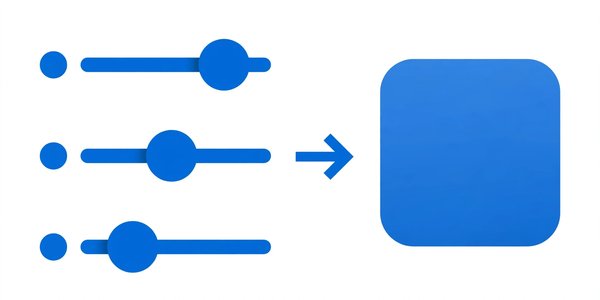
How to Use RGB to Hex Converter
Getting from RGB to hex takes less time than reading this sentence. The steps below show you exactly what to do, along with tips that keep your conversions smooth and mistake free, even the first time you use the tool.
- Enter the red value. Type a number from 0 to 255 into the red field. This number controls how much red light the color contains, with 255 being maximum red. Tip: if your value came from an eyedropper or color picker, copy each channel number exactly as shown.
- Enter the green value. Add the green channel number, also from 0 to 255. Green is the middle channel and it strongly affects how bright a color appears to your eyes. Tip: double check that you did not swap the green and blue values, since this is the most common slip.
- Enter the blue value. Type the blue channel number from 0 to 255. This sets the blue light in the mix. Tip: pure blue, like rgb(0, 0, 255), converts to #0000FF, which is a handy sanity check if you want to test the tool.
- Watch the hex code appear. As soon as all three values are valid, the matching hex code shows up automatically, complete with the hash symbol and a live color swatch. Tip: the swatch lets you confirm at a glance that the result matches the color you had in mind.
- Copy the hex code. Click the copy button and the hex value lands on your clipboard, formatted exactly as CSS expects it. Tip: paste it directly into your stylesheet or design tool without retyping, since retyping hex digits is where errors love to hide.
- Try variations quickly. Nudge any channel up or down to explore lighter, darker, or shifted versions of your color and watch the hex code update in real time. Tip: this is a great way to build a mini palette of tints and shades from one starting color.
- Convert your next color. Change the three fields to your next set of values and repeat. There is no limit and no cooldown between conversions. Tip: keep a list of your RGB triplets in a notes app so you can work through a whole palette without losing your place.

Key Features
- Instant hex output. The hex code appears the moment your three values are complete. No submit button, no waiting, no page reload to break your concentration.
- Validates your input. Numbers outside the 0 to 255 range or non numeric entries are flagged immediately, so you never copy a broken hex code into your project.
- Live color preview. Every result comes with a swatch showing the actual color, giving you instant visual confirmation that your numbers produced the shade you expected.
- One click copy. The result copies to your clipboard in the exact format stylesheets need, hash symbol included, ready to paste anywhere.
- Uppercase hex output. Codes are shown in the standard uppercase format like #FF5733, which is the most widely used convention in CSS and design tools.
- Private by design. Conversion happens locally in your browser, so your color data never leaves your device. No uploads, no logs, no tracking.
- Mobile friendly. The three input fields and result are laid out to work smoothly on phones and tablets, so you can convert colors wherever you are working.
- Free forever. Unlimited conversions with no account, no trial period, and no paywall. It is simply free, provided by A Tool Today.

Why Use Our RGB to Hex Converter?
RGB values are how many tools think about color internally, while hex codes are how stylesheets and style guides prefer to write it. You run into this mismatch constantly in real work. An eyedropper tool gives you rgb(34, 139, 34). Your CSS file wants #228B22. A canvas experiment logs channel values to the console. Your Tailwind config expects hex. Each of these moments is a tiny interruption, and tiny interruptions add up across a busy week.
Our converter erases that friction. A web developer can pull channel values from a design spec and get stylesheet ready hex in seconds. A UI designer sampling colors from a photograph can translate them into the format the design system demands. A marketer updating brand colors in a website builder that only accepts hex can convert values from the brand PDF without asking a developer for help. Even hobbyists building their first website benefit, because they can experiment with RGB sliders and immediately see the hex their tutorial is talking about.
Speed and trust are the whole point. The math behind the conversion is exact, every channel maps perfectly with zero rounding, and the live preview means you see proof before you copy. Because it runs locally, it works offline friendly on flaky connections and keeps proprietary colors private. It costs nothing and asks for nothing in return. For such a common task, this is simply the quickest reliable way to get it done.
Consistency is another reason teams adopt this tool. When every conversion runs through the same converter, your hex codes stay uniform across stylesheets, design files, and documentation. Nobody rounds a channel differently or mistypes a digit, because the tool produces the value and the copy button moves it exactly. That uniformity shows up in the finished product as polish, the kind of quiet quality users feel without being able to name it. And because the converter is free and unlimited, there is no reason for anyone on the team to reach for a sketchier alternative.
There is also a learning benefit worth mentioning. Watching RGB numbers turn into hex codes builds your intuition for how digital color works, which makes you faster at judging and adjusting colors over time. Beginners who convert regularly start recognizing common values on sight, like knowing #FFFFFF is white without thinking. That growing fluency pays off in every design task you touch, from picking button colors to debugging a theme.
Tips for Best Results
- Verify the channel order. Always enter red, then green, then blue in that order. Swapping two channels gives you a completely different color, and it is the easiest mistake to make.
- Stay within 0 to 255. Each RGB channel accepts values from 0 to 255 only. If your source shows percentages or decimals, convert those to the 0 to 255 scale first.
- Use the preview as proof. Before copying, glance at the swatch. If it does not look like the color you sampled, one of your numbers is off.
- Save hex codes with your brand assets. Keep a small file listing each brand color in both RGB and hex. It saves repeated conversions and keeps the whole team consistent.
- Round decimals sensibly. If your source gives decimal values like 127.6, round to the nearest whole number before entering. RGB channels are whole numbers only.
- Test on real screens. Colors shift slightly between monitors and phones. Check your final hex in the actual product on a couple of devices before shipping.
Still have questions about RGB values, hex codes, or how the conversion works? The answers below cover everything people ask us most often.
Frequently Asked Questions
How do RGB values become a hex code?
Each RGB channel number is converted from decimal to hexadecimal, which is base 16 counting. The number 255 becomes FF, 0 becomes 00, and everything in between maps to a two character hex pair. The three pairs are then joined in red, green, blue order with a hash symbol in front. So rgb(255, 87, 51) becomes #FF5733. The math is exact, which means the hex code describes precisely the same color as the RGB values you started with.
Are hex codes case sensitive?
No. Hex codes work identically in uppercase and lowercase, so #ff5733 and #FF5733 describe the same color. Browsers, CSS, and design tools treat them the same way. Our converter outputs uppercase by convention because it is the most common style in stylesheets and documentation, but you can freely convert the result to lowercase if your project style guide prefers it.
Complete List of All Free Online Tools
Browse the full directory of 450+ free tools. Click any tool name to use it instantly - no signup required.
| # | Tool Name | Category |
|---|---|---|
| 1 | A B Test Significance Calculator | Calculators & Converters |
| 2 | Acronym Generator | Utility Tools |
| 3 | Ad Copy Generator | Utility Tools |
| 4 | Add Page Numbers To PDF | PDF Tools |
| 5 | Add Subtitles To Video | Media Tools |
| 6 | Add Subtract Days Calculator | Calculators & Converters |
| 7 | Age Calculator | Calculators & Converters |
| 8 | Angle Converter | Calculators & Converters |
| 9 | API Request Tester | Utility Tools |
| 10 | Area Converter | Calculators & Converters |
| 11 | Article Rewriter | Utility Tools |
| 12 | Audio Converter | Calculators & Converters |
| 13 | Audio Merger | Media Tools |
| 14 | Audio Metadata Editor | Media Tools |
| 15 | Audio Pitch Changer | Media Tools |
| 16 | Audio Speed Changer | Media Tools |
| 17 | Audio To Text Converter | Calculators & Converters |
| 18 | Audio Trimmer | Media Tools |
| 19 | Avatar Maker | Utility Tools |
| 20 | Background Remover | Utility Tools |
| 21 | Backlink Checker | SEO Tools |
| 22 | Banner Maker | Utility Tools |
| 23 | Barcode Generator | Developer Tools |
| 24 | Base64 Encoder Decoder | Developer Tools |
| 25 | Bass Booster | Utility Tools |
| 26 | Bibliography Generator | Utility Tools |
| 27 | Bill Splitter | Utility Tools |
| 28 | Binary Converter | Calculators & Converters |
| 29 | Binary To Text Converter | Calculators & Converters |
| 30 | Birthday Countdown | Date & Time Tools |
| 31 | Bmi Calculator | Calculators & Converters |
| 32 | Bmr Calculator | Calculators & Converters |
| 33 | Body Fat Calculator | Calculators & Converters |
| 34 | Body Surface Area Calculator | Calculators & Converters |
| 35 | Book Title Generator | Utility Tools |
| 36 | Brand Color Finder | Color Tools |
| 37 | Brand Kit Generator | Utility Tools |
| 38 | Break Even Calculator | Calculators & Converters |
| 39 | Broken Link Checker | Utility Tools |
| 40 | Browser Info Checker | Utility Tools |
| 41 | Budget Planner | Utility Tools |
| 42 | Business Card Designer | Utility Tools |
| 43 | Business Card Maker | Utility Tools |
| 44 | Business Days Calculator | Calculators & Converters |
| 45 | Business Name Generator | Utility Tools |
| 46 | Business Proposal Generator | Utility Tools |
| 47 | Button Generator | Utility Tools |
| 48 | Buyer Persona Generator | Utility Tools |
| 49 | Calorie Calculator | Calculators & Converters |
| 50 | Captcha Generator | Utility Tools |
What happens if I enter a number above 255?
RGB channels only accept values from 0 to 255, since each channel is stored as one byte of data. If you enter a larger number, the tool flags it as invalid instead of guessing. This protects you from silently broken colors. If your source shows values on a different scale, such as 0 to 100 percent, multiply the percentage by 2.55 and round to get the correct 0 to 255 value.
Can I enter decimal values like 127.5?
RGB channels are whole numbers, so decimals are not valid input. If your source gives you a decimal, round it to the nearest whole number first. The visual difference between 127 and 128 is imperceptible to the human eye, so rounding never causes a visible color shift. Enter the rounded whole number and the converter will handle the rest.
Why does my design tool need hex instead of RGB?
Hex is the traditional format for CSS and many design systems because it is compact and unambiguous. A stylesheet with #FF5733 is shorter and easier to scan than rgb(255, 87, 51). Some platforms, website builders, and email template editors only accept hex input, so converting is the only way to use your color there. Having both formats ready also makes your design documentation cleaner and easier for teammates to use.
Is the conversion exact or does it round anything?
It is exact. Converting RGB to hex is pure base conversion with no rounding, no approximation, and no color shifting. Every possible RGB triplet maps to one unique hex code and back again. You can convert in either direction as many times as you like and the color stays identical through every round trip.
Is this RGB to hex converter free to use?
Yes, completely free. There are no accounts, no conversion limits, and no premium features locked behind a payment. A Tool Today provides this converter as a free utility for designers, developers, students, and anyone else who works with color. Use it as often as you need, for personal projects and client work alike.
Does the tool work offline or need an internet connection?
You need an internet connection to load the page the first time, but after that everything runs locally in your browser. The conversion itself requires no server communication at all, which is also why your color values stay private. If your connection drops after the page loads, the tool keeps working because all the logic lives on your device.
Table of Contents
What is Rgb to Hex Converter?
The rgb to hex converter is a free online tool that helps you with rgb to hex converter tasks quickly and accurately. Our rgb to hex converter is designed to be simple, fast, and reliable. Whether you need a rgb to hex converter for personal use or professional work, this free rgb to hex converter delivers instant results without any signup or download required.
How to Use the Rgb to Hex Converter
Using our rgb to hex converter is easy. Simply open the rgb to hex converter tool above, enter your input, and get instant results. The rgb to hex converter processes everything in your browser for maximum privacy and speed. No technical knowledge is needed to use this rgb to hex converter effectively.
Benefits of Using Our Rgb to Hex Converter
Our free rgb to hex converter offers many advantages. It is completely free to use, requires no registration, works on all devices, and provides accurate results instantly. The rgb to hex converter is updated regularly to ensure the best performance. For more information about rgb to hex converter, you can Learn more about rgb to hex converter on Wikipedia.
Frequently Asked Questions About Rgb to Hex Converter
Is the rgb to hex converter really free? Yes, our rgb to hex converter is 100% free with no hidden costs or premium tiers.
Do I need to create an account to use the rgb to hex converter? No, the rgb to hex converter works instantly without any signup or login required.
