Image Upscaler
You found the perfect photo for your project, but there is one problem: it is tiny. Maybe it is a scanned picture of your grandmother from the 1970s that you want to frame. Maybe a client sent a 400 pixel wide logo and expects it on a conference banner. Or your online store needs bigger product photos and all you have are old phone snapshots.
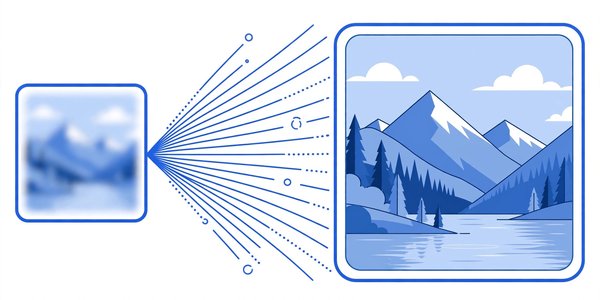
Simply stretching a small image makes it blurry, because the computer has to guess what should fill the new pixels, and basic resizing guesses badly. Modern upscaling works differently. It analyzes the patterns, edges, and textures in your image and reconstructs detail intelligently as it enlarges, producing a result that looks genuinely sharper instead of just bigger and softer.
Our Image Upscaler brings that technology to your browser for free. Upload any photo, choose how much to enlarge it, and download a dramatically improved version in seconds. Old memories become printable, small graphics become usable, and blurry shots get a real second chance. No software to install, no watermark stamped on your images, and no account required.
It helps to understand why old school resizing fails so visibly. When you stretch an image in a basic editor, each new pixel is just a blend of its neighbors, so edges turn to mush and fine detail dissolves into blur. Intelligent upscaling instead studies the structure of the scene: where edges run, how textures repeat, what a face should look like. It then synthesizes detail that stays consistent with the original, which is why the result can look like it was captured at a higher resolution in the first place. The difference is immediately visible: hair strands stay distinct, text stays legible, and gradients stay smooth instead of banding.
How to Use Image Upscaler
Upscaling is one of those tasks that sounds complicated but takes about thirty seconds in practice. You upload, you pick a size, and the tool does the heavy lifting. Here is the step by step process.
- Upload your image. Drag and drop your photo into the upload area or click to browse your device. JPG, PNG, and WEBP files all work, and the tool accepts everything from old scans to phone photos to downloaded graphics. For the best results, always start with the largest original version you can find.
- Choose your upscale factor. Pick 2x to double the dimensions, 4x for a major enlargement, or higher for extreme cases like turning a thumbnail into a printable photo. A 500 pixel image at 4x becomes 2000 pixels, which is enough for a crisp 6 by 8 inch print. Bigger is not always better, so match the factor to what you actually need.
- Set the enhancement level. Beyond raw size, you can control how aggressively the tool rebuilds detail and reduces noise. A light setting keeps things natural for portraits, while a stronger setting helps rescue heavily compressed or grainy images. If you are unsure, start in the middle and compare.
- Preview before and after. Use the comparison slider to drag between your original and the upscaled version. Zoom into faces, text, and fine textures to check the improvement where it matters most. This is the moment to try a different scale or enhancement level if something looks off.
- Download your enhanced image. Once you are happy with the preview, hit download to save the full resolution result. The file keeps your original format by default, or you can switch to PNG for maximum quality. The upscaled image is yours to use anywhere, with no watermark attached.
- Upscale in batches when needed. Working through a whole product catalog or a folder of old family scans? Queue up multiple images and let the tool process them one after another while you do something else. Each finished image downloads separately at full quality.
- Compare at 100 percent zoom. Previews can flatter. Zoom the downloaded file to actual size and inspect the areas that matter most: eyes in portraits, lettering on signs, fabric texture on products. If you spot anything odd, try one step lower on enhancement strength. A natural looking result always beats an oversharpened one.

Key Features
- Up to 8x enlargement: multiply your image dimensions up to eight times, turning thumbnails and tiny graphics into genuinely usable files.
- Intelligent detail enhancement: advanced algorithms reconstruct edges and textures as they enlarge, instead of just stretching pixels like basic resizing.
- Noise and artifact reduction: cleans up the grain, blockiness, and compression artifacts that plague old scans and heavily compressed photos.
- Face refinement: special handling for portraits keeps facial features natural and defined rather than waxy or distorted at larger sizes.
- Before and after comparison: a draggable slider lets you inspect the improvement side by side before you commit to downloading.
- Batch upscaling: process entire folders of product photos or scanned albums in one session without babysitting each file.
- No watermark, ever: your downloaded images are completely clean, ready for print, clients, or publication.
- Private and free: processing happens in your browser, your photos are never uploaded anywhere, and there are no accounts or usage limits.
- Smart format suggestions: the tool recommends PNG or JPG output based on your image content, balancing maximum quality against sensible file size.

Why Use Our Image Upscaler?
Small images are everywhere, and they always show up at the worst moment. A real estate agent gets listing photos that look fine on a phone but fall apart on a full screen. An online seller inherits supplier images that are too small for zoom features customers expect. A family historian scans decades of photos at low resolution and only realizes years later they cannot be printed.
Our Image Upscaler solves these problems without expensive software or design skills. That grandmother’s wedding photo can become a sharp framed print for the living room wall. A startup can take its first rough logo and produce decent sized assets for a pitch deck while waiting on a proper redesign. A blogger can rescue an old but irreplaceable photo for a post instead of settling for a generic stock image.
Ecommerce sellers see some of the biggest wins. Marketplaces reward listings with large, zoomable images, and shoppers trust what they can inspect closely. Upscaling your existing product photos can lift a whole catalog’s perceived quality in an afternoon, without a reshoot.
It is also a gift for anyone dealing with other people’s files. Clients, colleagues, and relatives will keep sending you images that are far too small for the job. Instead of the awkward conversation about why it will not work, you can quietly upscale and deliver. Just keep expectations honest: upscaling works wonders on moderately small images, but it cannot invent detail that was never there in a 50 pixel thumbnail.
Print on demand sellers deserve a special mention. They often work with artwork sourced from marketplaces at modest resolutions, then need to cover everything from phone cases to posters. Upscaling lets a single design file stretch across product sizes without commissioning new art for each one. Combined with batch mode, an entire catalog of designs can be print readied in a single afternoon, which directly translates into more products listed and more chances to sell.
There is an emotional side too. Family photos are irreplaceable, and many of us have boxes of prints scanned years ago at whatever resolution felt fine at the time. Bringing those images back to printable quality feels a little like time travel. Grandparents get to see their wedding photo sharp again, and kids get to see what their parents looked like at their age in real detail. Few free tools deliver that kind of payoff.
Even screenshots benefit. A crisp enlarged screenshot can make a tutorial or bug report far easier to follow, turning an unreadable thumbnail into documentation people actually use.
Upscaling rewards good inputs and punishes sloppy ones. These practical tips will help you squeeze the maximum quality out of every image you enlarge.
Tips for Best Results
- Start from the largest original. Upscaling multiplies what is there, so beginning with the biggest available version gives the algorithm the most real detail to work with.
- Do the print math first. For a sharp print you want about 300 pixels per inch. A 4 by 6 inch print needs roughly 1200 by 1800 pixels, so pick your upscale factor accordingly.
- Do not upscale twice. Running an already upscaled image through again rarely helps and can introduce strange artifacts. Get it right in one pass.
- Match enhancement to the subject. Use gentle settings for portraits to keep skin natural, and stronger settings for landscapes, product shots, or graphics with hard edges.
- Clean the image first if it is dirty. Removing obvious dust spots or watermarks before upscaling stops the algorithm from treating them as detail worth enhancing.
- Save masters as PNG. JPG compression throws away fine detail every time you save. Keep your upscaled master as a PNG and export JPG copies only when you need smaller files.
- Upscale before cropping, not after. Cropping first throws away pixels the algorithm could have used as context. Enlarge the full image, then crop to your final composition for the sharpest possible result.
- Turn off auto enhance in your gallery first. Phone galleries often apply their own sharpening that fights the upscaler. Export the plain original, upscale it, and then apply any final touches yourself for the cleanest result.
Wondering what upscaling can and cannot do? These honest answers set the right expectations before you enlarge your first image.
Complete List of All Free Online Tools
Browse the full directory of 450+ free tools. Click any tool name to use it instantly - no signup required.
| # | Tool Name | Category |
|---|---|---|
| 1 | A B Test Significance Calculator | Calculators & Converters |
| 2 | Acronym Generator | Utility Tools |
| 3 | Ad Copy Generator | Utility Tools |
| 4 | Add Page Numbers To PDF | PDF Tools |
| 5 | Add Subtitles To Video | Media Tools |
| 6 | Add Subtract Days Calculator | Calculators & Converters |
| 7 | Age Calculator | Calculators & Converters |
| 8 | Angle Converter | Calculators & Converters |
| 9 | API Request Tester | Utility Tools |
| 10 | Area Converter | Calculators & Converters |
| 11 | Article Rewriter | Utility Tools |
| 12 | Audio Converter | Calculators & Converters |
| 13 | Audio Merger | Media Tools |
| 14 | Audio Metadata Editor | Media Tools |
| 15 | Audio Pitch Changer | Media Tools |
| 16 | Audio Speed Changer | Media Tools |
| 17 | Audio To Text Converter | Calculators & Converters |
| 18 | Audio Trimmer | Media Tools |
| 19 | Avatar Maker | Utility Tools |
| 20 | Background Remover | Utility Tools |
| 21 | Backlink Checker | SEO Tools |
| 22 | Banner Maker | Utility Tools |
| 23 | Barcode Generator | Developer Tools |
| 24 | Base64 Encoder Decoder | Developer Tools |
| 25 | Bass Booster | Utility Tools |
| 26 | Bibliography Generator | Utility Tools |
| 27 | Bill Splitter | Utility Tools |
| 28 | Binary Converter | Calculators & Converters |
| 29 | Binary To Text Converter | Calculators & Converters |
| 30 | Birthday Countdown | Date & Time Tools |
| 31 | Bmi Calculator | Calculators & Converters |
| 32 | Bmr Calculator | Calculators & Converters |
| 33 | Body Fat Calculator | Calculators & Converters |
| 34 | Body Surface Area Calculator | Calculators & Converters |
| 35 | Book Title Generator | Utility Tools |
| 36 | Brand Color Finder | Color Tools |
| 37 | Brand Kit Generator | Utility Tools |
| 38 | Break Even Calculator | Calculators & Converters |
| 39 | Broken Link Checker | Utility Tools |
| 40 | Browser Info Checker | Utility Tools |
| 41 | Budget Planner | Utility Tools |
| 42 | Business Card Designer | Utility Tools |
| 43 | Business Card Maker | Utility Tools |
| 44 | Business Days Calculator | Calculators & Converters |
| 45 | Business Name Generator | Utility Tools |
| 46 | Business Proposal Generator | Utility Tools |
| 47 | Button Generator | Utility Tools |
| 48 | Buyer Persona Generator | Utility Tools |
| 49 | Calorie Calculator | Calculators & Converters |
| 50 | Captcha Generator | Utility Tools |
Frequently Asked Questions
How does image upscaling actually work?
Basic resizing just stretches existing pixels, which is why it looks blurry. Our upscaler analyzes the content of your image, recognizing edges, textures, and patterns, then reconstructs what those details should look like at a larger size. It effectively paints in plausible fine detail based on what surrounds each pixel, producing an image that looks genuinely sharper rather than simply bigger.
Is there a limit to how much quality can be improved?
Yes, and it is worth being realistic. Upscaling works best on images that are small but fundamentally decent: a 600 pixel photo can become a great 2400 pixel image. But a 100 pixel thumbnail or an extremely blurry shot has too little real information to rebuild from. The tool will still improve it, just do not expect miracles from nearly unrecognizable originals.
What is the maximum input file size?
The tool comfortably handles typical photos up to about 25 megapixels, which covers everything from phone cameras to professional shoots. Very large originals rarely need upscaling anyway. If your file is unusually huge, consider whether you actually need it bigger before uploading.
Does it work well on faces?
Yes. Portraits get special treatment so facial features stay natural and recognizable at larger sizes. Eyes, teeth, and hair edges are refined rather than smeared. That said, extremely low resolution faces with only a few dozen pixels of data will still look soft, because no tool can recover features that were never captured.
Will my upscaled images have a watermark?
Never. Every download is completely clean with no logo, text, or branding added. Your images are yours to print, publish, sell, or hand to clients without any attribution required.
Which formats can I upload and download?
You can upload JPG, JPEG, PNG, and WEBP files. Downloads default to the same format as your upload, with an option to switch to PNG for maximum quality. PNG is the best choice when you plan to edit or print the result further.
Is the upscaler really free with no catch?
Completely free, with no account, no trial period, and no daily limit on how many images you upscale. Processing happens right in your browser, which is exactly why we can offer it without charging: your device does the work, so there are no server costs to pass on to you.
Can upscaling fix a blurry photo?
It can improve mild blur and softness noticeably, especially when the blur comes from low resolution or heavy compression. But it cannot reverse true motion blur or a badly out of focus shot, because the underlying detail simply was not recorded. Think of upscaling as an enhancer of what is there, not a time machine for what is not. For slightly soft images, the improvement can still feel dramatic.
Table of Contents
What is Image Upscaler?
The image upscaler is a free online tool that helps you with image upscaler tasks quickly and accurately. Our image upscaler is designed to be simple, fast, and reliable. Whether you need a image upscaler for personal use or professional work, this free image upscaler delivers instant results without any signup or download required.
How to Use the Image Upscaler
Using our image upscaler is easy. Simply open the image upscaler tool above, enter your input, and get instant results. The image upscaler processes everything in your browser for maximum privacy and speed. No technical knowledge is needed to use this image upscaler effectively.
Benefits of Using Our Image Upscaler
Our free image upscaler offers many advantages. It is completely free to use, requires no registration, works on all devices, and provides accurate results instantly. The image upscaler is updated regularly to ensure the best performance. For more information about image upscaler, you can Learn more about image upscaler on Wikipedia.
Frequently Asked Questions About Image Upscaler
Is the image upscaler really free? Yes, our image upscaler is 100% free with no hidden costs or premium tiers.
Do I need to create an account to use the image upscaler? No, the image upscaler works instantly without any signup or login required.
