Image to PDF Converter
Receipts, contracts, handwritten notes, and scanned pages all start life as images. The problem is that a pile of loose JPG files is awkward to email, hard to organize, and unprofessional to submit. A single PDF solves all of that in one neat package.
The Image to PDF Converter from A Tool Today turns your pictures into a clean, properly ordered PDF right in your browser, completely free. Drop in your images, arrange the pages, and download a document that looks like it came from a scanner costing hundreds of dollars.
There is nothing to install and no account to create. Your files never leave your device, so even sensitive documents stay private. Whether you are submitting expense receipts, sending homework, or archiving family photos, this tool makes the conversion effortless.
It handles JPG, PNG, WebP, and GIF images, merges them into one PDF in any order you choose, and lets you control page size and orientation. What used to need desktop software now takes about a minute.
Because everything runs locally in your browser, there are no upload queues and no file size ambushes. Your documents stay on your device from start to finish, which matters when the pages contain anything personal or confidential.
How to Use Image to PDF Converter
Converting images to PDF is a straight line from upload to download. No confusing settings, no hidden steps. Here is how it works.
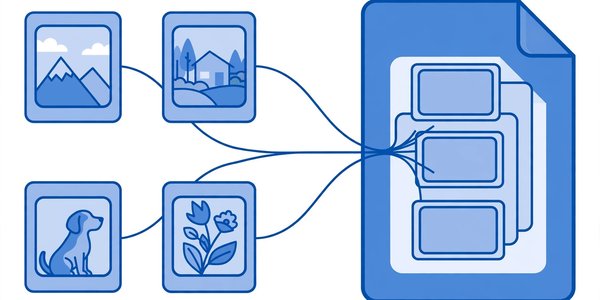
- Upload your images. Click the upload area or drag your files straight onto the page. You can add many images at once, and JPG, PNG, WebP, and GIF files are all accepted. They appear as page thumbnails immediately. Tip: select files in any order for now, since you will arrange them properly in the next step.
- Arrange the page order. Drag the thumbnails into the sequence you want in the final PDF. Put the cover page first, keep related pages together, and double check the flow. Getting the order right now saves you from rebuilding the document later, so take a moment here.
- Choose page size and orientation. Pick a standard size like A4 or Letter, or choose fit to image to keep each page exactly the shape of its picture. Set portrait or landscape per your content. Receipts often suit a smaller page, while scanned documents look best on A4.
- Adjust margins and layout. Decide how each image sits on its page. Centered with a small margin looks clean and professional. The fit options let you stretch an image to fill the page or keep its original proportions with breathing room. Preview a couple of pages to confirm the look.
- Convert to PDF. Hit the convert button and watch your images merge into a single PDF. Processing happens locally in your browser, so even a long document with dozens of pages finishes quickly. A progress indicator keeps you informed on bigger jobs.
- Download and share. Save the finished PDF to your device with a clear filename, like expense receipts march.pdf or rental agreement signed.pdf. The file is ready to email, upload to a portal, or print. No watermark, no quality surprises, just your document.
- Review the finished PDF. Open the downloaded file and flip through every page before sending it. Check the order, the orientation, and that no page got cut off at the margins. Catching a mistake now takes seconds, while fixing it after you have emailed the file means an awkward follow up message.
Key Features
Everything you need to build proper PDF documents from images, without the bloat of desktop software.
- Merge many images into one PDF. Combine dozens of pictures into a single document. Perfect for multi-page contracts, receipt batches, and photo collections that belong together.
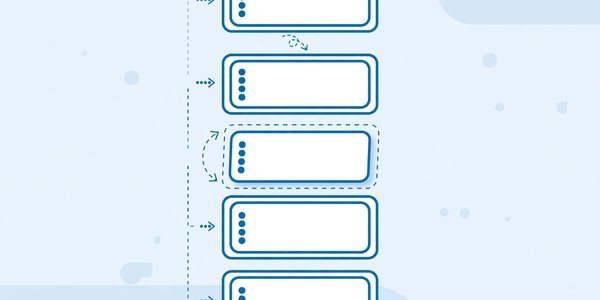
- Drag to reorder pages. Arrange and rearrange pages visually before converting. Fixing the order takes seconds and guarantees your document reads correctly. Thumbnails make mistakes obvious, so you will spot a duplicated or missing page before it becomes a problem.
- Multiple page sizes. Choose A4, Letter, Legal, or fit to image. Match the standard your recipient expects, or keep each page shaped like its original photo.
- Portrait and landscape control. Set the orientation that suits each document. Wide spreadsheets get landscape, tall receipts get portrait, and everything looks intentional.
- Margin and fit options. Control how images sit on the page, from full bleed to generous white margins. Your PDFs look deliberate instead of slapped together.
- Wide image format support. Accepts JPG, PNG, WebP, and GIF inputs. Whatever your phone or scanner produced, it converts without a fuss.
- Smart compression choices. Balance file size against image quality. Keep full quality for archiving, or compress for email friendly files that still look sharp. You stay in control of the tradeoff instead of accepting whatever a server decides for you.
- Private local processing. Your images never upload to any server. Conversion runs entirely in your browser, so confidential documents stay confidential.
Why Use Our Image to PDF Converter?
PDFs are the universal language of documents. They open identically on every phone, tablet, and computer, they print predictably, and every office on earth accepts them. Images cannot promise any of that. An emailed folder of JPGs looks disorganized and forces the recipient to open files one by one.
Think about expense reporting. A shoebox of receipts becomes one tidy PDF you can attach to a single email. Your finance team will silently thank you. Students face the same win with homework. Photographed assignment pages merged into one PDF submit cleanly to any learning portal, in the right order, every time.
Freelancers and small businesses get professional polish too. A quote, a signed agreement, or a portfolio of work photos carries more weight as a PDF than as scattered images. It signals that you take your own work seriously, and clients notice that signal.
Doing all of this in the browser removes every excuse. No software to buy, no app to install, no account standing between you and a finished document. You get scanner quality output from the phone already in your pocket, free, in about a minute.
Archiving gets easier too. Family documents, old letters, certificates, and childhood drawings can be photographed and preserved as tidy PDF collections. Years from now, one organized file beats a chaotic camera roll every time. For official paperwork, a single PDF with pages in the right order simply looks more credible than a zip of loose images.
Tips for Best Results
Small preparation steps make a big difference in how professional your PDF looks.
Complete List of All Free Online Tools
Browse the full directory of 450+ free tools. Click any tool name to use it instantly - no signup required.
| # | Tool Name | Category |
|---|---|---|
| 1 | A B Test Significance Calculator | Calculators & Converters |
| 2 | Acronym Generator | Utility Tools |
| 3 | Ad Copy Generator | Utility Tools |
| 4 | Add Page Numbers To PDF | PDF Tools |
| 5 | Add Subtitles To Video | Media Tools |
| 6 | Add Subtract Days Calculator | Calculators & Converters |
| 7 | Age Calculator | Calculators & Converters |
| 8 | Angle Converter | Calculators & Converters |
| 9 | API Request Tester | Utility Tools |
| 10 | Area Converter | Calculators & Converters |
| 11 | Article Rewriter | Utility Tools |
| 12 | Audio Converter | Calculators & Converters |
| 13 | Audio Merger | Media Tools |
| 14 | Audio Metadata Editor | Media Tools |
| 15 | Audio Pitch Changer | Media Tools |
| 16 | Audio Speed Changer | Media Tools |
| 17 | Audio To Text Converter | Calculators & Converters |
| 18 | Audio Trimmer | Media Tools |
| 19 | Avatar Maker | Utility Tools |
| 20 | Background Remover | Utility Tools |
| 21 | Backlink Checker | SEO Tools |
| 22 | Banner Maker | Utility Tools |
| 23 | Barcode Generator | Developer Tools |
| 24 | Base64 Encoder Decoder | Developer Tools |
| 25 | Bass Booster | Utility Tools |
| 26 | Bibliography Generator | Utility Tools |
| 27 | Bill Splitter | Utility Tools |
| 28 | Binary Converter | Calculators & Converters |
| 29 | Binary To Text Converter | Calculators & Converters |
| 30 | Birthday Countdown | Date & Time Tools |
| 31 | Bmi Calculator | Calculators & Converters |
| 32 | Bmr Calculator | Calculators & Converters |
| 33 | Body Fat Calculator | Calculators & Converters |
| 34 | Body Surface Area Calculator | Calculators & Converters |
| 35 | Book Title Generator | Utility Tools |
| 36 | Brand Color Finder | Color Tools |
| 37 | Brand Kit Generator | Utility Tools |
| 38 | Break Even Calculator | Calculators & Converters |
| 39 | Broken Link Checker | Utility Tools |
| 40 | Browser Info Checker | Utility Tools |
| 41 | Budget Planner | Utility Tools |
| 42 | Business Card Designer | Utility Tools |
| 43 | Business Card Maker | Utility Tools |
| 44 | Business Days Calculator | Calculators & Converters |
| 45 | Business Name Generator | Utility Tools |
| 46 | Business Proposal Generator | Utility Tools |
| 47 | Button Generator | Utility Tools |
| 48 | Buyer Persona Generator | Utility Tools |
| 49 | Calorie Calculator | Calculators & Converters |
| 50 | Captcha Generator | Utility Tools |
- Order pages before converting. Arrange thumbnails carefully in the editor. A document with scrambled pages confuses readers and looks careless, while correct order feels effortless.
- Photograph documents flat and evenly lit. Lay pages on a contrasting surface under good light and hold the phone parallel. Clean source photos produce crisp PDF pages with no shadows. If a page curls at the edges, weigh it down with a book for a sharper capture.
- Match page size to your audience. Use A4 for most of the world and Letter for the United States. Matching local standards means your PDF prints correctly on the recipient’s printer.
- Keep resolution reasonable. Phone photos are plenty sharp for PDFs. Enormous originals only bloat the file, so let the compression option trim them to a sensible size. Keeping each page under one megabyte is a good rule for emailing without visible quality loss.
- Name your file clearly. A descriptive filename like invoice 1042 march.pdf helps recipients find your document later. Avoid vague names like document1.pdf that get lost in downloads folders.
- Check orientation page by page. One upside down page ruins an otherwise perfect document. Glance through the thumbnails before converting and rotate any stragglers.
Frequently Asked Questions
Is the Image to PDF Converter really free?
Yes, completely free with no page limits, no watermarks, and no account required. You can convert as many images as you want, as often as you want. A Tool Today keeps core utilities like this open because everyone needs them sometimes. There is no trial that expires and no premium tier unlocking the real features. The PDF you download is clean and full quality whether it is your first conversion or your thousandth. If another site tries to charge you for this basic task, you now know a free alternative.
How many images can I convert at once?
There is no hard cap set by the tool. You can merge a handful of receipts or a hundred page document in a single run. The practical limit is your device’s memory, since processing happens locally in your browser. Most phones and computers handle dozens of typical photos without breaking a sweat. For very large jobs with hundreds of high resolution images, consider converting in two batches and merging later. A progress indicator keeps you informed during longer conversions so you always know it is working.
Which image formats are supported?
The converter accepts JPG, PNG, WebP, and GIF files, covering nearly everything phones and scanners produce. JPG is ideal for photos and keeps file sizes sensible. PNG works best for screenshots and graphics with sharp lines or text. WebP, the modern efficient format, converts cleanly too. If your images live in a rarer format like TIFF or BMP, convert them to JPG first with a free converter, then bring them here. Mixed formats in one job are fine, so a JPG photo and a PNG screenshot can share the same PDF.
Will my images lose quality in the PDF?
Not noticeably. The converter preserves your images at high quality by default, so text stays readable and photos stay sharp. You also get compression options to control the tradeoff yourself. Choose maximum quality when archiving important documents or printing later. Choose balanced or compact when emailing, since smaller files send faster and still look crisp on screen. The original files on your device are never modified, so you can always reconvert with different settings if you change your mind. The originals on your device stay untouched, so experimenting with settings costs nothing.
Are my files uploaded to a server?
No. Every image stays on your device from upload to download. The entire conversion runs locally inside your browser, with nothing sent to any server or cloud service. This is genuine privacy, not a policy promise. It also means the tool works fast with no upload delays, even for large batches. You can safely convert sensitive items like contracts, IDs, medical forms, or financial records. When you close the tab, nothing of yours remains anywhere but on your own device.
Can I password protect the PDF?
The converter focuses on fast, clean conversion, so password protection is not built into the current version. If you need to secure a sensitive document, convert it here first, then add a password with your PDF reader or operating system’s built in tools. Most systems can do this in a few clicks. For sending confidential files, you can also share the PDF through a secure channel or encrypted email. The conversion itself stays private since your files never leave your device.
What page size should I choose?
Pick the standard your recipient expects. A4 suits most of the world, including Europe, Asia, and Africa. Letter is the standard in the United States and Canada. Choosing correctly means your PDF prints without awkward scaling on their printer. If the document is mostly for screen viewing, like a photo collection, the fit to image option keeps each page shaped exactly like its picture. For receipts and small notes, a smaller page size keeps everything proportional and tidy. When in doubt, A4 is the safest default for international recipients.
Do I need to install anything or sign up?
Nothing to install and no signup needed. The converter is a web page that runs in any modern browser on your phone, tablet, or computer. Open it, add your images, arrange the pages, and download your PDF. There is no desktop software eating disk space and no account to manage. This matters because PDF conversion is often urgent, like a deadline in an hour. A tool with zero setup is a tool you can rely on exactly when it counts.
Table of Contents
What is Image to PDF Converter?
The image to pdf converter is a free online tool that helps you with image to pdf converter tasks quickly and accurately. Our image to pdf converter is designed to be simple, fast, and reliable. Whether you need a image to pdf converter for personal use or professional work, this free image to pdf converter delivers instant results without any signup or download required.
How to Use the Image to PDF Converter
Using our image to pdf converter is easy. Simply open the image to pdf converter tool above, enter your input, and get instant results. The image to pdf converter processes everything in your browser for maximum privacy and speed. No technical knowledge is needed to use this image to pdf converter effectively.
Benefits of Using Our Image to PDF Converter
Our free image to pdf converter offers many advantages. It is completely free to use, requires no registration, works on all devices, and provides accurate results instantly. The image to pdf converter is updated regularly to ensure the best performance. For more information about image to pdf converter, you can Learn more about image to pdf converter on Wikipedia.
Frequently Asked Questions About Image to PDF Converter
Is the image to pdf converter really free? Yes, our image to pdf converter is 100% free with no hidden costs or premium tiers.
Do I need to create an account to use the image to pdf converter? No, the image to pdf converter works instantly without any signup or login required.
