Image to Base64 Converter
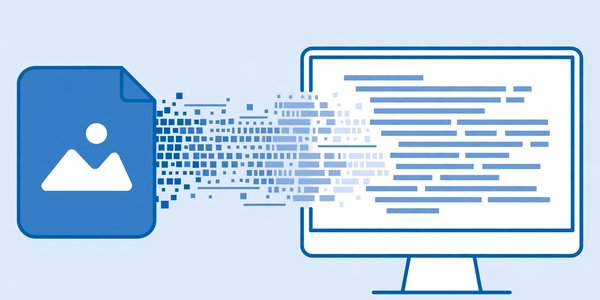
If you are a developer, you have been here before. You need to embed a small image directly into your HTML or CSS, maybe a logo in an email template or an icon in a stylesheet, and you do not want the hassle of hosting a separate file. The answer is Base64 encoding: it turns your image into a long text string that browsers can render directly. Our free online image to Base64 converter does this conversion instantly, right in your browser. Upload any image, copy the encoded string, and paste it into your code. It also works in reverse, decoding Base64 strings back into viewable images. No signup, no server uploads, no limits. Whether you are building a landing page, styling an email, or working with an API that expects Base64 payloads, this tool fits neatly into your workflow.
How to Use the Image to Base64 Converter
The converter handles both directions: image to Base64 string, and Base64 string back to image. Here is how to use each mode.
- Upload your image. Drag and drop or click to select a JPG, PNG, GIF, WebP, or SVG file. The tool reads it locally, so even large files convert quickly without upload delays.
- Wait for instant encoding. The Base64 string generates automatically the moment your image loads. There is no convert button to hunt for. Tip: for very large images, give it a second to finish processing.
- Copy the encoded string. Hit the copy button to grab the full Base64 output to your clipboard. For web use, copy the version with the data URI prefix included, which looks like data:image/png;base64, followed by the string.
- Paste it into your project. Drop the string into an img src attribute, a CSS background url, or wherever your code needs it. The image now travels with your code as plain text.
- Switch to decode mode to reverse it. Have a Base64 string instead? Paste it into the decode tab and the tool renders the image for you. This is handy for inspecting strings you received from an API.
- Download the decoded image. After decoding, save the image back to your device as a PNG or JPG. Useful when someone sends you a Base64 blob and you need the actual file.
- Repeat for every asset. Convert as many images as your project needs. There are no quotas, so batch through your whole icon set in one sitting.

Key Features of the Image to Base64 Converter
- Two-way conversion. Encode images to Base64 strings and decode Base64 strings back to images. One tool covers both directions of your workflow.
- Data URI output ready to paste. Get the full data URI with the correct MIME type prefix, so your string works in HTML and CSS the second you paste it.
- Wide format support. Convert JPG, PNG, GIF, WebP, SVG, and BMP files. Whatever your asset pipeline produces, the converter handles it.
- Copy with one click. A single button copies the entire encoded string, even when it is tens of thousands of characters long. No manual text selection struggles.
- Live file size readout. See the original file size next to the encoded size so you understand the overhead. Base64 adds roughly 33 percent, which helps you decide when embedding makes sense.
- Character set safe output. The encoded string uses only URL and code safe characters, so it survives JSON payloads, database fields, and config files without escaping issues.
- Fully private processing. Encoding happens in your browser. Your images and strings never touch a server, which matters when you are working with unreleased designs or client assets.
- No limits or accounts. Convert unlimited images, unlimited times, for free. No signup forms, no API keys, no rate limits to work around.
Why Use Our Image to Base64 Converter?
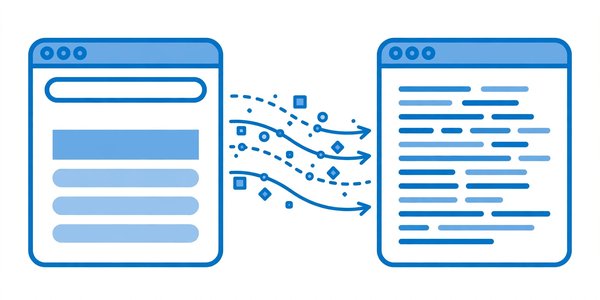
Developers reach for Base64 for practical reasons. Embedding a small logo as a data URI in an HTML email means it displays even when the recipient’s client blocks external images. Inlining icons in CSS means fewer HTTP requests, which speeds up page loads. APIs and JSON payloads cannot carry binary files, so Base64 becomes the bridge. Our converter makes each of these jobs frictionless.
Consider a real scenario. You are building a transactional email template for a client. Every external image is a gamble because email clients love to block them. You convert the company logo and two small icons to Base64, paste them inline, and suddenly the email looks perfect everywhere, from Gmail to Outlook. Or you are optimizing a landing page. Those eight tiny UI icons each trigger a separate server request. Inline them as data URIs and you cut eight requests to zero. The page feels snappier instantly.
What sets our tool apart is that it respects your time and your privacy. No command line, no Node script to write for a one-off conversion, no uploading client assets to a random website. Open the page, convert, copy, done. It is the kind of small utility you bookmark and return to weekly.
It also plays well with the rest of your toolkit here at A Tool Today. Optimize an image with a compressor, convert it here, then paste the string straight into your project. Frontend developers use it alongside our favicon generator when building a site from scratch: favicons for the tab, Base64 icons for the interface, all in one session. Students learning web development love it too, because it makes the abstract idea of data URIs concrete in seconds. Small tool, big time savings, zero cost.
Tips for Best Results
- Reserve Base64 for small images. Because encoding adds about 33 percent overhead, it shines for icons and logos under 50 KB. Large photos are usually better as separate files.
- Optimize before encoding. Compress your image first with a free optimizer. A smaller source means a shorter string, which keeps your HTML and CSS files lean.
- Use SVG for icons when possible. Simple icons as SVG encode to tiny strings and stay razor sharp at any size. Convert the SVG file itself rather than a rasterized version.
- Include the data URI prefix for web use. Browsers need the data:image/png;base64, prefix to render the string as an image. The tool provides it, so copy that version for HTML and CSS.
- Strip the prefix for APIs. Many APIs want the raw Base64 string without the data URI header. Check the API docs, and use the raw output option when that is the case.
- Test email rendering. Some email clients cap data URI lengths. If your embedded image does not show in a test send, try a smaller version of the image.
Frequently Asked Questions
What is Base64 encoding and why would I use it?
Base64 is a way to represent binary data, like an image, as plain text using 64 safe characters. Browsers, email clients, JSON APIs, and databases all handle text reliably, but binary image data can get corrupted in transit through these systems. Encoding an image as Base64 turns it into a long text string that survives anywhere text survives. The most common uses are embedding images directly in HTML with data URIs, inlining small assets in CSS to reduce HTTP requests, sending images through JSON APIs, and making images display in HTML emails where external images get blocked. It is a standard technique every web developer encounters, and our converter makes it a ten second job.
Is this converter really free?
Yes, completely free with no limits whatsoever. Convert as many images as you like, in both directions, without creating an account or providing any details. There is no premium tier because every feature is already included. Many developer tools in this space throttle you after a handful of conversions or require an API key for larger files. We built the converter to run entirely in your browser, which means there is no server cost per conversion and no reason to limit you. Whether you are converting one favicon or an entire icon set, the tool performs identically every time.
Do my images get uploaded anywhere?
No. The encoding and decoding both happen locally in your browser using built-in web APIs. Your files are read into memory on your own device and never transmitted to any server. This is especially important for developers working with client assets, unreleased product designs, or proprietary graphics. You can verify this yourself by watching your network tab during a conversion: you will see no upload traffic. For teams with strict data handling policies, this local-only design means the tool is safe to use even with confidential visual assets. Your work stays on your machine, period.
What image formats are supported?
The converter accepts JPG, JPEG, PNG, GIF, WebP, SVG, and BMP for encoding. The output is a standard Base64 string with the correct MIME type in the data URI prefix, so browsers know how to render it. For decoding, paste any valid Base64 image string, with or without the data URI prefix, and the tool will detect the format and render the image. Decoded images can be downloaded as PNG or JPG. One note on SVG: since SVG is already text-based, encoding it to Base64 is optional, but some contexts require it, and the tool handles it just fine. Animated GIFs encode completely, preserving all frames in the string.
Complete List of All Free Online Tools
Browse the full directory of 450+ free tools. Click any tool name to use it instantly - no signup required.
| # | Tool Name | Category |
|---|---|---|
| 1 | A B Test Significance Calculator | Calculators & Converters |
| 2 | Acronym Generator | Utility Tools |
| 3 | Ad Copy Generator | Utility Tools |
| 4 | Add Page Numbers To PDF | PDF Tools |
| 5 | Add Subtitles To Video | Media Tools |
| 6 | Add Subtract Days Calculator | Calculators & Converters |
| 7 | Age Calculator | Calculators & Converters |
| 8 | Angle Converter | Calculators & Converters |
| 9 | API Request Tester | Utility Tools |
| 10 | Area Converter | Calculators & Converters |
| 11 | Article Rewriter | Utility Tools |
| 12 | Audio Converter | Calculators & Converters |
| 13 | Audio Merger | Media Tools |
| 14 | Audio Metadata Editor | Media Tools |
| 15 | Audio Pitch Changer | Media Tools |
| 16 | Audio Speed Changer | Media Tools |
| 17 | Audio To Text Converter | Calculators & Converters |
| 18 | Audio Trimmer | Media Tools |
| 19 | Avatar Maker | Utility Tools |
| 20 | Background Remover | Utility Tools |
| 21 | Backlink Checker | SEO Tools |
| 22 | Banner Maker | Utility Tools |
| 23 | Barcode Generator | Developer Tools |
| 24 | Base64 Encoder Decoder | Developer Tools |
| 25 | Bass Booster | Utility Tools |
| 26 | Bibliography Generator | Utility Tools |
| 27 | Bill Splitter | Utility Tools |
| 28 | Binary Converter | Calculators & Converters |
| 29 | Binary To Text Converter | Calculators & Converters |
| 30 | Birthday Countdown | Date & Time Tools |
| 31 | Bmi Calculator | Calculators & Converters |
| 32 | Bmr Calculator | Calculators & Converters |
| 33 | Body Fat Calculator | Calculators & Converters |
| 34 | Body Surface Area Calculator | Calculators & Converters |
| 35 | Book Title Generator | Utility Tools |
| 36 | Brand Color Finder | Color Tools |
| 37 | Brand Kit Generator | Utility Tools |
| 38 | Break Even Calculator | Calculators & Converters |
| 39 | Broken Link Checker | Utility Tools |
| 40 | Browser Info Checker | Utility Tools |
| 41 | Budget Planner | Utility Tools |
| 42 | Business Card Designer | Utility Tools |
| 43 | Business Card Maker | Utility Tools |
| 44 | Business Days Calculator | Calculators & Converters |
| 45 | Business Name Generator | Utility Tools |
| 46 | Business Proposal Generator | Utility Tools |
| 47 | Button Generator | Utility Tools |
| 48 | Buyer Persona Generator | Utility Tools |
| 49 | Calorie Calculator | Calculators & Converters |
| 50 | Captcha Generator | Utility Tools |
Why is the Base64 string larger than my image file?
Base64 encoding represents every 3 bytes of binary data as 4 text characters, which adds roughly 33 percent overhead. A 30 KB PNG becomes about a 40 KB string. This is inherent to the encoding, not a quirk of our tool, and every Base64 encoder in existence produces the same overhead. This is why the standard advice is to embed only small images as Base64: icons, logos, and UI elements where the convenience outweighs the size cost. For a 5 KB icon, an extra couple of kilobytes is nothing, and you save an entire HTTP request. For a 2 MB photo, the overhead becomes painful, and a regular image file served with caching is the better choice.
How do I use the output in HTML and CSS?
In HTML, paste the data URI directly into an img tag like this: img src equals the data URI string. In CSS, use it as a background image: background-image: url(data URI). The tool gives you the complete data URI including the MIME prefix, so it works immediately on paste. One practical tip: very long strings can make your HTML hard to read in an editor, so consider moving them into your CSS file or a separate stylesheet. Also remember that inline images do not benefit from browser caching the way separate files do, so Base64 is best for assets that appear on every page load anyway, like logos, where the caching tradeoff barely matters.
Can I decode a Base64 string back to an image?
Yes, that is the decode mode. Paste any Base64 image string into the decode tab, with or without the data URI prefix, and the tool renders the image instantly. This is useful when an API returns image data as a Base64 string and you want to see what it actually contains, or when a colleague sends you an encoded blob and you need the real file. After decoding, you can download the image as PNG or JPG to your device. If the string is invalid or truncated, the tool will tell you rather than producing a broken file, which saves debugging time when you are working with API responses.
Is there a file size limit?
There is no artificial limit imposed by the tool. The practical ceiling is your device’s memory and your browser’s ability to handle very long strings. In practice, images up to tens of megabytes convert fine on a modern laptop or phone. That said, you almost never want to Base64 encode a huge file, since the 33 percent overhead and the unwieldy string make it impractical. If you find yourself encoding a 10 MB image, step back and ask whether a hosted file with a URL would serve you better. For the small assets Base64 is designed for, you will never come close to any limit.
Table of Contents
What is Image to Base64 Converter?
The image to base64 converter is a free online tool that helps you with image to base64 converter tasks quickly and accurately. Our image to base64 converter is designed to be simple, fast, and reliable. Whether you need a image to base64 converter for personal use or professional work, this free image to base64 converter delivers instant results without any signup or download required.
How to Use the Image to Base64 Converter
Using our image to base64 converter is easy. Simply open the image to base64 converter tool above, enter your input, and get instant results. The image to base64 converter processes everything in your browser for maximum privacy and speed. No technical knowledge is needed to use this image to base64 converter effectively.
Benefits of Using Our Image to Base64 Converter
Our free image to base64 converter offers many advantages. It is completely free to use, requires no registration, works on all devices, and provides accurate results instantly. The image to base64 converter is updated regularly to ensure the best performance. For more information about image to base64 converter, you can Learn more about image to base64 converter on Wikipedia.
Frequently Asked Questions About Image to Base64 Converter
Is the image to base64 converter really free? Yes, our image to base64 converter is 100% free with no hidden costs or premium tiers.
Do I need to create an account to use the image to base64 converter? No, the image to base64 converter works instantly without any signup or login required.
