Image Cropper
Cropping a photo sounds simple, but getting it right can make or break your whole image. A badly framed profile picture looks unprofessional. A product photo with too much empty space feels cheap. A banner that cuts off the important part just looks sloppy. Whether you are trimming a selfie for your LinkedIn profile, resizing a banner for your website, or cutting out distractions from a travel photo, you need a crop tool that is fast, precise, and free of headaches. Our free online image cropper gives you exactly that. Upload any image, drag the crop box to the exact area you want, pick a preset ratio for social media or custom dimensions, and download your result in seconds. Everything runs right in your browser, so your photos never leave your device. No account, no watermark, no software to install. Just a clean, user-friendly cropper that does its job and gets out of your way.
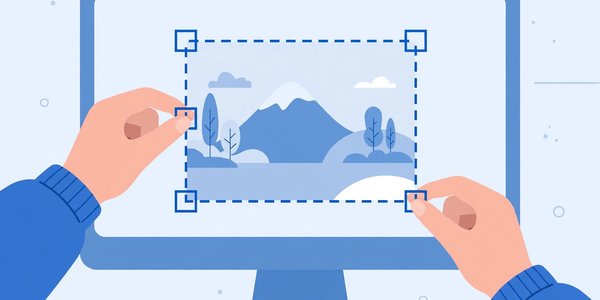
How to Use the Image Cropper
Getting started takes less than a minute. The interface is built for speed, so even if you have never cropped an image before, you will feel comfortable right away. Here is the full walkthrough.
- Upload your image. Click the upload button or drag and drop your file straight into the tool. It accepts common formats like JPG, PNG, and WebP. Your image stays on your device because all processing happens locally in the browser.
- Pick an aspect ratio or go freeform. Choose from popular presets such as 1:1 for Instagram posts, 16:9 for YouTube thumbnails, 4:3 for presentations, or 3:2 for classic prints. If you want full control, select freeform mode and drag the handles to any shape you like.
- Drag and position the crop box. Move the selection box over the part of the image you want to keep. Use the corner handles to resize it. Tip: hold the edges steady and zoom in for pixel-perfect placement on small details.
- Preview your result. The live preview shows exactly what your final image will look like. Check the edges carefully. If something important is cut off, adjust the box before you commit.
- Adjust dimensions if needed. Set exact width and height values when your platform demands specific sizes. For example, a Facebook cover needs 820 x 312 pixels, so lock that in here instead of guessing.
- Choose your output format. Export as JPG for smaller files, PNG for crisp graphics with transparency, or WebP for the best balance of quality and file size on the web.
- Download your cropped image. Hit download and save the file to your device. That is it. Crop as many images as you like, there are no daily limits.
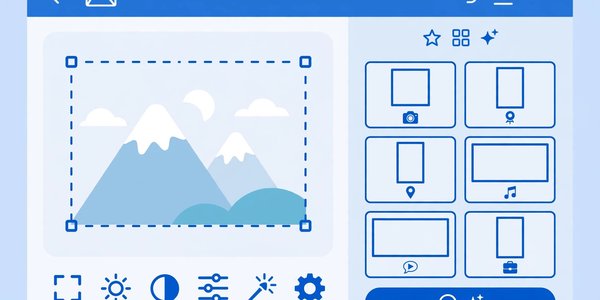
Key Features of the Image Cropper
- Preset aspect ratios. One-click ratios for every major platform. Crop for Instagram, Facebook, X, YouTube, and LinkedIn without looking up dimensions yourself.
- Freeform cropping. No ratio restrictions when you need them. Drag any edge or corner to shape the crop box exactly how you want it.
- Pixel-precise dimensions. Type in exact width and height values for jobs where close enough is not good enough, like ad banners and print layouts.
- Live preview. See your final crop update in real time as you drag. What you see is exactly what you download, so there are no surprises.
- Multiple output formats. Download your cropped photo as JPG, PNG, or WebP. Pick the format that fits your use case: smallest file, sharpest quality, or web-ready balance.
- 100 percent private. Your images are processed locally in your browser. Nothing is uploaded to a server, which means your personal photos stay personal.
- No watermark. Your downloaded images are clean. There is no logo stamped on your work, even on the free version, because there is only one version.
- Works on any device. Crop on your desktop, tablet, or phone. The touch-friendly interface makes it easy to crop selfies and product shots right on your mobile device.
Why Use Our Image Cropper?
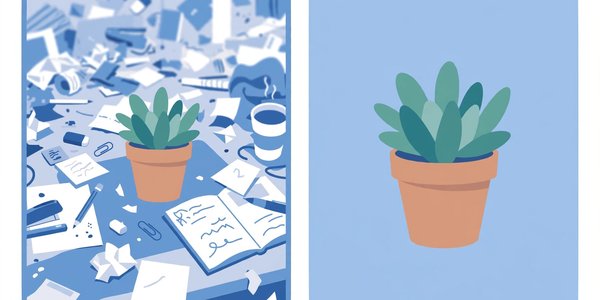
Most photo editors bury cropping inside bloated menus. You open a heavy app, wait for it to load, hunt for the crop tool, and then sit through export dialogs. Our image cropper skips all of that. It loads in seconds and puts the crop box front and center, because that is the only job it has to do, and it does it well.
Think about the real moments this saves you. You are a small business owner who just photographed a new product on your phone. The photo is fine, but the background clutter on the edges makes it look amateur. Two minutes with our cropper and you have a tight, professional product shot ready for your store. You are a freelancer updating your portfolio. A landscape photo from last summer would be a perfect project cover if only the parking lot at the bottom was gone. Crop it out, done. You are applying for jobs and your resume photo has a beach umbrella in the corner. Fix it before the recruiter notices.
Since everything runs in the browser, you never wait in an upload queue and never worry about a server storing your photos. Crop as many images as you need, whenever you need, for free. That combination of speed, privacy, and zero cost is exactly why thousands of people use it as their go-to cropping tool.
It also fits neatly into a bigger editing workflow. Crop first to lock in your composition, then send the result to our background remover, resizer, or format converter without ever leaving A Tool Today. Every tool works the same way: free, no account, nothing uploaded. Bloggers get featured images sized exactly right for each post. Sellers get consistent product shots across a whole catalog. Once cropping stops feeling like a chore, you will reach for this tool every single week.
Tips for Best Results
- Crop from the largest original you have. Starting with a high resolution source means your cropped area still looks sharp after resizing. Avoid cropping a thumbnail and expecting print quality.
- Use the rule of thirds for portraits. Position the subject’s eyes along the upper third line of your crop box for a natural, professional-looking composition.
- Leave a little breathing room. Do not crop faces or products right at the edge. A small margin looks deliberate and gives you flexibility if a platform trims the image further.
- Match the platform’s ratio before you post. Every social network crops uploads its own way. Crop to the exact ratio first so the platform never decides for you.
- Zoom in for detail work. When you are cropping around small elements like text or a logo, zoom the preview so you can place the box edges precisely.
- Export in WebP for web pages. If the image is going on a website, WebP usually gives you a much smaller file than JPG with barely visible quality loss, which helps your pages load faster.
Frequently Asked Questions
Is this image cropper really free?
Yes, completely free with no hidden limits. You can crop as many images as you want, as often as you want, without creating an account or entering payment details. There is no free trial that expires, no premium tier that unlocks basic features, and no watermark on your downloads. A Tool Today keeps its tools free because the goal is to be useful to everyone, from students and hobbyists to freelancers and small businesses. If you find yourself cropping dozens of images a day, the tool will still work exactly the same on image number five hundred as it did on image number one.
Do my photos get uploaded to a server?
No. Every part of the cropping process happens locally inside your own browser. When you upload an image, it is read into your device’s memory and never sent anywhere else. This means your private photos, family pictures, and confidential documents stay entirely under your control. You can even crop images with your internet connection turned off after the page loads. If privacy matters to you, and it should, this local-only design is the safest way to edit images online. Nothing is logged, nothing is stored, and nothing is shared with anyone.
What image formats does the cropper support?
You can upload JPG, JPEG, PNG, and WebP files, which covers virtually every photo and graphic you will encounter. For output, you can download your cropped image as JPG, PNG, or WebP regardless of what you uploaded. So if you upload a PNG and want a smaller file for your website, just choose JPG or WebP at export. Animated formats like GIF are not currently supported for cropping because each frame would need separate handling. If you have a TIFF or BMP file, convert it to JPG or PNG first with a free converter, then bring it into the cropper.
Can I crop images to exact pixel dimensions?
Yes. Beyond the preset aspect ratios, you can type in exact width and height values in pixels. This is perfect for platform requirements like a 1200 x 628 Facebook ad image or an 800 x 800 product thumbnail. The tool keeps your typed dimensions locked while you reposition the crop box, so the framing can move without the size changing. Keep in mind that if your source image is smaller than your target dimensions, the output will be scaled up, which can soften details. For the sharpest result, always start from a source image that is at least as large as your target size.
Complete List of All Free Online Tools
Browse the full directory of 450+ free tools. Click any tool name to use it instantly - no signup required.
| # | Tool Name | Category |
|---|---|---|
| 1 | A B Test Significance Calculator | Calculators & Converters |
| 2 | Acronym Generator | Utility Tools |
| 3 | Ad Copy Generator | Utility Tools |
| 4 | Add Page Numbers To PDF | PDF Tools |
| 5 | Add Subtitles To Video | Media Tools |
| 6 | Add Subtract Days Calculator | Calculators & Converters |
| 7 | Age Calculator | Calculators & Converters |
| 8 | Angle Converter | Calculators & Converters |
| 9 | API Request Tester | Utility Tools |
| 10 | Area Converter | Calculators & Converters |
| 11 | Article Rewriter | Utility Tools |
| 12 | Audio Converter | Calculators & Converters |
| 13 | Audio Merger | Media Tools |
| 14 | Audio Metadata Editor | Media Tools |
| 15 | Audio Pitch Changer | Media Tools |
| 16 | Audio Speed Changer | Media Tools |
| 17 | Audio To Text Converter | Calculators & Converters |
| 18 | Audio Trimmer | Media Tools |
| 19 | Avatar Maker | Utility Tools |
| 20 | Background Remover | Utility Tools |
| 21 | Backlink Checker | SEO Tools |
| 22 | Banner Maker | Utility Tools |
| 23 | Barcode Generator | Developer Tools |
| 24 | Base64 Encoder Decoder | Developer Tools |
| 25 | Bass Booster | Utility Tools |
| 26 | Bibliography Generator | Utility Tools |
| 27 | Bill Splitter | Utility Tools |
| 28 | Binary Converter | Calculators & Converters |
| 29 | Binary To Text Converter | Calculators & Converters |
| 30 | Birthday Countdown | Date & Time Tools |
| 31 | Bmi Calculator | Calculators & Converters |
| 32 | Bmr Calculator | Calculators & Converters |
| 33 | Body Fat Calculator | Calculators & Converters |
| 34 | Body Surface Area Calculator | Calculators & Converters |
| 35 | Book Title Generator | Utility Tools |
| 36 | Brand Color Finder | Color Tools |
| 37 | Brand Kit Generator | Utility Tools |
| 38 | Break Even Calculator | Calculators & Converters |
| 39 | Broken Link Checker | Utility Tools |
| 40 | Browser Info Checker | Utility Tools |
| 41 | Budget Planner | Utility Tools |
| 42 | Business Card Designer | Utility Tools |
| 43 | Business Card Maker | Utility Tools |
| 44 | Business Days Calculator | Calculators & Converters |
| 45 | Business Name Generator | Utility Tools |
| 46 | Business Proposal Generator | Utility Tools |
| 47 | Button Generator | Utility Tools |
| 48 | Buyer Persona Generator | Utility Tools |
| 49 | Calorie Calculator | Calculators & Converters |
| 50 | Captcha Generator | Utility Tools |
Will cropping reduce my image quality?
Cropping itself never degrades what is inside the crop box. You are simply selecting a region of the original pixels and discarding the rest. Quality loss only happens in two situations: when you export at a lower quality setting than the original, or when you upscale a small crop to a larger size. Our cropper gives you a quality slider on JPG exports so you control the tradeoff between file size and sharpness. For PNG and WebP, the crop is lossless. As a rule of thumb, keep the export quality at 90 or above for photos and you will not notice any difference.
Can I use this cropper on my phone?
Absolutely. The cropper is fully touch friendly and works in any modern mobile browser on both Android and iPhone. The crop box supports pinch to zoom and drag gestures, so cropping a selfie or a product photo on the go feels natural. There is nothing to install from an app store, which saves you storage space and avoids sketchy permissions. Just open the tool in your browser, upload from your camera roll, crop, and download. Mobile users especially appreciate that no account is required, since signing up on a phone keyboard is nobody’s idea of fun.
Why does my cropped image look blurry?
Blur usually comes from upscaling. If you crop a small area out of a low resolution photo and then display it at a larger size, the image has to stretch its pixels, which looks soft. The fix is to start with the highest resolution original available, such as the full photo from your camera rather than a compressed copy from a messaging app. Also check your export settings. If you saved as JPG with a very low quality value, details will smear. Re-export at quality 90 or higher, or use PNG for graphics with sharp edges. Finally, view the image at its actual size before judging, since scaled previews can mislead you.
Is there a limit to how many images I can crop?
There is no limit. Crop one image or one hundred, the tool treats every session the same. Because processing happens on your device rather than on a server, there is no queue to wait in and no bandwidth bill for us to pass on to you. The only practical limit is your own device’s memory when working with extremely large files. If you are cropping camera RAW files or panoramas over 50 megapixels, consider resizing first in a desktop editor, then use our cropper for the final framing. For everyday photos from phones and cameras, you will never hit a ceiling.
Table of Contents
What is Image Cropper?
The image cropper is a free online tool that helps you with image cropper tasks quickly and accurately. Our image cropper is designed to be simple, fast, and reliable. Whether you need a image cropper for personal use or professional work, this free image cropper delivers instant results without any signup or download required.
How to Use the Image Cropper
Using our image cropper is easy. Simply open the image cropper tool above, enter your input, and get instant results. The image cropper processes everything in your browser for maximum privacy and speed. No technical knowledge is needed to use this image cropper effectively.
Benefits of Using Our Image Cropper
Our free image cropper offers many advantages. It is completely free to use, requires no registration, works on all devices, and provides accurate results instantly. The image cropper is updated regularly to ensure the best performance. For more information about image cropper, you can Learn more about image cropper on Wikipedia.
Frequently Asked Questions About Image Cropper
Is the image cropper really free? Yes, our image cropper is 100% free with no hidden costs or premium tiers.
Do I need to create an account to use the image cropper? No, the image cropper works instantly without any signup or login required.
