On-Screen Ruler
Our free on screen ruler answers the questions you ask every day: how wide is that button, is this image really 800 pixels across, does the spacing in your mockup match the design spec. These small measurement questions come up constantly for designers, developers, students, and anyone who works with visuals on a computer, yet most people end up guessing or fumbling with screenshots. The A Tool Today on screen ruler ends the guesswork. It places a precise, draggable measuring ruler directly over your screen, so you can measure anything you see.
Measure website elements, images, document layouts, presentation slides, or video frames. It reads in pixels, inches, centimeters, and millimeters, and a quick one time calibration tunes it to your specific display for real world accuracy. There is nothing to download, nothing to install, and no account to create. You open the page, calibrate once, and start measuring in seconds. Because it runs entirely in your browser, it works on Windows, Mac, and Chromebook alike. Below, you will learn how to calibrate and use the ruler, explore its key features, and discover practical tips that make on-screen measuring fast and reliable.
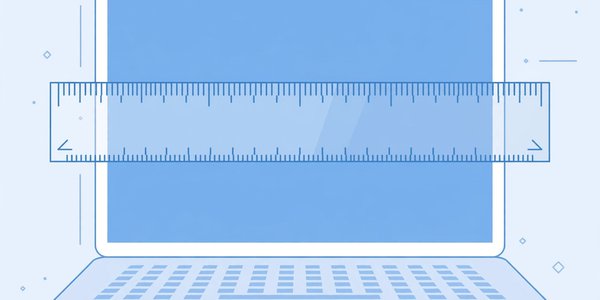
How to Use Our On-Screen Ruler
Measuring with the on-screen ruler takes less than a minute to learn. The tool is designed to feel as natural as holding a physical ruler up to your monitor, with a few digital superpowers added. Follow these steps for accurate results every time.
- Set your browser zoom to 100 percent. Before anything else, press Ctrl plus 0 on Windows or Cmd plus 0 on Mac to reset your browser zoom. Calibration is tied to how your browser renders pixels, so measuring at any other zoom level will throw off inch and centimeter readings. Pixel measurements stay correct at any zoom, but for real world units, 100 percent zoom is essential.
- Calibrate the ruler to your display. Every screen has a different pixel density, so the tool needs to learn yours. Click the calibrate button and follow the on-screen guide: place a real credit card, debit card, or any standard ID card against the displayed outline and adjust the slider until they match exactly. Cards follow an international size standard, which makes them a perfect reference object. This one time setup takes about twenty seconds.
- Choose your unit of measurement. Use pixels when you are checking website layouts, UI elements, or image dimensions, since web design lives in pixels. Switch to inches, centimeters, or millimeters when you need real world sizes, such as checking how large a printed element will appear or estimating the physical size of an object in a photo.
- Drag the ruler into position. Click and drag the ruler anywhere on your screen, positioning its zero mark at the starting edge of whatever you want to measure. The ruler is a transparent overlay, so it floats above your content without covering what you need to see. Resize it by dragging its ends to match the length you need.
- Measure horizontally or vertically. For width, keep the ruler horizontal and read where the far edge of your object lands on the scale. For height, rotate the ruler to a vertical position with the rotate control. For extra precision, use the arrow keys to nudge the ruler one pixel at a time until its edge aligns perfectly with your target.
- Read your measurement and measure again. The current length displays clearly in your chosen unit. For critical measurements, such as checking a design spec or verifying ad dimensions, measure twice from opposite directions. If both readings agree, you can trust the result completely.

Key Features of Our On-Screen Ruler
This is far more than a static image of a ruler. Every feature exists to make measuring quick, precise, and comfortable in real workflows.
- Four units: pixels, inches, centimeters, millimeters. Switch units instantly depending on your task. Web designers live in pixels, print work needs inches or centimeters, and fine detail work benefits from millimeters. One tool covers every scenario.
- Guided calibration wizard. The step by step calibration uses a standard credit card as a reference, so anyone can tune the ruler to their display in seconds. The tool remembers your calibration, so you only do it once per screen.
- Fully draggable transparent overlay. Move the ruler anywhere, over any window or application. The see through design means your content stays visible while you measure, unlike clumsy screenshot workflows.
- Horizontal and vertical measuring. Rotate the ruler with one click to measure heights as easily as widths. No need to tilt your head or do mental math to convert orientations.
- Pixel level precision. Nudge the ruler with your keyboard arrow keys for single pixel adjustments. When you are checking whether a button is exactly 48 pixels tall, that fine control makes all the difference.
- Resizable length. Stretch or shrink the ruler to fit the job, from tiny icon measurements to full screen spans. The scale redraws cleanly at any size, so markings stay crisp and readable.
- Private by design. The ruler runs entirely in your browser. Nothing you measure is uploaded, stored, or tracked. Your screen content never leaves your computer, which matters when you work with confidential designs.
- Free with no signup or download. There is no software to install, no account to create, and no trial clock ticking. Open the page and measure. It is that simple.
Why Use Our On-Screen Ruler?
Accurate measurements save real time and prevent real mistakes. A web designer checking that a hero image matches the mockup can confirm dimensions in seconds instead of exporting and inspecting files. A developer verifying that a button meets the 48 pixel touch target guideline catches accessibility issues before they reach users. A student measuring diagrams in an online textbook gets precise numbers for homework without printing anything.
A marketer checking banner ad sizes avoids costly rejected uploads. Even outside professional work, the ruler is handy: estimating whether furniture in a photo will fit your room, comparing product image sizes while shopping online, or checking font sizes in a presentation. Physical rulers cannot measure things trapped behind glass, and screenshot tools add tedious steps to a task that should take seconds.
Our on-screen ruler removes the friction entirely. Calibration takes twenty seconds, measuring takes five, and the result is trustworthy. Because it is free and requires no installation, it is also the perfect tool for shared or locked down computers where you cannot install software, such as library PCs, school labs, and office workstations. Whenever you catch yourself squinting at the screen and guessing, remember there is a better way, and it is already in your browser.
Tips for Best Results
A few good habits will keep your measurements consistently accurate across different screens and sessions.
- Calibrate once per monitor. Laptop screen, external monitor, and projector all have different pixel densities. Run the quick calibration on each display you use, and the tool will remember them separately.
- Always measure at 100 percent zoom. Browser zoom changes how CSS pixels map to screen pixels. Reset with Ctrl plus 0 or Cmd plus 0 before calibrating or measuring in inches and centimeters.
- Recalibrate after display changes. If you change your screen resolution, plug into a new monitor, or update your graphics driver, run calibration again. It takes twenty seconds and guarantees accuracy.
- Use pixels for anything web related. Websites, apps, and digital images are built in pixels, so pixel mode gives you exact numbers with zero calibration needed. Save the physical units for print and real world estimates.
- Nudge with arrow keys for precision. Dragging with a mouse can overshoot by a pixel or two. Once you are close, tap the arrow keys to align the ruler edge exactly with your target.
- Measure twice for critical work. When dimensions must be exact, such as ad specs or print layouts, measure from both directions and confirm the readings match before you commit.
Frequently Asked Questions
Everything you might wonder about measuring with our free online ruler.
How accurate is the on-screen ruler?
Pixel measurements are exact, since they count the actual pixels your browser renders. Inch, centimeter, and millimeter readings are accurate to within a fraction of a millimeter after proper calibration with a standard card. For screen based design and estimation work, that level of precision is more than enough.
Why do I need to calibrate the ruler?
Screens pack different numbers of pixels into each physical inch, a property called pixel density. A 13 inch laptop and a 27 inch monitor can both show 1920 pixels across, but those pixels are very different physical sizes. Calibration teaches the tool your screen’s density using a credit card of known size as a reference, so physical units read correctly.
What can I use to calibrate if I do not have a credit card?
Any standard size plastic card works: debit cards, ID cards, and driver’s licenses all follow the same international dimensions. In a pinch, you can use any object of precisely known size, such as a ruler held against the screen, though a card is the easiest option for most people.
Which units of measurement are supported?
The ruler supports pixels, inches, centimeters, and millimeters. You can switch between them instantly at any time, and each unit displays with an appropriate level of decimal precision for the task at hand.
Complete List of All Free Online Tools
Browse the full directory of 450+ free tools. Click any tool name to use it instantly - no signup required.
| # | Tool Name | Category |
|---|---|---|
| 1 | A B Test Significance Calculator | Calculators & Converters |
| 2 | Acronym Generator | Utility Tools |
| 3 | Ad Copy Generator | Utility Tools |
| 4 | Add Page Numbers To PDF | PDF Tools |
| 5 | Add Subtitles To Video | Media Tools |
| 6 | Add Subtract Days Calculator | Calculators & Converters |
| 7 | Age Calculator | Calculators & Converters |
| 8 | Angle Converter | Calculators & Converters |
| 9 | API Request Tester | Utility Tools |
| 10 | Area Converter | Calculators & Converters |
| 11 | Article Rewriter | Utility Tools |
| 12 | Audio Converter | Calculators & Converters |
| 13 | Audio Merger | Media Tools |
| 14 | Audio Metadata Editor | Media Tools |
| 15 | Audio Pitch Changer | Media Tools |
| 16 | Audio Speed Changer | Media Tools |
| 17 | Audio To Text Converter | Calculators & Converters |
| 18 | Audio Trimmer | Media Tools |
| 19 | Avatar Maker | Utility Tools |
| 20 | Background Remover | Utility Tools |
| 21 | Backlink Checker | SEO Tools |
| 22 | Banner Maker | Utility Tools |
| 23 | Barcode Generator | Developer Tools |
| 24 | Base64 Encoder Decoder | Developer Tools |
| 25 | Bass Booster | Utility Tools |
| 26 | Bibliography Generator | Utility Tools |
| 27 | Bill Splitter | Utility Tools |
| 28 | Binary Converter | Calculators & Converters |
| 29 | Binary To Text Converter | Calculators & Converters |
| 30 | Birthday Countdown | Date & Time Tools |
| 31 | Bmi Calculator | Calculators & Converters |
| 32 | Bmr Calculator | Calculators & Converters |
| 33 | Body Fat Calculator | Calculators & Converters |
| 34 | Body Surface Area Calculator | Calculators & Converters |
| 35 | Book Title Generator | Utility Tools |
| 36 | Brand Color Finder | Color Tools |
| 37 | Brand Kit Generator | Utility Tools |
| 38 | Break Even Calculator | Calculators & Converters |
| 39 | Broken Link Checker | Utility Tools |
| 40 | Browser Info Checker | Utility Tools |
| 41 | Budget Planner | Utility Tools |
| 42 | Business Card Designer | Utility Tools |
| 43 | Business Card Maker | Utility Tools |
| 44 | Business Days Calculator | Calculators & Converters |
| 45 | Business Name Generator | Utility Tools |
| 46 | Business Proposal Generator | Utility Tools |
| 47 | Button Generator | Utility Tools |
| 48 | Buyer Persona Generator | Utility Tools |
| 49 | Calorie Calculator | Calculators & Converters |
| 50 | Captcha Generator | Utility Tools |
Does the ruler work on phones and tablets?
Yes, the tool works in mobile browsers, and touch dragging makes positioning the ruler feel natural. Keep in mind that phone screens are small, so the ruler is most comfortable on tablets and desktops. Calibration with a card works the same way on touch devices.
Is my screen content private when I use this tool?
Completely. The ruler is a visual overlay drawn by your own browser, and nothing you measure is sent anywhere. There are no uploads, no screenshots taken, and no tracking of what appears on your screen. Your content stays on your device.
Is the on-screen ruler really free?
Yes. It is free to use with no limits, no account, and no download. A Tool Today keeps everyday utility tools free because small helpful tools should be available to everyone who needs them.
Can I measure objects inside photos or videos?
Yes, and it is one of the most popular uses. Pause a video on the frame you want, then position the ruler over the paused image to measure anything visible on screen. For photos, pixel mode tells you exact on-screen dimensions, which is perfect for checking whether an image will look sharp at a given display size. If you need the real world size of an object shown in a photo, remember that the ruler measures what is displayed, not the original object, unless you know the scale of something else in the same image to calibrate against.
Does my screen resolution affect accuracy?
Pixel measurements are always exact because they count the actual pixels your browser renders, no matter the resolution. Higher resolution screens simply let you measure finer detail. Physical units like inches and centimeters depend on calibration rather than resolution, so a 4K monitor and an old 1080p display can both be equally accurate once calibrated. The one rule is to recalibrate whenever you change your resolution, since the relationship between pixels and physical inches changes with it.
Can I measure diagonal or angled lines?
The ruler rotates between horizontal and vertical orientations, which covers the vast majority of measuring tasks. For an angled element, the practical approach is to measure its bounding box: the horizontal width and the vertical height. Those two numbers are usually what designers and developers actually need for layout work. If you truly need the length of a diagonal, measure the width and height and combine them with the Pythagorean theorem, or simply rotate your content if your application allows it.
Will the ruler work with multiple monitors or a projector?
Yes. Simply drag your browser window onto the display you want to measure on and use the ruler there. Because every screen has its own pixel density, run the quick calibration separately on each monitor for accurate inch and centimeter readings. For projectors, pixel mode works perfectly for measuring on-screen content, though physical unit calibration against a projected image is impractical, so stick with pixels when presenting.
Table of Contents
What is On Screen Ruler?
The on screen ruler is a free online tool that helps you with on screen ruler tasks quickly and accurately. Our on screen ruler is designed to be simple, fast, and reliable. Whether you need a on screen ruler for personal use or professional work, this free on screen ruler delivers instant results without any signup or download required.
How to Use the On Screen Ruler
Using our on screen ruler is easy. Simply open the on screen ruler tool above, enter your input, and get instant results. The on screen ruler processes everything in your browser for maximum privacy and speed. No technical knowledge is needed to use this on screen ruler effectively.
Benefits of Using Our On Screen Ruler
Our free on screen ruler offers many advantages. It is completely free to use, requires no registration, works on all devices, and provides accurate results instantly. The on screen ruler is updated regularly to ensure the best performance. For more information about on screen ruler, you can Learn more about on screen ruler on Wikipedia.
Frequently Asked Questions About On Screen Ruler
Is the on screen ruler really free? Yes, our on screen ruler is 100% free with no hidden costs or premium tiers.
Do I need to create an account to use the on screen ruler? No, the on screen ruler works instantly without any signup or login required.
