Category: Photo Prompts

  • Old Memories Photo Prompt That Hits Hard

    Old Memories Photo Prompt That Hits Hard

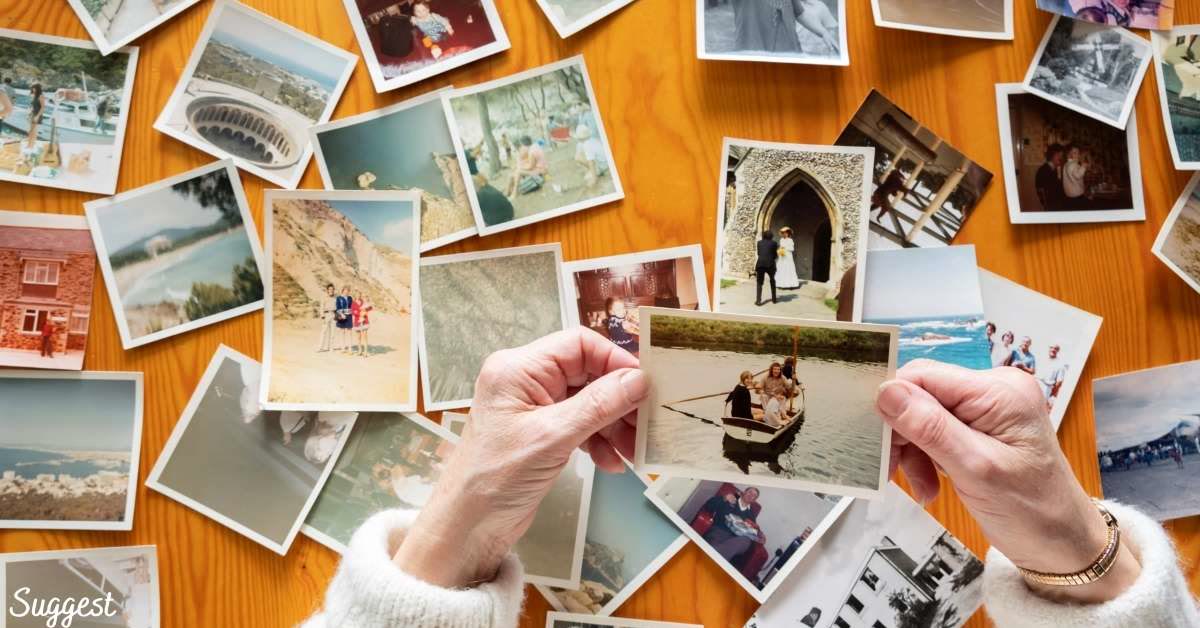
    Photo prompt that reminds you of old memories result with faded film tones

    Introduction

    A photo prompt that reminds you of old memories creates something more than a portrait. It creates a feeling, the feeling of finding an old photo years later and remembering a moment you thought was gone. Faded film tones, soft grain, and warm window light give the edit that rediscovered quality.

    Nostalgic edits connect deeply because everyone has old memories worth keeping. The wistful expression, the gentle vignette, and the emotional mood turn a new photo into a keepsake. This style suits throwback posts, tribute reels, and quiet, heartfelt content. Once you try this Photo prompt that reminds you of old memories, small tweaks let you create many variations from one idea.
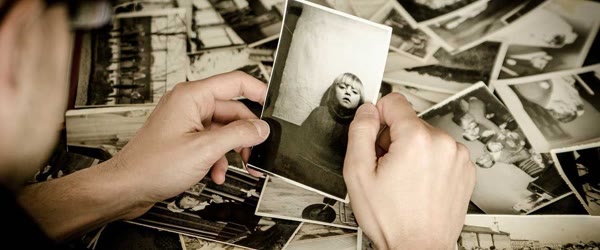
    Nostalgic memory portrait with soft grain and warm afternoon light

    How to Use This Prompt

    1. Upload a clear photo with a soft, natural expression to your AI editor and paste the full prompt.
    2. Generate the first version and check the grain, vignette, and light for a believable old-photo feel.
    3. If the fade looks too strong, generate again, then pick the version that feels emotional without looking washed out.

    Wistful expression portrait with gentle vignette and emotional mood

    Copy-Paste Prompt

    Transform this photo into a nostalgic memory-style portrait with faded film tones, soft grain, warm afternoon window light, and a wistful expression, as if the moment was captured years ago and rediscovered today, gentle vignette, emotional mood, ultra-realistic, 4K, cinematic lighting.

    Pro Tips for Photo Prompt That Reminds You Of Old Memories

    • A calm, thoughtful expression sells the nostalgic mood better than a big smile.
    • Window light is ideal, since it matches the warm afternoon glow in the prompt.
    • Pair the photo with a short caption about the memory, as words complete the nostalgic effect.

    Rediscovered old moment photo with faded tones and soft focus

    More Prompts to Try

    This old memories photo prompt can hold many nostalgic stories beyond one wistful portrait. The six variations below keep the faded film tones, soft grain, and warm window light of the main prompt while changing the memory, so one photo can become a whole album of rediscovered moments.

    Childhood Summer

    A childhood summer afternoon, barefoot in the yard, with golden light and endless freedom.

    Transform this photo into a nostalgic memory-style portrait of a childhood summer afternoon, barefoot in the yard, golden light, faded film tones, soft grain, warm afternoon glow, as if captured years ago and rediscovered today, gentle vignette, emotional mood, ultra-realistic, 4K, cinematic lighting.

    Grandmother’s Kitchen

    A warm kitchen, the smell of cooking, and a quiet moment of love passed down through generations.

    Transform this photo into a nostalgic memory-style portrait in a warm old kitchen, soft window light, faded film tones, gentle grain, the feeling of a family recipe and a grandmother's love, as if captured years ago and rediscovered today, gentle vignette, emotional mood, ultra-realistic, 4K, cinematic lighting.

    School Days Friends

    Old school friends laughing together, uniforms and backpacks, with the golden light of youth.

    Transform this photo into a nostalgic memory-style portrait of school friends laughing together, golden afternoon light, faded film tones, soft grain, the carefree feeling of youth, as if captured years ago and rediscovered today, gentle vignette, emotional mood, ultra-realistic, 4K, cinematic lighting.

    First Bicycle Ride

    A first bicycle, wobbling down a quiet lane, with pride, fear, and joy in one moment.

    Transform this photo into a nostalgic memory-style portrait of a first bicycle ride down a quiet lane, warm evening light, faded film tones, soft grain, pride and joy in the expression, as if captured years ago and rediscovered today, gentle vignette, emotional mood, ultra-realistic, 4K, cinematic lighting.

    Old Family Gathering

    A big family gathering, generations together, with laughter, food, and warm evening light.

    Transform this photo into a nostalgic memory-style portrait of a big family gathering, generations together, warm evening light, faded film tones, soft grain, laughter and togetherness, as if captured years ago and rediscovered today, gentle vignette, emotional mood, ultra-realistic, 4K, cinematic lighting.

    Rainy Window Evening

    A rainy evening by the window, watching the drops, lost in a quiet, beautiful thought.

    Transform this photo into a nostalgic memory-style portrait by a rainy window in the evening, soft grey light, faded film tones, gentle grain, quiet thoughtful mood, as if captured years ago and rediscovered today, gentle vignette, emotional mood, ultra-realistic, 4K, cinematic lighting.

    How to Customize This Prompt

    The main old memories photo prompt is built on three elements: faded tones, soft grain, and warm light. Customizing it well means choosing the memory first, because the memory decides the light and the expression. A childhood summer wants golden afternoon light, a grandmother’s kitchen wants warm window light, a rainy evening wants soft grey light, and a family gathering wants warm evening glow. Pick one memory and describe it in one phrase, so the AI commits to a single feeling instead of mixing several. What makes this Photo prompt that reminds you of old memories so useful is how little manual work it needs.

    Next, adjust the expression to match the memory. A wistful, thoughtful look suits rediscovery and quiet moments, a soft smile suits family and friendship memories, and a proud, joyful look suits childhood triumphs like a first bicycle ride. The expression is what makes viewers feel the memory, so choose it deliberately and keep it natural. A forced smile against faded tones reads as artificial, while a calm, genuine expression lets the nostalgia breathe. Many creators keep this Photo prompt that reminds you of old memories saved for quick, reliable edits on busy days.

    Then tune the fade and the grain together. A light fade with fine grain feels like a well-kept photograph, while a heavier fade with visible grain feels like a rediscovered treasure. If the fade washes out the face, add “gentle fade, face clearly visible” to protect it. If the grain looks dirty, ask for “fine soft grain” instead. Finally, keep the vignette gentle: a soft darkening at the corners focuses the eye, while a heavy vignette makes the photo feel like a tunnel. The goal is a keepsake, not a filter showcase. This Photo prompt that reminds you of old memories pairs well with a short caption and trending audio when you share the result.

    Step-by-Step Guide

    1. Choose a starting photo with a calm, natural expression and soft light. Nostalgic edits build on the feeling already in the photo, so a relaxed, thoughtful input gives the most emotional result.
    2. Open your AI photo editor and upload the photo at full quality. Grain and fade details survive only when the input is sharp, so avoid blurry or heavily compressed photos.
    3. Paste the full old memories photo prompt, keeping the details about faded tones, grain, window light, and wistful expression together.
    4. Generate the first version and check three things in order: the expression, the fade strength, and whether the face stays clearly visible through the grain and vignette.
    5. If the fade looks too strong, add “gentle fade, face clearly visible” and generate again. If the grain looks harsh, ask for “fine soft grain” instead.
    6. Generate two or three versions and compare the emotional feeling. The best nostalgic portrait makes you pause and remember, without looking washed out or dirty.
    7. Crop for your platform, keeping the vignette balanced and the subject placed naturally. A square or vertical crop suits throwback posts, while a wide crop suits covers and prints.
    8. Export at the highest quality and post with a short caption about the memory. Words complete the nostalgic effect, and a single honest sentence often earns more comments than a long story.

    Common Mistakes to Avoid

    The most common mistake is over-fading the photo. A heavy fade washes out the face and turns nostalgia into a blank, grey image. Keep the fade gentle and the face clearly visible, and let the grain and light do the nostalgic work. This Photo prompt that reminds you of old memories works especially well when your source photo or clip is clear and well lit.

    Another mistake is a big, forced smile. Nostalgic portraits feel emotional because the expression is quiet and thoughtful, and a huge grin breaks the wistful mood. Choose a calm, natural expression, and let the feeling come from the light and tones. A big advantage of this Photo prompt that reminds you of old memories is that it stays beginner friendly without looking basic.

    People also overdo the grain. Heavy, chunky grain looks dirty on a phone screen, while fine, soft grain feels like film. If the grain distracts from the face, reduce it and regenerate rather than accepting a gritty result. This Photo prompt that reminds you of old memories gives your edit a consistent look that viewers recognize right away.

    Ignoring the caption is a subtler trap. A nostalgic photo without words feels incomplete, since the memory needs a sentence to anchor it. Pair the photo with one short, honest line about the moment, and the post will connect far more deeply. You do not need expensive software to get the most out of this Photo prompt that reminds you of old memories.

    Finally, do not add extra vintage filters after generating. The faded tones, grain, and vignette are already balanced, and stacking more filters turns a keepsake into a muddy mess. Trust the prompt and make only tiny adjustments. This Photo prompt that reminds you of old memories focuses on the small details that make an edit feel premium.

    Best Tools for This Edit

    ChatGPT is a flexible home for this old memories photo prompt, because you can describe fade and grain fixes in plain words. If the fade looks too strong or the grain too harsh, say so and generate again. The conversational flow makes refinement easy. Beginners often start with this Photo prompt that reminds you of old memories because the steps stay simple from start to finish.

    Gemini is strong for nostalgic realism and light. Its rendering of warm window light, faded film tones, and gentle vignettes is soft and believable, and it holds facial expressions naturally while rebuilding the mood. Generate a few versions and keep the most emotional one. When you want dependable results, this Photo prompt that reminds you of old memories is a safe choice to start from.

    Hypic works well as a finishing tool for nostalgic portraits. After generating, use it to fine-tune the vignette, adjust warmth, or soften the grain without rebuilding the scene. Its gentle tools protect the faded tones while cleaning up small issues. This Photo prompt that reminds you of old memories can be adjusted for brighter, softer, or more dramatic results in seconds.

    Frequently Asked Questions

    What starting photo works best?

    A clear photo with a calm, thoughtful expression and soft natural light. Window light is ideal, since it matches the warm afternoon glow in the prompt, and a relaxed expression sells the nostalgic mood. This Photo prompt that reminds you of old memories rewards a little patience, so preview the result before you export.

    Can I use this prompt for a photo of someone who has passed away?

    Yes, and it is one of the most meaningful uses. A nostalgic edit of a loved one makes a beautiful tribute post. Keep the expression calm and the fade gentle, and pair it with a short, honest caption. Overall, this Photo prompt that reminds you of old memories turns a simple idea into a result that feels ready to post.

    How strong should the fade be?

    Gentle enough that the face stays clearly visible. If you cannot see the eyes clearly, the fade is too strong. Regenerate with “gentle fade, face clearly visible” and compare. This Photo prompt that reminds you of old memories is worth bookmarking if you enjoy quick creative edits.

    Is this style good for prints?

    Yes, it prints beautifully, especially in warm tones on matte paper. Export at the highest quality, keep the vignette gentle, and the result makes a touching framed keepsake or album page. This Photo prompt that reminds you of old memories is built to deliver a polished result in just a few minutes.

    Can I use the same photo for multiple memories?

    Absolutely. Generate the childhood, kitchen, school, and family versions from one starting photo, and post them as a series showing one life through many remembered moments. You can come back to this Photo prompt that reminds you of old memories again and again whenever you need a fresh edit.

    Creative Ideas to Try

    Build a “memory lane” series by generating all six memories above from the same photo, and post them as a carousel showing one life through many rediscovered moments. You can also create a tribute post pairing the nostalgic edit with a short voiceover or a favorite song, which earns saves from viewers honoring their own memories. For a family page, generate one nostalgic portrait per family member and post them as a collection for a holiday or anniversary.

    If you run a photography page, offer nostalgic edits as a signature service, with each client’s own photo as the starting frame. Each idea turns one prompt into a lasting album of feeling. This Photo prompt that reminds you of old memories keeps the original mood of your photo or clip while lifting the overall quality.

    Troubleshooting

    If the fade washes out the face, regenerate with “gentle fade, face clearly visible” and check the eyes first. If the grain looks dirty, ask for “fine soft grain” and compare the result at full screen, since grain that looks fine in a thumbnail can look harsh at full size. If the vignette feels like a tunnel, soften it in your editor before posting, since a gentle corner darkening is enough.

    If the expression looks forced, the starting photo was probably too posed, so try a calmer, more candid input. When in doubt, generate three versions and pick the one that makes you pause and remember. If you post on social media often, this Photo prompt that reminds you of old memories can save you a lot of editing time.

    Advanced Tips for Better Results

    Once the basic faded film portrait feels emotional, deepen the nostalgia with texture layering and caption craft. Texture layering means adding one subtle physical detail to the scene, such as a worn photo border, a soft paper texture, or a faint dust speck in the light, so the image feels like a physical object rather than a digital file. Ask the prompt for “subtle aged photo texture” and check it at full screen, since texture that is invisible in a thumbnail can feel rich at full size, while texture that is visible in a thumbnail usually looks dirty. This Photo prompt that reminds you of old memories is easy to adapt, so small changes still keep the same overall style.

    Caption craft is the second lever. A nostalgic photo needs one honest sentence, not a paragraph: a date, a place, and a feeling, such as “Summer 2011, grandmother’s kitchen, the smell of rain.” Short captions invite viewers to fill in their own memories, while long captions explain the feeling away. Third, pair the portrait with a song from the era it evokes, using the audio as the time machine and the image as the anchor. Finally, print one version. A nostalgic portrait on matte paper, framed or tucked into an album, completes the illusion of a rediscovered photograph, and the printed copy often becomes a gift that outlasts the post.

    Final Words

    Old memories never really fade, they just wait to be found again, and this prompt finds them beautifully. Paste it, choose your most emotional version, and share a portrait that feels like yesterday, warm, wistful, and full of love. This Photo prompt that reminds you of old memories keeps faces and key details natural while the style does the heavy lifting.

    Old memories never really fade, they just wait to be found again. Paste this prompt, choose your most emotional version, and share a portrait that feels like yesterday. If a friend asks how you made the edit, this Photo prompt that reminds you of old memories is the shortcut worth sharing.

  • Romantic Beach Boy AI Photo Edit Prompt

    Romantic Beach Boy AI Photo Edit Prompt

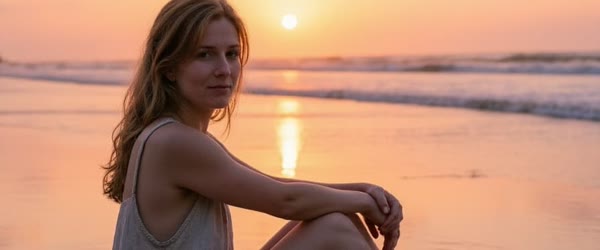
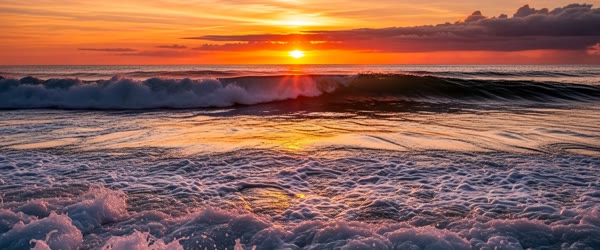
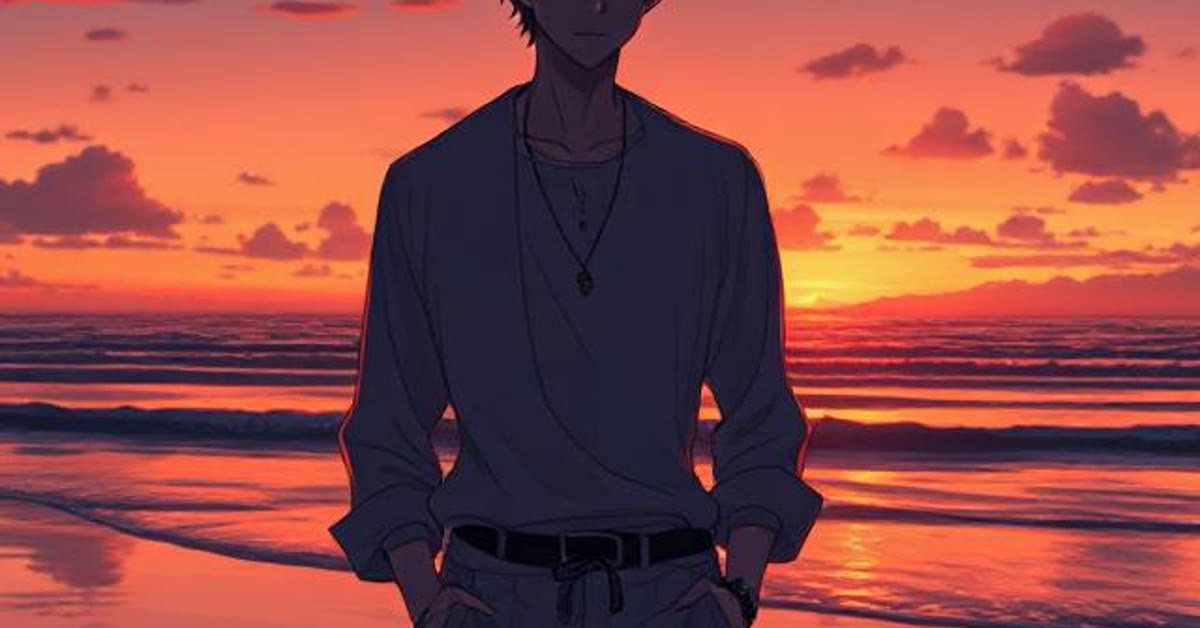
    Romantic beach boy AI photo edit prompt result at golden hour

    Introduction

    A romantic beach boy AI photo edit prompt is perfect for a dreamy seaside portrait. The prompt below places the subject barefoot on wet sand at golden hour, with gentle waves, a soft sea breeze, and a pastel sky that makes the whole photo feel warm and romantic. Used the right way, this romantic beach boy ai photo edit prompt can save you a lot of trial and error.

    Beach portraits work so well because the light does half the job. Golden hour glow softens the face, the ocean adds movement, and the shallow depth of field keeps the focus where it belongs. This edit suits profile pictures, romantic posts, and summer memories that deserve a cinematic finish. If you enjoy the craft behind it, this page on beach scenes gives useful context. Many beginners start with this romantic beach boy ai photo edit prompt and then adjust the details to match their own style.

    Young man barefoot on wet sand with waves rolling behind him

    How to Use This Prompt

    1. Upload a clear photo to your AI editor and paste the full prompt into the edit box.
    2. Generate the first version and check the face, the waves, and the sunset glow for a natural balance.
    3. If the sky looks too pink, generate again, then pick the version with the most realistic skin texture.
    Beach portrait with warm sunset glow and dreamy pastel sky

    Copy-Paste Prompt

    Transform this photo into a romantic beach portrait of a young man standing barefoot on wet sand at golden hour, gentle waves rolling behind him, soft sea breeze in his hair, warm sunset glow on his face, dreamy pastel sky, shallow depth of field, ultra-realistic skin texture, 4K, cinematic lighting.

    Pro Tips for Romantic Beach Boy AI Photo Edit Prompt

    • A relaxed, thoughtful expression suits the romantic beach mood better than a big pose.
    • Simple outfits like a white shirt or open shirt photograph best against the pastel sky.
    • Keep the horizon level in your starting photo, since a tilted sea line looks wrong fast.
    Romantic beach scene with shallow depth of field and sea breeze

    More Prompts to Try

    This romantic beach boy AI photo edit prompt can build many seaside stories beyond one golden-hour portrait. The six variations below keep the wet sand, gentle waves, and dreamy sky of the main prompt while changing the time of day, the activity, and the mood, so one photo can become a whole beach collection. If you follow the steps in order, this romantic beach boy ai photo edit prompt becomes much easier to repeat on your next project.

    Sunrise Solitude

    A quiet sunrise walk with soft pink light and footprints trailing behind in the sand. This romantic beach boy ai photo edit prompt works for quick posts, but it also holds up well in longer, more detailed projects.

    Transform this photo into a romantic beach portrait of a young man walking barefoot on wet sand at sunrise, soft pink and gold light, gentle waves, footprints trailing behind him, peaceful thoughtful mood, shallow depth of field, ultra-realistic skin texture, 4K, cinematic lighting.

    Surf Session Energy

    A surfer carrying a board toward the waves, with spray, motion, and bright midday light. Before you publish, compare two versions made with the romantic beach boy ai photo edit prompt and pick the one with the cleaner motion.

    Transform this photo into a beach portrait of a young man carrying a surfboard toward the waves, bright midday light, ocean spray, dynamic motion, joyful adventurous energy, shallow depth of field, ultra-realistic skin texture, 4K, cinematic lighting.

    Bonfire Evening

    A beach bonfire at blue hour, with warm firelight, friends laughing, and the sea dark behind. That flexibility is what makes this romantic beach boy ai photo edit prompt worth bookmarking.

    Transform this photo into a beach bonfire portrait at blue hour, warm firelight on faces, friends laughing nearby, dark calm sea behind, cozy golden glow, shallow depth of field, ultra-realistic skin texture, 4K, cinematic lighting.

    Rainy Shore Romance

    A beach in light rain, with wet hair, soft grey light, and a thoughtful, cinematic mood.

    Transform this photo into a romantic beach portrait in light rain, wet hair, soft grey light, gentle waves, thoughtful cinematic mood, shallow depth of field, ultra-realistic skin texture, 4K, cinematic lighting.

    Cliff View Dream

    A young man standing on a rocky cliff above the beach, looking out at the endless sea.

    Transform this photo into a romantic beach portrait of a young man standing on a rocky cliff above the shore, golden hour light, endless sea stretching to the horizon, wind in his hair, dreamy contemplative mood, shallow depth of field, ultra-realistic skin texture, 4K, cinematic lighting.

    Night Shore Calm

    A moonlit beach with silver light on the water and a quiet figure walking the shoreline.

    Transform this photo into a romantic moonlit beach portrait, silver moonlight on gentle waves, a quiet figure walking the shoreline, deep blue night tones, peaceful dreamy mood, shallow depth of field, ultra-realistic skin texture, 4K, cinematic lighting.

    How to Customize This Prompt

    The main romantic beach boy AI photo edit prompt is built on three elements: golden light, gentle motion, and a dreamy sky. Customizing it well means changing one element at a time while keeping the other two, so the edit stays balanced. Start with the time of day, because light decides the whole color story.

    Golden hour gives warm romance, sunrise gives soft pink hope, midday gives bright energy, blue hour gives cozy firelight contrast, and moonlight gives quiet silver calm. Pick one time and describe the light in one phrase, so the AI commits to a single mood instead of mixing several. A good romantic beach boy ai photo edit prompt works best when the subject stays clear and the motion stays simple.

    Next, change the activity and the pose. A thoughtful standing pose suits romance, a walking stride suits solitude, a surfboard suits energy, and a cliff view suits contemplation. Keep the pose simple and the expression relaxed, since beach portraits feel romantic when they look natural. A forced pose against a dreamy sky reads as artificial, while a relaxed stance lets the light and the sea carry the feeling.

    Then adjust the sky and the sea together. A pastel sky pairs with gentle waves, a dramatic cloudy sky pairs with stronger surf, and a clear night sky pairs with calm water. If the sky looks too pink, add “soft balanced sky” to calm it. If the waves look too rough for the mood, add “gentle calm waves” to settle them. Finally, tune the depth of field: shallow depth keeps the focus on the face with a creamy blurred sea, while deeper focus suits cliff and landscape versions where the scenery matters as much as the person.

    Step-by-Step Guide

    1. Choose a starting photo with a clear face, natural light, and a simple background. Beach edits rebuild the scene around the subject, so a clean, well-lit input gives the most natural result.
    2. Open your AI photo editor and upload the photo at full quality. Skin texture and wave detail survive only when the input is sharp, so avoid blurry or heavily compressed photos.
    3. Paste the full romantic beach boy AI photo edit prompt, keeping the details about wet sand, waves, sea breeze, and pastel sky together.
    4. Generate the first version and check three things in order: the face and skin texture, the horizon line, and the balance between the sunset glow and the sky color.
    5. If the sky looks too pink or the glow too strong, add “soft balanced sky” and generate again. If the horizon tilts, straighten it in your editor before posting.
    6. Generate two or three versions and compare the skin texture. The best beach portrait keeps the skin realistic and warm, never plastic or orange.
    7. Crop for your platform, keeping the horizon level and the subject placed off-center for a cinematic feel. A vertical crop suits profile pictures and stories, while a wide crop suits covers and prints.
    8. Export at the highest quality and post without heavy filters. The golden light and pastel sky are already balanced, and extra filters can crush the soft tones you worked to create.

    Common Mistakes to Avoid

    The most common mistake is starting with a photo that has harsh shadows or a cluttered background. Beach edits soften everything, and harsh shadows turn muddy while clutter fights the dreamy mood. Always start with soft, even light and a simple background. That is exactly why this romantic beach boy ai photo edit prompt focuses on clear steps instead of guesswork.

    Another mistake is a tilted horizon. A sloping sea line looks wrong instantly, even when the face and the light are perfect. Check the horizon before posting, and straighten it in your editor if it tilts even slightly.

    People also overdo the sunset colors. An oversaturated pink or orange sky looks artificial and makes the skin look orange too. If the sky overwhelms the face, regenerate with “soft balanced sky” and let the warmth stay gentle.

    Ignoring the outfit is a subtler trap. Dark, heavy clothes fight the light beach mood, while simple white or open shirts blend with the pastel sky. Choose the outfit in the starting photo with the beach in mind, or ask the prompt for a simple light outfit.

    Finally, do not add heavy contrast or saturation after generating. The romantic beach grade is deliberately soft, and harsh post-processing flattens the dreamy sky and makes the waves look dirty. Trust the prompt and make only tiny adjustments.

    Best Tools for This Edit

    ChatGPT is a flexible home for this romantic beach boy AI photo edit prompt, because you can describe light and sky fixes in plain words. If the sky looks too pink or the waves too rough, say so and generate again. The conversational flow makes refinement easy. Once you have tried this romantic beach boy ai photo edit prompt a couple of times, the whole workflow starts to feel natural.

    Gemini is strong for beach realism and light. Its rendering of golden-hour glow, wet sand reflections, and pastel skies is warm and believable, and it holds skin texture naturally while rebuilding the scene. Generate a few versions and keep the most realistic one.

    Hypic works well as a finishing tool for beach portraits. After generating, use it to straighten the horizon, fine-tune warmth, or adjust the crop without rebuilding the scene. Its gentle tools protect the pastel tones while cleaning up small issues.

    Frequently Asked Questions

    What starting photo works best?

    A clear, well-lit photo with a relaxed expression and a simple background. Soft natural light blends most easily with the golden-hour beach scene, and a clean background gives the AI room to build the sea and sky. The real strength of this romantic beach boy ai photo edit prompt is how repeatable it is from one project to the next.

    Can I use this prompt for a group photo?

    It is designed for a single portrait, and groups dilute the romantic focus. For group beach photos, generate the scene once and ask for the group kept together with the same beach setting, but expect less control over individual faces. When you use this romantic beach boy ai photo edit prompt, pay close attention to timing, because timing is what makes the result feel polished.

    How do I keep the horizon level?

    Check the sea line before posting, and straighten it in your editing app if it tilts. A level horizon is the single fastest way to make a beach photo look professional. This romantic beach boy ai photo edit prompt also gives you a solid base that you can restyle for different platforms.

    Is this style good for a profile picture?

    Yes, it is one of the best profile styles, especially cropped vertically with the face large and the pastel sky behind. The warm light flatters skin tones and the sea adds a calm, confident feeling. Most creators who try this romantic beach boy ai photo edit prompt end up saving it for future projects as well.

    Can I change the outfit in the prompt?

    Yes. Add a simple outfit description, such as a white linen shirt or an open casual shirt, and the AI will rebuild the clothing to match the beach mood. Keep outfits light and simple for the most natural result. If the first attempt feels off, run the romantic beach boy ai photo edit prompt again with one small change instead of starting over.

    Creative Ideas to Try

    Build a “four times of day” series by generating the sunrise, golden hour, blue hour, and moonlit versions from the same photo, and post them as a carousel showing one person across a whole beach day. You can also create a before-and-after post pairing your ordinary photo with the beach version, which earns saves from viewers who want the same transformation. For a travel page, generate the beach version of a destination before you visit, then post the AI version beside your real photo after the trip as a dream-versus-reality comparison. For the cleanest result, pair this romantic beach boy ai photo edit prompt with steady shots and soft, even lighting.

    If you run a photography page, offer beach portraits as a signature edit, with each follower’s own photo as the starting frame. Each idea turns one prompt into a complete seaside collection.

    Troubleshooting

    If the skin looks plastic or orange, the sunset glow is too strong, so regenerate with “soft balanced sky” and check the skin first. If the horizon tilts, straighten it in your editor before posting, since no prompt fix can rescue a sloping sea. If the waves look too rough for the romantic mood, add “gentle calm waves” and regenerate rather than editing afterward.

    If the sky overwhelms the face, reduce the pink and orange in the description and let the warmth stay gentle. When in doubt, generate three versions and pick the one with the most natural skin and the levelest horizon. This romantic beach boy ai photo edit prompt is designed to work even if you are creating everything on a phone.

    Advanced Tips for Better Results

    Once the basic golden-hour beach portrait feels natural, refine your beach edits with reflection work and outfit planning. Wet sand is a natural mirror, and positioning the subject so the sunset reflects in the sand beneath them doubles the golden light in the frame. Ask the prompt for “sunset reflections in wet sand” and check the reflection in the first generation, since a strong reflection turns a good portrait into a striking one. Small changes to the romantic beach boy ai photo edit prompt can completely change the mood of the final result.

    Outfit planning is the second lever. A white or cream linen shirt reflects the sunset beautifully and keeps the skin tones warm, while dark or busy patterns absorb the light and fight the pastel sky. If the starting photo has a dark outfit, ask the prompt for a simple light shirt and compare the result. The difference is often dramatic. Third, think about the tide line: a portrait taken at the water’s edge, where gentle waves reach the subject’s feet, feels more alive than one taken on dry sand.

    Finally, shoot a second version at a different time of day from the same photo, such as sunrise, and post the two as a morning-versus-evening pair. The comparison earns saves, and it shows the range of one prompt beautifully.

    Final Words

    Golden hour, gentle waves, and one quiet moment by the sea, that is a beach portrait worth sharing. Paste this prompt, choose your dreamiest version, and share a romantic beach edit full of warmth, light, and summer feeling. Keep testing small variations of the romantic beach boy ai photo edit prompt until the result matches the look you imagined. A well-built romantic beach boy ai photo edit prompt keeps the viewer focused on the story rather than on the editing.

    Golden hour, gentle waves, and one quiet moment by the sea. Paste this prompt, choose your dreamiest version, and share a beach portrait full of warmth and romance. You can also combine this romantic beach boy ai photo edit prompt with your own clips to make the result feel more personal.

  • Cinematic Outdoor Photos With Real Depth

    Cinematic Outdoor Photos With Real Depth

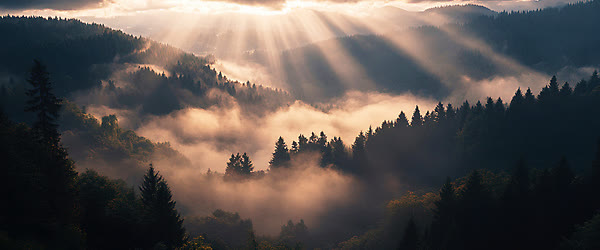
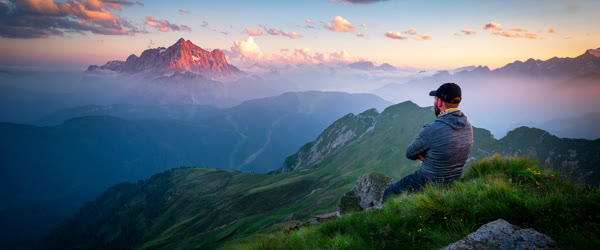
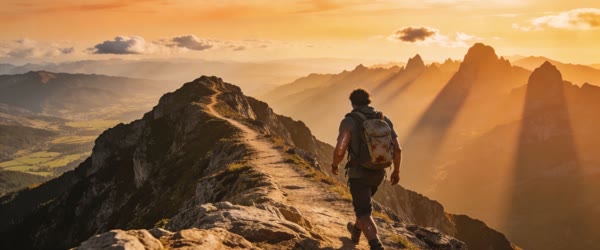
    Cinematic outdoor AI photo editing prompt result with mountains and sunbeams

    Introduction

    A cinematic outdoor AI photo editing prompt adds real depth to a plain outdoor photo. The prompt below builds layered mountains, sunbeams through trees, and rich earthy tones around a natural, relaxed pose, turning a simple snapshot into a scene that feels like a film still. Used the right way, this cinematic outdoor ai photo editing prompt can save you a lot of trial and error.

    Depth is what separates a flat photo from a cinematic one. Layers in the foreground, middle, and background give the eye a journey through the image. The gentle haze and adventurous mood complete the effect, making the photo feel wild, free, and alive. You can also read more about photography to understand the background behind this style. Many beginners start with this cinematic outdoor ai photo editing prompt and then adjust the details to match their own style.

    Outdoor scene with layered mountains and sunbeams through trees

    How to Use This Prompt

    1. Upload a clear outdoor photo to your AI editor and paste the full prompt.
    2. Generate the first version and check the mountain layers, sunbeams, and pose for a natural balance.
    3. If the haze hides too much detail, generate again, then pick the version with the crispest subject.
    Natural relaxed pose in a cinematic outdoor photo with earthy tones

    Copy-Paste Prompt

    Transform this outdoor photo into a cinematic scene with layered mountains, sunbeams through trees, a natural relaxed pose, and rich earthy tones. Keep details crisp, add gentle haze and a thoughtful, adventurous mood. Ultra-realistic, 4K, cinematic lighting, wild and free spirit.

    Pro Tips for Cinematic Outdoor AI Photo Editing Prompt

    • Photos with open sky and distant views give the AI the best base for layered mountains.
    • Earthy outfits like olive, brown, and beige blend beautifully with the scene tones.
    • A relaxed, thoughtful pose suits the adventurous mood better than a stiff, posed stance.
    Adventurous outdoor portrait with gentle haze and rich detail

    More Prompts to Try

    This cinematic outdoor AI photo editing prompt can build many wild, layered worlds beyond mountains and sunbeams. The six variations below keep the depth, haze, and adventurous mood of the main prompt while changing the landscape, so one photo can become a whole expedition series. If you follow the steps in order, this cinematic outdoor ai photo editing prompt becomes much easier to repeat on your next project.

    Lake Reflection Calm

    A still mountain lake mirroring the peaks, with a quiet figure on the shore. This cinematic outdoor ai photo editing prompt works for quick posts, but it also holds up well in longer, more detailed projects.

    Transform this outdoor photo into a cinematic lakeside scene with a still mountain lake mirroring the peaks, a quiet figure on the shore, soft morning mist, and rich earthy tones. Keep details crisp, add gentle haze and a peaceful thoughtful mood. Ultra-realistic, 4K, cinematic lighting, wild and free spirit.

    Forest Mist Mystery

    Tall pines fading into fog, with a narrow trail and a lone walker. Before you publish, compare two versions made with the cinematic outdoor ai photo editing prompt and pick the one with the cleaner motion.

    Transform this outdoor photo into a misty forest scene with tall pines fading into fog, a narrow trail winding through, a lone walker in the distance, and cool green tones. Add soft mist layers and a quiet mysterious mood. Ultra-realistic, 4K, cinematic lighting, deep forest wonder.

    Desert Dunes Gold

    Endless sand dunes under a huge sky, with wind patterns and a lone traveler.

    Transform this outdoor photo into a desert dunes scene with endless rippled sand, a lone traveler walking the ridge, a huge golden sky, and warm wind-blown light. Add heat haze and a bold adventurous mood. Ultra-realistic, 4K, cinematic lighting, desert expedition spirit.

    Snowy Pines Silence

    Snow-covered pines, soft falling snow, and a world gone quiet and white.

    Transform this outdoor photo into a snowy pines scene with snow-covered trees, gentle falling snow, a quiet figure in a warm coat, and cool blue-white tones. Add soft falling snow and a peaceful silent mood. Ultra-realistic, 4K, cinematic lighting, winter wilderness calm.

    Waterfall Power

    A tall waterfall crashing into a pool, with rainbow mist and lush green cliffs.

    Transform this outdoor photo into a waterfall scene with a tall cascade crashing into a clear pool, rainbow mist rising, lush green cliffs, and a small awestruck figure. Add dynamic water motion and rich natural tones. Ultra-realistic, 4K, cinematic lighting, wild waterfall energy.

    Cliff Coast Drama

    A rugged coastline with crashing waves, sea spray, and a figure on the cliff edge.

    Transform this outdoor photo into a dramatic cliff coast scene with rugged rocks, crashing waves below, sea spray in the wind, and a figure standing at the cliff edge. Add bold ocean tones and an adventurous free mood. Ultra-realistic, 4K, cinematic lighting, coastal wilderness drama.

    How to Customize This Prompt

    The main cinematic outdoor AI photo editing prompt is built on depth: foreground, middle ground, and background layers that give the eye a journey. Customizing it well means choosing the layers deliberately. Start with the landscape, because the terrain decides the whole color story. Mountains give blue and gold, forests give green and mist, deserts give orange and heat, and coasts give blue and spray. Pick one landscape and describe two or three elements in it, so the AI builds a real place instead of a generic backdrop. A good cinematic outdoor ai photo editing prompt works best when the subject stays clear and the motion stays simple.

    Next, change the light and weather. Sunbeams through trees feel hopeful, morning mist feels mysterious, golden dusk feels romantic, and falling snow feels silent. The original prompt uses sunbeams and gentle haze, but swapping in mist or snow completely changes the mood while keeping the same depth. If the haze hides too much, add “light haze” to calm it. If the scene feels flat, add “strong sunbeams” to bring back the drama.

    Then adjust the figure and pose. A lone walker says solitude, a thoughtful standing pose says reflection, and a walking stride says adventure. Keep the figure small enough that the landscape dominates, since cinematic outdoor photos are about scale: a small person in a huge world. Describe the pose simply and let the landscape do the talking.

    Finally, tune the color palette. Earthy tones are the signature of this style, but you can push them warm for deserts, cool for snow, or rich green for forests. If the colors look muddy, add “rich clean tones” to sharpen them. If they look harsh, add “soft natural grade” to calm the finish.

    Step-by-Step Guide

    1. Choose a starting photo with open sky or distant views, since the AI needs space to build mountain layers. Photos with a visible horizon give the best depth.
    2. Open your AI photo editor and upload the photo at full quality. Outdoor scenes rely on fine detail in trees, rock, and haze, so a sharp input matters.
    3. Paste the full cinematic outdoor AI photo editing prompt, keeping the details about layered mountains, sunbeams, pose, and earthy tones together.
    4. Generate the first version and check the layers in order: foreground, middle ground, and background should each read clearly, with the subject crisp in the middle.
    5. If the haze hides too much detail, add “light haze” and generate again. If the scene feels flat, add one more layer, such as a foreground branch or a distant peak.
    6. Generate two or three versions and compare the depth. The best cinematic outdoor photo has a clear journey for the eye, from the nearest detail to the farthest peak.
    7. Crop for your platform, keeping the horizon level and the layers intact. A wide crop suits the cinematic feel, while a vertical crop suits stories and reels covers.
    8. Export at the highest quality and post without heavy filters. The earthy tones and gentle haze are already balanced, and extra filters can crush the depth you worked to create.

    Common Mistakes to Avoid

    The most common mistake is starting with a photo that has no depth to build on. A tight headshot against a wall gives the AI nothing to layer, and the result looks pasted on. Always start with an outdoor photo that has sky, distance, or open space behind the subject. That is exactly why this cinematic outdoor ai photo editing prompt focuses on clear steps instead of guesswork.

    Another mistake is a tilted horizon. A sloping sea or mountain line looks wrong instantly, even when everything else is beautiful. Check the horizon before posting, and straighten it in your editor if needed.

    People also overdo the haze. Heavy haze hides the mountain layers and turns the photo into fog, while light haze adds atmosphere and keeps detail. If you cannot see the layers clearly, reduce the haze and regenerate.

    Ignoring the figure scale is a subtler trap. A figure too large makes the landscape feel like a backdrop, while a figure too small disappears entirely. The sweet spot is a clearly visible person who is still dwarfed by the world around them.

    Finally, do not add heavy contrast or saturation after generating. The earthy cinematic grade is deliberately soft, and harsh post-processing flattens the depth and makes the haze look dirty. Trust the prompt and make only tiny adjustments.

    Best Tools for This Edit

    ChatGPT is a flexible home for this cinematic outdoor AI photo editing prompt, because you can describe depth and layer fixes in plain words. If the mountains look flat or the haze feels heavy, say so and generate again. The conversational flow makes refinement easy. Once you have tried this cinematic outdoor ai photo editing prompt a couple of times, the whole workflow starts to feel natural.

    Gemini is strong for landscape realism and light. Its rendering of sunbeams, mist, and mountain detail is warm and believable, and it holds the subject crisp while building the world around them. Generate a few versions and keep the deepest, most layered one.

    Hypic works well as a finishing tool for outdoor portraits. After generating, use it to straighten the horizon, fine-tune warmth, or adjust the crop without rebuilding the scene. Its gentle tools protect the haze and earthy tones while cleaning up small issues.

    Frequently Asked Questions

    What starting photo works best?

    An outdoor photo with open sky, distant views, or a visible horizon. The AI needs space to build layers, so photos with depth in the original give the most cinematic results. The real strength of this cinematic outdoor ai photo editing prompt is how repeatable it is from one project to the next.

    Can I use this prompt for a photo taken in a city?

    Yes, but the result will be less natural, since the prompt rebuilds the scene as wilderness. For city photos, ask for a park or riverside version instead, so the transformation stays believable. When you use this cinematic outdoor ai photo editing prompt, pay close attention to timing, because timing is what makes the result feel polished.

    How do I keep the horizon level?

    Check the horizon line before posting, and straighten it in your editing app if it tilts. A level horizon is the single fastest way to make an outdoor photo look professional. This cinematic outdoor ai photo editing prompt also gives you a solid base that you can restyle for different platforms.

    Is this style good for prints?

    Yes, it prints beautifully, especially in wide formats. Export at the highest quality, keep the layers intact, and the result makes a striking wall print or album spread. Most creators who try this cinematic outdoor ai photo editing prompt end up saving it for future projects as well.

    Can I use the same photo for multiple landscapes?

    Absolutely. Generate the mountain, forest, desert, and coast versions from one starting photo, and post them as a series showing one person in many wild worlds. If the first attempt feels off, run the cinematic outdoor ai photo editing prompt again with one small change instead of starting over.

    Creative Ideas to Try

    Build an “expedition series” by generating all six landscapes above from the same photo, and post them as a carousel showing one traveler in six wild worlds. You can also create a before-and-after post pairing your ordinary snapshot with the cinematic version, which earns saves from viewers who want the same transformation. For a travel page, generate the landscape of a destination before you visit, then post the AI version beside your real photo after the trip as a dream-versus-reality comparison.

    If you run a wallpaper or print shop, the wide mountain and coast versions make striking products. Each idea turns one prompt into a complete outdoor collection. For the cleanest result, pair this cinematic outdoor ai photo editing prompt with steady shots and soft, even lighting.

    Troubleshooting

    If the layers look flat, the starting photo probably lacked depth, so try a different input with more sky or distance. If the haze hides the subject, regenerate with “light haze” and check that the figure stays crisp. If the horizon tilts, straighten it in your editor before posting, since no prompt fix can rescue a sloping landscape. If the colors look muddy, add “rich clean tones” and regenerate rather than pushing saturation afterward. When in doubt, generate three versions and pick the one with the clearest layer journey from foreground to background. This cinematic outdoor ai photo editing prompt is designed to work even if you are creating everything on a phone.

    Advanced Tips for Better Results

    Once the basic layered landscape feels natural, refine your cinematic outdoor edits with techniques borrowed from landscape photography. Shoot or choose starting photos in RAW or the highest quality your phone allows, because haze and mountain detail survive compression poorly, and a soft input produces a soft output no prompt can rescue. When you generate, ask for one extra foreground element, such as a branch, a rock, or tall grass at the frame’s edge, since a strong foreground anchors the eye and makes the middle and background layers feel deeper by comparison. Small changes to the cinematic outdoor ai photo editing prompt can completely change the mood of the final result.

    Color grading is the second lever. After generating, compare the result with a reference landscape photo you admire, and note whether your shadows lean too warm or your highlights too cool. A tiny shift, five points of warmth in the highlights and five points of coolness in the shadows, often produces the film-like grade that defines this style. Save that adjustment as a preset and reuse it, so your outdoor edits become recognizable as a series.

    Batch editing is the third lever. Generate all the versions of one photo in a single session, while your eye is calibrated to the style, and pick the best landscape from the set. Your judgment is sharpest when the comparisons are fresh. Finally, think about print: the wide mountain and coast versions make striking prints, and exporting at full resolution with the layers intact gives you wall art from a phone photo. A cinematic edit that lives only on a feed is a wasted opportunity.

    Final Words

    The outdoors is too big for a flat photo, and this prompt gives it the depth it deserves. Paste it, keep the layers clear and the horizon level, and share a portrait that feels wild, free, and full of adventure. Keep testing small variations of the cinematic outdoor ai photo editing prompt until the result matches the look you imagined. A well-built cinematic outdoor ai photo editing prompt keeps the viewer focused on the story rather than on the editing.

    The outdoors deserves a cinematic frame. Paste this prompt, choose your deepest, most layered version, and share a photo that feels wild, free, and full of adventure. You can also combine this cinematic outdoor ai photo editing prompt with your own clips to make the result feel more personal.

  • ChatGPT Photo Edits for Boys Made Simple

    ChatGPT Photo Edits for Boys Made Simple

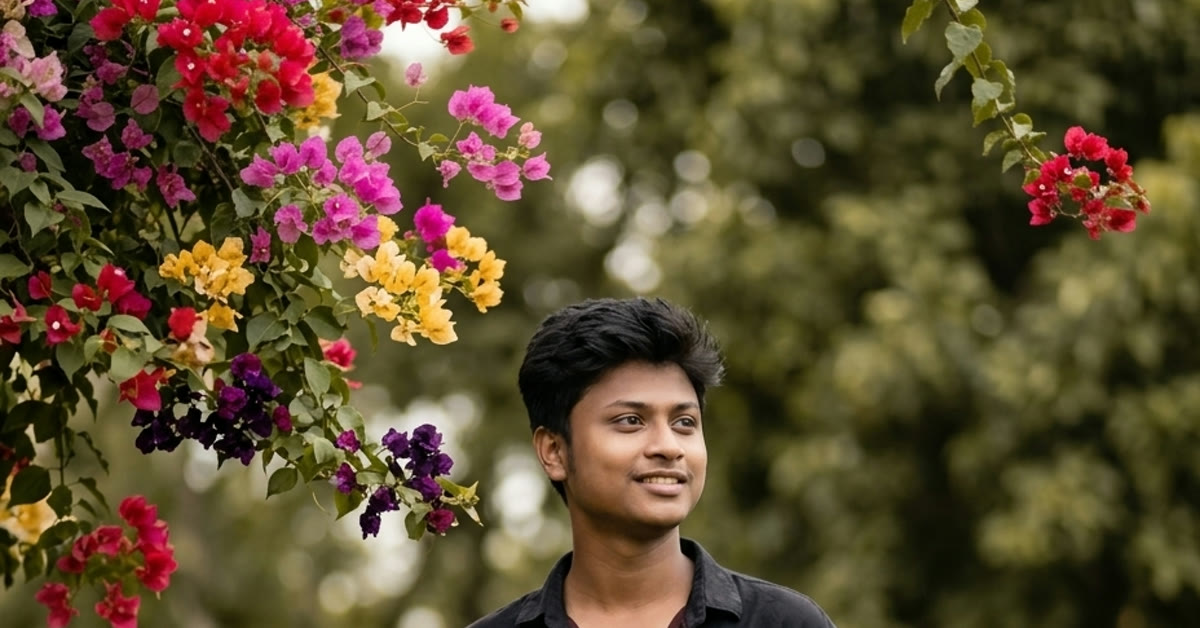
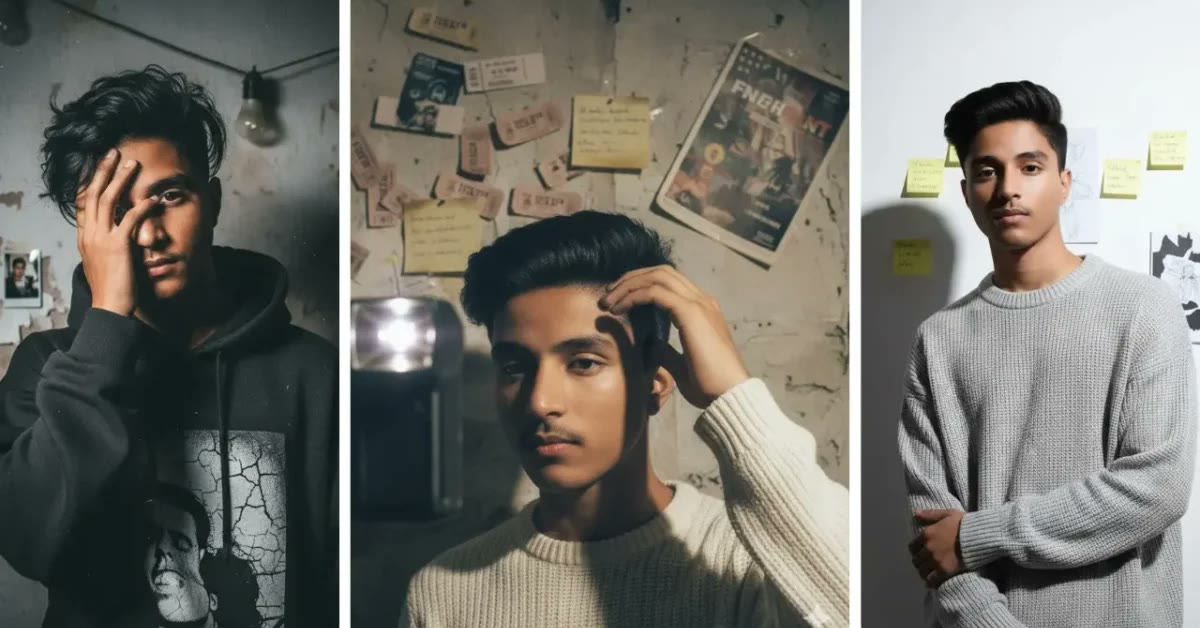
    ChatGPT photo editing prompt for boys result with natural window light

    Introduction

    A ChatGPT photo editing prompt for boys does not need to be complicated to look great. The prompt below creates a polished portrait with natural window light, a relaxed stance, and a clean background, keeping skin tones true and the mood friendly and easy. In short, a well-written chatgpt photo editing prompt for boys does most of the hard work for you. With a

    This is the everyday hero look.

    It is clean enough for a profile picture and natural enough for a casual post. Because the prompt avoids heavy effects, the result looks like a well-taken photo rather than an edit, which is exactly why it works so well. That is the real strength of a chatgpt photo editing prompt for boys built around specific, visual details.

    Try the chatgpt photo editing prompt for boys once exactly as written before you start experimenting with your own twists. A clear chatgpt photo editing prompt for boys will always outperform a longer one filled with repeated words. This chatgpt photo editing prompt for boys is designed to be copied, pasted and finished in just a few minutes. Notice how the chatgpt photo editing prompt for boys keeps the subject natural while the background does the storytelling.

    Whenever you reuse this chatgpt photo editing prompt for boys, update the outfit, place or mood to keep it fresh. In short, a well-written chatgpt photo editing prompt for boys does most of the hard work for you. That is why this chatgpt photo editing prompt for boys focuses on clear details instead of vague instructions.

    effects, the result looks like a well-taken photo rather than an edit, which is exactly why it works so well.

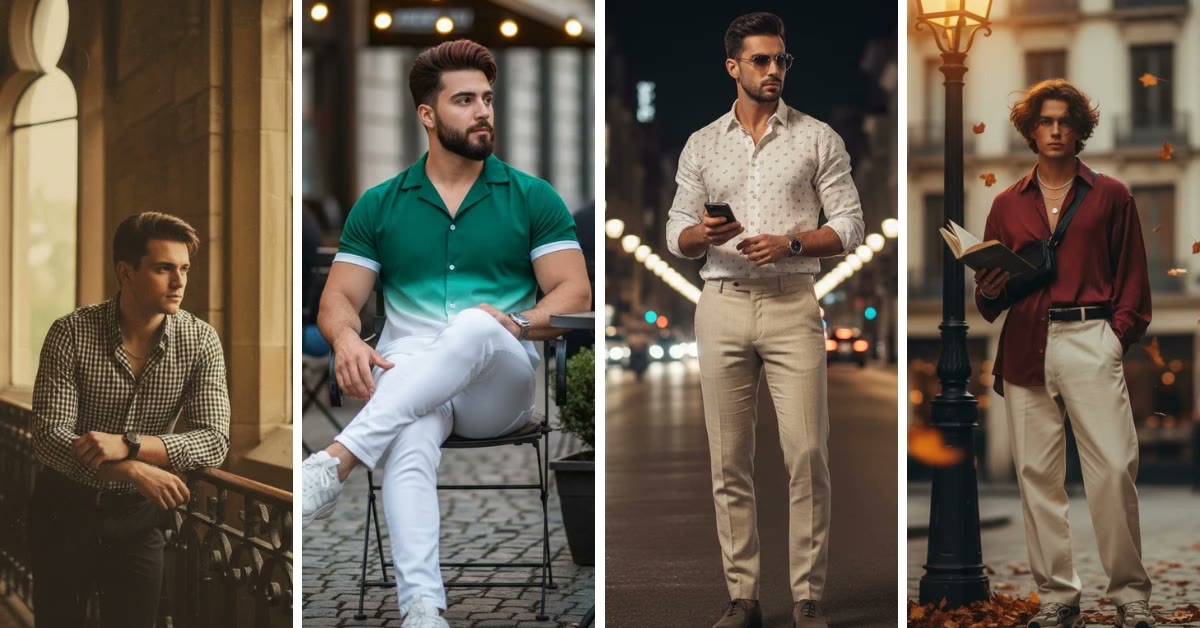
    Polished portrait for boys with clean background and sharp outfit detail

    How to Use This Prompt

    1. Upload a clear photo to ChatGPT and paste the full prompt into the image edit box.
    2. Generate the first version and check the face, the light, and the background for a natural finish.
    3. If the background still looks busy, generate again, since a clean background is what makes this style shine.
    Relaxed confident stance portrait with soft shadows and natural tones

    Copy-Paste Prompt

    Transform this photo into a polished portrait for boys with natural window light, a relaxed confident stance, clean background, and sharp detail on the outfit. Keep skin tones true, add soft shadows and a friendly, easy mood. Ultra-realistic, 4K, cinematic lighting, everyday hero style.

    Pro Tips for ChatGPT Photo Editing Prompt For Boys

    • A photo taken near a window already has the soft light this prompt builds on.
    • Keep your expression relaxed and friendly, since a stiff pose breaks the easy mood.
    • Avoid heavy filters after the edit, because the prompt already balances the tones.
    Everyday hero style portrait with friendly mood and crisp detail

    More Prompts to Try

    This ChatGPT photo editing prompt for boys adapts to many everyday looks, from city streets to quiet mornings. The six variations below keep the natural light and friendly, easy mood of the main prompt while changing the setting, so one photo can become a whole set of polished portraits. Keep the chatgpt photo editing prompt for boys handy while you work so you can tweak one line at a time.

    City Morning Coffee

    A morning walk with a coffee cup, soft sunlight, and a fresh start-of-day feeling.

    Transform this photo into a polished morning portrait for boys, soft sunlight, a coffee cup in hand, a calm city street behind, and a relaxed friendly stance. Keep skin tones true and shadows soft, ultra-realistic, 4K, cinematic lighting, fresh morning mood.

    Park Bench Reading

    A quiet park bench, a book, and dappled light through trees for a thoughtful portrait.

    Transform this photo into a calm park portrait for boys, sitting on a bench with a book, dappled sunlight through trees, green tones behind, and a peaceful thoughtful expression. Keep the mood easy and natural, ultra-realistic, 4K, cinematic lighting, quiet afternoon style.

    Seaside Evening Stroll

    A beach promenade at dusk, with warm sky colors and a gentle sea breeze.

    Transform this photo into a seaside evening portrait for boys, walking a promenade at dusk, warm sky colors, gentle sea breeze, and a relaxed happy stance. Keep tones warm and skin natural, ultra-realistic, 4K, cinematic lighting, coastal evening mood.

    Cafe Window Light

    A cozy cafe interior, a window seat, and soft diffused light for a warm portrait.

    Transform this photo into a cozy cafe portrait for boys, seated by a bright window, soft diffused light, warm wooden interior behind, and a friendly relaxed smile. Keep skin tones true and the mood inviting, ultra-realistic, 4K, cinematic lighting, cafe warmth style.

    Mountain Trail Morning

    A trail head at sunrise, with cool air, layered peaks, and an adventurous spirit.

    Transform this photo into a mountain morning portrait for boys, standing at a trail head at sunrise, cool crisp air, layered peaks behind, and a confident relaxed stance. Add soft golden light and natural tones, ultra-realistic, 4K, cinematic lighting, trail adventure mood.

    Home Studio Clean

    A plain light wall, soft box-style light, and a minimal modern finish for a professional portrait.

    Transform this photo into a clean studio portrait for boys, a plain light wall behind, soft even lighting, a relaxed confident stance, and sharp outfit detail. Keep the finish minimal and professional, ultra-realistic, 4K, cinematic lighting, modern studio style.

    How to Customize This Prompt

    The main ChatGPT photo editing prompt for boys is deliberately simple, and that simplicity is its strength. Customizing it well means changing one thing at a time while keeping the natural light and friendly mood intact. Start with the setting, because the background decides the story. Window light suits indoor calm, a park suits thoughtfulness, a beach suits warmth, and a clean studio wall suits professional use. Pick the setting that matches where the portrait will be used, and describe one or two details in it. That is why this chatgpt photo editing prompt for boys focuses on clear details instead of vague instructions.

    Next, change the pose and expression. The original prompt uses a relaxed confident stance, but you can ask for hands in pockets, arms crossed loosely, a walking step, or a seated pose. Keep the expression friendly and easy, since a forced smile or a stern look breaks the approachable mood that makes this style work.

    Then adjust the outfit. Simple, well-fitting clothes photograph best: plain shirts, casual jackets, and clean sneakers. Avoid loud logos and busy patterns, which pull focus from the face. If you want a slightly smarter look, add a casual blazer or a neat layered shirt, and describe the fabric simply.

    Finally, tune the light. Natural window light is the signature of this style, but you can ask for golden hour warmth, soft overcast evenness, or bright studio evenness. If the skin looks too warm, add “true natural skin tones” to hold it steady. If the image feels flat, add “gentle contrast” to give it shape without losing the easy mood.

    Step-by-Step Guide

    1. Choose a clear photo taken in soft, even light, with your face fully visible and a relaxed expression. Photos taken near a window or outdoors on a cloudy day make the best starting points.
    2. Open ChatGPT and upload the photo at full quality. Avoid screenshots or heavily compressed copies, since the prompt’s natural finish depends on clean facial detail.
    3. Paste the full ChatGPT photo editing prompt for boys into the image edit box, keeping the details about window light, stance, background, and skin tones together.
    4. Generate the first version and check the face, the light, and the background in that order. A good version keeps the face natural, the light soft, and the background clean.
    5. If the background still looks busy, add “clean simple background” and generate again. A clean background is what makes this style shine, so it is worth an extra run.
    6. Generate two or three versions and compare them. Natural portraits vary between runs, and the most believable version is often the second or third one.
    7. Crop for your platform, keeping the face large enough to read at small sizes. A 4:5 crop suits feed posts, while a square crop suits profile pictures.
    8. Export at the highest quality and post without heavy filters. The prompt already balances the tones, and extra filters can turn the friendly, easy finish harsh or artificial.

    Common Mistakes to Avoid

    The most common mistake is starting with a photo that has harsh, direct sunlight on the face. Hard shadows across the eyes or a blown-out forehead cannot be fixed gracefully, and the result looks patched rather than polished. Choose soft, even light for the input, and the output will look naturally clean. Once you try this chatgpt photo editing prompt for boys, you can adjust the small details to match your own style.

    Another mistake is over-posing. A stiff, chest-out stance or an exaggerated model pose breaks the everyday hero mood. Relax the shoulders, keep the arms loose, and let the prompt’s easy mood do the work.

    People also add heavy filters after generating, which destroys the natural skin tones the prompt works to preserve. If the colors feel slightly off, regenerate instead of filtering, or make one tiny brightness adjustment only.

    Ignoring the background is a subtler trap. A cluttered room or a busy street behind the subject fights the clean finish, even when the face looks great. Check the background before posting, and regenerate with “clean background” if it distracts.

    Finally, do not use a photo with sunglasses or a hat casting shadow over the eyes. The friendly mood depends on visible, well-lit eyes, and hidden eyes make the portrait feel distant. Choose a photo where your eyes are clear and the expression is open.

    Best Tools for This Edit

    ChatGPT is the natural home for this ChatGPT photo editing prompt for boys, since the prompt was written for it. You can paste the prompt, upload the photo, and refine in plain conversation, asking for a cleaner background or softer light in words. The iterative flow makes small corrections fast. The chatgpt photo editing prompt for boys works best when you change only one detail between each try.

    Gemini is a strong alternative, especially for holding facial likeness steady. Its edits tend to keep skin tones true and backgrounds clean, which suits the polished, natural finish of this style. Generate a couple of versions and keep the most believable one.

    Hypic works well as a finishing tool for natural portraits. After generating, use it to fine-tune brightness, sharpness, or the crop without rebuilding the scene. Its gentle tools protect the soft shadows and true skin tones while cleaning up small issues.

    Frequently Asked Questions

    Will this prompt keep my face looking like me?

    Yes, if the starting photo is clear and well lit. The prompt asks for true skin tones and a natural finish, which helps the AI preserve likeness. If the face drifts, regenerate, since later runs usually hold it better. A good chatgpt photo editing prompt for boys should feel simple to follow, even if it is your first attempt.

    Can I use this for a job or LinkedIn profile photo?

    Yes, it makes an excellent professional portrait. Use the clean studio variation, keep the background plain, and crop to a standard headshot frame for the most professional result.

    What should I wear?

    Simple, well-fitting casual clothes work best: plain shirts, light jackets, and clean, simple outfits. Avoid loud logos, neon colors, and busy patterns, which distract from the friendly, natural mood.

    How do I avoid the photo looking over-edited?

    Use the prompt exactly as written, resist adding effects, and check the result at phone size. If it looks like a real photo taken on a good day, it is right. If it looks glossy or plastic, regenerate with “natural skin texture” added.

    Can I use a group photo?

    It is possible, but single portraits give the cleanest result. For groups, crop to one person first for the polished edit, and use the group version only as a second attempt.

    Creative Ideas to Try

    Build a “week of portraits” series using all six variations above, posting one setting per day with the same pose, so your feed looks like a professional shoot across a whole week. You can also create a before-and-after post showing your ordinary starting photo beside the polished result, which earns saves from viewers who want the same clean finish.

    For a personal brand, use the studio version as a profile picture and the park version as a banner, keeping the same natural grade across both. If you change your hairstyle or grow a beard, regenerate the set and post it as a fresh-look update. Each idea turns one simple prompt into a complete, polished presence. Many readers tell us this chatgpt photo editing prompt for boys gave them their most realistic result so far.

    Creative Ideas to Try

    Build a “week of portraits” series using all six variations above, posting one setting per day with the same pose, so your feed looks like a professional shoot spread across a whole week. The consistent face and finish tie the series together, while the changing backgrounds keep each day fresh. A daily series also trains your audience to return, since they will want to see the next setting. If you save one version of the chatgpt photo editing prompt for boys, save the one that keeps the subject looking natural.

    Create a before-and-after post showing your ordinary starting photo beside the polished result, which earns saves from viewers who want the same clean finish for themselves. Add a brief caption naming the prompt style, so the post teaches as well as impresses. Transformation content performs best when the starting photo is visibly ordinary, because the contrast proves the prompt does real work without a studio.

    For a personal brand, use the studio version as a profile picture and the park version as a banner, keeping the same natural grade across both so your presence looks coordinated everywhere. If you change your hairstyle, grow a beard, or update your wardrobe, regenerate the set and post it as a fresh-look update. You can also generate a polished portrait as a gift for a friend or sibling, using their photo and the setting that suits them best. A clean, professional portrait is a gift people actually use, and it costs you nothing but a few minutes. Each idea turns one simple prompt into a complete, polished presence.

    Final Words

    Simple edits done well beat complicated edits every time. Paste this prompt, keep the light natural and the background clean, and share a portrait that looks like you on your very best day. This is where the chatgpt photo editing prompt for boys really earns its keep, because small changes here make a big difference.

    Simple edits often look the best. Paste this prompt, choose your most natural version, and share a clean portrait that looks like you on your best day.

  • Girls Collage Edits Trending Right Now

    Girls Collage Edits Trending Right Now

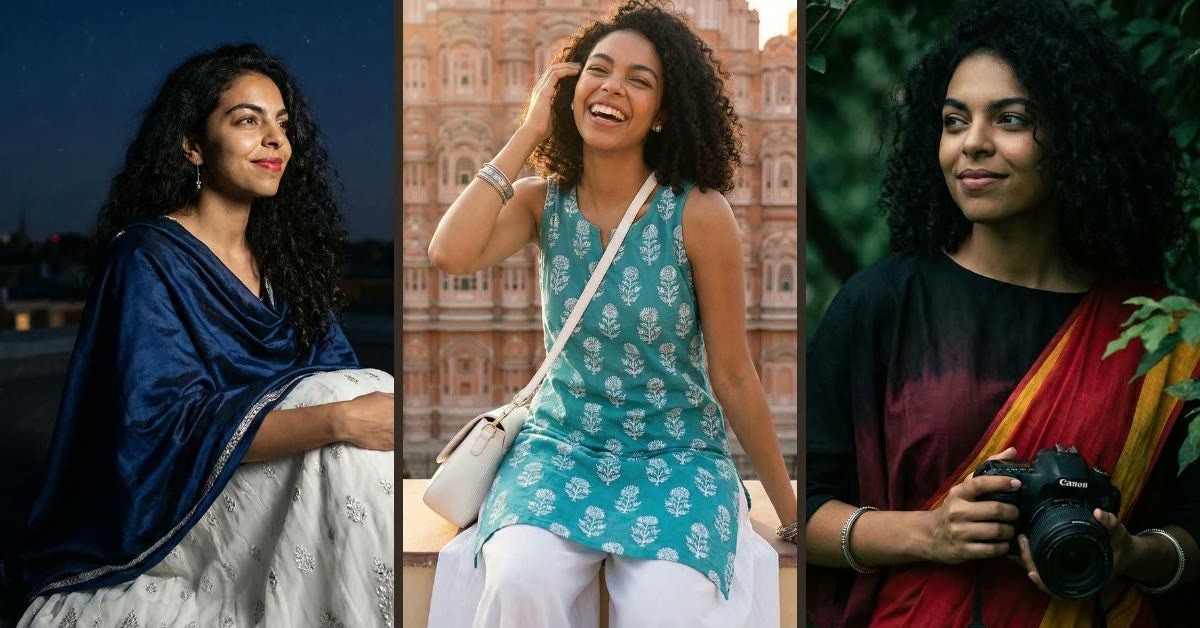
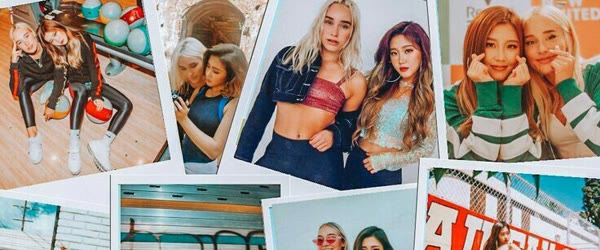
    Trending girls collage photo editing prompts result with pastel borders and candid smiles - trending girls collage photo editing prompts chatgpt gemini

    Introduction

    Trending girls collage photo editing prompts for ChatGPT and Gemini are perfect for turning a bunch of favorite photos into one beautiful post. The prompt below builds a stylish collage with mixed frame sizes, soft pastel borders, candid smiles, and a scrapbook feel that looks warm and personal. Everything in this guide is built around the trending girls collage photo editing prompts chatgpt gemini, explained in simple steps. In short, a well-written trending girls collage photo editing prompts chatgpt gemini does most of the hard work for you.

    With a

    Collages work so well because they tell a story. One photo is a moment, but a collage is a whole day with friends. The balanced layout, gentle grain, and warm daylight tones keep it cheerful without looking messy, which is why this style keeps trending. That is the real strength of a trending girls collage photo editing prompts chatgpt gemini built around specific, visual details.

    Try the trending girls collage photo editing prompts chatgpt gemini once exactly as written before you start experimenting with your own twists. A clear trending girls collage photo editing prompts chatgpt gemini will always outperform a longer one filled with repeated words. This trending girls collage photo editing prompts chatgpt gemini is designed to be copied, pasted and finished in just a few minutes. Notice how the trending girls collage photo editing prompts chatgpt gemini keeps the subject natural while the background does the storytelling.

    Whenever you reuse this trending girls collage photo editing prompts chatgpt gemini, update the outfit, place or mood to keep it fresh. In short, a well-written trending girls collage photo editing prompts chatgpt gemini does most of the hard work for you. That is why this trending girls collage photo editing prompts chatgpt gemini focuses on clear details instead of vague instructions.

    lanced layout, gentle grain, and warm daylight tones keep it cheerful without looking messy, which is why this style keeps trending.

    Stylish photo collage with mixed frame sizes and scrapbook doodle accents

    How to Use This Prompt

    1. Upload three to six clear photos to ChatGPT or Gemini and paste the full prompt.
    2. Generate the first version and check the layout balance, borders, and that every face looks natural.
    3. If one frame looks crowded, regenerate, or swap in a different photo for that frame and try again.
    Cheerful friendship collage with warm daylight tones and gentle grain

    Copy-Paste Prompt

    Transform these photos into a stylish collage with mixed frame sizes, soft pastel borders, candid smiles, and a scrapbook feel with tiny doodle accents. Keep the layout balanced and airy, add gentle grain and warm daylight tones. Ultra-realistic, 4K, soft lighting, cheerful friendship aesthetic.
    • Mix close-ups, full shots, and fun candid moments for a collage that feels alive.
    • Photos taken in similar daylight look more cohesive in the final layout.
    • Keep the doodle accents tiny, since too many decorations can steal focus from the photos.
    Balanced airy collage layout with soft borders and happy candid photos

    More Prompts to Try

    These trending girls collage photo editing prompts for ChatGPT and Gemini can cover every occasion, from birthdays to graduations. The six variations below keep the scrapbook warmth and balanced layouts of the main prompt while changing the theme, so one set of photos can become many different collages. Keep the trending girls collage photo editing prompts chatgpt gemini handy while you work so you can tweak one line at a time.

    Birthday Celebration Collage

    Balloons, confetti, and a big birthday energy with bright cheerful borders.

    Transform these photos into a birthday celebration collage with mixed frame sizes, pastel balloon doodles, confetti accents, candid laughing smiles, and warm golden tones. Keep the layout balanced and joyful, ultra-realistic, 4K, soft lighting, birthday friendship aesthetic.

    Travel Memories Collage

    Maps, tickets, and landmarks for a wanderlust-filled trip recap.

    Transform these photos into a travel memories collage with mixed frame sizes, tiny map and ticket doodles, landmark backdrops, candid happy moments, and warm sunset tones. Keep the layout airy and adventurous, ultra-realistic, 4K, soft lighting, travel scrapbook aesthetic.

    Graduation Day Collage

    Caps, gowns, and proud smiles for a milestone worth framing.

    Transform these photos into a graduation collage with mixed frame sizes, cap and diploma doodle accents, proud smiling faces, and bright celebratory tones. Keep the layout clean and triumphant, ultra-realistic, 4K, soft lighting, graduation day aesthetic.

    Four Seasons Collage

    One frame per season, showing a friendship through the whole year.

    Transform these photos into a four seasons collage, one frame each for spring blossom, summer sun, autumn leaves, and winter snow, with soft seasonal borders and candid smiles. Keep the layout balanced and the tones warm, ultra-realistic, 4K, soft lighting, year of friendship aesthetic.

    Black and White Classic

    A timeless monochrome collage with elegant thin borders and soft grain.

    Transform these photos into a black and white classic collage with mixed frame sizes, thin elegant borders, soft film grain, and genuine candid expressions. Keep the layout airy and timeless, ultra-realistic, 4K, soft lighting, classic monochrome aesthetic.

    Polaroid Wall Collage

    Instant-photo frames taped to a wall, with handwritten-style captions and warm light.

    Transform these photos into a polaroid wall collage, instant-photo frames with white borders, tiny handwritten-style captions, warm wall light, and candid joyful moments. Keep the arrangement casual and cozy, ultra-realistic, 4K, soft lighting, polaroid memories aesthetic.

    How to Customize This Prompt

    The main trending girls collage photo editing prompt is easy to reshape once you know which choices matter. Start with the photo count and mix. Three to six photos is the sweet spot: fewer feels empty, more feels crowded. Mix close-ups, full shots, and candid moments, so the collage feels alive rather than like a row of identical portraits. That is why this trending girls collage photo editing prompts chatgpt gemini focuses on clear details instead of vague instructions. Once yo

    Next, change the borders and decorations.

    Soft pastel borders feel gentle and dreamy, thin white borders feel clean and classic, and bold colored borders feel playful and loud. Doodle accents should stay tiny and sparse, since decorations are meant to frame the photos, not compete with them. Name the exact border style you want, and the AI will keep the layout consistent. A good

    Then adjust the theme and tones. A birthday theme wants bright confetti colors, a travel theme wants warm sunset tones, and a classic theme wants monochrome grain. The prompt’s warm daylight tones suit most themes, but you can swap in “golden evening tones” for romance or “bright daylight tones” for energy.

    This is

    Finally, tune the layout balance. Words like “balanced and airy” keep space between frames, while “dense scrapbook” packs them tightly. Airy layouts read better on phone screens, where crowded collages turn muddy. If a frame looks cramped, regenerate with “more white space” added to the prompt. Keep the trending girls collage photo editing prompts chatgpt gemini handy while you work so you can tweak one line at a time.

    Many readers tell us this trending girls collage photo editing prompts chatgpt gemini gave them their most realistic res

    Finally, tune the layout balance. Words like “balanced and airy” keep space between frames, while “dense scrapbook” packs them tightly. Airy layouts read better on phone screens, where crowded collages turn muddy. If a frame looks cramped, regenerate with “more white space” added to the prompt. If you save one version of the trending girls collage photo editing prompts chatgpt gemini, save the one that keeps the subject looking natural.

    The trending girls collage photo editing prompts chatgpt gemini works best when you change only one detail between each try. With a little patience, this trending girls collage photo editing prompts chatgpt gemini can produce a result that looks ready to post.

    ne screens, where crowded collages turn muddy. If a frame looks cramped, regenerate with “more white space” added to the prompt.

    Step-by-Step Guide

    1. Gather three to six clear photos with good light and genuine expressions. Pick photos from the same day or trip when possible, since similar lighting makes the collage feel cohesive.
    2. Open ChatGPT or Gemini and upload all the photos together in one message, so the tool can see the whole set before building the layout.
    3. Paste the full trending girls collage photo editing prompt, keeping the details about frame sizes, borders, doodles, and warm tones together.
    4. Generate the first version and check the layout balance first. Every face should be visible, no frame should crowd another, and the borders should feel even.
    5. If one frame looks crowded or a face gets cut, swap that photo for a different one and regenerate. Changing the input photo usually fixes layout problems faster than changing the prompt.
    6. If the doodles feel too busy, add “minimal doodle accents” and generate again. If the collage feels empty, add one more photo or a slightly larger border detail.
    7. Crop for your platform, keeping all frames fully visible. A square crop suits feed posts, while a vertical crop suits stories. Never crop through a face to fit a ratio.
    8. Export at the highest quality and share without extra filters. The warm tones and gentle grain are already balanced, and additional filters can dull the pastel borders.

    Common Mistakes to Avoid

    The most common mistake is uploading too many photos. Ten photos in one collage turns into a mosaic where no face is readable, especially on a phone screen. Stick to three to six photos, and save the rest for a second collage or a carousel. Once you try this trending girls collage photo editing prompts chatgpt gemini, you can adjust the small details to match your own style.

    Another mistake is mixing photos with wildly different lighting. A dark night photo beside a bright beach photo breaks the cohesion, no matter how good the layout is. Choose photos with similar daylight, or ask the prompt for “unified warm tones” to blend them.

    People also let decorations take over. Big stickers, heavy doodles, and thick borders steal focus from the faces, which are the whole point of a friendship collage. Keep decorations tiny, and check that every face is still the first thing you notice.

    Ignoring face sizes is a subtler trap. If one frame shows a tiny distant face beside a huge close-up, the layout feels unbalanced. Pick photos with similar face sizes, or crop the inputs so faces are roughly the same scale before uploading.

    Finally, do not post a collage with a cut-off face. Check every edge of the final layout at full size, and regenerate if any face, smile, or important detail is clipped by a frame border.

    Best Tools for This Edit

    ChatGPT is a great home for these trending girls collage photo editing prompts, because you can upload several photos in one message and describe the layout in conversation. If a frame feels crowded, say so and generate again. The back-and-forth makes layout fixes fast and painless. The trending girls collage photo editing prompts chatgpt gemini works best when you change only one detail between each try.

    Gemini handles multi-photo collages well, keeping faces natural and borders consistent across frames. Its warm daylight rendering suits the cheerful friendship aesthetic, and it holds small details like doodle accents steady without letting them overwhelm the photos.

    Canva works well as a finishing tool for collages. After generating, you can use it to adjust the final crop, add a clean caption, or build a matching story version without rebuilding the layout. Its templates can also turn one collage into a coordinated set of posts.

    Frequently Asked Questions

    How many photos should I use in a collage?

    Three to six is ideal. Fewer than three feels sparse, and more than six turns crowded on phone screens. For a big group or a long trip, make two collages instead of cramming everything into one. A good trending girls collage photo editing prompts chatgpt gemini should feel simple to follow, even if it is your first attempt.

    Can I mix photos from different days?

    Yes, if the lighting is similar. Photos from different days with similar daylight blend well, while mixing harsh noon sun with dark evening shots breaks the cohesion. When in doubt, ask for unified warm tones.

    Will the AI keep all faces natural?

    It usually does with clear input photos, but always check every face at full size before posting. If one face looks off, swap that photo or regenerate, since face quality varies between runs.

    Can I print a collage?

    Yes, and collages print beautifully as posters and photo books. Export at the highest quality, keep the layout square or standard print size, and avoid cropping through any face.

    What caption works best for a friendship collage?

    Short, heartfelt captions work best, such as a single line about the memory or a thank-you to your friends. Tag the people in the photos so the post reaches them and invites their comments.

    Creative Ideas to Try

    Create a monthly friendship collage using the same layout and borders, so your feed builds a year-long visual diary of moments together. You can also make a birthday collage for each friend using the birthday variation, keeping the layout identical so the series feels like a signature gift. For travel, build one collage per city on a trip, and post them as a carousel that tells the journey in order.

    If you celebrate a graduation or a big milestone, print the collage as a poster gift, since a printed collage becomes a keepsake that outlasts the post. Each idea turns one prompt into an ongoing celebration of friendship. Many readers tell us this trending girls collage photo editing prompts chatgpt gemini gave them their most realistic result so far.

    Creative Ideas to Try

    Create a monthly friendship collage using the same layout and borders, so your feed builds a year-long visual diary of moments together. Keep the pastel borders and the warm tones identical each month, changing only the photos and the tiny doodle accents to match the season. After twelve months, the series becomes a complete story of a year of friendship, and you can print the whole set as a photo book gift that no store could replicate. If you save one version of the trending girls collage photo editing prompts chatgpt gemini, save the one that keeps the subject looking natural.

    Make a birthday collage for each friend using the birthday variation, keeping the layout identical so the series feels like a signature gift. Add the friend’s name and a short inside joke in the caption, and tag them so the post reaches their circle too. Personalized collages get shared far more than generic birthday posts, because they celebrate one specific person.

    For travel, build one collage per city on a trip and post them as a carousel that tells the journey in order, from arrival to farewell. The consistent scrapbook style ties the cities together, while the changing backdrops keep each slide fresh. If you celebrate a graduation or a big milestone, print the collage as a poster gift, since a printed collage becomes a keepsake that outlasts the post. Finally, start a “collage Sunday” habit with your friend group, where everyone contributes one photo each week and you build the collage together. Shared creation turns content into connection, which is the whole point of a friendship collage.

    Final Words

    Friendship is a collection of small moments, and a collage lets them all shine together. Paste this prompt, gather your favorite photos, and share a collage that feels cheerful, stylish, and full of happy memories. This is where the trending girls collage photo editing prompts chatgpt gemini really earns its keep, because small changes here make a big difference.

    Friendship deserves more than one frame. Paste this prompt, gather your favorite photos, and share a collage that feels cheerful, stylish, and full of happy memories.

  • Aesthetic Photo Edits for Boys That Stand Out

    Aesthetic Photo Edits for Boys That Stand Out

    Gemini aesthetic photo editing prompts for boys result with moody street light

    Introduction

    Gemini aesthetic photo editing prompts for boys are perfect when you want a portrait that looks sharp, modern, and editorial. The prompt below uses moody street light, a confident relaxed pose, and a clean urban background to create a photo that stands out without trying too hard. In short, a well-written gemini aesthetic photo editing prompts for boys does most of the hard work for you. With a

    The aesthetic style is all about restraint. Cool tones, crisp contrast, and a calm mood do more than heavy effects.

    This edit suits profile pictures, Instagram posts, and portfolio shots, and it works with just one clear photo and a single paste. That is the real strength of a gemini aesthetic photo editing prompts for boys built around specific, visual details.

    Try the gemini aesthetic photo editing prompts for boys once exactly as written before you start experimenting with your own twists. A clear gemini aesthetic photo editing prompts for boys will always outperform a longer one filled with repeated words. This gemini aesthetic photo editing prompts for boys is designed to be copied, pasted and finished in just a few minutes. Notice how the gemini aesthetic photo editing prompts for boys keeps the subject natural while the background does the storytelling.

    Whenever you reuse this gemini aesthetic photo editing prompts for boys, update the outfit, place or mood to keep it fresh. In short, a well-written gemini aesthetic photo editing prompts for boys does most of the hard work for you. That is why this gemini aesthetic photo editing prompts for boys focuses on clear details instead of vague instructions.

    suits profile pictures, Instagram posts, and portfolio shots, and it works with just one clear photo and a single paste.

    Aesthetic portrait for boys with textured jacket detail and urban background

    How to Use This Prompt

    1. Upload a clear photo to Gemini and paste the full prompt into the image edit box.
    2. Generate the first version and check the jacket texture, the background, and the skin tones.
    3. If the tones look too cold, generate once more, then choose the version with the most natural face.
    Editorial style photo edit with cool tones and crisp contrast

    Copy-Paste Prompt

    Transform this photo into a sharp aesthetic portrait for boys with moody street light, confident relaxed pose, textured jacket detail, and a clean urban background. Add cool tones, crisp contrast, and a calm self-assured mood. Ultra-realistic, 4K, cinematic lighting, modern editorial style.

    Pro Tips for Gemini Aesthetic Photo Editing Prompts For Boys

    • Jackets, denim, and layered outfits show texture best in this editorial style.
    • A relaxed pose with hands in pockets or arms loose looks more confident than a stiff stance.
    • Keep the background simple, since a clean street or wall lets the subject carry the photo.
    Modern editorial portrait with calm self-assured mood and clean background

    More Prompts to Try

    These Gemini aesthetic photo editing prompts for boys can cover many moods, from rainy neon streets to quiet libraries. The six variations below keep the sharp editorial finish and calm confidence of the main prompt while changing the setting, so one photo can become a whole portfolio. Keep the gemini aesthetic photo editing prompts for boys handy while you work so you can tweak one line at a time.

    Rainy Neon Street

    Wet pavement, neon signs, and a long coat for a cinematic night portrait.

    Transform this photo into a moody rainy street portrait for boys, wet pavement reflections, neon signs glowing, a long dark coat, and a calm confident stance. Add cool tones, crisp contrast, and cinematic rain light, ultra-realistic, 4K, cinematic lighting, urban night editorial.

    Library Scholar

    Warm wood, bookshelves, and window light for a thoughtful, intelligent portrait.

    Transform this photo into an aesthetic library portrait for boys, tall bookshelves behind, warm window light, a textured knit sweater, and a thoughtful relaxed pose. Add warm muted tones and crisp detail, ultra-realistic, 4K, cinematic lighting, quiet scholar mood.

    Desert Golden Hour

    Open sand, a huge sky, and warm wind for a free, adventurous portrait.

    Transform this photo into a desert golden hour portrait for boys, open sand dunes, a huge orange sky, wind moving a light jacket, and a relaxed adventurous stance. Add warm earthy tones and soft haze, ultra-realistic, 4K, cinematic lighting, desert freedom mood.

    Rooftop Dusk

    A skyline at blue hour and a sharp silhouette for a modern, ambitious portrait.

    Transform this photo into a rooftop dusk portrait for boys, a wide skyline behind, deep blue evening light, a sharp tailored jacket, and a confident thoughtful pose. Add cinematic contrast and clean cool tones, ultra-realistic, 4K, cinematic lighting, modern ambition mood.

    Vintage Film Noir

    Black and white shadows, a hat, and cigarette-free 1940s detective mood for a timeless portrait.

    Transform this photo into a black and white film noir portrait for boys, dramatic side shadows, a classic hat and coat, a calm intense gaze, and a smoky dark background. Add strong contrast and visible film grain, ultra-realistic, 4K, cinematic lighting, timeless noir style.

    Snowy City Evening

    Falling snow, warm shop lights, and a cozy coat for a calm winter portrait.

    Transform this photo into a snowy city evening portrait for boys, gentle snowfall, warm shop lights glowing, a cozy textured coat, and a peaceful relaxed pose. Add cool blue shadows and warm highlights, ultra-realistic, 4K, cinematic lighting, winter calm mood.

    How to Customize This Prompt

    The main Gemini aesthetic photo editing prompt is built on restraint: moody light, cool tones, and a calm pose. Changing one element at a time keeps the editorial feel while giving you a new portrait. Start with the setting, because the background decides the story. A street says urban, a library says thoughtful, a desert says free, and a rooftop says ambitious. Pick the setting that matches the mood you want your profile to project, and describe two details in it so the AI builds a real place.

    That is why this gemini aesthetic photo editing prompts for boys focuses on clear details instead of vague instructions. Once yo

    Next, change the outfit and texture. The original prompt uses a textured jacket, and texture is what makes editorial portraits feel rich. Denim, knit, leather, and wool each photograph differently, and layered outfits add depth that flat clothes cannot. Describe the fabric plainly, and keep the colors in the cool, muted family unless you want one warm accent. A good

    Then adjust the pose and expression.

    A relaxed pose with hands in pockets reads confident, a thoughtful gaze to the side reads intelligent, and a direct look at the camera reads bold.

    One clear pose idea works better than a complicated stance, and a calm expression suits the editorial mood far better than a big grin or a forced attitude. This is

    Finally, tune the color grade. Cool tones are the signature of this style, but you can warm them slightly for a friendlier feel or push them colder for a more dramatic one. If the tones look too cold and the skin looks grey, add “natural skin tones” to the prompt.

    If the image feels flat, add “strong contrast” to bring back the editorial punch. Keep the gemini aesthetic photo editing prompts for boys handy while you work so you can tweak one line at a time. Many readers tell us this gemini

    Finally, tune the color grade. Cool tones are the signature of this style, but you can warm them slightly for a friendlier feel or push them colder for a more dramatic one.

    If the tones look too cold and the skin looks grey, add “natural skin tones” to the prompt. If the image feels flat, add “strong contrast” to bring back the editorial punch. If you save one version of the gemini aesthetic photo editing prompts for boys, save the one that keeps the subject looking natural. The gemini aesthetic photo editing prompts for boys works best when you change only one detail between each try.

    natural skin tones” to the prompt. If the image feels flat, add “strong contrast” to bring back the editorial punch.

    Step-by-Step Guide

    1. Choose a clear photo with your face visible, even light, and a relaxed expression. Editorial portraits need clean facial detail, so avoid harsh shadows or sunglasses in the starting image.
    2. Open Gemini and upload the photo at full quality. Gemini holds facial likeness well, which matters when the edit adds strong light and shadow around the face.
    3. Paste the full Gemini aesthetic photo editing prompt into the image edit box, keeping the details about street light, jacket texture, and cool tones together.
    4. Generate the first version and check the jacket texture, the background simplicity, and the skin tones in that order. A good version keeps all three clean and believable.
    5. If the tones look too cold, add “natural warm skin tones” and generate again. If the background feels busy, add “clean simple background” and regenerate.
    6. Generate two or three versions and compare them side by side. Editorial quality varies between runs, and the sharpest, most natural version is rarely the first one.
    7. Crop for your platform, keeping the subject slightly off-center for a magazine feel. A 4:5 crop suits feed posts, while a square crop suits profile pictures.
    8. Export at the highest quality and post without extra filters. The cool tones and crisp contrast are already balanced, and stacking another filter usually dulls the editorial finish.

    Common Mistakes to Avoid

    The most common mistake is starting with a photo that has busy, cluttered background. The editorial style needs a clean street or wall behind the subject, and a messy background fights the calm mood. Start with a simple background, or ask the prompt for a clean one, and check that it stays simple in the result. Once you try this gemini aesthetic photo editing prompts for boys, you can adjust the small details to match your own style.

    Another mistake is over-posing. A stiff chest-out stance or an exaggerated attitude pose breaks the calm confidence the style is built on. Relax the shoulders, loosen the arms, and let the light and texture do the work.

    People also let the cool tones go too far, turning skin grey or blue. If your skin looks unnatural, add “true natural skin tones” and regenerate. The cool grade should live in the background and the shadows, not on the face.

    Ignoring the jacket texture is a subtler trap. The prompt specifically asks for textured detail, and a flat, smooth jacket makes the whole portrait feel plain. If the texture looks painted on, regenerate and look for a version where the fabric reads as real cloth.

    Finally, do not add heavy vignettes or extra grain after generating. The editorial finish is clean by design, and heavy post-processing turns it muddy. Trust the prompt, and make only tiny brightness adjustments if needed.

    Best Tools for This Edit

    Gemini is the natural home for these Gemini aesthetic photo editing prompts for boys, since the prompt was written for it. Its image editing holds facial likeness and fabric texture steady across runs, which is exactly what an editorial portrait needs. Paste the prompt, generate a few versions, and keep the sharpest one. The gemini aesthetic photo editing prompts for boys works best when you change only one detail between each try.

    ChatGPT is a strong second option, especially for fast iteration in conversation. If the jacket texture or the background needs a fix, describe it in words and generate again. The conversational flow makes it easy to nudge the edit toward your ideal version.

    Hypic works well as a finishing tool for editorial portraits. After generating, use it to fine-tune sharpness, straighten the frame, or adjust the crop without rebuilding the scene. Its subtle tools protect the cool tones and crisp contrast while cleaning up small issues.

    Frequently Asked Questions

    Does this prompt work for all skin tones?

    Yes, but add “natural true skin tones” to the prompt if the cool grade makes skin look grey. The grade should stay in the background and shadows, while the face keeps its real warmth and color. A good gemini aesthetic photo editing prompts for boys should feel simple to follow, even if it is your first attempt.

    What outfit works best?

    Layered outfits with texture work best: jackets, denim, knits, and wool. Avoid loud logos and neon colors, since they clash with the muted editorial palette and pull focus from the face.

    Can I use this for a professional profile photo?

    Yes, it makes an excellent professional or portfolio portrait. Keep the crop clean, the background simple, and the expression calm, and the result looks like a studio editorial shoot.

    How do I keep the background clean?

    Ask for a “clean simple background” in the prompt and check the result before posting. If the background still looks busy, regenerate rather than cropping aggressively, since a tight crop can cut off the editorial framing.

    Is Gemini free for this kind of edit?

    Gemini offers free image generation with daily limits, and paid plans allow more runs. A handful of free generations is usually enough to get one sharp editorial version from this prompt.

    Creative Ideas to Try

    Build a six-portrait portfolio grid using all six variations above, keeping the same pose and crop, so your feed looks like a professional editorial shoot. You can also create a “before and after” post showing your ordinary starting photo beside the editorial result, which earns saves from viewers who want the same transformation.

    For a personal brand, use the rooftop version as a LinkedIn or portfolio banner and the library version as a profile picture, keeping the same cool grade across both. If you change your look, regenerate the set with a new hairstyle or outfit and post it as a style update. Each idea turns one prompt into a complete visual identity. Many readers tell us this gemini aesthetic photo editing prompts for boys gave them their most realistic result so far.

    Creative Ideas to Try

    Build a six-portrait portfolio grid using all six variations above, keeping the same pose and crop across every frame, so your feed looks like a professional editorial shoot rather than a random collection. Post the grid as a carousel with one portrait per slide, and add a short caption about the mood of each setting. A consistent grid earns profile visits, because viewers want to see the full set once they notice the pattern. If you save one version of the gemini aesthetic photo editing prompts for boys, save the one that keeps the subject looking natural.

    Create a before-and-after post showing your ordinary starting photo beside the editorial result, which earns saves from viewers who want the same transformation for themselves. Add a brief caption naming the prompt style and the tool, so the post teaches as well as impresses. Transformation content performs especially well when the starting photo is visibly ordinary, since the contrast proves the prompt does real work.

    For a personal brand, use the rooftop version as a LinkedIn or portfolio banner and the library version as a profile picture, keeping the same cool grade across both so your presence looks coordinated everywhere. If you change your hairstyle, grow a beard, or update your wardrobe, regenerate the set with the new look and post it as a style update. You can also offer the set to a friend as a birthday gift, generating their portraits in the same six styles. Each idea turns one prompt into a complete visual identity that grows with you.

    Final Words

    Aesthetic is not about effects, it is about calm, light, and texture working together. Paste this prompt, keep the pose relaxed and the background clean, and share a portrait that looks modern, sharp, and effortlessly stylish. This is where the gemini aesthetic photo editing prompts for boys really earns its keep, because small changes here make a big difference.

    Aesthetic edits are about calm confidence. Paste this prompt, pick your sharpest version, and share a portrait that looks modern, clean, and effortlessly stylish.

  • Pre-Wedding Photos Couples Will Treasure

    Pre-Wedding Photos Couples Will Treasure

    Pre wedding photography prompts for ChatGPT result with sunset light and flowing veil

    Introduction

    Good pre wedding photography prompts for ChatGPT can turn a simple couple photo into a portrait you will treasure for years. The prompt below builds a dreamy scene with soft sunset light, a flowing veil, candid laughter, and a scenic meadow background that feels romantic without looking staged. In short, a well-written pre wedding photography prompts for chatgpt does most of the hard work for you. With a

    Pre-wedding shoots are about the couple, not the camera. Natural poses and real laughter matter more than perfect styling.

    This prompt keeps the poses joyful and relaxed, then adds the romantic haze and fine outfit detail that make the photo feel like a professional shoot. That is the real strength of a pre wedding photography prompts for chatgpt built around specific, visual details.

    Try the pre wedding photography prompts for chatgpt once exactly as written before you start experimenting with your own twists. A clear pre wedding photography prompts for chatgpt will always outperform a longer one filled with repeated words. This pre wedding photography prompts for chatgpt is designed to be copied, pasted and finished in just a few minutes. Notice how the pre wedding photography prompts for chatgpt keeps the subject natural while the background does the storytelling.

    Whenever you reuse this pre wedding photography prompts for chatgpt, update the outfit, place or mood to keep it fresh. In short, a well-written pre wedding photography prompts for chatgpt does most of the hard work for you. That is why this pre wedding photography prompts for chatgpt focuses on clear details instead of vague instructions.

    and relaxed, then adds the romantic haze and fine outfit detail that make the photo feel like a professional shoot.

    Dreamy pre-wedding portrait with candid laughter and romantic haze

    How to Use This Prompt

    1. Upload a clear couple photo to ChatGPT or your AI editor and paste the full prompt.
    2. Generate the first version and check the faces, the veil flow, and the sunset light for a natural balance.
    3. If the haze feels too strong, generate again, then pick the version where both faces look most like the real couple.
    Pre-wedding couple photo with scenic meadow background and soft light

    Copy-Paste Prompt

    Transform this couple photo into a dreamy pre-wedding portrait with soft sunset light, flowing veil, candid laughter, and a scenic meadow background. Keep poses natural and joyful, add a romantic haze and fine detail on the outfits. Ultra-realistic, 4K, cinematic lighting, timeless wedding romance.

    Pro Tips for Pre Wedding Photography Prompts For ChatGPT

    • Photos taken outdoors in daylight give the AI the best base for a sunset transformation.
    • Matching or soft-toned outfits photograph better than clashing bright colors.
    • Ask for one version with a closer crop too, since close portraits make beautiful save-the-date cards.
    Timeless wedding romance portrait with fine outfit detail and golden hour glow

    More Prompts to Try

    These pre wedding photography prompts for ChatGPT can cover every kind of love story, from royal palaces to quiet beaches. The six variations below keep the dreamy light and natural poses of the main prompt while changing the venue and mood, so you can build a full pre-wedding album from one couple photo. Keep the pre wedding photography prompts for chatgpt handy while you work so you can tweak one line at a time.

    Palace Royal Romance

    A grand palace courtyard, marble arches, and regal outfits for a fairytale portrait.

    Transform this couple photo into a royal pre-wedding portrait in a palace courtyard, marble arches, soft evening light, elegant traditional outfits, and a graceful joyful pose. Add a romantic haze and fine detail on the embroidery, ultra-realistic, 4K, cinematic lighting, royal fairytale romance.

    Beach Sunset Vows

    Bare feet, wet sand, and a pastel sky for a relaxed seaside love story.

    Transform this couple photo into a beach pre-wedding portrait at sunset, bare feet on wet sand, gentle waves behind, soft sea breeze, and a pastel sky. Keep poses natural and laughing, add warm golden glow, ultra-realistic, 4K, cinematic lighting, seaside romance.

    Mountain Meadow Dream

    Wildflowers, distant peaks, and a wide open sky for an adventurous couple.

    Transform this couple photo into a mountain meadow pre-wedding portrait, wildflowers in the foreground, layered peaks behind, soft afternoon light, and a joyful walking pose hand in hand. Add gentle haze and rich natural tones, ultra-realistic, 4K, cinematic lighting, adventurous romance.

    City Lights Evening

    A city rooftop at blue hour, with lights coming on and a chic, modern mood.

    Transform this couple photo into a modern city pre-wedding portrait on a rooftop at blue hour, skyline lights glowing, deep blue evening tones, chic outfits, and a confident relaxed pose. Add cinematic contrast and soft rim light, ultra-realistic, 4K, cinematic lighting, urban romance.

    Vintage Film Romance

    A faded film look with grain, soft vignette, and 1970s styling for a nostalgic portrait.

    Transform this couple photo into a vintage film pre-wedding portrait, soft grain, gentle vignette, 1970s-inspired outfits, warm afternoon light, and a candid laughing moment. Keep colors warm and slightly faded, ultra-realistic, 4K, cinematic lighting, nostalgic romance.

    Garden Tea Party

    A blooming garden, a tea table, and soft morning light for a sweet, storybook portrait.

    Transform this couple photo into a garden tea party pre-wedding portrait, blooming roses all around, a small tea table with cups, soft morning light through trees, and a sweet smiling pose. Add pastel tones and a dreamy haze, ultra-realistic, 4K, cinematic lighting, storybook romance.

    How to Customize This Prompt

    The main pre wedding photography prompt is easy to reshape for your own story. Start with the venue, because the setting decides the whole mood. A meadow feels free and joyful, a palace feels grand and formal, a beach feels relaxed and warm, and a city rooftop feels modern and chic. Pick the venue that matches your personality as a couple, and describe two or three details in it, such as arches, waves, or skyline lights, so the AI builds a believable place.

    That is why this pre wedding photography prompts for chatgpt focuses on clear details instead of vague instructions. Once yo

    Next, change the outfits. Matching soft tones photograph beautifully, while one bold accent, like a red veil or a deep blue suit, can become the focal point. Traditional wear suits palace and garden scenes, while simple modern outfits suit beach and city scenes. Describe the outfits plainly and keep the colors in the same family for a harmonious result. A good

    Then adjust the poses and interaction.

    The original prompt uses candid laughter, but you can ask for a forehead-to-forehead moment, a dance twirl, a quiet embrace, or a walking shot holding hands. One clear interaction reads better than a complicated pose, and genuine-looking contact between the couple is what makes viewers feel the love.

    This is

    Finally, tune the light and finish. Sunset light is warm and romantic, morning light is fresh and hopeful, and blue-hour light is dramatic and modern. If the haze feels too strong, add “light haze” to calm it. If the image feels flat, add “strong golden glow” to bring back the dream. Small light words make the biggest difference to the final romance. Keep the pre wedding photography prompts for chatgpt handy while you work so you can tweak one line at a time.

    Many readers te

    Finally, tune the light and finish. Sunset light is warm and romantic, morning light is fresh and hopeful, and blue-hour light is dramatic and modern. If the haze feels too strong, add “light haze” to calm it. If the image feels flat, add “strong golden glow” to bring back the dream. Small light words make the biggest difference to the final romance. If you save one version of the pre wedding photography prompts for chatgpt, save the one that keeps the subject looking natural.

    The pre wedding photography prompts for chatgpt works best when you change only one detail between each try. With a little patience, this pre wedding photography prompts for chatgpt can produce a result that looks ready to post.

    strong golden glow” to bring back the dream. Small light words make the biggest difference to the final romance.

    Step-by-Step Guide

    1. Choose a clear couple photo with both faces visible, good light, and natural expressions. Photos taken outdoors in daylight give the AI the best base for a sunset or meadow transformation.
    2. Open ChatGPT or your AI photo editor and upload the photo at full quality. Pre-wedding portraits are looked at closely by family, so sharp detail matters more than usual.
    3. Paste the full pre wedding photography prompt into the edit box, keeping the details about sunset light, veil, laughter, and meadow together. These elements build the dreamy scene as a set.
    4. Generate the first version and check the faces first. Both faces should look like the real couple, with natural smiles and no distortion. Then check the veil flow and the sunset balance.
    5. If either face looks off, regenerate with the same prompt before changing the words. Likeness varies between runs, and the second or third version is often much more accurate.
    6. If the haze feels too strong, add “light romantic haze” and generate again. If the scene feels empty, add one detail, such as more flowers or a distant tree line, and regenerate.
    7. Generate a second version with a closer crop for save-the-date cards and close portraits. A tight crop on the faces makes a beautiful card, while the wide version suits wall prints and albums.
    8. Export both versions at the highest quality and share without heavy filters. The prompt already sets the romantic grade, and extra filters can dull the golden glow and flatten the outfit detail.

    Common Mistakes to Avoid

    The most common mistake is starting with a photo where one face is hidden, turned away, or in shadow. The AI must rebuild both faces in new light, and a hidden face usually comes out distorted. Always start with a photo where both faces are clearly visible and evenly lit. Once you try this pre wedding photography prompts for chatgpt, you can adjust the small details to match your own style.

    Another mistake is asking for too many scene elements at once. A palace, a beach, fireworks, and a horse in one prompt produces a cluttered fantasy that looks fake. Pick one venue and one or two details, and let the couple and the light carry the romance.

    People also forget to check the hands. AI tools sometimes merge fingers or bend wrists oddly in couple poses, especially in embraces and hand-holding shots. Zoom in on the hands before posting, and regenerate if anything looks wrong.

    Over-filtering after generating is another trap. Strong contrast or saturation can turn the dreamy haze harsh and make skin tones look orange. Trust the prompt’s balance, and make only tiny brightness adjustments if needed.

    Finally, do not use a stiff, posed starting photo and expect candid laughter in the result. The AI builds on the energy of the input, so a relaxed, smiling starting photo produces a relaxed, smiling portrait. Choose an input that already feels like the two of you.

    Best Tools for This Edit

    ChatGPT is the most natural home for these pre wedding photography prompts for ChatGPT, since the prompt was written for it. You can paste the prompt, upload the photo, and refine in conversation, asking for a softer haze or a different crop in plain words. The iterative flow is ideal for a portrait that family will treasure. The pre wedding photography prompts for chatgpt works best when you change only one detail between each try.

    Gemini is strong for facial likeness in couple portraits. When two faces must stay accurate in new light, Gemini tends to hold both steady across runs, and its sunset rendering is warm and believable. Generate two or three versions and pick the one where both faces look most like the real couple.

    Hypic works well as a finishing tool for wedding portraits. After generating, use it to fine-tune warmth, sharpness, or the crop for cards and prints without rebuilding the scene. Its gentle enhancement tools protect the veil detail and the golden glow while cleaning up small issues.

    Frequently Asked Questions

    Will both faces stay recognizable?

    They should, if the starting photo is clear and both faces are well lit. Check both faces at full size before sharing, and regenerate if either one drifts. Later runs usually hold likeness better than the first. A good pre wedding photography prompts for chatgpt should feel simple to follow, even if it is your first attempt.

    Can I use this for a save-the-date card?

    Yes, and it is one of the best uses. Generate a close-crop version, add your names and date in your editing app with clean text, and export at print quality. The dreamy portrait makes a card people keep.

    What outfits photograph best?

    Soft-toned, matching or complementary outfits work best, such as pastels, creams, and muted earth tones. Avoid clashing bright patterns, since they fight the romantic haze and pull focus from the faces.

    How many versions should I generate?

    Generate at least three or four, then pick the best. AI portraits vary between runs, and the winning version is rarely the first. Keep the runners-up too, since a second version often suits a different crop or platform.

    Can I print the result large?

    Yes, if you export at the highest quality your tool allows. The prompt asks for 4K detail, which prints well at album and medium wall sizes. For very large prints, generate at the maximum size and avoid tight crops that throw away detail.

    Creative Ideas to Try

    Build a save-the-date set by generating the wide meadow version for the card front and the close-crop version for the back, keeping the light and colors identical so the set feels professionally designed. You can also create a teaser series for social media, posting one venue variation per week as a countdown to the wedding, and letting followers vote for their favorite.

    For the wedding album, generate all six venue variations from the same photo and print them as a “dream destinations” spread, showing the couple in six imaginary places. If you celebrate an anniversary, regenerate the same prompt with an older photo of the two of you and post it beside the original, turning one prompt into a then-and-now love story. Each idea turns a single photo into a lasting collection. Many readers tell us this pre wedding photography prompts for chatgpt gave them their most realistic result so far.

    Creative Ideas to Try

    Build a save-the-date set by generating the wide meadow version for the card front and the close-crop version for the back, keeping the light and colors identical so the set feels professionally designed rather than assembled from random edits. Add your names and date in your editing app with clean, elegant text, and export at print quality. The dreamy portrait makes a card that guests keep on their fridge long after the wedding, which is exactly what a save-the-date should do. If you save one version of the pre wedding photography prompts for chatgpt, save the one that keeps the subject looking natural.

    Create a teaser countdown series for social media by posting one venue variation per week in the run-up to the wedding, and let followers vote for their favorite destination. The palace version suits a formal announcement, the beach version suits a relaxed update, and the garden version suits a sweet, intimate post. Voting captions drive comments and shares, and the series builds excitement week by week without repeating the same photo.

    For the wedding album itself, generate all six venue variations from the same couple photo and print them as a “dream destinations” spread. The spread shows the couple in six imaginary places while keeping their faces and chemistry consistent, and it becomes a conversation piece in the album. If you celebrate an anniversary, regenerate the same prompt with an older photo of the two of you and post it beside the original, turning one prompt into a then-and-now love story. Finally, offer the concept to friends: generate a pre-wedding portrait for an engaged couple as a gift, using their photo and their dream venue, and you will give them something no store can sell.

    Final Words

    A pre-wedding photo should feel like the two of you, only dreamier, with light, laughter, and a world built around your love. Paste this prompt, choose the version that makes you smile, and keep a portrait you will treasure for years. This is where the pre wedding photography prompts for chatgpt really earns its keep, because small changes here make a big difference.

    A great pre-wedding photo should feel like the couple, only dreamier. Paste this prompt, choose your favorite version, and keep a portrait that will still make you smile years from now.

  • Aesthetic Street Photos Anyone Can Take

    Aesthetic Street Photos Anyone Can Take

    Aesthetic street photo prompt result with soft evening light and crosswalk lines - aesthetic street photo prompt girls boys

    Introduction

    An aesthetic street photo prompt for girls and boys is one of the easiest ways to get a clean, film-like city portrait. The prompt below uses soft evening light, crosswalk lines, and muted tones to create a shot that feels natural and stylish without looking over-edited. Everything in this guide is built around the aesthetic street photo prompt girls boys, explained in simple steps. In short, a well-written aesthetic street photo prompt girls boys does most of the hard work for you.

    With a

    Street style works for everyone because it is relaxed and real. You do not need fancy clothes or a famous location. A simple walking pose and a city background are enough, and the prompt adds the grain, shadows, and soft light that give the photo its aesthetic finish.

    That is the real strength of a aesthetic street photo prompt girls boys built around specific, visual details. Try the aesthetic street photo prompt girls boys once exactly as written before you start experimenting with your own twists. A clear aesthetic street photo prompt girls boys will always outperform a longer one filled with repeated words. This aesthetic street photo prompt girls boys is designed to be copied, pasted and finished in just a few minutes.

    Notice how the aesthetic street photo prompt girls boys keeps the subject natural while the background does the storytelling. Whenever you reuse this aesthetic street photo prompt girls boys, update the outfit, place or mood to keep it fresh. In short, a well-written aesthetic street photo prompt girls boys does most of the hard work for you. That is why this aesthetic street photo prompt girls boys focuses on clear details instead of vague instructions.

    ound are enough, and the prompt adds the grain, shadows, and soft light that give the photo its aesthetic finish.

    Aesthetic city street photo with muted film tones and relaxed walking pose

    How to Use This Prompt

    1. Upload a clear street or outdoor photo to your AI editor and paste the full prompt.
    2. Generate the first version and check the light, shadows, and background motion for a natural feel.
    3. If the background looks too sharp, generate again, since a softer background keeps the focus on you.
    Street style portrait with natural shadows and subtle film grain

    Copy-Paste Prompt

    Transform this street photo into an aesthetic city shot with soft evening light, crosswalk lines leading the eye, a relaxed walking pose, and gentle motion in the background. Keep tones muted and film-like, add subtle grain and natural shadows. Ultra-realistic, 4K, cinematic lighting, modern street style.

    Pro Tips for Aesthetic Street Photo Prompt Girls Boys

    • Casual outfits like jeans and jackets suit this style better than formal wear.
    • A walking pose or a mid-step moment looks more natural than standing stiffly.
    • Shoot or pick a photo with some open space behind you so the crosswalk lines can lead the eye.
    Modern street photo with soft light and gentle background motion

    More Prompts to Try

    This aesthetic street photo prompt for girls and boys adapts beautifully to different cities, seasons, and moods. The six variations below keep the film-like tones and natural poses of the main prompt while changing the setting, so one photo can become a whole street-style series. Keep the aesthetic street photo prompt girls boys handy while you work so you can tweak one line at a time.

    Rainy Evening Crossing

    Wet streets, umbrellas, and city lights doubling in the reflections for a moody cinematic frame.

    Transform this street photo into a rainy evening city shot, wet crosswalk lines reflecting neon signs, a clear umbrella in hand, soft rain glow, and a calm thoughtful walking pose. Keep tones muted and film-like with gentle grain, ultra-realistic, 4K, cinematic lighting, rainy city mood.

    Golden Morning Commute

    Early light, long shadows, and a coffee cup for a fresh, hopeful start-of-day feeling.

    Transform this street photo into a golden morning city shot, low warm sunlight, long shadows across the pavement, a coffee cup in hand, and a relaxed confident stride. Add soft haze and muted film tones, ultra-realistic, 4K, cinematic lighting, fresh morning energy.

    Old Town Cobblestones

    A European-style old town with stone streets, flower boxes, and warm shop windows.

    Transform this street photo into an old town aesthetic shot, cobblestone streets, flower boxes on windows, warm shop lights glowing, and a slow relaxed walking pose. Keep colors soft and film-like with natural shadows, ultra-realistic, 4K, cinematic lighting, old town charm.

    Night Neon Alley

    A narrow alley of signs and steam for a bold, urban, after-dark street portrait.

    Transform this street photo into a night neon alley shot, glowing signs overhead, soft steam rising, wet pavement reflections, and a confident stylish pose mid-stride. Keep the face well lit against the neon, ultra-realistic, 4K, cinematic lighting, urban night style.

    Autumn Park Path

    Fallen leaves, soft overcast light, and a cozy jacket for a calm seasonal portrait.

    Transform this street photo into an autumn park path shot, fallen leaves on the ground, soft overcast light, a cozy jacket, and a peaceful walking pose with hands in pockets. Add muted earthy tones and gentle grain, ultra-realistic, 4K, cinematic lighting, autumn calm.

    Rooftop Skyline Dusk

    A rooftop edge, a wide skyline, and the last blue light of the day for a cinematic wide shot.

    Transform this street photo into a rooftop dusk portrait, a wide city skyline behind, deep blue evening light, the first windows lighting up, and a thoughtful pose at the rooftop edge. Keep the scale cinematic and the tones film-like, ultra-realistic, 4K, cinematic lighting.

    How to Customize This Prompt

    The main aesthetic street photo prompt is a flexible base that you can reshape with a few word swaps. Start with the setting, because the street itself sets the story. A crosswalk, an alley, a park path, or a rooftop each create a different mood, and naming the exact place helps the AI build a believable background instead of a generic city blur. That is why this aesthetic street photo prompt girls boys focuses on clear details instead of vague instructions. Once yo

    Next, change the light.

    Evening light is soft and golden, morning light is fresh and hopeful, overcast light is calm and even, and neon night light is bold and dramatic. The prompt’s “soft evening light” can be swapped for any of these, and the rest of the edit will follow. If the light feels too harsh, add “soft diffused light” to calm it. If it feels flat, add “warm rim light” to give the subject shape. A good

    Then adjust the pose and movement.

    The original prompt uses a relaxed walking pose, but you can ask for a mid-step moment, a pause at a crosswalk, a glance over the shoulder, or hands in pockets while waiting. One clear action reads better than a complicated pose, and movement in the background, like a passing cyclist or drifting leaves, adds life without stealing focus. This is

    Finally, tune the film finish.

    Words like “muted tones” keep colors quiet and editorial, while “warm film tones” add a golden vintage feel. Grain amount matters too: “subtle grain” looks clean and modern, while “visible film grain” looks more analog and nostalgic. Pick the finish that matches your feed, and keep it consistent across a series. Keep the aesthetic street photo prompt girls boys handy while you work so you can tweak one line at a time. Many readers t

    Finally, tune the film finish.

    Words like “muted tones” keep colors quiet and editorial, while “warm film tones” add a golden vintage feel. Grain amount matters too: “subtle grain” looks clean and modern, while “visible film grain” looks more analog and nostalgic. Pick the finish that matches your feed, and keep it consistent across a series. If you save one version of the aesthetic street photo prompt girls boys, save the one that keeps the subject looking natural.

    The aesthetic street photo prompt girls boys works best when you change only one detail between each try. With a little patience, this aesthetic street photo prompt girls boys can produce a result that looks ready to post. That is the real strength of a aesthetic street photo prompt girls boys built around specific, visual details. Try the aesthetic street photo prompt girls boys once exactly as written before you start experimenting with your own twists.

    ks more analog and nostalgic. Pick the finish that matches your feed, and keep it consistent across a series.

    Step-by-Step Guide

    1. Choose a starting photo taken outdoors with some open space behind you, so the street, crosswalk, or skyline has room to exist. Full-body or half-body shots work best for street style.
    2. Open your AI photo editor and upload the photo at full quality. Street edits rely on background detail, so a sharp, high-resolution starting image gives the AI more to work with.
    3. Paste the full aesthetic street photo prompt into the edit box. Keep the details about light, crosswalk lines, and grain together, since they build the film-like finish as a set.
    4. Generate the first version and check three things in order: the face and pose, the light and shadows, and the background motion. All three should feel natural and balanced.
    5. If the background looks too sharp or busy, regenerate with “soft background” added to the prompt. A softer background keeps the focus on you and makes the shot feel more photographic.
    6. If the pose looks stiff, try the same prompt with a different starting photo rather than forcing the edit. A naturally relaxed pose in the input produces a naturally relaxed result.
    7. Crop for your platform, keeping the crosswalk lines or street leading into the frame. Lines that lead toward the subject make the composition feel intentional and cinematic.
    8. Export at the highest quality and post without extra filters. The muted tones and grain are already balanced, and stacking another filter usually dulls the film finish.

    Common Mistakes to Avoid

    The most common mistake is starting with a photo that has no space behind the subject. A tight headshot against a wall gives the AI nothing to build a street from, and the result looks pasted on. Always start with a photo that has open space, a street, or a skyline behind you. Once you try this aesthetic street photo prompt girls boys, you can adjust the small details to match your own style.

    Another mistake is over-posing. Street style is about looking natural, so a dramatic model pose or a stiff stance breaks the illusion. Walk, pause, or glance naturally, and let the background do the styling work.

    People also overdo the grain or the fade. Heavy grain hides facial detail, and heavy fading washes out the colors that make the street feel real. Keep grain subtle and tones muted but present, and check the result at phone size before posting.

    Ignoring the background motion is a subtler trap. The prompt asks for gentle motion, but if the background people or cars look frozen and sharp, the image feels staged. If that happens, regenerate and look for a version where the background has a soft, lived-in blur.

    Finally, do not mix clashing outfits with the palette. Very bright neon clothes fight the muted film tones, while simple denim, jackets, and neutral colors blend in beautifully. Dress simply and let the street and light carry the style.

    Best Tools for This Edit

    ChatGPT is an easy first choice for this aesthetic street photo prompt, because you can describe fixes in plain language. If the crosswalk lines look wrong or the background feels too sharp, say so and generate again. The conversational loop makes small corrections quick. The aesthetic street photo prompt girls boys works best when you change only one detail between each try.

    Gemini is strong for keeping the person natural while rebuilding the street around them. Its edits tend to hold facial likeness and skin tones steady, which matters in soft evening light where the face is the anchor of the whole image.

    Hypic works well as a finishing tool for street portraits. After generating, use it to adjust the crop, straighten the horizon, or fine-tune brightness without rebuilding the scene. Its subtle tools protect the film grain and muted tones while cleaning up small issues.

    Frequently Asked Questions

    Does this prompt work for both girls and boys?

    Yes, that is the point of the style. Street aesthetic is about the city, the light, and a natural pose, not about gender. The same prompt works for everyone, and you can adjust the outfit description to suit your own look. A good aesthetic street photo prompt girls boys should feel simple to follow, even if it is your first attempt.

    Can I use a photo taken indoors?

    It is possible, but outdoor starting photos give much better results, because the AI has real street context to build on. If you only have an indoor photo, ask for a simpler background, like a quiet street corner, rather than a busy crosswalk scene.

    What should I wear for the best result?

    Casual, simple outfits work best: jeans, jackets, plain tops, and sneakers. Avoid loud logos and neon colors, since they clash with the muted film palette and pull focus away from the mood.

    How do I keep the photo from looking over-edited?

    Use the prompt exactly as written, resist adding extra effects, and check the result at normal size. The aesthetic finish is deliberately quiet, so if it looks dramatic, regenerate with “softer tones” added.

    Can I use the result for a profile picture?

    Yes. Crop to a square or vertical frame that keeps your face large and the street visible behind you. The film tones and soft light make a profile photo look polished without looking artificial.

    Creative Ideas to Try

    Build a “one street, four seasons” series by generating the same pose in spring blossom, summer evening, autumn leaves, and winter fog versions, and post them as a carousel through the year. You can also shoot a real walk in your own city and pair the AI version beside it in a before-and-after reel, showing how the prompt transforms an ordinary snapshot.

    For a cohesive feed, reuse the same muted finish across several street edits, so your grid looks like a photo essay rather than random posts. If you travel, generate a version set in each city you visit, keeping the pose consistent, and the series becomes a visual travel diary. Each idea turns one prompt into an ongoing project. Many readers tell us this aesthetic street photo prompt girls boys gave them their most realistic result so far.

    Creative Ideas to Try

    Build a “one street, four seasons” series by generating the same pose in spring blossom, summer evening, autumn leaves, and winter fog versions, and post them as a carousel that follows the year. Keeping the pose and the muted finish identical across all four makes the series feel like a deliberate photo essay, and seasonal posts give you a reason to reshare the concept every few months without repeating yourself. If you save one version of the aesthetic street photo prompt girls boys, save the one that keeps the subject looking natural.

    You can also shoot a real walk in your own city and pair the untouched snapshot beside the AI version in a before-and-after reel. The contrast shows exactly what the prompt adds, and transformation content consistently earns saves, because viewers want to try the same trick on their own photos. Add a short on-screen caption naming the prompt style so the reel teaches as well as impresses.

    For a cohesive feed, reuse the same muted finish across several street edits with different settings, so your grid looks curated rather than random. If you travel, generate a version set in each city you visit while keeping the pose consistent, and the collection becomes a visual travel diary. Finally, try a golden-hour photo walk with friends, where everyone shoots the same corner at the same time and edits with the same prompt, then post the results side by side to show how one prompt interprets different people.

    Final Words

    Street style is about honesty, light, and a city that feels alive around you. Paste this prompt, keep the pose natural, and share a portrait that looks like a frame from your own film. This is where the aesthetic street photo prompt girls boys really earns its keep, because small changes here make a big difference.

    Good street photos are about mood, not gear. Paste this prompt, choose your most natural version, and share a city portrait that looks effortless, aesthetic, and real.

  • 80s Look Photo Edits With Retro Soul

    80s Look Photo Edits With Retro Soul

    80s look AI photo editing prompts result with neon grid and retro sunglasses

    Introduction

    These 80s look AI photo editing prompts bring back the brightest decade in pop culture. Big hair, neon grids, retro sunglasses, and saturated pink and teal tones turn a normal photo into a fun throwback portrait that instantly grabs attention on the feed. In short, a well-written 80s look ai photo editing prompts does most of the hard work for you. With a

    The style is playful and bold, so it suits profile pictures, reels covers, and party posts. You do not need a costume or a studio setup.

    One clear photo is enough, and the prompt below adds the whole retro world around you, complete with film grain and a nostalgic glow. That is the real strength of a 80s look ai photo editing prompts built around specific, visual details.

    Try the 80s look ai photo editing prompts once exactly as written before you start experimenting with your own twists. A clear 80s look ai photo editing prompts will always outperform a longer one filled with repeated words. This 80s look ai photo editing prompts is designed to be copied, pasted and finished in just a few minutes. Notice how the 80s look ai photo editing prompts keeps the subject natural while the background does the storytelling.

    Whenever you reuse this 80s look ai photo editing prompts, update the outfit, place or mood to keep it fresh. In short, a well-written 80s look ai photo editing prompts does most of the hard work for you. That is why this 80s look ai photo editing prompts focuses on clear details instead of vague instructions.

    and the prompt below adds the whole retro world around you, complete with film grain and a nostalgic glow.

    Retro 80s portrait with big hair and neon pink and teal tones

    How to Use This Prompt

    1. Upload a clear, well-lit photo to your AI editor and paste the full prompt into the edit box.
    2. Generate the first version and check that the hair, glasses, and neon background look balanced.
    3. If the colors feel too loud, run the prompt once more, or pick a tighter crop that keeps the focus on your face.
    80s look photo edit with film grain and confident throwback pose

    Copy-Paste Prompt

    Transform this photo into a vibrant 80s portrait with big hair, neon grid background, retro sunglasses, and a confident throwback pose. Add film grain, saturated pink and teal tones, and a fun nostalgic mood. Ultra-realistic, 4K, cinematic lighting, retro pop style.

    Pro Tips for 80s Look AI Photo Editing Prompts

    • A confident smile or a cool, relaxed expression fits the 80s mood better than a neutral look.
    • Simple outfits work best, because the neon background already adds plenty of color.
    • Keep the film grain effect as it is, since it is what sells the retro feel.
    Nostalgic 80s style photo with neon grid background and saturated colors

    More Prompts to Try

    These 80s look AI photo editing prompts can cover the whole decade, from roller rinks to arcades. Each variation below keeps the neon, grain, and bold color of the main prompt while changing the scene, so you can build a full retro series from one photo. Keep the 80s look ai photo editing prompts handy while you work so you can tweak one line at a time.

    Roller Disco Nights

    Skates, a wooden rink floor, and disco lights reflecting off everything in sight.

    Transform this photo into a 1980s roller disco portrait, laced roller skates, a polished wooden rink floor, spinning disco lights, neon pink and blue glow, and a joyful carefree pose. Add film grain and saturated retro colors, ultra-realistic, 4K, cinematic lighting, disco party mood.

    Arcade After Dark

    Neon game cabinets, pixel glow, and a joystick in hand for a playful gamer throwback.

    Transform this photo into a 1980s arcade portrait, glowing game cabinets behind, pixel-art neon signs, a joystick in hand, dark room lit by screen glow, and a fun competitive smile. Add film grain and vivid pink and cyan tones, ultra-realistic, 4K, cinematic lighting, retro arcade energy.

    Mixtape Cover Star

    A portrait designed like an album cover, with bold shapes and a boombox on the shoulder.

    Transform this photo into a 1980s mixtape cover portrait, a boombox resting on the shoulder, bold geometric shapes behind, chunky retro sunglasses, and a confident pop-star pose. Add saturated teal and magenta tones and subtle film grain, ultra-realistic, 4K, cinematic lighting, album cover style.

    Aerobics Energy

    Bright leotards, headbands, and a high-energy fitness-class vibe straight from an 80s workout video.

    Transform this photo into a vibrant 1980s aerobics portrait, colorful leotard and headband, a bright studio with mirrored walls, energetic mid-move pose, and cheerful confident expression. Add neon accents, film grain, and saturated retro colors, ultra-realistic, 4K, cinematic lighting, workout video fun.

    Drive-In Movie Date

    A classic car, a giant glowing screen, and a warm summer-night romance under the stars.

    Transform this photo into a 1980s drive-in movie portrait, leaning on a classic car, a huge glowing screen behind, warm summer night air, string lights overhead, and a relaxed happy pose. Add soft film grain and warm nostalgic tones, ultra-realistic, 4K, cinematic lighting, summer night romance.

    Synthwave Sunset Drive

    The iconic grid horizon, a low sun, and a lone figure walking toward a glowing retro sunset.

    Transform this photo into a synthwave sunset portrait, a glowing grid horizon, a huge striped sun setting behind mountains, a lone figure walking toward the light, and a dreamy nostalgic mood. Add pink, purple, and orange gradients with film grain, ultra-realistic, 4K, cinematic lighting, synthwave dreamscape.

    How to Customize This Prompt

    The main 80s look AI photo editing prompt is easy to bend into your own retro style. Start with the hair and accessories, because those define the decade more than anything else. Big voluminous hair, a side ponytail, or a headband each signal a different corner of the 80s. Sunglasses matter too: aviators feel like a movie star, while chunky colorful frames feel like a pop video. Describe exactly the hair and glasses you want instead of leaving them vague.

    That is why this 80s look ai photo editing prompts focuses on clear details instead of vague instructions. Once yo

    Next, change the background world. The original prompt uses a neon grid, but a roller rink, an arcade, a beach boardwalk, or a city street at dusk each give a different story. Pick one setting and describe two or three objects in it, such as game cabinets or a classic car, so the AI builds a believable place rather than a generic glow. A good

    Then tune the color palette.

    Pink and teal are the classic 80s pair, but you can push toward purple and orange for a sunset feel, or toward red and chrome for a rock-concert feel.

    If the colors overwhelm the face, add “balanced neon” or “soft glow” to calm them. If the image feels washed out, add “vivid saturation” or “strong neon contrast” to bring the decade back. This is

    Finally, adjust the grain and finish. Film grain is what sells the retro illusion, so keep it, but control its strength with words like “light grain” or “heavy vintage grain.” You can also add “VHS softness” for a home-video feel or “sharp magazine finish” for a polished album-cover look.

    Small finish words make a big difference to how real the throwback feels. Keep the 80s look ai photo editing prompts handy while you work so you can tweak one line at a time. Many readers tell us this 80s look ai photo editing prompts gave them their most realistic result so far. If you save one version of the 80s look ai photo editing prompts, save the one that keeps the subject looking natural. The 80s look ai photo editing prompts works best when you change only one detail between each try.

    and finish. Film grain is what sells the retro illusion, so keep it, but control its strength with words like “light grain” or “heavy vintage grain.” You can also add “VHS softness” for a home-video feel or “sharp magazine finish” for a polished album-cover look. Small finish words make a big difference to how real the throwback feels.

    Step-by-Step Guide

    1. Choose a clear, well-lit photo with your face visible and a relaxed, confident expression. The 80s look is bold, so a photo with some personality in the pose works better than a stiff ID-style shot.
    2. Open your AI photo editor and upload the photo at full quality. Retro effects and grain hide small flaws, but they cannot rescue a blurry face, so start sharp.
    3. Paste the full 80s look AI photo editing prompt into the edit box. Keep the details about hair, grid, sunglasses, and grain together, since they build the decade as a set.
    4. Generate the first version and check the balance: hair, glasses, background, and colors should all read clearly without any one element swallowing the face.
    5. If the hair or glasses look wrong, regenerate with the same prompt before editing the words. These details vary a lot between runs, and a fresh run often fixes them.
    6. If the colors feel too loud, add “softer neon” and generate again. If they feel too dull, add “stronger saturation” and regenerate. One small color word usually fixes the balance.
    7. Crop for your platform, keeping the neon background visible around the subject. A 4:5 crop suits feed posts, while a 9:16 crop makes a strong reels cover with the grid stretching behind you.
    8. Export at the highest quality and post without extra filters. The grain and color grade are already part of the prompt, and stacking another retro filter on top usually muddies the result.

    Common Mistakes to Avoid

    The most common mistake is mixing too many decades in one prompt. Asking for 80s hair, 70s flares, and 90s streetwear together creates a confused costume that reads as none of them. Pick one decade and commit to it, letting the hair, clothes, and background all point the same way. Once you try this 80s look ai photo editing prompts, you can adjust the small details to match your own style.

    Another mistake is letting the neon swallow the face. When the background glow is too strong, the subject becomes a silhouette and the portrait loses its personal feel. If that happens, add “soft background glow” or “subject well lit” to pull the focus back to the face.

    People also forget the grain, or overdo it. No grain makes the image look like a modern photo with neon pasted on, while extreme grain hides facial detail. Aim for visible but light grain, and check the face at full size before posting.

    A stiff expression is another quiet problem. The 80s look is confident and fun, so a neutral, passport-style face clashes with the energy around it. Start with a photo where you are smiling, smirking, or posing with attitude, and the whole edit will feel more alive.

    Finally, do not add modern elements by accident. A smartwatch, wireless earbuds, or a modern phone in the frame breaks the illusion instantly. Describe period details instead, or ask for hands to be empty and relaxed.

    Best Tools for This Edit

    ChatGPT is the most flexible option for these 80s look AI photo editing prompts, because you can iterate in conversation. If the sunglasses come out wrong or the grid looks flat, describe the fix and generate again. The back-and-forth makes it easy to land a version that feels genuinely retro. The 80s look ai photo editing prompts works best when you change only one detail between each try.

    Gemini handles facial likeness well, which matters when big hair and sunglasses are competing for attention in the frame. Its edits tend to keep your features recognizable even with heavy styling, so the portrait still looks like you under the retro layers.

    Hypic is a useful finishing tool for retro portraits. After generating, use it to fine-tune grain, contrast, or the crop without rebuilding the scene. Its vintage filters can add a final touch, but use them lightly, since the prompt already sets the 80s grade.

    Frequently Asked Questions

    Does this style work for group photos?

    It can, but one person at a time gives the cleanest result, because big hair and neon backgrounds are hard to balance across several faces. For groups, generate each person separately in the same style and combine them in a collage. A good 80s look ai photo editing prompts should feel simple to follow, even if it is your first attempt.

    Can I use this prompt for a profile picture?

    Yes, it makes an excellent profile picture. Crop to a square, keep the face large in the frame, and make sure the sunglasses do not cover the eyes completely, so the photo still feels personal.

    What if the AI changes my hairstyle too much?

    That is part of the style, since big 80s hair is the point. If you want to keep your own hair, add “keep my natural hairstyle” to the prompt, and the AI will add the neon world around your real hair instead.

    Is the 80s look good for reels covers?

    It is one of the best styles for reels covers, because the neon and grid are instantly eye-catching at small sizes. Keep the title text in your editing app, not in the prompt, so it stays sharp over the busy background.

    How do I keep the colors from looking too loud?

    Ask for “balanced saturation” or “soft neon glow” in the prompt, and check the result at normal phone brightness before posting. What looks fine on a bright screen can look harsh on a dim one.

    Creative Ideas to Try

    Create a decade series by pairing the 80s edit with a 70s and a 90s version of the same photo, and post them as a carousel so viewers can vote for their favorite era. You can also build a fake album-cover post by adding a band name and track list in your editing app over the mixtape variation.

    For parties, generate the roller disco version as an invitation image, and for throwback Thursday posts, use the drive-in variation with a caption about summer nights. If you run a business or a page, the synthwave version makes a striking banner or cover photo. Each idea reuses one photo while giving your feed a fresh retro angle. Many readers tell us this 80s look ai photo editing prompts gave them their most realistic result so far.

    Creative Ideas to Try

    Create a decade series by pairing the 80s edit with a 70s and a 90s version of the same photo, then post all three as a carousel and ask viewers to vote for their favorite era. The consistent pose across three decades makes the comparison fun, and voting captions drive comments and shares. You can build the other decades with the same method, changing only the hair, clothes, and background words in the prompt while keeping the face and crop identical. If you save one version of the 80s look ai photo editing prompts, save the one that keeps the subject looking natural.

    Turn the mixtape variation into a fake album cover by adding a band name and a track list in your editing app, and post it as if you just dropped a retro record. For parties, generate the roller disco version as a digital invitation image, with the event details added as clean text over a darker corner of the frame. Throwback Thursday posts work beautifully with the drive-in variation and a caption about summer nights, first cars, or favorite old songs.

    If you run a business or a creator page, the synthwave version makes a striking banner or cover photo, because the grid horizon and striped sun read clearly even at small sizes. Keep the text minimal on banners so the retro art carries the look. You can also reuse the arcade version as a background for a gaming stream announcement or a birthday post for a retro-loving friend. Each idea reuses one photo while giving your feed a fresh retro angle every time.

    Final Words

    The 80s were loud, colorful, and impossible to ignore, and this prompt brings all of that back in one paste. Try the variations, find your decade, and share a throwback portrait full of neon, grain, and retro soul. This is where the 80s look ai photo editing prompts really earns its keep, because small changes here make a big difference.

    The 80s never really left, and this prompt proves it. Paste it, pick your boldest version, and share a throwback portrait full of color, confidence, and retro soul.

  • Ganesh Chaturthi Photos Full of Blessings

    Ganesh Chaturthi Photos Full of Blessings

    Ganesh Chaturthi AI photo prompt result with decorated Ganesha idol and marigold garlands

    Introduction

    A Ganesh Chaturthi AI photo prompt is a beautiful way to celebrate the festival with a portrait that feels blessed and joyful. The prompt below creates a scene with a decorated Ganesha idol, marigold garlands, and glowing diya flames, all wrapped in a warm golden light that suits the occasion perfectly. In short, a well-written ganesh chaturthi ai photo prompt does most of the hard work for you. With a

    This edit works well for family photos, solo portraits, and festive posts.

    You only need one clear photo, and the AI adds the decoration, colors, and glow. It is an easy way to share the spirit of the festival with friends and family, even if you could not set up a full decoration at home. That is the real strength of a ganesh chaturthi ai photo prompt built around specific, visual details.

    Try the ganesh chaturthi ai photo prompt once exactly as written before you start experimenting with your own twists. A clear ganesh chaturthi ai photo prompt will always outperform a longer one filled with repeated words. This ganesh chaturthi ai photo prompt is designed to be copied, pasted and finished in just a few minutes. Notice how the ganesh chaturthi ai photo prompt keeps the subject natural while the background does the storytelling.

    Whenever you reuse this ganesh chaturthi ai photo prompt, update the outfit, place or mood to keep it fresh. In short, a well-written ganesh chaturthi ai photo prompt does most of the hard work for you. That is why this ganesh chaturthi ai photo prompt focuses on clear details instead of vague instructions.

    e spirit of the festival with friends and family, even if you could not set up a full decoration at home.

    Festive Ganesh Chaturthi portrait with diya flames and golden celebratory glow

    How to Use This Prompt

    1. Upload a clear photo with a calm, happy expression to your AI photo editor and paste the full prompt.
    2. Generate the first version and check the idol detail, garlands, and diya flames for a natural festive look.
    3. If the colors look too strong, generate once more, then share the version that feels warm and balanced.
    Family celebration photo with Ganesha idol and marigold garlands

    Copy-Paste Prompt

    Transform this photo into a blessed Ganesh Chaturthi portrait with a beautifully decorated Ganesha idol, marigold garlands, diya flames glowing, and joyful family warmth. Add rich festive colors, fine detail on the idol, and a golden celebratory glow. Ultra-realistic, 4K, cinematic lighting, devotional celebration.

    Pro Tips for Ganesh Chaturthi AI Photo Prompt

    • Traditional outfits give the best result, since the prompt is built around festive attire and decoration.
    • A smiling, relaxed expression matches the joyful mood of the scene better than a serious pose.
    • Keep the idol clearly visible in the frame, as it is the heart of the whole composition.
    Devotional Ganesh Chaturthi scene with rich festive colors and fine idol detail

    More Prompts to Try

    One Ganesh Chaturthi AI photo prompt can cover the whole festival, from the first aarti to the final farewell. The six variations below keep the devotional warmth of the main prompt while changing the scene, so you can create a complete festive series from one photo. Keep the ganesh chaturthi ai photo prompt handy while you work so you can tweak one line at a time.

    Bal Ganesha Blessing

    A gentle, childlike Ganesha with soft light, perfect for a peaceful family post.

    Create a serene Ganesh Chaturthi portrait with a small childlike Ganesha idol smiling softly, marigold petals scattered around, warm diya light, and a calm family blessing mood. Add soft golden tones, fine idol detail, and a peaceful devotional glow. Ultra-realistic, 4K, cinematic lighting, gentle celebration.

    Modak Offering

    Focus on the offering ritual, with a plate of modaks, flowers, and hands folded in prayer.

    Transform this photo into a Ganesh Chaturthi scene of offering, a plate of fresh modaks, folded hands in prayer, marigold garlands, and diya flames glowing nearby. Keep the mood joyful and reverent, with rich festive colors and warm golden light. Ultra-realistic, 4K, cinematic lighting, devotional offering.

    Visarjan Farewell

    A bittersweet farewell scene with the idol carried toward the water at sunset, crowds, and flower petals in the air.

    Create an emotional Ganesh Visarjan farewell portrait, the decorated idol carried toward calm water at sunset, flower petals floating in the air, devotees singing softly, and golden evening light on the river. Add a heartfelt, grateful mood, ultra-realistic, 4K, cinematic lighting, festive farewell.

    Home Temple Aarti

    An intimate home celebration with a small temple corner, brass lamps, and incense smoke curling in the light.

    Transform this photo into a warm home temple aarti scene for Ganesh Chaturthi, a small decorated shrine, brass lamps glowing, incense smoke curling in golden light, and marigold garlands framing the idol. Keep the feeling intimate and blessed, ultra-realistic, 4K, cinematic lighting, home celebration.

    Flower Shower

    A joyful burst of color, with marigold and rose petals falling like confetti over the celebration.

    Create a joyful Ganesh Chaturthi portrait with a shower of marigold and rose petals falling over the scene, a decorated idol glowing in warm light, laughing family faces, and bright festive colors everywhere. Add motion to the petals and a celebratory sparkle, ultra-realistic, 4K, cinematic lighting.

    Eco-Friendly Clay Idol

    A natural, earthy version celebrating a clay idol with leaves, earthen lamps, and soft morning light.

    Transform this photo into an eco-friendly Ganesh Chaturthi portrait with a beautiful clay idol, green leaves and earthen lamps, soft morning light, and natural earthy tones. Keep the mood calm, mindful, and deeply festive, ultra-realistic, 4K, cinematic lighting, green celebration.

    How to Customize This Prompt

    The main Ganesh Chaturthi AI photo prompt is easy to reshape for your own celebration. Start with the idol style. The original prompt describes a beautifully decorated idol, but you can ask for a traditional clay idol, a modern artistic idol, or a small home idol instead. Each choice changes the texture and color of the whole image, so pick the style that matches how your family actually celebrates. That is why this ganesh chaturthi ai photo prompt focuses on clear details instead of vague instructions. Once you try this ganesh chaturthi ai photo prompt, you can adjust the small details to match your own style.

    Next, change the flowers and decorations. Marigold is classic, but roses, jasmine, mango leaves, and banana stems each bring a different regional flavor. Naming the exact flowers you want helps the AI build a decoration that feels personal rather than generic. You can also ask for more or fewer garlands, depending on whether you want a rich, full frame or a calmer, simpler one.

    Then adjust the people in the scene. The original prompt suits a solo portrait or a family photo, but you can specify children performing aarti, elders blessing the family, or friends celebrating together. Describe the group simply and keep the expressions joyful and relaxed, since stiff poses break the festive feeling.

    Finally, tune the light and time of day. Morning light gives a fresh, hopeful mood with soft gold tones. Evening aarti light gives deep shadows and glowing flames. If the colors feel too intense, add “soft warm light” or “balanced festive colors” to calm them. If the scene feels flat, add “glowing diyas” or “golden halo light” to bring back the celebration glow.

    Step-by-Step Guide

    1. Choose a clear photo with a calm, happy expression and simple clothing, ideally traditional wear. The AI adds the festive scene around you, so a relaxed natural pose works better than a dramatic one.
    2. Open your AI photo editor and upload the photo at full quality. Avoid old compressed copies, because facial detail matters in a devotional portrait that family will look at closely.
    3. Paste the full Ganesh Chaturthi AI photo prompt into the edit box. Keep every detail about the idol, garlands, and diyas, since those elements build the festive world together.
    4. Generate the first version and look carefully at the idol. Check the face of the idol, the trunk, the garlands, and the diya flames. A good version keeps the idol graceful and the decorations believable.
    5. If the idol looks distorted, regenerate with the same prompt before changing anything. Idol faces vary between runs, and the second or third attempt is often much cleaner and more respectful.
    6. If the colors feel too strong, add “soft balanced colors” and generate again. If the scene feels empty, add one element, such as more garlands or a second diya lamp, and regenerate.
    7. Crop the winning version for your platform. A square crop suits feed posts, while a vertical crop suits stories and reels covers. Keep the idol and your face both fully in frame.
    8. Export at the highest quality and share without heavy filters. The prompt already sets the warm golden balance, and extra filters can dull the diya glow and flatten the festive colors.

    Common Mistakes to Avoid

    The most common mistake is asking for too many festival elements at once. An idol, a crowd, fireworks, elephants, and a temple in one prompt usually produces a crowded, confusing image. Pick one scene, one idol, and one or two decorations, and let the mood carry the rest. Once you try this ganesh chaturthi ai photo prompt, you can adjust the small details to match your own style.

    Another mistake is using a photo with a serious or stern expression. Ganesh Chaturthi is a joyful festival, and a stern face clashes with the celebration around it. Choose a photo where you are smiling gently or looking peaceful, and the whole portrait will feel right.

    People also forget to check the idol closely before posting. AI tools sometimes distort small details like the idol’s hands, trunk, or crown. Always zoom in on the idol before sharing, especially for a devotional post, and regenerate if anything looks wrong or disrespectful.

    Adding strong filters after generating is another trap. Heavy contrast or saturation can turn the golden glow harsh and make skin tones look unnatural. Trust the prompt’s color balance, and make only tiny brightness adjustments if needed.

    Finally, do not crop out the idol. The idol is the heart of the composition, and a tight crop that cuts it off weakens the whole image. Keep the idol clearly visible, even in a vertical story crop.

    Best Tools for This Edit

    ChatGPT is a great starting point for this Ganesh Chaturthi AI photo prompt, because you can describe corrections in plain words. If the garlands look wrong or the diya flames feel too strong, say so and generate again. The conversational flow makes it easy to refine a devotional image until it feels respectful and beautiful. The ganesh chaturthi ai photo prompt works best when you change only one detail between each try.

    Gemini is strong for facial likeness and fine detail, which matters when the portrait includes both your face and an idol. Its edits tend to keep skin tones natural and hold small details steady across runs, so the idol’s decoration and your features both stay clean.

    Hypic works well as a finishing tool for festive portraits. Use it after generating to adjust warmth, sharpness, or the crop without rebuilding the scene. Its gentle enhancement tools can make the diya glow feel richer while keeping the idol detail intact.

    Frequently Asked Questions

    Is it respectful to create a Ganesha image with AI?

    Yes, when done with care. Use prompts that show devotion, keep the idol graceful and complete, and always check the result closely before sharing. Avoid prompts that make the idol cartoonish or place it in silly or disrespectful settings. A good ganesh chaturthi ai photo prompt should feel simple to follow, even if it is your first attempt.

    Can I use a family group photo with this prompt?

    Yes, and it works beautifully for festival posts. Keep the group small, with faces clearly visible, and check every face and the idol after generating. Larger groups are harder for the AI to keep natural.
    What outfit works best for this edit?

    Traditional wear gives the most authentic result, such as a kurta, saree, or festive dress in warm colors. Bright reds, oranges, and golds blend naturally with the marigold and diya palette.

    Can I print the result for my home?

    Yes, if you export at the highest quality. The prompt asks for 4K detail, which prints well at small and medium sizes. For a large print, generate at the largest size your tool allows and avoid cropping too tightly.

    When should I post a Ganesh Chaturthi portrait?

    Post on the first day of the festival for the most engagement, or on the day of your family’s own celebration. Morning posts tend to perform well for devotional content, when people are sharing their own aarti moments.

    Creative Ideas to Try

    Build a five-day festival series using the variations above, posting one scene each day from sthapana to visarjan, so your feed tells the whole festival story. You can also pair the portrait with a short bhajan lyric or a personal blessing in the caption, which makes the post feel heartfelt rather than just decorative. For family groups, generate one version per family member in the same style and post them as a carousel, keeping the idol and colors consistent across all frames.

    If you celebrate with an eco-friendly idol, use the clay idol variation and mention it in the caption, since mindful celebrations inspire others. Each idea keeps the devotion at the center while giving your content a fresh angle. Many readers tell us this ganesh chaturthi ai photo prompt gave them their most realistic result so far.

    Creative Ideas to Try

    Build a five-day festival series using the variations above, posting one scene each day from sthapana to visarjan, so your feed tells the whole Ganesh Chaturthi story from welcome to farewell. Each day can feature a different family member or a different ritual, with the idol and the golden light staying consistent across all five frames. This kind of series gets shared more than single posts, because followers return each day to see the next chapter. If you save one version of the ganesh chaturthi ai photo prompt, save the one that keeps the subject looking natural.

    Pair the portrait with a short bhajan lyric or a personal blessing in the caption. A heartfelt line about new beginnings or family protection makes the post feel personal rather than decorative, and devotional captions invite warm comments and shares from relatives. You can also generate one version per family member in the same style and post them as a carousel, keeping the idol, garlands, and glow identical so the set feels like a professional family shoot.

    If your family uses an eco-friendly clay idol, use the clay variation and say so in the caption. Mindful celebrations inspire others, and the post can start a conversation about celebrating beautifully without harming the environment. Finally, consider turning your favorite version into a printable blessing card for relatives, exported at full quality with a short festive greeting added in your editing app. A printed card carries the blessing beyond the screen and becomes a keepsake.

    Final Words

    Ganesh Chaturthi is a time of blessings, family, and new beginnings. With this prompt, one photo becomes a portrait full of devotion, color, and joy, ready to share with everyone you love. This is where the ganesh chaturthi ai photo prompt really earns its keep, because small changes here make a big difference.

    Festivals are about joy, family, and blessings, and this prompt brings all three into one portrait. Paste it, generate your version, and share a Ganesh Chaturthi photo full of warmth and celebration.