Category: Photo Prompts

  • Animal Movie Style Family Photo Prompt

    Animal Movie Style Family Photo Prompt

    animal movie style family photo editing prompt

    Introduction

    The animal movie style family photo editing prompt turns a family photo into an epic film poster. Heroic poses, a misty forest at dawn, and golden light breaking through the trees give the portrait the bold, dramatic mood of an action drama.

    This style suits families who want something larger than life. It works best on a group photo where everyone is visible and standing strong, since the heroic mood needs the whole family in the frame. For background on the theme, the Wikipedia article on family film is a helpful read. For many creators, the animal movie style family photo editing prompt is the simplest way to turn an ordinary photo into something worth sharing.
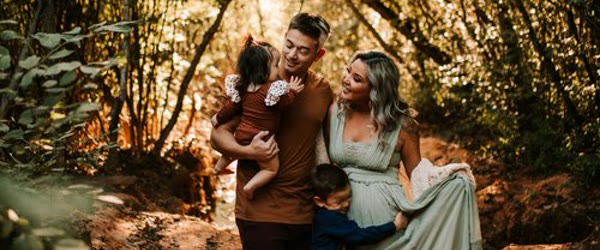
    Family posed heroically against a misty forest backdrop at dawn

    How to Use This Animal Movie Style Family Photo Editing Prompt

    1. Choose a full group photo. Everyone should be visible from head to toe, or at least head to waist, so the heroic pose reads clearly.
    2. Paste the prompt with your photo. Keep the wording as written for the first result, so the forest, mist, and light balance together.
    3. Tune the mood. If the mist hides faces, ask for a lighter haze. If the light feels weak, ask for stronger golden rays.
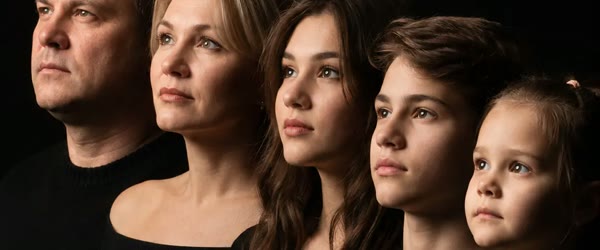
    Intense gazes and rugged outfits in a cinematic family photo

    Copy-Paste Prompt

    Create a dramatic family portrait in the style of an epic animal-action film, with the family posed heroically against a misty forest backdrop at dawn. Add intense gazes, rugged outfits, and golden light breaking through trees. Keep the mood bold and cinematic, with ultra-realistic detail, 4K sharpness, and cinematic lighting.

    Pro Tips

    • Keep the gazes steady. Intense, calm looks at the camera read as heroic, while smiles soften the epic mood.
    • Use rugged, earthy outfits. Natural tones and sturdy clothing suit the forest setting better than bright modern wear.
    • Centre the tallest member. A centred, layered arrangement gives the group a poster-like structure.
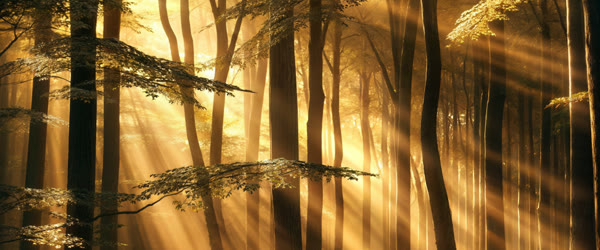
    Golden light breaking through trees in a bold family portrait

    More Prompts to Try

    Epic film-style family portraits can borrow from many genres: action, fantasy, western, and sci-fi. The six variations below keep the heroic family mood while changing the cinematic world.

    Fantasy Quest Family Start with the animal movie style family photo editing prompt exactly as written, then change one small detail at a time until the result feels right.

    An epic family portrait in a fantasy world, with the family in cloaks and leather gear before a misty castle, a dragon suggested in distant clouds. This version suits imaginative families and festival costumes.

    Create an epic fantasy family portrait with the family in cloaks and leather gear posed heroically before a misty castle, a dragon shape suggested in distant clouds. Add intense gazes, golden light breaking through mist, and rugged outfits. Keep the mood bold and magical, with ultra-realistic detail, 4K sharpness, and cinematic lighting.

    Western Frontier Family The animal movie style family photo editing prompt works because it gives the AI a clear subject, setting, and mood in a single short instruction.

    A rugged family portrait in a western desert at sunset, with the family in frontier dress before a dusty town, horses waiting nearby. This version suits bold, outdoorsy families.

    Create a rugged western family portrait with the family in frontier dress posed heroically before a dusty desert town at sunset, horses waiting nearby. Add determined gazes, weathered outfits, and warm golden light. Keep the mood bold and free, with ultra-realistic detail, 4K sharpness, and cinematic lighting.

    Space Crew Family If you are trying this style for the first time, copy the animal movie style family photo editing prompt as it is and study how each line shapes the result.

    A futuristic family portrait as a spaceship crew on a bridge of glowing panels, stars beyond the viewport, uniforms crisp and confident. This version suits tech-loving families and modern, playful posts.

    Create a futuristic family portrait as a spaceship crew on a bridge of glowing panels, stars beyond the viewport, crisp uniforms and confident poses. Add determined gazes, cool blue light, and sleek sci-fi detail. Keep the mood bold and hopeful, with ultra-realistic detail, 4K sharpness, and cinematic lighting.

    Superhero Family A tiny change inside the animal movie style family photo editing prompt, such as a new background or outfit, can shift the whole mood of the edit.

    A heroic family portrait in stylised superhero costumes on a city rooftop at dusk, capes catching the wind, the city glowing below. This version suits children especially, and needs a joyful, powerful tone.

    Create a heroic family portrait in stylised superhero costumes on a city rooftop at dusk, capes catching the wind, the city glowing below. Add confident poses, determined smiles, and dramatic golden light. Keep the mood powerful and fun, with ultra-realistic detail, 4K sharpness, and cinematic lighting.

    Jungle Adventure Family Keep the animal movie style family photo editing prompt saved in your notes so you can reuse it for festivals, birthdays, and everyday posts.

    An adventurous family portrait in a misty jungle, with the family in explorer gear before ancient ruins, vines and golden light breaking through the canopy. This version suits adventurous families and holiday photos.

    Create an adventurous family portrait in a misty jungle, with the family in explorer gear posed heroically before ancient ruins, vines and golden light breaking through the canopy. Add curious, bold expressions and rugged outfits. Keep the mood thrilling and warm, with ultra-realistic detail, 4K sharpness, and cinematic lighting.

    Royal Dynasty Family Most people get their best result from the animal movie style family photo editing prompt on the second or third attempt, after one or two small refinements.

    A majestic family portrait in a palace hall, with the family in royal attire before marble arches, chandeliers glowing warmly. This version suits formal occasions and elegant family milestones. The safest routine is one clear photo, the animal movie style family photo editing prompt, and then a single careful refinement pass at the end.

    Create a majestic family portrait in a palace hall, with the family in royal attire posed gracefully before marble arches, chandeliers glowing warmly. Add composed expressions, rich fabrics, and golden light. Keep the mood regal and warm, with ultra-realistic detail, 4K sharpness, and cinematic lighting.

    How to Customize This Prompt

    Film-style family portraits customise around genre, grouping, and light. Settle those three before prompting, because each one shapes the result.

    Start with the genre. Action, fantasy, western, sci-fi, superhero, jungle, and royal are all valid, but each needs different clothing, background, and light. Pick one genre and commit to it fully. Mixing genres — a cowboy hat in a spaceship, a superhero cape in a jungle — produces confusion, not creativity. Treat the animal movie style family photo editing prompt as a flexible template rather than a fixed rule, and adapt it to your own photos and stories.

    Next, arrange the grouping. Heroic family portraits work best with a clear arrangement: parents central and slightly forward, children beside or slightly behind, everyone facing the camera. Name the arrangement in the prompt if the tool scatters people: “family grouped together, parents central, children beside”. Grouping is the difference between a portrait and a crowd.

    Then set the light. Golden dawn light suits forest and jungle versions. Warm sunset suits western and epic versions. Cool blue suits sci-fi. Candlelight suits royal. Name the light and keep it consistent, because mixed light breaks the cinematic illusion faster than anything else. Before posting, compare two versions made with the animal movie style family photo editing prompt and keep the one with cleaner light and sharper faces.

    Finally, protect every face. Group portraits challenge AI tools: faces at the edges distort first. Ask for “every face clearly visible, natural expressions” and check each person in the result. If one face distorts, regenerate rather than accepting it.

    Step-by-Step Guide

    Follow these steps to create a film-style family portrait everyone loves. Beginners often ask whether the animal movie style family photo editing prompt needs paid tools, and the good news is that free apps handle it well.

    1. Choose a sharp group photo. Everyone should be front-facing, well-lit, and clearly visible. Group photos with hidden faces or heavy shadows make poor starting points.
    2. Pick one genre. Action, fantasy, western, sci-fi, superhero, jungle, or royal. Write it down with the clothing and background it needs.
    3. Plan the grouping. Parents central, children beside, everyone facing forward. State the arrangement in the prompt if needed.
    4. Upload to your AI tool. ChatGPT and Gemini both handle group transformations well. Upload the photo, then paste the prompt in the same message.
    5. Generate the baseline. Run the original prompt unchanged. Check every face first, then the clothing, then the background.
    6. Fix faces before style. If any face distorts, regenerate with “faces unchanged, natural expressions” emphasised. Style fixes come after faces are right.
    7. Try one variation. Generate the genre version that fits your family’s personality and compare it with the baseline. Save the favourite at full quality and share it with the family first.

    Common Mistakes to Avoid

    Mixing genres. A cowboy hat on a spaceship is funny once and confusing always. One genre, committed fully, produces a believable cinematic world.

    Letting edge faces distort. AI tools distort faces at the edges of group photos. Check every person, especially children at the sides. Regenerate if anyone looks wrong; never post a family portrait with a distorted face. If the first attempt looks off, run the animal movie style family photo editing prompt again with a simpler background before changing anything else.

    Overcrowding the background. Forests, castles, cities, and crowds all compete with the family. Keep the background atmospheric — mist, soft light, gentle blur — so the family stays the subject.

    Choosing stiff poses. Heroic does not mean rigid. Relaxed confidence photographs better than stiff attention. Ask for “relaxed, confident poses” if the result looks frozen. That repeatability is why the animal movie style family photo editing prompt keeps trending with new creators every single week.

    Forgetting the children’s comfort. Children should look happy and safe, not scared by dramatic styling. Keep the tone fun for children, and check their expressions first in every result.

    Best Tools for This Edit

    ChatGPT handles group transformations reliably and follows genre and grouping instructions well. It is the best first choice for family portraits, especially for keeping multiple faces recognisable. Save the animal movie style family photo editing prompt alongside your favourite results so the next edit takes seconds instead of starting from zero.

    Gemini renders cinematic light and atmospheric backgrounds beautifully, especially for forest, jungle, and epic versions. Try Gemini if the result needs more photographic depth.

    A photo editor such as Snapseed adds the final cinematic grade. A slight contrast lift, a warmth adjustment toward the genre’s palette, and a small clarity boost on the faces complete the film look without overdoing it. With a little practice, your own version of the animal movie style family photo editing prompt will start to reflect your personal style.

    Frequently Asked Questions

    Will the AI keep everyone’s face recognisable? Usually yes, when the base photo is sharp and front-facing. Group photos are harder than solo portraits, so check every face and regenerate if anyone distorts. Never post a family portrait with a wrong face. Share the finished edit with a short caption that names the animal movie style family photo editing prompt so others can try the same idea.

    Can I include pets in the portrait? Yes, and pets often steal the show. Place the pet centrally and name it in the prompt: “family dog sitting proudly in front”. Check the pet’s rendering carefully, as animals distort more easily than people.

    What genre suits a formal family occasion? The royal dynasty version suits anniversaries and formal milestones. The forest epic version suits adventurous families. Match the genre to the occasion, not just to the trend. When friends ask how the picture was made, the honest answer is one good photo and the animal movie style family photo editing prompt.

    Can I print a film-style family portrait? Yes, and they make wonderful framed prints. Generate at the highest quality, check it at full size, and print on matte paper. The cinematic tones reproduce richly.

    How do I get everyone to agree on a version? Generate two or three variations and let the family vote. The original plus one genre variation gives a real choice without overwhelming anyone. Share the favourites privately before posting publicly. The animal movie style family photo editing prompt also pairs well with the other prompts in this article, so feel free to mix ideas carefully.

    Troubleshooting and Quick Fixes

    A face distorts. Regenerate with “all faces unchanged and natural” emphasised, and use a sharper base photo. If one face keeps failing, crop the group tighter so faces are larger in the frame.

    The genre elements overwhelm the family. Reduce the background wording and ask for “background softly blurred, family prominent”. The family must be the sharpest element in the frame. Families often keep a shared folder for results made with the animal movie style family photo editing prompt, which makes repeat edits much faster.

    The clothing looks like costumes, not cinema. Ask for “realistic, high-quality costumes with natural fabric detail” rather than “costumes”. Realism wording prevents the fancy-dress look.

    The light is inconsistent. Name one light source and keep it in the prompt. Mixed light — dawn plus neon plus firelight — confuses the tool and the viewer. One more quiet advantage of the animal movie style family photo editing prompt is consistency, since the same wording keeps a series looking unified.

    Children look scared. Soften the wording: “happy, confident expressions” and reduce dramatic elements. Children should look like they are playing heroes, not facing danger.

    Sharing Tips for Family Portraits

    Family portraits deserve family-first sharing. Show the finished portrait to the family before posting publicly, and get everyone’s comfort, especially for children’s photos. Share with a caption that names the occasion and the fun, keeping personal details private. Avoid posting children’s full names and locations publicly. A film-style family portrait shared with care becomes a keepsake the whole family enjoys, while one shared carelessly can embarrass the people in it. Post the favourite, keep the alternates for the family album, and revisit the style for the next celebration. If you post often, batch a few variations of the animal movie style family photo editing prompt in one sitting and schedule them across the week.

    Advanced Variations to Explore

    Once the epic family portrait works, explore deeper cinematic worlds. Try a pirate crew family on a wooden ship at sunset, with sails billowing and the sea glowing gold behind them. Try a desert caravan family crossing dunes at dawn, with camels and warm light stretching long shadows. Try a mountain expedition family in winter gear before snow peaks, breath visible in cold air, the mood resilient and joyful. Try a time-travel family in a blend of eras, each member dressed from a different decade, posed together as if time itself gathered for the photo. Each variation keeps the heroic grouping and changes only the world, which is how a family series stays exciting across many celebrations.

    Final Words

    Heroic poses, morning mist, and golden light are all this portrait needs. Gather the family, strike the pose, and make your own movie poster. The animal movie style family photo editing prompt rewards patience, so give the tool a moment and judge the result at full size before editing again.

    Print the portrait large for the living room, since the misty forest and golden light look spectacular at poster size. If one family member is hidden behind another in the first result, ask for a wider arrangement with everyone clearly visible. The style also works for a family greeting card, with a short message in the empty space above the group. Keep the outfits earthy and coordinated in the base photo, because matching tones make the epic grade feel intentional.
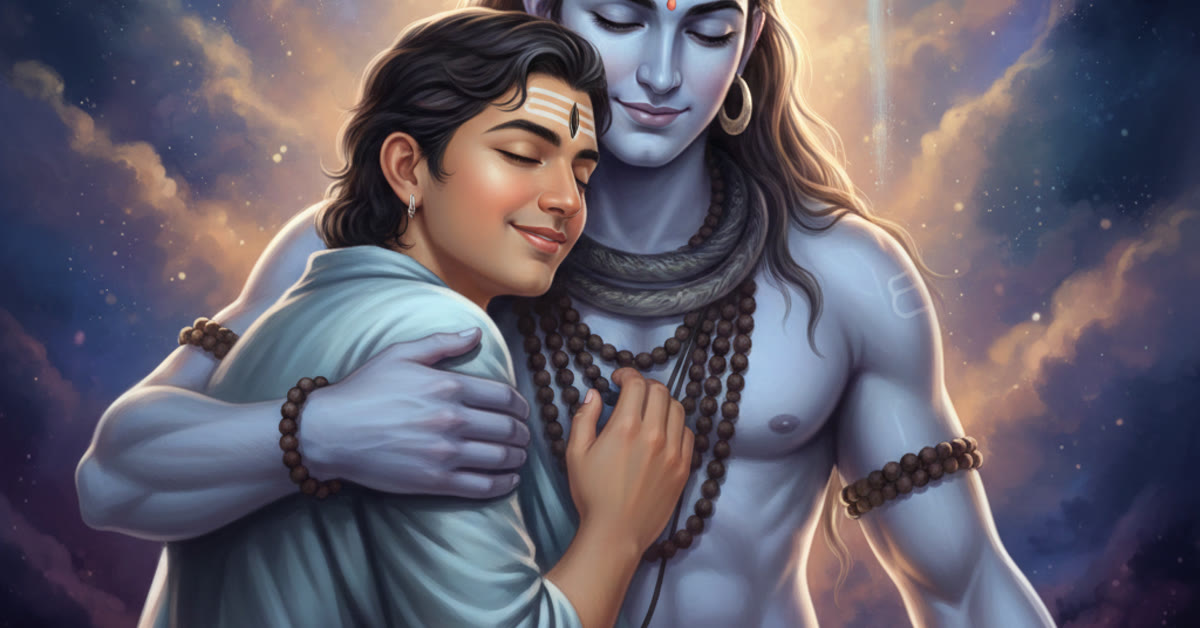
  • Mahashivratri Photo Prompts for a Divine Feed

    Mahashivratri Photo Prompts for a Divine Feed

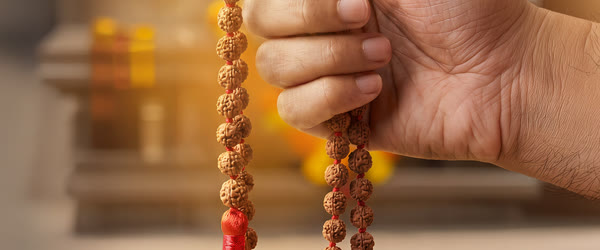
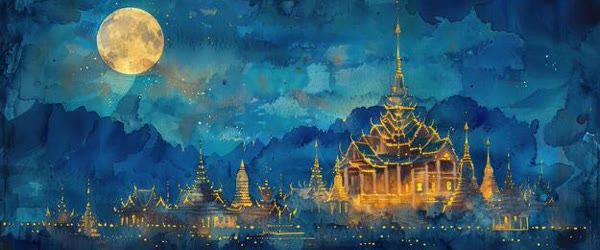
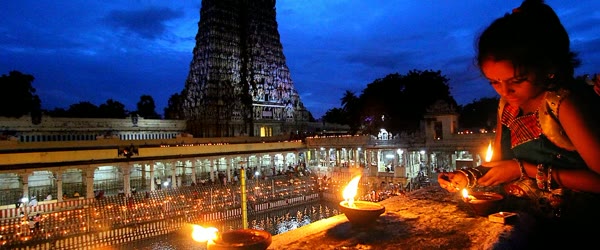
    Divine Mahashivratri portrait before a glowing Shiva temple - mahashivratri photo editing prompts

    Introduction

    Mahashivratri photo editing prompts should feel meditative and divine. The great night of Shiva is about prayer, stillness, and light in darkness, so the portraits work best with a glowing temple, a held diya, and deep blue night tones warmed by golden flame. Guides built around mahashivratri photo editing prompts work best when you follow each step in order. These mahashivratri photo editing prompts also suit temple backgrounds, traditional outfits and calm night scenes.

    The prompt below builds that scene in one pass: a devotee before a Shiva temple at dusk, rudraksha beads, gentle smoke, and a calm, meditative mood. It is made for feeds that mark the festival with devotion. With mahashivratri photo editing prompts, you can get a polished result without advanced editing skills.

    Devotee holding a diya before a temple at dusk

    How to Use These Mahashivratri Photo Editing Prompts

    1. Choose a calm, respectful photo. A serene expression and a simple pose give the devotional edit an honest base.
    2. Paste the prompt with your photo. Keep the wording as written for the first result, so the temple glow and blue tones balance together.
    3. Tune the flame light. If the gold feels too strong, ask for a softer flame. If the night feels flat, ask for deeper blue tones.
    Rudraksha beads and gentle smoke in a meditative portrait

    Copy-Paste Prompt

    Create a powerful Mahashivratri portrait with the subject before a glowing Shiva temple at dusk, holding a diya, with rudraksha beads and gentle smoke curling upward. Add deep blue night tones and golden flame light. Keep the mood meditative and divine, with ultra-realistic detail, 4K clarity, and cinematic lighting.

    Pro Tips

    • Keep the smoke gentle. A thin curl of smoke adds atmosphere, while a thick cloud hides the subject.
    • Use the diya as the light source. Flame light on the face feels sacred and natural when it is the main light.
    • Pair the post with a short prayer. One devotional line completes the portrait without cluttering it.
    Deep blue night portrait with golden flame light and calm mood

    More Prompts to Try

    Mahashivratri portraits can honour the festival in many settings, from temple courtyards to quiet homes. The six variations below keep the meditative, divine mood while changing the scene. Many beginners start with mahashivratri photo editing prompts because the steps stay easy to follow.

    Shiva Temple Courtyard Portrait The best results from mahashivratri photo editing prompts come when the base photo is clear and well lit.

    A powerful portrait in a temple courtyard at dusk, with stone pillars, hanging lamps, and a diya held gently in the hands. This version suits formal festival posts and wide compositions. If you are new to mahashivratri photo editing prompts, begin with the first example and practice once.

    Create a powerful Mahashivratri portrait in a temple courtyard at dusk, with stone pillars, hanging lamps, and a diya held gently in the hands. Add rudraksha beads, gentle smoke, and deep blue night tones with golden flame light. Keep the mood meditative and divine, with ultra-realistic detail, 4K clarity, and cinematic lighting.

    Meditation by the River Sharing your results from mahashivratri photo editing prompts is easy once the final export looks clean.

    A serene portrait of a devotee meditating on river steps at dawn, with mist on the water and temple bells suggested in the distance. This version suits calm, contemplative posts. A careful pass through mahashivratri photo editing prompts helps you avoid the most common editing mistakes.

    Create a serene Mahashivratri portrait of a devotee meditating on river steps at dawn, with mist on the water, a diya beside them, and soft golden light. Add gentle smoke, rudraksha beads, and peaceful blue tones. Keep the mood still and sacred, with ultra-realistic detail, 4K clarity, and cinematic lighting.

    Family Puja at Home You can reuse mahashivratri photo editing prompts for different photos by changing colors, text and layout. You can save your favorite mahashivratri photo editing prompts and reuse them again every year.

    A warm portrait of a family performing puja at a home shrine, with diyas, flowers, and a small shivling, everyone in festive dress. This version suits family sharing and intimate celebrations. Most creators turn to mahashivratri photo editing prompts when they want a fresh look in just a few minutes.

    Create a warm Mahashivratri portrait of a family performing puja at a home shrine, with glowing diyas, marigold flowers, and a small shivling, everyone in festive dress. Add warm lamplight and joyful, reverent expressions. Keep the mood loving and divine, with ultra-realistic detail, 4K clarity, and cinematic lighting.

    Trishul Silhouette Portrait Pairing mahashivratri photo editing prompts with the pro tips above gives the edit a more professional finish.

    A dramatic silhouette portrait holding a trishul against a glowing sunset sky, with smoke curling and mountains behind. This version suits bold, artistic posts and dramatic compositions. When mahashivratri photo editing prompts feels too strong, lower the intensity and try a softer version.

    Create a dramatic Mahashivratri silhouette portrait holding a trishul against a glowing sunset sky, with smoke curling upward and mountains behind. Add deep orange and blue tones and a powerful, still pose. Keep the mood epic and sacred, with ultra-realistic detail, 4K clarity, and cinematic lighting.

    Night Vigil With Diyas Saving a copy before you apply mahashivratri photo editing prompts keeps the original photo safe.

    A moving portrait during the night vigil, surrounded by rows of glowing diyas, the subject praying with folded hands in the dark. This version suits the all-night observance and deep devotion. Friends often ask how a result from mahashivratri photo editing prompts was made because it looks so clean.

    Create a moving Mahashivratri night vigil portrait surrounded by rows of glowing diyas, the subject praying with folded hands in the dark, flame light on the face. Add deep blue night tones, drifting incense smoke, and rudraksha beads. Keep the mood solemn and divine, with ultra-realistic detail, 4K clarity, and cinematic lighting.

    Himalayan Dawn Portrait Trying mahashivratri photo editing prompts on two or three photos shows how flexible the style can be.

    A breathtaking portrait on a mountain path at dawn, with snow peaks, prayer flags, and a distant temple, the subject walking toward the light. This version suits epic, landscape-led posts. A second look at mahashivratri photo editing prompts after a short break helps you spot small fixes. Many devotees share mahashivratri photo editing prompts with friends and family before the festival night.

    Create a breathtaking Mahashivratri portrait on a mountain path at dawn, with snow peaks, stirring prayer flags, and a distant temple in golden light. Add a lone figure in traditional dress, mist in the valleys, and peaceful blue and gold tones. Keep the mood vast and humbling, with ultra-realistic detail, 4K clarity, and cinematic lighting.

    How to Customize This Prompt

    Mahashivratri portraits customise around devotion: the setting, the light, and the symbols. Keep all three reverent and restrained. The examples in this guide show what mahashivratri photo editing prompts can do on ordinary photos.

    Start with the setting. Temple courtyards suit formal portraits. River steps suit meditation. Home shrines suit family portraits. Mountains suit epic compositions. Night vigils suit deep devotion. Pick one setting that matches the feeling you want, because mixed settings dilute reverence. Once you finish with mahashivratri photo editing prompts, export at the highest quality the app allows.

    Next, choose the symbols. Diya, rudraksha beads, trishul, flowers, and smoke are the classic elements. Use two or three, never all five. Two symbols read as devotion; five read as decoration. The diya is the most versatile symbol — it belongs in almost every version — while the trishul suits only bold, dramatic portraits. Small changes inside mahashivratri photo editing prompts often make a bigger difference than big ones.

    Then set the light. Flame light is the heart of this style: warm, flickering, alive against deep blue night tones. Dusk light adds blue depth. Dawn light adds hope. Name the light in every version and keep it consistent. Mixed lighting breaks the sacred spell. Reading the steps for mahashivratri photo editing prompts once before starting saves time later.

    Finally, guard the expression and posture. Meditative, serene, and prayerful are the words. Folded hands, closed eyes, or a calm downward gaze all suit the festival. Avoid dramatic or theatrical poses, which clash with the contemplative mood. Posting a result made with mahashivratri photo editing prompts usually gets more attention than a plain photo.

    Step-by-Step Guide

    Follow these steps to create a Mahashivratri portrait with genuine reverence. If one attempt with mahashivratri photo editing prompts looks off, adjust the lighting and try again.

    1. Choose the devotional moment. Temple, river, home, mountain, or night vigil. One moment, one mood.
    2. Pick your symbols. Diya plus one more: beads, flowers, or trishul. Write them into the prompt and leave the rest out.
    3. Name the light. Flame light against deep blue, golden dusk, or dawn gold. Consistent light makes the portrait feel sacred.
    4. Upload to your AI tool. ChatGPT and Gemini both handle devotional portraits well. Upload the photo, then paste the prompt in the same message.
    5. Run the original prompt and check the reverence. The result should feel calm and divine. If anything feels loud or cluttered, note it before regenerating.
    6. Refine one element. If the smoke overwhelms, ask for “thin smoke”. If the light feels cold, ask for “warmer flame light”. One change at a time.
    7. Share with a sincere caption. Name the festival, keep the caption respectful, and avoid jokes or slang. A devotional portrait shared with sincerity becomes part of someone’s observance.

    Common Mistakes to Avoid

    Overloading the image with symbols. Diya, beads, trishul, flowers, smoke, temple, and crowd in one image becomes a poster. Two or three symbols are enough. Restraint is reverence.

    Making the pose theatrical. Dramatic gestures and intense stares clash with meditation. Calm, prayerful bearing honours the festival far better than drama.

    Using loud colours. Neon colours and rainbow palettes break the sacred mood. Deep blue, gold, and flame orange are the palette. Everything else stays muted.

    Letting the background dominate. A hyper-detailed temple behind the subject competes with the portrait. Ask for the temple “softly blurred” or in silhouette, so the person and the flame stay central.

    Ignoring cultural sensitivity. Shiva imagery is sacred. Keep portrayals respectful: no jokes, no party imagery, no irreverent costumes. If unsure, choose the calmer version.

    Best Tools for This Edit

    ChatGPT handles devotional portraits with care and follows symbol and light instructions well. It keeps faces recognisable and accepts gentle refinements. It is the best first choice for this style.

    Gemini renders flame light, smoke, and temple atmosphere with beautiful realism, and its dusk tones are exceptional. Try Gemini if the result needs more photographic depth.

    A photo editor such as Snapseed adds the final devotional grade. A slight deepening of the blue tones, a gentle warmth lift on the flame light, and a small clarity boost on the face complete the portrait without overdoing it.

    Frequently Asked Questions

    Can I use this prompt for a family photo? Yes. The home puja version is designed for families. Keep the mood warm and reverent, and make sure every face is visible and natural.

    Will the AI render the shivling correctly? Shivlings are simple, sacred forms that AI tools usually render acceptably, especially when small or softly lit. Keep the shivling modest in the frame and the focus on the devotee to avoid awkward detail.

    Can I use this for a night vigil post? Yes, and the night vigil variation is made for it. Post during the vigil hours with a sincere caption, and the portrait will resonate with others observing through the night.

    What if the temple background looks wrong? Ask for “temple silhouette softly blurred” rather than detailed architecture. Atmosphere beats architecture, and a blurred temple reads as sacred without demanding precision.

    Is it respectful to post AI devotional portraits? Yes, when made with sincerity and care. Keep the portrayal dignified, caption it honestly, and avoid jokes or parody. Devotional sharing with respect is welcomed.

    Troubleshooting and Quick Fixes

    The smoke overwhelms the face. Ask for “thin, gentle smoke” or remove the smoke wording. Smoke should curl, not cover.

    The flame light looks fake. Ask for “small, steady flames with natural flicker” rather than large dramatic fire. Small flames render more realistically and feel more sacred.

    The blue tones look black. Lift the shadows slightly in an editor and add “deep blue, not black” to a follow-up prompt. Check on two devices, because screens render dark blues differently.

    The symbols crowd the frame. Remove one symbol — usually the trishul or the extra flowers — and regenerate. Two symbols plus the diya are plenty.

    The expression looks tense. Ask for “serene, peaceful expression” in a follow-up. If the base photo is tense, choose a calmer photo; the AI preserves base expressions strongly.

    Sharing Tips for Devotional Portraits

    Share Mahashivratri portraits on the festival day, in the morning or evening when devotees are observing. Write a sincere caption naming the festival and the blessing. Avoid hashtags that trivialise the occasion, and do not use the portrait to promote unrelated products. If the portrait will be shown at a temple or community event, export the highest quality and test it on a large screen. A devotional portrait shared with sincerity becomes part of someone’s observance, which is a responsibility worth honouring.

    Advanced Variations to Explore

    Once the core portrait works, explore deeper devotional combinations. Try a portrait with a crescent moon in the night sky behind the temple, a quiet nod to Shiva’s imagery, kept subtle and silhouetted. Try a portrait during the abhishek moment, with water pouring in a thin, glowing stream, the camera close and the mood hushed. Try a portrait of a child offering flowers at a small shrine, innocent and tender, the diya flame reflected in wide, wondering eyes.

    Try a portrait in the rain at a temple entrance, with wet stone shining and diyas sheltered under cover, devotion continuing through weather. Each variation deepens the same reverence in a new setting, and the experiments teach you which symbols and lights carry the sacred feeling most reliably.

    Final Words

    A glowing temple, a held diya, and a calm heart are all this portrait needs. Create it with devotion and share the peace of the night.

    Share the portrait on Mahashivratri evening, when devotees are fasting and praying, and a calm devotional image offers a moment of peace. If you create portraits for family members, keep the temple glow and blue tones identical, so the set feels like a shared prayer. Save a text-free copy for the next year, since the same portrait can be shared again with a fresh caption. A single prayer line in the caption completes the post without distracting from the devotion in the image.

  • Instagram DP Photo Prompts That Stand Out

    Instagram DP Photo Prompts That Stand Out

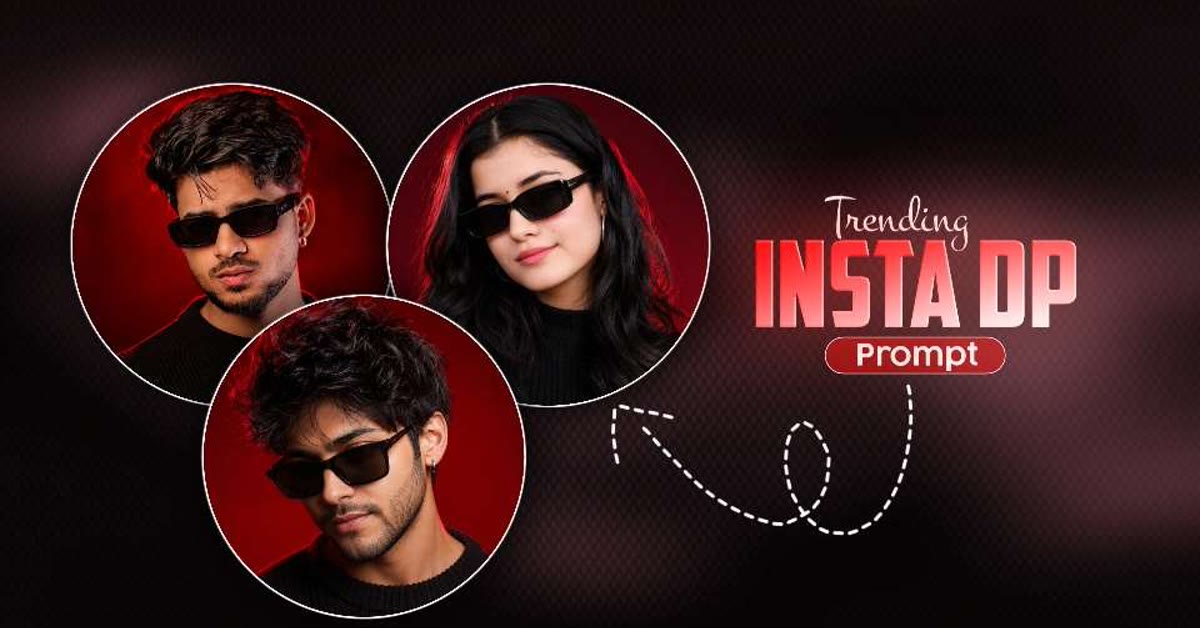
    Striking Instagram DP close-up with bold rim lighting - instagram dp photo editing prompts

    Introduction

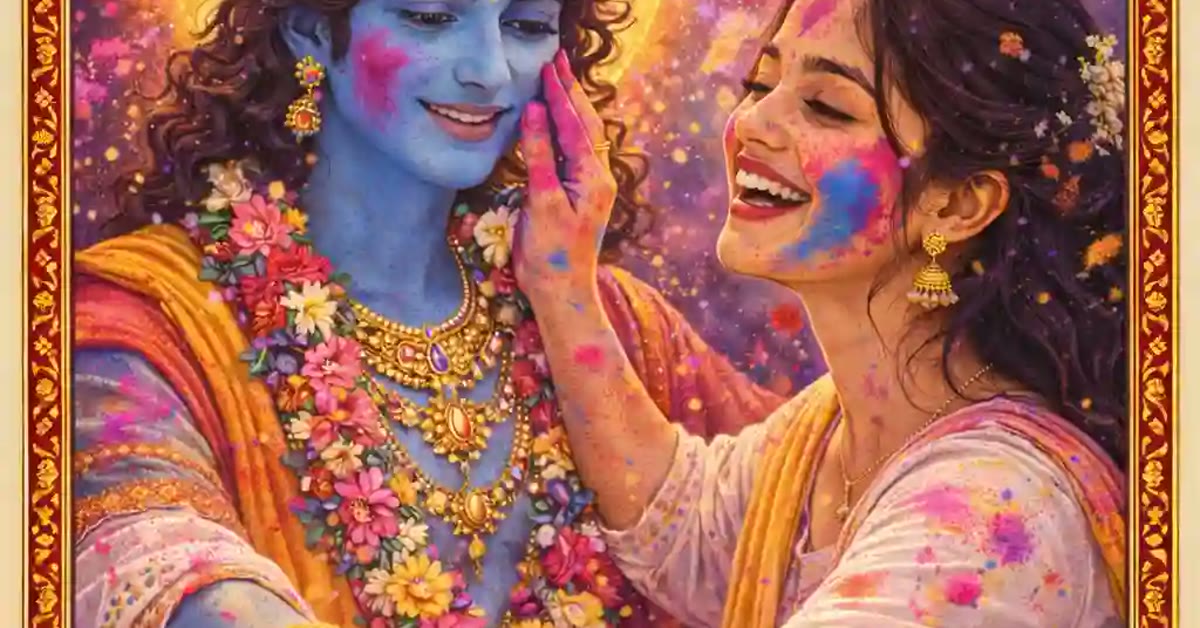
    Instagram DP photo editing prompts solve a small problem with big stakes: your face has to stand out in a tiny circle. The prompt below asks for a striking close-up, a clean background, bold rim lighting, and a colour pop that survives being shrunk to thumbnail size. Guides built around instagram dp photo editing prompts work best when you follow each step in order. These instagram dp photo editing prompts also work nicely for festive and holiday profile pictures.

    A great DP is simple by design. One clear face, one strong light, and one clean background will beat a busy, detailed photo every time, because the circle crop hides everything except the essentials. With instagram dp photo editing prompts, you can get a polished result without advanced editing skills.

    Close-up DP crop with clean background and sharp eyes

    How to Use These Instagram DP Photo Editing Prompts

    1. Choose a close, clear photo. A head-and-shoulders shot with the face well lit gives the DP crop the most to work with.
    2. Paste the prompt with your photo. Keep the wording as written for the first result, so the rim light and colour pop balance together.
    3. Check it in a circle. Crop the result to a small circle before accepting it, since that is how everyone will see it.
    Bold rim light portrait with confident expression for a DP

    Copy-Paste Prompt

    Transform this photo into a striking Instagram DP with a clean background, bold rim lighting, and a confident close-up crop. Sharpen the eyes, smooth the tones, and add a subtle colour pop that suits a small circular frame. Keep the look fresh and premium, with ultra-realistic detail, 4K sharpness, and cinematic lighting.

    Pro Tips

    • Sharpen the eyes first. In a tiny frame, the eyes carry the whole portrait, so they must be crisp.
    • Keep the background plain. A clean backdrop makes the face pop and keeps the DP readable at any size.
    • Use one colour pop. A single accent, in the background or the outfit, keeps the DP fresh without feeling loud.
    Fresh premium DP with colour pop suited to a small frame

    More Prompts to Try

    A profile picture is the smallest, hardest-working image you own. The six variations below keep the clean, premium DP look while changing the light and background, so you can refresh your profile without losing quality. Many beginners start with instagram dp photo editing prompts because the steps stay easy to follow.

    Golden Hour DP The best results from instagram dp photo editing prompts come when the base photo is clear and well lit.

    A warm DP in golden-hour light, with honey tones on the face and a softly blurred park behind. This version suits friendly, approachable profiles and outdoor photos. If you are new to instagram dp photo editing prompts, begin with the first example and practice once.

    Transform this photo into a warm Instagram DP in golden-hour light, with honey tones on the face, a confident close-up crop, and a softly blurred park background. Sharpen the eyes and add a subtle warm glow. Keep the look fresh and premium, with ultra-realistic detail, 4K sharpness, and cinematic lighting.

    Studio Grey DP Sharing your results from instagram dp photo editing prompts is easy once the final export looks clean.

    A clean studio DP against a plain grey background, with soft even light and a calm, confident expression. This version suits professional profiles and polished feeds. A careful pass through instagram dp photo editing prompts helps you avoid the most common editing mistakes.

    Transform this photo into a clean Instagram DP against a plain grey studio background, with soft even lighting, a confident close-up crop, and natural skin tones. Sharpen the eyes and keep the tones balanced. Keep the look premium and minimal, with ultra-realistic detail, 4K sharpness, and cinematic lighting.

    City Night DP You can reuse instagram dp photo editing prompts for different photos by changing colors, text and layout. You can reuse the same instagram dp photo editing prompts for different outfits, moods and backgrounds.

    A bold DP against blurred city lights at night, with neon bokeh and a confident stance. This version suits creators and night-city content. Most creators turn to instagram dp photo editing prompts when they want a fresh look in just a few minutes.

    Transform this photo into a bold Instagram DP against blurred city lights at night, with colourful neon bokeh, a confident close-up crop, and crisp rim lighting. Sharpen the eyes and add a subtle colour pop. Keep the look fresh and cinematic, with ultra-realistic detail, 4K sharpness, and cinematic lighting.

    Nature Soft DP Pairing instagram dp photo editing prompts with the pro tips above gives the edit a more professional finish.

    A gentle DP with a blurred green nature background, soft daylight, and a relaxed smile. This version suits calm, friendly profiles and nature lovers. When instagram dp photo editing prompts feels too strong, lower the intensity and try a softer version.

    Transform this photo into a gentle Instagram DP with a blurred green nature background, soft daylight, and a relaxed, friendly smile. Sharpen the eyes, keep the colours natural, and add a subtle fresh glow. Keep the look clean and premium, with ultra-realistic detail, 4K sharpness, and cinematic lighting.

    Black and White DP Saving a copy before you apply instagram dp photo editing prompts keeps the original photo safe.

    A classic monochrome DP with deep contrast, sharp eyes, and a timeless editorial feel. This version suits artists and anyone wanting a serious, premium look. Friends often ask how a result from instagram dp photo editing prompts was made because it looks so clean.

    Transform this photo into a classic black and white Instagram DP with deep contrast, sharp eyes, and a confident close-up crop. Keep the skin tones rich and the background softly dark. Keep the look timeless and editorial, with ultra-realistic detail, 4K sharpness, and cinematic lighting.

    Festive Colour Pop DP Trying instagram dp photo editing prompts on two or three photos shows how flexible the style can be.

    A cheerful DP with one vivid colour accent — a bright background panel, a coloured light, or a bold outfit detail — against an otherwise clean portrait. This version suits festive seasons and bold personalities. A second look at instagram dp photo editing prompts after a short break helps you spot small fixes.

    Transform this photo into a cheerful Instagram DP with one vivid colour accent against a clean portrait, a confident close-up crop, and bold rim lighting. Sharpen the eyes and keep the colour pop controlled. Keep the look fresh and striking, with ultra-realistic detail, 4K sharpness, and cinematic lighting.

    How to Customize This Prompt

    DPs customise around three things: the crop, the background, and the light. Get those right and the DP works everywhere from a tiny circle to a full-screen profile. The examples in this guide show what instagram dp photo editing prompts can do on ordinary photos.

    Start with the crop. Instagram shows DPs as small circles, so the face must be large and centred. Ask for a “close-up crop” with the eyes in the upper third and space above the head. If the AI crops too wide, the face vanishes at small sizes. Check every result at thumbnail size, not full size, because thumbnail size is how the world will see it. Once you finish with instagram dp photo editing prompts, export at the highest quality the app allows.

    Next, choose the background. Clean backgrounds win: plain colour, soft blur, or gentle bokeh. Busy backgrounds compete with the face in a tiny circle. The prompt’s “clean background” wording is essential; if a result comes out busy, add “plain, uncluttered background” in a follow-up. Small changes inside instagram dp photo editing prompts often make a bigger difference than big ones.

    Then set the light. Bold rim lighting separates the subject from the background and reads beautifully at small sizes. Golden-hour light is warm and friendly. Studio light is clean and professional. Neon light is bold and creative. Match the light to the impression you want: friendly, professional, or bold. Reading the steps for instagram dp photo editing prompts once before starting saves time later.

    Finally, protect the eyes. Sharp, bright eyes are what make a DP feel alive. Keep “sharpen the eyes” in every version, and reject results where the eyes look soft or unfocused. In a circle crop, the eyes carry the whole image. Posting a result made with instagram dp photo editing prompts usually gets more attention than a plain photo.

    Step-by-Step Guide

    Follow these steps to create a DP that looks premium at every size. If one attempt with instagram dp photo editing prompts looks off, adjust the lighting and try again.

    1. Choose a sharp, front-facing photo. The face must be clear, well-lit, and looking at the camera. Side profiles and blurry photos make weak DPs no matter what the prompt says.
    2. Decide the impression. Friendly, professional, or bold. Write down your choice and the background and light that match it.
    3. Upload to your AI tool. ChatGPT and Gemini both handle DP edits well. Upload the photo, then paste the prompt in the same message.
    4. Generate the baseline. Run the original prompt unchanged. Check the crop, the background, and the eyes before anything else.
    5. Check at thumbnail size. Shrink the result to circle size on your phone. If the face reads clearly and the eyes sparkle, the DP works. If not, tighten the crop.
    6. Try one variation. Generate the version that fits your feed’s mood — golden hour for warmth, studio grey for polish — and compare at thumbnail size.
    7. Save and set it. Save at full quality, set it as your DP, and check it in the app immediately. A DP that looks great in the editor but muddy in the app needs more contrast or sharper eyes.

    Common Mistakes to Avoid

    Cropping too wide. A wide crop makes the face tiny in the circle. Close-up crops win. If the face is small, ask for “tighter close-up crop, face filling the frame”.

    Using a busy background. Patterns, crowds, and cluttered rooms fight the face at small sizes. Clean, blurred backgrounds always win for DPs. Simplicity is not boring here; it is legibility.

    Soft or unfocused eyes. Eyes carry the DP. If they look soft, the whole image looks amateur. Ask for “sharp, bright eyes” and reject results where the eyes lack sparkle.

    Over-smoothing the skin. A waxy, plastic face looks worse than a natural one, especially in a small circle. Ask for “natural skin texture” and avoid heavy smoothing language.

    Changing the DP too often. A recognisable DP builds identity. Changing it weekly confuses followers. Pick a strong DP and keep it for months, refreshing only when your look genuinely changes.

    Best Tools for This Edit

    ChatGPT is the easiest tool for DP edits. It follows crop and background instructions well, keeps faces recognisable, and accepts plain-language refinements. It is the best first choice for most people.

    Gemini renders skin texture and rim lighting with lovely realism. If ChatGPT’s result looks smooth or artificial, Gemini’s photographic finish usually fixes it, especially for studio and golden-hour versions.

    Snapseed or Lightroom provides the final thumbnail polish. A small contrast lift, a touch of sharpening on the eyes, and a slight vibrance lift make the DP pop in the app’s small circle without looking over-edited.

    Frequently Asked Questions

    How often should I change my DP? Rarely. A stable DP builds recognition. Change it when your look changes significantly, for a new chapter, or for a special occasion — not weekly. Consistency is identity.

    Can I use a group photo as a DP? It is not ideal. Group photos shrink badly in a circle, and faces become unreadable. Crop to a solo close-up for the DP and post the group photo in the feed instead.

    Why does my DP look blurry in the app? The app compresses uploads. Start from the highest-quality file you have, sharpen the eyes slightly, and avoid heavy filters that compression exaggerates. Uploading at full quality helps more than any prompt wording.

    Should my DP match my feed’s style? Ideally yes. A warm, golden DP suits a warm feed; a clean studio DP suits a minimal feed. Matching the DP to the feed makes the whole profile feel intentional.
    Can I use the same DP on every platform? Yes, and you should. One recognisable face across platforms builds your identity. Use the same high-quality file everywhere, cropped appropriately for each platform’s shape.

    Troubleshooting and Quick Fixes

    The face is too small in the circle. Ask for “tighter close-up, face filling most of the frame” and regenerate. Check the result at actual circle size before accepting it.

    The background is distracting. Ask for “plain, softly blurred background” and name the background you want. A named, simple background beats a vague one every time.

    The eyes look dull. Ask for “bright, sharp eyes with catchlights” in a follow-up. A tiny sharpening pass in an editor also helps enormously.

    The skin looks waxy. Add “natural skin texture, no smoothing” and regenerate. If smoothing persists, switch tools; Gemini generally preserves texture better.

    The colours shift in the app. Export in sRGB and check on two devices. Apps compress colour, so avoid extreme saturation that exaggerates the shift.

    Sharing Tips for Profile Pictures

    A new DP deserves a quiet launch, not a loud announcement. Set it and let people notice. If the DP marks a new chapter — a new job, a move, a milestone — a single feed post with the story is enough. Avoid changing the DP and the username at the same time, which confuses followers completely. Check the DP in dark mode and light mode, since rim lighting reads differently against each. A DP that works in both modes, at thumbnail size, on two devices, is a DP that will serve you well for months.

    Final Words

    A clear face, bold light, and a clean background are all a great DP needs. Make one that stands out and keep it for a while.

    Update your DP with this edit and keep it for a few weeks, since a strong, consistent profile picture builds recognition faster than frequent changes. If the rim light feels too dramatic for a professional profile, ask for a softer version with the same clean background. Try the prompt on both a smiling and a serious photo, and choose the one that matches how you want to be seen. Check the result in the circle crop on your own phone before you commit, since that is the only view that matters.

  • Dr Babasaheb Ambedkar Photo Tribute Prompts

    Dr Babasaheb Ambedkar Photo Tribute Prompts

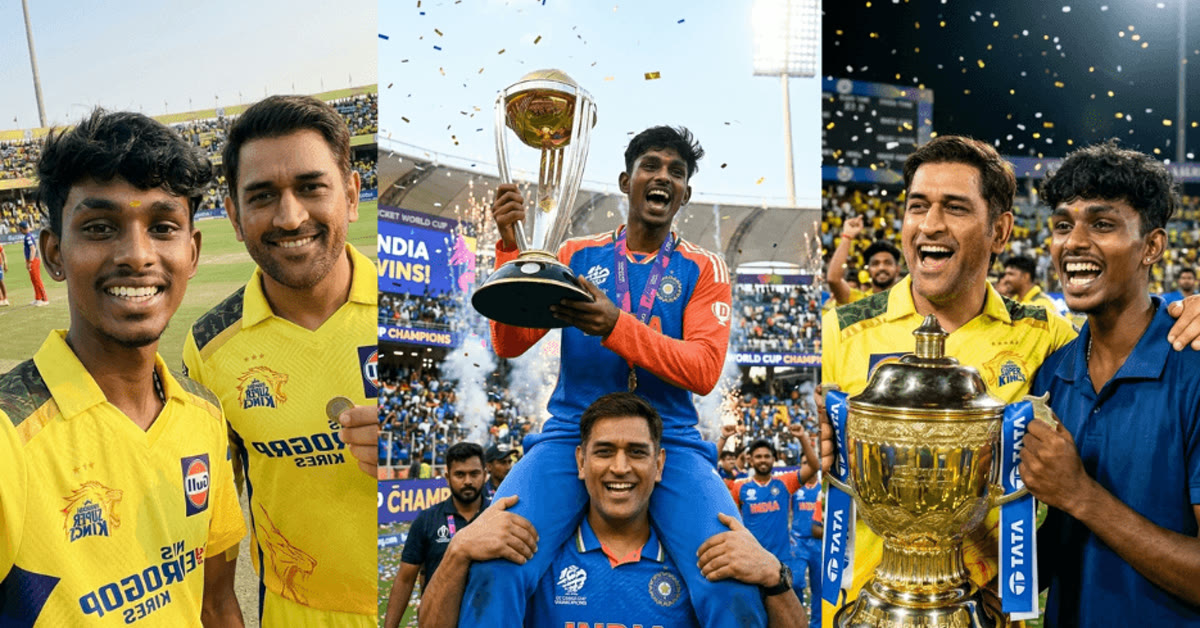
    Respectful tribute portrait of Dr Babasaheb Ambedkar with statue backdrop - dr babasaheb ambedkar ai photo editing prompts

    Introduction

    Dr Babasaheb Ambedkar AI photo editing prompts should be written with dignity. A tribute portrait honours a life devoted to equality, education, and justice, so the image should feel solemn, proud, and calm rather than decorative or loud. Guides built around dr babasaheb ambedkar ai photo editing prompts work best when you follow each step in order.

    The prompt below frames the subject in formal attire beside a dignified statue backdrop, with soft morning light and marigold flowers. Deep blue tones complete a tribute that is fit to share. With dr babasaheb ambedkar ai photo editing prompts, you can get a polished result without advanced editing skills.

    Formal attire tribute portrait with marigold flowers and morning light

    How to Use These Dr Babasaheb Ambedkar AI Photo Editing Prompts

    1. Choose a formal, respectful photo. A dignified pose with a calm expression gives the tribute a sincere base.
    2. Paste the prompt with your photo. Keep the wording as written for the first result, so the statue backdrop and blue tones balance together.
    3. Check the tone. If anything feels casual or flashy, simplify the prompt and regenerate a more solemn version.
    Solemn portrait with deep blue tones and dignified framing

    Copy-Paste Prompt

    Create a respectful tribute portrait of Dr Babasaheb Ambedkar with the subject in formal attire beside a dignified statue backdrop, framed by soft morning light and marigold flowers. Keep the expression solemn and proud, with deep blue tones, ultra-realistic detail, 4K clarity, and cinematic lighting.

    Pro Tips

    • Keep the framing centred and simple. A centred, formal composition reads as respectful and intentional.
    • Use morning light. Soft early light feels peaceful and suits a tribute better than harsh midday sun.
    • Add a short, thoughtful caption. One line about his values adds meaning to the tribute without cluttering it.
    Proud tribute portrait with statue backdrop and soft light

    More Prompts to Try

    Tribute portraits honour a legacy, and different settings honour different parts of it. The six variations below keep the respectful, dignified tone while changing the scene, so you can mark different occasions appropriately. Many beginners start with dr babasaheb ambedkar ai photo editing prompts because the steps stay easy to follow.

    Ambedkar With the Constitution The best results from dr babasaheb ambedkar ai photo editing prompts come when the base photo is clear and well lit.

    A solemn portrait with the subject holding a copy of the Constitution, a dignified study backdrop, and soft morning light. This version suits Constitution Day and educational posts. If you are new to dr babasaheb ambedkar ai photo editing prompts, begin with the first example and practice once.

    Create a solemn tribute portrait of Dr Babasaheb Ambedkar with the subject in formal attire holding a copy of the Constitution, a dignified study backdrop with books, and soft morning light. Add marigold flowers, deep blue tones, and a proud, thoughtful expression. Keep the mood respectful and scholarly, with ultra-realistic detail, 4K clarity, and cinematic lighting.

    Ambedkar Jayanti Celebration Sharing your results from dr babasaheb ambedkar ai photo editing prompts is easy once the final export looks clean.

    A proud portrait before a decorated stage with blue flags, flowers, and a gathered crowd softly blurred behind. This version suits Jayanti celebrations and public tributes. A careful pass through dr babasaheb ambedkar ai photo editing prompts helps you avoid the most common editing mistakes.

    Create a proud Ambedkar Jayanti tribute portrait with the subject in formal attire before a decorated stage with blue flags and marigold flowers, a gathered crowd softly blurred behind. Add warm evening light, deep blue tones, and a solemn, proud expression. Keep the mood celebratory and dignified, with ultra-realistic detail, 4K clarity, and cinematic lighting.

    Ambedkar in a Library You can reuse dr babasaheb ambedkar ai photo editing prompts for different photos by changing colors, text and layout.

    A thoughtful portrait in a grand library, surrounded by tall bookshelves, the subject reading with quiet focus. This version honours the scholar and suits students and readers. Most creators turn to dr babasaheb ambedkar ai photo editing prompts when they want a fresh look in just a few minutes.

    Create a thoughtful tribute portrait of Dr Babasaheb Ambedkar in a grand library, surrounded by tall bookshelves, the subject reading with quiet focus in soft window light. Add deep blue and warm wood tones, a calm expression, and marigold flowers on the desk. Keep the mood scholarly and serene, with ultra-realistic detail, 4K clarity, and cinematic lighting.

    Ambedkar With Followers Pairing dr babasaheb ambedkar ai photo editing prompts with the pro tips above gives the edit a more professional finish.

    A warm portrait of the subject with followers in formal dress, standing together before a statue at dawn. This version suits community tributes and group remembrance. When dr babasaheb ambedkar ai photo editing prompts feels too strong, lower the intensity and try a softer version.

    Create a warm tribute portrait of Dr Babasaheb Ambedkar with followers in formal dress standing together before a statue at dawn, marigold garlands and soft golden light around them. Add deep blue tones and proud, respectful expressions. Keep the mood united and solemn, with ultra-realistic detail, 4K clarity, and cinematic lighting.

    Ambedkar Memorial at Dusk Saving a copy before you apply dr babasaheb ambedkar ai photo editing prompts keeps the original photo safe.

    A moving portrait at a memorial site at dusk, with diyas glowing, flowers laid respectfully, and a peaceful sky. This version suits remembrance days and quiet reflection. Friends often ask how a result from dr babasaheb ambedkar ai photo editing prompts was made because it looks so clean.

    Create a moving tribute portrait at a memorial site at dusk, with glowing diyas, marigold flowers laid respectfully, and a peaceful sky behind. Add the subject in formal attire with folded hands, deep blue dusk tones, and golden flame light. Keep the mood reverent and still, with ultra-realistic detail, 4K clarity, and cinematic lighting.

    Ambedkar Portrait in Blue and Gold Trying dr babasaheb ambedkar ai photo editing prompts on two or three photos shows how flexible the style can be.

    A classic portrait study in deep blue and gold, the subject centred against a plain backdrop with a single marigold garland. This version suits profile pictures and framed prints. A second look at dr babasaheb ambedkar ai photo editing prompts after a short break helps you spot small fixes.

    Create a classic tribute portrait of Dr Babasaheb Ambedkar centred against a plain deep blue backdrop with a single marigold garland, the subject in formal attire with a solemn, proud expression. Add soft golden light and rich blue tones. Keep the mood timeless and dignified, with ultra-realistic detail, 4K sharpness, and cinematic lighting.

    How to Customize This Prompt

    Tribute portraits demand care above all. Every customisation should deepen the respect, never dilute it. The examples in this guide show what dr babasaheb ambedkar ai photo editing prompts can do on ordinary photos.

    Start with the occasion. Constitution Day suits the study and Constitution version. Jayanti suits the celebration version. Remembrance days suit the memorial version. Matching the scene to the occasion is the most important choice, because the wrong scene on a solemn day reads as careless. Once you finish with dr babasaheb ambedkar ai photo editing prompts, export at the highest quality the app allows.

    Next, keep the attire formal. A suit, formal traditional dress, or academic attire suits the tribute. Avoid casual clothing, playful accessories, and party styling, which clash with the solemn mood. Formal attire is not a detail here; it is the respect itself. Small changes inside dr babasaheb ambedkar ai photo editing prompts often make a bigger difference than big ones.

    Then set the colour story. Deep blue is Ambedkar’s associated colour and belongs in every version. Pair it with gold or warm morning light and the white and orange of marigolds. Keep the palette restrained: blue, gold, and marigold. Bright party colours would break the dignity of the portrait. Reading the steps for dr babasaheb ambedkar ai photo editing prompts once before starting saves time later.

    Finally, guard the expression and posture. Solemn, proud, thoughtful, and calm are the right words. Avoid smiling broadly, dramatic poses, or casual body language. A composed, dignified bearing honours the subject far better than any decoration. Posting a result made with dr babasaheb ambedkar ai photo editing prompts usually gets more attention than a plain photo.

    Step-by-Step Guide

    Follow these steps to create a tribute portrait with the dignity it deserves.

    1. Choose the occasion first. Constitution Day, Jayanti, a remembrance day, or a general tribute. The occasion decides the scene, and the scene decides everything else.
    2. Select a formal base photo. Use a photo with a composed expression, formal or traditional attire, and a plain background. Casual selfies and party photos are poor starting points for tributes.
    3. Pick one variation. Choose the version that matches the occasion and the photo. Do not combine versions; one scene, one mood.
    4. Upload to your AI tool. ChatGPT and Gemini both handle tribute portraits respectfully. Upload the photo, then paste the prompt in the same message.
    5. Run the original prompt and check the dignity. Study the face, the attire, and the background. The result should feel calm and proud. If anything feels playful or sloppy, note it before regenerating.
    6. Refine gently. Ask for small changes only: “softer light”, “smaller garland”, “calmer expression”. Avoid dramatic changes that risk the respectful tone.
    7. Share with a respectful caption. Name the occasion, keep the caption sincere, and avoid jokes or slang. A tribute shared with dignity honours both the subject and the viewer.

    Common Mistakes to Avoid

    Using casual or party styling. Shorts, sunglasses, and party props destroy the tribute mood instantly. Formal attire and composed posture are essential, not optional.
    Over-decorating the scene. Flags, crowds, garlands, statues, and fireworks in one image become a fairground. One setting and two decorative elements are enough. Restraint is respect.

    Making the expression playful. A broad grin or a wink clashes with a solemn tribute. Ask for “solemn and proud” or “calm and thoughtful” and keep the expression composed.

    Using bright, clashing colours. Neon colours and rainbow palettes break the dignity. Deep blue, gold, and marigold are the palette. Everything else should stay muted.

    Posting with a flippant caption. A tribute with a joke caption undermines the portrait. Keep captions sincere, name the occasion, and let the image speak.

    Best Tools for This Edit

    ChatGPT handles tribute portraits with care and follows formal, respectful wording well. It keeps faces recognisable and accepts gentle refinements. It is the best first choice for this sensitive style.

    Gemini renders formal attire, books, and memorial settings with realistic detail, and its morning light is particularly beautiful for the study and library versions. Try Gemini if the result needs more photographic realism.

    A photo editor such as Snapseed adds a final dignified grade. A slight deepening of the blue tones, a gentle warmth lift, and a small clarity boost on the face complete the tribute without overdoing it.

    Frequently Asked Questions

    Can I use this prompt for a family member’s tribute photo? The prompt is written for Dr Ambedkar tributes. For a family member, keep the structure but change the subject wording to formal attire, a dignified backdrop, and a solemn expression, without the specific symbols.

    Is it appropriate to create AI tribute portraits? Yes, when done respectfully. Keep the portrayal dignified, the caption sincere, and the occasion clear. AI tributes are widely shared on Jayanti and Constitution Day when made with care.

    Why does my result look like a poster instead of a portrait? Too many elements. Remove the crowd, the flags, or the extra decorations and keep one setting with two symbols. A portrait needs a person at its centre, not a scene competing with them.

    Can I print the tribute portrait? Yes. Generate at the highest quality, check it at full size, and print on matte paper. The deep blue and gold tones reproduce richly, and the portrait suits framed display.

    What caption should I use? Keep it simple and sincere: name the occasion and the respect you wish to convey. Avoid slang, jokes, and excessive hashtags. One or two lines are enough.

    Troubleshooting and Quick Fixes

    The attire looks casual. Add “formal suit and tie” or “formal traditional attire” explicitly, and remove any casual words from the prompt. Attire wording must be unambiguous.

    The background is too busy. Ask for “plain, dignified background” or “softly blurred background” and name one element only, such as “statue” or “bookshelves”. A plain backdrop restores focus to the subject.

    The expression looks wrong. Ask for “solemn, calm, proud expression” in a follow-up. If the base photo has a big smile, choose a more composed photo; the AI preserves base expressions strongly.

    The blue tones look purple or black. Add “deep, rich blue tones” and lift the warmth slightly in an editor. Screen calibration varies, so check the result on two devices before judging.

    The garland overwhelms the face. Ask for “small marigold garland resting on the shoulders, face fully visible”. If it persists, drop the garland and keep the flowers as a small arrangement beside the subject.

    Sharing Tips for Tribute Portraits

    Share tribute portraits on the occasion itself, in the morning when remembrance posts are most visible. Write a caption that is sincere and brief, naming the occasion and the values being honoured. Avoid slang, jokes, and excessive hashtags, which cheapen a solemn image. If the portrait will be used by a community page or a printed programme, share the highest-quality file and confirm the caption with the organisers first. A tribute shared with dignity reaches further and is remembered longer than one shared carelessly.

    Ideas for Community Use

    Tribute portraits serve communities, not just feeds. Schools can use them in assemblies and classroom displays about the Constitution, keeping the image large and the caption educational. Community centres can print them for Jayanti programmes, pairing the portrait with a short quote and the event details. Study circles can share the library version with reading lists. When a portrait serves a community purpose, share the highest-quality file, confirm the caption with organisers, and keep the presentation dignified. A tribute used well teaches as much as it honours.
    Final Words

    Formal attire, soft light, and a solemn expression are all this tribute needs. Create it with respect and share it with pride.

    Share the tribute on the morning of the occasion, with a single respectful line, so it sets a dignified tone for the day. If family members want their own versions, keep the statue backdrop and blue tones identical across all of them for a unified tribute. Save a text-free copy for printing, since tribute portraits are often framed or kept in family albums. Check the final image once at full size, because small errors in attire or flowers are easy to miss at preview size.

    Read the final caption aloud once before posting, since a calm, respectful tone in words should match the dignity of the image.

  • Happy Holi AI Photo Prompts Full of Joy

    Happy Holi AI Photo Prompts Full of Joy

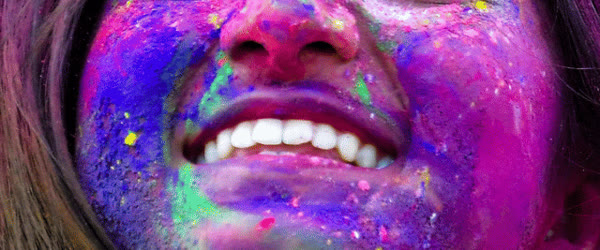
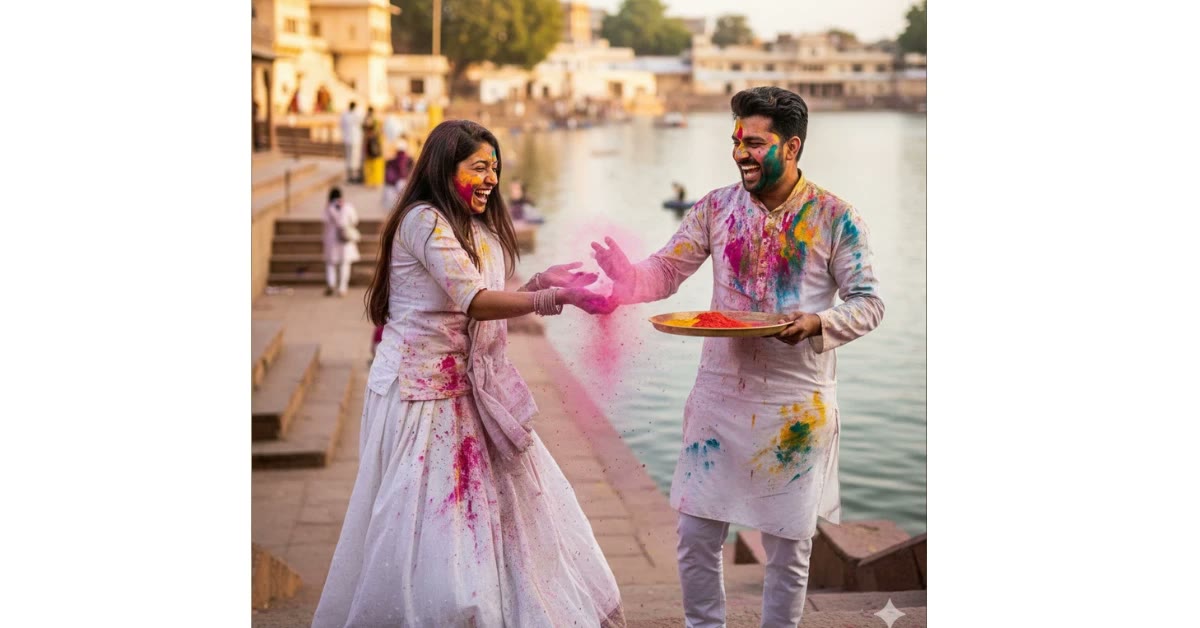
    Joyful Holi photo with bright coloured powder shower - happy holi ai photo prompts

    Introduction

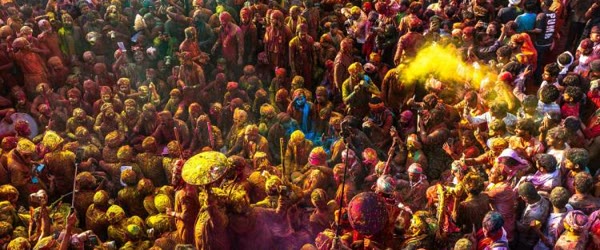
    Happy Holi AI photo prompts are all about carefree joy. A shower of pink and yellow gulal, a sunlit courtyard, and a smiling face covered in bright colour capture the festival exactly as it feels: messy, happy, and free. Guides built around happy holi ai photo prompts work best when you follow each step in order.

    The prompt below keeps the colours vivid while protecting natural skin tones, so the portrait looks like a real celebration rather than a filter. It works best on photos with a big, genuine smile. With happy holi ai photo prompts, you can get a polished result without advanced editing skills.

    Smiling portrait under a shower of pink and yellow gulal

    How to Use These Happy Holi AI Photo Prompts

    1. Choose a smiling photo. A carefree, laughing expression is the heart of a Holi portrait.
    2. Paste the prompt with your photo. Keep the wording as written for the first result, so the gulal shower and courtyard balance together.
    3. Tune the colour shower. If the powder hides the smile, ask for less colour near the face. If the mood feels pale, ask for a denser gulal shower.
    Sunlit courtyard background with flying Holi colours

    Copy-Paste Prompt

    Create a joyful Holi AI photo with the subject covered in bright coloured powder, smiling under a shower of pink and yellow gulal. Add a sunlit courtyard background, flying colours, and a carefree festive mood. Keep the skin tones natural and the colours vivid, with ultra-realistic detail, 4K clarity, and cinematic lighting.

    Pro Tips

    • Keep the eyes visible. Colour around the face is festive, but the eyes carry the joy and must stay clear.
    • Use sunlight. A sunlit background makes gulal colours glow, while shade makes them look dull.
    • Wear white in the base photo. White clothing shows Holi colours best and keeps the portrait bright.
    Carefree festive portrait with vivid colours and natural skin

    More Prompts to Try

    Happy Holi photos can celebrate every kind of joy, from family mornings to street parties. The six variations below keep the happy, colourful mood while changing the scene. Many beginners start with happy holi ai photo prompts because the steps stay easy to follow.

    Holi With Grandparents The best results from happy holi ai photo prompts come when the base photo is clear and well lit.

    A warm portrait of grandparents with gentle colour on their cheeks, sitting together on a veranda with marigolds and a bowl of gulal. This version suits elders and needs a respectful, tender tone. If you are new to happy holi ai photo prompts, begin with the first example and practice once.

    Create a warm Holi portrait of grandparents with gentle colour on their cheeks, sitting together on a veranda with marigold garlands and a steel bowl of gulal. Add soft morning light, traditional dress, and peaceful smiles. Keep the mood tender and joyful, with ultra-realistic detail, 4K clarity, and soft cinematic lighting.

    Holi Dance in the Rain of Colours Sharing your results from happy holi ai photo prompts is easy once the final export looks clean.

    A dynamic portrait mid-dance as a cloud of colour explodes overhead, the subject laughing with arms raised. This version suits energetic photos and festival reels. A careful pass through happy holi ai photo prompts helps you avoid the most common editing mistakes.

    Create a dynamic Holi portrait mid-dance as a cloud of pink and yellow colour explodes overhead, the subject laughing with arms raised. Add flying gulal, sunlit sky, and a festive crowd blurred behind. Keep the mood ecstatic and free, with ultra-realistic detail, 4K sharpness, and cinematic lighting.

    Holi Selfie With Friends You can reuse happy holi ai photo prompts for different photos by changing colors, text and layout.

    A close, cheerful selfie-style portrait with friends’ colour-smeared faces crowding in, everyone grinning. This version suits casual phone photos and social sharing. Most creators turn to happy holi ai photo prompts when they want a fresh look in just a few minutes.

    Create a cheerful Holi selfie-style portrait with friends crowding in, colour-smeared faces grinning, pink and green gulal on cheeks and hair. Add bright daylight, a courtyard background, and natural skin tones. Keep the mood candid and fun, with ultra-realistic detail, 4K clarity, and cinematic lighting.

    Holi With a Pet Pairing happy holi ai photo prompts with the pro tips above gives the edit a more professional finish.

    A heartwarming portrait of a person with their dog, both dusted lightly with pet-safe coloured powder, in a sunny garden. This version suits animal lovers and needs a gentle, safe tone. When happy holi ai photo prompts feels too strong, lower the intensity and try a softer version.

    Create a heartwarming Holi portrait of a person with their dog, both dusted lightly with soft coloured powder, in a sunny garden with marigolds. Add happy expressions, bright colours, and a carefree mood. Keep the skin and fur tones natural, with ultra-realistic detail, 4K sharpness, and cinematic lighting.

    Holi Sweets and Celebration Saving a copy before you apply happy holi ai photo prompts keeps the original photo safe.

    A joyful portrait beside a table of Holi sweets, with gujiyas, thandai, and colour bowls, the subject offering a sweet to the camera. This version suits food lovers and traditional celebrations. Friends often ask how a result from happy holi ai photo prompts was made because it looks so clean.

    Create a joyful Holi portrait beside a table of festive sweets, with gujiyas, glasses of thandai, and bowls of coloured powder, the subject offering a sweet to the camera. Add warm light, traditional dress, and a welcoming smile. Keep the mood festive and generous, with ultra-realistic detail, 4K clarity, and cinematic lighting.

    Holi Sunset Silhouette Trying happy holi ai photo prompts on two or three photos shows how flexible the style can be.

    A stunning silhouette portrait at sunset, the subject throwing colour into golden light, the powder glowing against the sky. This version suits artistic photos and dramatic compositions. A second look at happy holi ai photo prompts after a short break helps you spot small fixes.

    Create a stunning Holi silhouette portrait at sunset, the subject throwing coloured powder into golden light, the gulal glowing pink and gold against the sky. Add a joyful pose, warm rim light, and a dreamy atmosphere. Keep the mood magical and free, with ultra-realistic detail, 4K clarity, and cinematic lighting.

    How to Customize This Prompt

    Happy Holi photos are about joy, and joy reads differently for every person. Customise around the people, the colours, and the light. The examples in this guide show what happy holi ai photo prompts can do on ordinary photos.

    Start with the people. A solo portrait needs a strong expression and a clear face. A family photo needs warmth and togetherness. A friends’ photo needs candid energy. Name the people in the prompt — “grandparents”, “friends”, “couple” — so the AI composes the group correctly. Vague wording produces vague groups. Once you finish with happy holi ai photo prompts, export at the highest quality the app allows.

    Next, choose your colour palette. Pink and yellow is the classic happy Holi combination: warm, bright, and photogenic. Green adds freshness. Orange adds depth. Purple adds drama for night photos. Name two or three colours and stop there; more colours turn to mud. Small changes inside happy holi ai photo prompts often make a bigger difference than big ones.

    Then set the light. Bright daylight makes colours pop and suits outdoor celebrations. Soft morning light suits family and elder portraits. Golden sunset light suits silhouettes and artistic shots. Night light with lamps suits party photos. The light you name decides whether the photo feels fresh, warm, or dramatic. Reading the steps for happy holi ai photo prompts once before starting saves time later.

    Finally, protect natural skin tones. Holi powder is strong colour, and AI edits can push skin orange or grey. Keep “natural skin tones” in every version. If a result looks off, follow up with “balanced, true-to-life skin colour, powder only on cheeks and hair”. This wording fixes most skin-tone problems in one step. Posting a result made with happy holi ai photo prompts usually gets more attention than a plain photo.

    Step-by-Step Guide

    Follow these steps to create a happy Holi photo that feels real. If one attempt with happy holi ai photo prompts looks off, adjust the lighting and try again.

    1. Start with a happy photo. Choose a photo where the person is already smiling or laughing. Holi joy is hard to manufacture from a serious expression, so the base emotion matters more than the background.
    2. Pick one scene and one palette. Decide the setting (courtyard, street, garden, or sunset) and two or three colours. Write both down before prompting to keep the result focused.
    3. Upload to your AI tool. ChatGPT and Gemini both handle Holi edits well. Upload the photo, then paste the prompt in the same message.
    4. Generate the baseline. Run the original prompt unchanged and study the result: face visibility, colour balance, skin tones, and background depth. Note one or two changes, no more.
    5. Adjust powder coverage. If the face is buried, ask for colour on the cheeks and hair only. If the photo feels plain, ask for more flying colour in the background. One adjustment at a time.
    6. Try a variation. Pick the variation that matches your photo’s people and light — grandparents for elders, sunset silhouette for golden-hour shots — and compare it with the baseline.
    7. Save and caption honestly. Save at full quality and caption the post as an AI Holi edit. Viewers love the creativity, and honesty keeps the celebration fun for everyone.

    Common Mistakes to Avoid

    Hiding the face under powder. The happiest Holi photos still show the person’s eyes and smile. If powder covers the whole face, the photo loses its subject. Ask for colour on the cheeks and hair, with the face clearly visible. Keep your favorite version of happy holi ai photo prompts saved so you can repeat the style anytime.

    Using muddy colour combinations. Naming five or six colours produces brownish grey, not a rainbow. Two or three named colours plus natural light gives the vivid, clean result people expect from Holi photos.

    Starting from a dark photo. Holi colours need light to shine. A dark indoor photo makes powder look dirty and skin look grey. Use a bright daylight photo or one taken near a large window.

    Forgetting the background. A blank wall behind a Holi portrait looks unfinished. The prompt’s courtyard, crowd, or garden background gives the celebration somewhere to happen. If the background comes out empty, ask for “festive background with soft colour haze”.

    Posting without honesty. AI Holi photos are delightful, but presenting them as real festival moments misleads viewers. A simple “AI Holi edit” note in the caption keeps everything fun and transparent.

    Best Tools for This Edit

    ChatGPT is the simplest tool for happy Holi edits. It keeps faces recognisable, follows colour instructions reliably, and accepts plain-language refinements. It is the best first choice for family and friends’ photos.

    Gemini produces richer powder texture and more realistic sunlight. If your result looks flat or the powder looks painted, Gemini’s handling of dust clouds and golden light often fixes it in one run.

    Snapseed or Lightroom finishes the photo. A small vibrance lift makes the colours sing on phone screens, and a slight warmth adjustment keeps skin tones natural. Keep the edits gentle; the AI already did the heavy lifting.

    Frequently Asked Questions

    Can I use this prompt for a pet’s photo? Yes, with care. Use the pet variation, keep the powder light, and never use real coloured powder on animals. AI edits are the safe way to include pets in Holi fun, and the results are adorable.

    Will the AI preserve my face in a group photo? Usually yes, when faces are front-facing and the photo is sharp. Add “every face clearly visible” for groups. Check each face before posting, and regenerate if anyone looks distorted.

    Why do my colours look dull? The base photo is probably too dark, or the prompt names too many colours. Use a brighter photo, name three colours, and add “vivid, saturated colours”. A small vibrance lift afterwards also helps.

    Can I turn the photo into a Holi reel? Yes. Generate the still image first, then animate it in an image-to-video tool with drifting colour dust and a slow zoom. Keep the motion gentle so the faces stay sharp and the colours stay vivid.

    Is it safe to share AI Holi photos of children? Share thoughtfully. AI edits of children are fine for family sharing, but avoid posting children’s photos publicly with identifying details. Keep captions simple and privacy in mind.

    Troubleshooting and Quick Fixes

    Powder looks grey or dirty. Brighten the base photo, name three colours, and add “vivid colours”. If the powder still looks dirty, reduce the powder density and let the sunlight do more work.

    Face hidden behind colour. Ask for “colour on cheeks and hair, face clearly visible” and regenerate. This single instruction fixes the most common Holi failure.

    Background people look distorted. Ask for “background crowd softly blurred beyond recognition”. Heavy blur hides AI flaws and looks more cinematic anyway.

    Skin looks orange. Add “balanced, true-to-life skin colour” in a follow-up, and reduce overall saturation slightly in an editor. The powder should colour the cheeks, not the whole skin tone.

    Results vary wildly between runs. That is normal for AI generation. Run the prompt three times, pick the best, and save it immediately. Consistency comes from choosing the best of several, not from one perfect run.

    Sharing Tips for Holi Photos

    Share Holi photos while the festival is still in the air, ideally on the day itself or the morning after. A short, joyful caption works best: name the festival, mention the colours, and keep the tone light. Tag the people in the photo so they can share it too, and reply to comments quickly while the post is fresh. If children appear in the photo, keep the caption simple and avoid personal details. Honest captions that mention the AI edit keep the fun transparent and enjoyable for everyone.

    Final Words

    Bright gulal, warm sun, and a carefree smile are all a Happy Holi photo needs. Make yours and share the colour.

    Post the Holi photo on the festival day itself, when the colours in your feed match the colours on the street. If friends want their own, run the same prompt on their smiling photos with the same gulal palette, so the group looks like one celebration. Keep a lighter-colour version for your profile picture, since the full shower can hide features at small sizes. A cheerful one-line caption with the festival greeting is all the post needs.

    Keep a copy of the finished portrait saved in full quality, since Holi photos are often printed or shared again the next year.

  • Happy Birthday Photo Editing Prompts to Try

    Happy Birthday Photo Editing Prompts to Try

    Cheerful birthday portrait with balloons, cake, and fairy lights - happy birthday photo editing prompts

    Introduction

    Happy birthday photo editing prompts turn an everyday photo into a celebration. Balloons, a glowing cake, warm fairy lights, and golden bokeh sparkles build the party feeling in one edit, and the prompt below does it while keeping the person looking natural. Guides built around happy birthday photo editing prompts work best when you follow each step in order. You can reuse these happy birthday photo editing prompts for friends, family members, and kids of every age group.

    This style suits a happy expression and a festive outfit. It works best on photos with a little space around the subject, so the balloons and lights have room to glow. With happy birthday photo editing prompts, you can get a polished result without advanced editing skills. Adding balloons and soft lights to your happy birthday photo editing prompts makes the final portrait feel joyful.

    Birthday portrait with balloons and warm fairy lights

    How to Use These Happy Birthday Photo Editing Prompts

    1. Pick a happy photo. A genuine smile gives the birthday edit the joyful mood it needs.
    2. Paste the prompt with your photo. Keep the wording as written for the first result, so the balloons, cake, and lights balance together.
    3. Tune the brightness. If the lights feel too strong, ask for a softer glow. If the mood feels dim, ask for warmer fairy lights.
    Glowing birthday cake with golden bokeh sparkles

    Copy-Paste Prompt

    Transform this photo into a cheerful birthday celebration portrait with balloons, a glowing cake, and warm fairy lights in a softly blurred background. Add a happy expression, festive outfit, and golden bokeh sparkles. Keep the mood joyful and bright, with ultra-realistic detail, 4K sharpness, and cinematic lighting.

    Pro Tips

    • Keep the face clear. Balloons and bokeh should frame the subject, never cover the smile.
    • Use warm light only. Warm fairy lights feel cosy and festive, while cool light feels like a different party.
    • Try it as a birthday post. Pair the portrait with a short wish, and it becomes a complete celebration share.
    Joyful birthday portrait with festive outfit and bright mood

    More Prompts to Try

    Birthday edits suit every age and mood. The six variations below cover children, friends, couples, and elegant adult celebrations, so you always have a version that fits the person. Many beginners start with happy birthday photo editing prompts because the steps stay easy to follow. Many people keep a small collection of happy birthday photo editing prompts ready for surprise birthday posts.

    Kids Birthday With Balloons The best results from happy birthday photo editing prompts come when the base photo is clear and well lit.

    A cheerful portrait of a child surrounded by colourful balloons, a small cake, and confetti in warm indoor light. This version needs bright colours and a genuinely happy expression. If you are new to happy birthday photo editing prompts, begin with the first example and practice once.

    Create a cheerful birthday portrait of a child surrounded by colourful balloons, a small glowing cake, and falling confetti in warm indoor light. Add a happy outfit, a big smile, and golden bokeh sparkles. Keep the mood joyful and innocent, with ultra-realistic detail, 4K sharpness, and cinematic lighting.

    Friends Birthday Party Sharing your results from happy birthday photo editing prompts is easy once the final export looks clean.

    A lively group portrait with friends around a cake, fairy lights, and balloons, everyone laughing. This version suits group photos and candid party energy. A careful pass through happy birthday photo editing prompts helps you avoid the most common editing mistakes.

    Create a lively birthday group portrait with friends gathered around a glowing cake, fairy lights, and balloons, everyone laughing together. Add warm indoor light, festive outfits, and golden bokeh. Keep the mood fun and candid, with ultra-realistic detail, 4K clarity, and cinematic lighting.

    Elegant Adult Birthday You can reuse happy birthday photo editing prompts for different photos by changing colors, text and layout.

    A refined portrait with a single elegant cake, champagne tones, and soft candlelight, the subject in smart evening wear. This version suits milestone birthdays and premium-looking posts. Most creators turn to happy birthday photo editing prompts when they want a fresh look in just a few minutes.

    Create an elegant birthday portrait with a single refined cake, soft candlelight, and champagne tones, the subject in smart evening wear with a confident smile. Add a softly blurred luxurious background and golden bokeh. Keep the mood classy and warm, with ultra-realistic detail, 4K sharpness, and cinematic lighting.

    Birthday Couple Celebration Pairing happy birthday photo editing prompts with the pro tips above gives the edit a more professional finish.

    A romantic portrait of a couple cutting a cake together, surrounded by fairy lights and rose petals. This version suits couples celebrating a birthday together. When happy birthday photo editing prompts feels too strong, lower the intensity and try a softer version.

    Create a romantic birthday portrait of a couple cutting a cake together, surrounded by fairy lights and soft rose petals. Add warm smiles, coordinated outfits, and a dreamy blurred background. Keep the mood loving and joyful, with ultra-realistic detail, 4K clarity, and cinematic lighting.

    Outdoor Garden Birthday Saving a copy before you apply happy birthday photo editing prompts keeps the original photo safe.

    A sunlit garden birthday with bunting, balloons tied to chairs, and a picnic-style cake table. This version suits daytime photos and natural light lovers. Friends often ask how a result from happy birthday photo editing prompts was made because it looks so clean.

    Create a sunlit garden birthday portrait with bunting overhead, balloons tied to chairs, and a picnic-style cake table behind. Add bright daylight, a happy expression, and a fresh, airy mood. Keep the colours natural and vivid, with ultra-realistic detail, 4K sharpness, and cinematic lighting.

    Midnight Birthday Surprise Trying happy birthday photo editing prompts on two or three photos shows how flexible the style can be.

    A dramatic midnight portrait with sparklers, a glowing cake in the dark, and fairy lights, the subject laughing in surprise. This version suits night photos and bold, glowing edits. A second look at happy birthday photo editing prompts after a short break helps you spot small fixes.

    Create a dramatic midnight birthday portrait with sparklers, a glowing cake in the dark, and fairy lights, the subject laughing in surprise. Add deep blue night tones, golden sparkle light, and a joyful expression. Keep the mood electric and fun, with ultra-realistic detail, 4K clarity, and cinematic lighting.

    How to Customize This Prompt

    Birthday prompts customise easily around three choices: who is celebrating, where, and what time of day. Settle those before prompting. The examples in this guide show what happy birthday photo editing prompts can do on ordinary photos.

    Start with the person. A child’s birthday needs bright colours, balloons, and confetti. An adult milestone suits candlelight and elegant tones. A friend group’s birthday needs candid energy and a cake everyone gathers around. Match the wording to the person’s age and style, because a prompt written for a child will embarrass an adult and vice versa. Once you finish with happy birthday photo editing prompts, export at the highest quality the app allows.

    Next, choose the setting. Indoor parties suit fairy lights and bokeh. Gardens suit daylight and bunting. Night celebrations suit sparklers and deep blue tones. The setting decides the light, and the light decides the mood, so pick the setting first and let the rest follow. Small changes inside happy birthday photo editing prompts often make a bigger difference than big ones.

    Then set the cake and decorations. One cake with candles reads as elegant. A cake plus balloons plus confetti reads as a party. Name the decorations you actually want, and leave out the rest. Over-decorated prompts produce cluttered images where the person disappears behind objects. Reading the steps for happy birthday photo editing prompts once before starting saves time later.

    Finally, protect the expression. Birthday photos live on the smile. Words like “happy expression”, “laughing”, and “joyful” belong in every version. If the AI gives a neutral or stiff face, ask for “bigger genuine smile” in a follow-up. A birthday portrait with a flat expression fails no matter how good the decorations look. Posting a result made with happy birthday photo editing prompts usually gets more attention than a plain photo.

    Step-by-Step Guide

    Follow these steps to create a birthday portrait worth sharing. If one attempt with happy birthday photo editing prompts looks off, adjust the lighting and try again.

    1. Pick a photo with a real smile. The expression matters more than the outfit or the background. A genuine smile carries the whole edit; a stiff pose cannot be saved by balloons.
    2. Decide the celebration type. Child, friends, elegant adult, couple, garden, or midnight. Write down your choice and the two or three decorations that define it.
    3. Upload the photo to your AI tool. ChatGPT and Gemini both work well. Upload first, then paste the prompt in the same message.
    4. Run the original prompt unchanged. Check the balance: is the person clearly visible? Do the decorations support rather than bury them? Note what to adjust.
    5. Adjust decoration density. If the image feels cluttered, ask for “fewer decorations, person clearly visible”. If it feels plain, ask for “more balloons and fairy lights” in a follow-up.
    6. Try one variation. Generate the version that fits your photo’s time of day — garden for daylight, midnight for night shots — and compare it with the original.
    7. Polish and save. Ask for small fixes such as brighter bokeh or sharper eyes, save at full quality, and keep the prompt text with the file for next year’s birthday.

    Common Mistakes to Avoid

    Burying the person behind decorations. Balloons, cakes, and confetti are supporting actors. If they cover the face or fill the frame, the portrait fails. Always ask for the person clearly visible with decorations around them, not over them.

    Using a dull base photo. Birthday edits need light and a smile. A dark, blurry, or grumpy photo will not become joyful through prompting. Start with a bright photo that already has some happiness in it.

    Mixing day and night lighting. Fairy lights plus bright daylight plus sparklers in one prompt creates a confused image. Pick one time of day and commit to its light: daylight, warm indoor evening, or deep night.

    Overdoing the bokeh. Golden bokeh is beautiful in moderation. Too much of it turns the background into mush and makes the image look cheap. If the sparkles overwhelm, ask for “subtle bokeh” instead.

    Forgetting the cake details. AI tools often garble candles and cake writing. Do not ask for readable text on the cake. Check the cake in every result, and if it looks melted or strange, ask for “simple cake, no text”.

    Best Tools for This Edit

    ChatGPT is the easiest tool for birthday portraits. It balances people and decorations well, keeps faces recognisable, and takes plain-language refinements such as “fewer balloons, bigger smile”. It is the best starting point for most users.

    Gemini renders candlelight, fairy lights, and bokeh with lovely realism. If your ChatGPT result looks flat or the lights look pasted on, try Gemini for a warmer, more photographic glow.

    A photo editor such as Snapseed or Lightroom adds the final celebration feel. A small warmth lift, a touch of vibrance, and a gentle sharpening of the eyes make the portrait pop on phone screens without looking over-edited.

    Frequently Asked Questions

    Can I use this prompt for a baby’s first birthday? Yes. Use the kids variation with soft colours, a small cake, and gentle light. Keep the wording innocent and simple, and avoid heavy makeup or adult styling language.

    Will the AI keep my face recognisable in a group photo? Usually yes, if the photo is sharp and faces are front-facing. For large groups, add “every face clearly visible” to the prompt. Check each face in the result before posting.

    Why does my cake look melted or strange? AI tools struggle with complex cake structures. Ask for “simple cake with candles, no text” and keep the cake small in the frame. A simple cake renders far more reliably than an elaborate one.

    Can I add a specific age number to the photo? It is risky, because AI tools often garble numbers. Add the number afterwards in a photo editor or a text app, where you control the font and placement exactly. The AI edit should stay text-free.

    How do I make the same style for next year’s birthday? Save the prompt and the winning image together. Next year, reuse the same wording on a new photo. Consistent wording produces a recognisable yearly series that looks intentional and charming.

    Troubleshooting and Quick Fixes

    The decorations cover the face. Ask for “decorations around the person, face fully visible” and regenerate. If balloons keep drifting over the face, name their position: “balloons behind the subject”.

    The image looks cluttered. Remove one decoration category entirely — usually the confetti or the extra balloons. A cleaner image with three decoration types beats a busy one with six.

    The smile looks fake or stiff. Ask for “genuine laughing smile” in a follow-up. If the base photo has a stiff expression, the AI may preserve it; starting from a laughing photo prevents the problem.

    The fairy lights look pasted on. Ask for “fairy lights with soft glow blending into the background” or switch to Gemini, which renders light bloom more naturally. A slight blur on the background also helps lights blend.

    The colours look different on different phones. Check the image on two devices before judging. Export in sRGB so colours travel predictably, and avoid extreme saturation that exaggerates screen differences.

    Sharing Tips for Birthday Portraits

    Timing makes a birthday post land well. Share the portrait on the birthday morning, when well-wishers are most active, and pair it with a short, warm caption that names the person and the wish. Tag the people in the photo so they see it quickly, and reply to early comments so the post stays lively. If the portrait is for a child, keep the caption simple and avoid sharing personal details. A joyful image plus a sincere caption is all a birthday post needs to shine.

    Final Words

    Balloons, cake, and a happy smile are all a birthday portrait needs. Make one for someone you love and share the joy.

    Post the birthday portrait on the morning of the celebration, so friends see it before the party starts and the wishes gather all day. If you make one for a child, keep the fairy lights soft and the cake prominent, since children love the magical details most. A second version with a wider crop works well as a banner for a birthday story or invitation. Save the original portrait too, because the before-and-after comparison always delights the birthday person.

    Save the finished portrait in the highest quality, since birthday posts are often printed or shared in family groups later.

  • Holi With Krishna Photo Prompts That Glow

    Holi With Krishna Photo Prompts That Glow

    Holi With Krishna AI Photo Editing Prompts ChatGPT example

    Introduction

    Holi with Krishna AI photo editing prompts combine two celebrations: the colour of Holi and the divinity of Krishna. Flower garlands, swirling colours in golden light, and a flute resting nearby create a portrait that feels both festive and blissful. This guide walks you through the holi with krishna ai photo editing prompts chatgpt in a clear and friendly way. This holi with krishna ai photo editing prompts chatgpt makes the whole process feel simple from start to finish.

    The prompt below keeps the mood joyful and serene at once. It suits traditional festive wear and a happy expression, with soft petals in the air and colours that glow rather than glare. With a good holi with krishna ai photo editing prompts chatgpt, you can get a polished result in just a few minutes.

    Krishna themed portrait with flower garlands and golden light

    How to Use These Holi With Krishna AI Photo Editing Prompts for ChatGPT

    1. Choose a joyful festive photo. A smiling portrait in traditional wear gives the divine edit a happy, honest base.
    2. Paste the prompt with your photo. Keep the wording as written for the first result, so the garlands, colours, and light balance together.
    3. Tune the colour swirl. If the colours hide the face, ask for a gentler swirl. If the mood feels pale, ask for richer golden light.
    Festive traditional wear with joyful expression and soft petals

    Copy-Paste Prompt

    Create a divine Holi portrait with Krishna in a flower-garlanded setting, colours swirling through golden light, and a flute resting nearby. Dress the subject in festive traditional wear with a joyful expression and soft petals in the air. Keep the mood blissful and colourful, with ultra-realistic detail, 4K clarity, and cinematic lighting.

    Pro Tips for the Best Holi With Krishna AI Photo Editing Prompts ChatGPT

    • Keep the flute as a detail, not the focus. A flute resting nearby reads as Krishna, while a large flute can dominate the frame.
    • Use petals, not powder, near the face. Soft petals feel divine, while powder near the eyes feels messy.
    • Balance bliss with colour. The portrait should feel peaceful first and colourful second, so the devotion shows through.
    Blissful colourful portrait with flute and peacock tones

    More Prompts to Try

    Krishna-themed Holi portraits have a devotional warmth that suits many settings. The six variations below keep the divine, joyful mood while changing the scene, so you can create a full festive set.

    Krishna With a Flute at Dawn Every step in this holi with krishna ai photo editing prompts chatgpt is designed to stay clear for first-time users.

    A serene portrait at dawn with the subject holding a flute, soft golden mist, and temple bells suggested in the blurred background. This version suits calm, meditative photos and early-morning light. This holi with krishna ai photo editing prompts chatgpt is easy to customize, so every result can look a little different.

    Create a serene Holi portrait with Krishna holding a flute at dawn, soft golden mist, flower petals drifting, and a temple silhouette blurred behind. Dress the subject in festive cream and saffron with a joyful, peaceful expression. Keep the mood divine and calm, with ultra-realistic detail, 4K clarity, and soft cinematic lighting.

    Radha Krishna Colours Together

    A joyful portrait of a couple as Radha and Krishna, sharing colours with laughing expressions, peacock feathers and garlands around them. This version suits couples and festive pair photos. Plenty of beginners start with this holi with krishna ai photo editing prompts chatgpt because the steps never feel confusing.

    Create a joyful Radha Krishna Holi portrait of a couple sharing colours, with peacock feathers, flower garlands, and pink and gold gulal in the air. Add festive traditional wear, laughing expressions, and warm sunlight. Keep the mood blissful and romantic, with ultra-realistic detail, 4K sharpness, and cinematic lighting.

    Krishna in a Flower Garden

    A blissful portrait in a garden full of marigolds and roses, with petals falling like soft rain and colours swirling in golden light. This version suits outdoor photos with greenery. This holi with krishna ai photo editing prompts chatgpt makes the whole process feel simple from start to finish.

    Create a blissful Holi portrait with Krishna in a flower garden full of marigolds and roses, petals falling like soft rain, and colours swirling through golden light. Add a flute nearby, festive traditional wear, and a serene smile. Keep the mood joyful and divine, with ultra-realistic detail, 4K clarity, and cinematic lighting.

    Little Krishna, Playful Mood

    A playful portrait of a child dressed as little Krishna, with a peacock feather crown, a butter pot nearby, and colour dust in the air. This version suits children and needs a light, innocent tone. With a good holi with krishna ai photo editing prompts chatgpt, you can get a polished result in just a few minutes.

    Create a playful portrait of a child dressed as little Krishna with a peacock feather crown, a small butter pot nearby, and gentle colour dust in warm sunlight. Add a mischievous smile, festive traditional dress, and soft marigold garlands. Keep the mood innocent and joyful, with ultra-realistic detail, 4K sharpness, and cinematic lighting.

    Krishna at a Temple Festival

    A grand portrait before a decorated temple, with diyas, garlands, and a crowd celebrating softly in the background. This version suits festival-day photos and wide compositions. Many creators pick this holi with krishna ai photo editing prompts chatgpt when they want a trending look without extra effort.

    Create a grand Holi portrait with Krishna before a decorated temple, glowing diyas, marigold garlands, and a celebrating crowd softly blurred behind. Add festive traditional wear, colours in the air, and warm evening light. Keep the mood majestic and joyful, with ultra-realistic detail, 4K clarity, and cinematic lighting.

    Night Holi With Diyas

    A divine night portrait lit by hundreds of small diyas, with colours glowing in the flame light and a peaceful expression. This version suits evening photos and dramatic, glowing edits. The nice thing about this holi with krishna ai photo editing prompts chatgpt is that beginners can follow it with ease.

    Create a divine night Holi portrait lit by rows of small glowing diyas, with coloured powder shimmering in the flame light and a peaceful, joyful expression. Add deep blue night tones, golden flame glow, and soft smoke. Keep the mood sacred and warm, with ultra-realistic detail, 4K clarity, and cinematic lighting.

    How to Customize This Prompt

    Devotional portraits need care: the divine feeling comes from restraint and respect, not from piling on symbols. Change one element at a time.

    Start with the divine elements. The flute, the peacock feather, and the garlands are the three classic Krishna symbols. Use one or two, never all of them plus a crown, a temple, and a crowd. Two symbols read as devotion; six read as clutter. Pick the symbols that fit the photo: a flute suits a calm portrait, a peacock feather suits a festive one. This holi with krishna ai photo editing prompts chatgpt keeps the workflow light, so you can focus on the creative side.

    Next, set the colour story. Saffron, gold, and cream are the devotional palette. Pink and gold gulal adds the Holi celebration without breaking the sacred mood. Blue and gold tones echo Krishna’s traditional imagery and suit evening photos. Keep the palette to three colours so the portrait stays serene rather than noisy.

    Then tune the light. Golden light is the heart of this style: morning gold for peace, evening gold for celebration, diya light for night devotion. Name the light source in every version, because divine portraits live or die by their glow. Avoid mixing daylight and diya light in one prompt.

    Finally, guard the expression. Blissful, serene, and joyful are the right words. Avoid dramatic or intense expressions, which clash with the devotional mood. A gentle smile photographs as devotion far better than a theatrical pose.

    Step-by-Step Guide

    Follow these steps to create a respectful, beautiful Krishna Holi portrait. You can reuse this holi with krishna ai photo editing prompts chatgpt for many different photos and clips.

    1. Choose a photo with a gentle expression. A soft smile or a calm, happy look suits the devotional mood. Avoid photos with sunglasses, harsh shadows, or exaggerated poses.
    2. Decide the scene. Pick one setting: garden, temple, dawn mist, or night diyas. One setting keeps the portrait focused and sacred.
    3. Choose your symbols. Pick one or two: flute, peacock feather, or garland. Write them into the prompt and leave the rest out.
    4. Upload to your AI tool. ChatGPT and Gemini both handle devotional portraits well. Upload the photo, then paste the prompt in the same message.
    5. Run the original prompt first. Study the result for the three things that matter: face recognition, symbol placement, and light quality. Note what needs changing before regenerating.
    6. Refine with one change at a time. If the garland overwhelms the face, ask for “smaller garland”. If the light feels cold, ask for “warmer golden light”. Single changes keep the comparison honest.
    7. Save the best version at full quality. Keep the prompt with the file. Devotional portraits are often reused across festival years, and having the exact wording lets you recreate the style.

    Common Mistakes to Avoid

    Overloading the image with symbols. Flute, feather, crown, temple, crowd, and diyas in one image looks like a poster, not a portrait. Limit yourself to two symbols and one setting. The portrait should feel like a moment, not a catalogue. This holi with krishna ai photo editing prompts chatgpt is a handy option when you need a quick but striking result.

    Making the expression too dramatic. Devotion reads as calm, not theatrical. Avoid prompts asking for intense or ecstatic expressions. A serene smile is more powerful and more respectful.

    Using garish, clashing colours. Neon pink plus electric blue plus lime green breaks the sacred mood. Stick to saffron, gold, cream, and one gulal colour. The restraint is what makes the portrait feel divine.

    Letting the background crowd steal focus. A sharp crowd behind the subject competes with the portrait. Ask for the background “softly blurred” so the subject and the divine light stay central.

    Ignoring cultural sensitivity. Krishna imagery is sacred to many people. Keep the portrayal respectful: no jokes, no party-drinking imagery, no irreverent costumes. If you are unsure whether a variation is respectful, choose the calmer version.

    Best Tools for This Edit

    ChatGPT is the easiest tool for devotional portraits. It follows symbol instructions carefully, keeps faces recognisable, and accepts gentle refinements in plain language. It is the best first choice for this style. Once you try this holi with krishna ai photo editing prompts chatgpt, saving and posting your edit takes almost no time.

    Gemini renders golden light and diya glow with particular beauty, and its garland and fabric detail is excellent. If your ChatGPT result looks flat, try the same prompt in Gemini for a warmer, more luminous finish.

    A photo editor such as Snapseed adds the final warmth. A slight temperature lift toward gold, a gentle glow on the highlights, and a small clarity boost on the eyes complete the divine look without overdoing it.

    Frequently Asked Questions

    Can I use this prompt for a child’s photo? Yes, and the little Krishna variation is designed for children. Keep the tone playful and innocent, use soft colours, and avoid heavy makeup or adult styling in the wording. Many creators pick this holi with krishna ai photo editing prompts chatgpt when they want a trending look without extra effort.

    Will the AI add a flute or feather correctly? Usually yes, when you name one symbol clearly. Two symbols work; four often confuse the tool. If a symbol appears in the wrong place, regenerate with the symbol’s position named, such as “flute resting in the hands”. The nice thing about this holi with krishna ai photo editing prompts chatgpt is that beginners can follow it with ease.

    Can I use this for a couple’s photo? Yes. The Radha Krishna variation is made for couples. Keep the poses tender rather than dramatic, and let the colours and garlands carry the festive feeling. Try this holi with krishna ai photo editing prompts chatgpt once and you will see how quickly the edit comes together.

    What if the temple background looks wrong? Temple architecture is hard for AI tools. Ask for “temple silhouette softly blurred” rather than detailed architecture, so the background reads as atmosphere instead of a building the tool must draw perfectly. A well-built holi with krishna ai photo editing prompts chatgpt saves time while still leaving room for your own style.

    Is it respectful to post AI devotional portraits? Yes, when done with care and sincerity. Keep the portrayal dignified, avoid jokes or parody, and caption it honestly as an AI-created festive portrait. Devotional sharing with respect is welcomed by most viewers. Sharing the final result of this holi with krishna ai photo editing prompts chatgpt is easy on any social platform.

    Troubleshooting and Quick Fixes

    The garland covers the face. Ask for “garland resting on the shoulders, face fully visible” and regenerate. If it persists, drop the garland and keep the flute or feather instead. This holi with krishna ai photo editing prompts chatgpt gives you a strong starting point that you can adjust freely.

    The light looks cold instead of golden. Add “warm golden light” and remove any cool-tone words such as “blue” from the light description. A temperature lift in a photo editor also fixes this quickly.

    The peacock feather looks wrong. Feathers are intricate and AI tools sometimes smear them. Ask for “single peacock feather, clearly detailed” or replace the feather with a flower garland, which renders more reliably.

    The portrait feels busy. Remove one element: usually the crowd or an extra symbol. A portrait with subject, light, and one symbol almost always beats a crowded scene.

    Skin tones look grey under the colours. Add “natural, warm skin tones” to a follow-up message and reduce the powder density. The divine glow should warm the skin, not wash it out.

    Sharing Tips for Devotional Portraits

    How you share a devotional portrait matters as much as how you make it. Post it during the festival morning, when devotees are active and the mood is right. Write a caption that is simple and sincere, naming the festival and the blessing you wish for. Avoid loud hashtags and jokes; a calm caption matches the portrait. If family members appear in the image, check with them before posting. Sharing with respect turns a beautiful edit into a blessing others enjoy receiving. For anyone short on time, this holi with krishna ai photo editing prompts chatgpt keeps things fast and simple.

    Final Words

    Garlands, golden light, and a joyful heart are all this portrait needs. Create it with devotion and share the bliss of Holi. This holi with krishna ai photo editing prompts chatgpt also works well when you want to add your own text and colors.

    Share the portrait on Holi morning with a short devotional caption, when the feed is full of colour and a serene image stands out. If you create versions for family, keep the garlands and golden light consistent, so the set feels like one celebration. A text-free copy is worth saving, since divine portraits are often printed or framed after the festival. Try a version with the flute more prominent if the first result hides it, but keep the face as the clear centre. If you want a clean and modern finish, this holi with krishna ai photo editing prompts chatgpt is a smart place to start.

  • Holi Photo Editing Prompts Full of Colour

    Holi Photo Editing Prompts Full of Colour

    Holi AI Photo Editing Prompts For Holi example

    Introduction

    Holi AI photo editing prompts are made for joy in full colour. Gulal clouds in pink, yellow, and green, a laughing subject, and a joyful crowd blurred behind create the feeling of the festival in a single frame. This guide walks you through the holi ai photo editing prompts for holi in a clear and friendly way. This holi ai photo editing prompts for holi makes the whole process feel simple from start to finish.

    The prompt below keeps the colours rich while protecting natural skin tones, so the celebration looks festive without looking artificial. It works best on photos with a happy expression, since Holi is a festival of laughter first. With a good holi ai photo editing prompts for holi, you can get a polished result in just a few minutes.

    Laughing portrait mid-celebration with pink and yellow gulal clouds

    How to Use These Holi AI Photo Editing Prompts for Holi

    1. Pick a laughing photo. A mid-laugh expression gives the colour burst a real moment to celebrate.
    2. Paste the prompt with your photo. Keep the wording as written for the first result, so the gulal colours and crowd blur balance together.
    3. Tune the colour. If the powder hides the face, ask for less colour near the face. If the mood feels pale, ask for richer gulal tones.
    Joyful crowd blurred behind a colourful Holi portrait

    Copy-Paste Prompt

    Create a vibrant Holi photo edit bursting with coloured powder, with the subject laughing mid-celebration, gulal clouds in pink, yellow, and green, and a joyful crowd blurred behind. Keep the colours rich and the skin tones natural, with a festive mood, ultra-realistic detail, 4K sharpness, and cinematic lighting.

    Pro Tips

    • Protect the eyes and smile. Colour should frame the face, never cover the expression that makes the photo joyful.
    • Keep skin tones natural. Rich gulal with honest skin looks festive, while tinted skin looks like a filter error.
    • Use white clothing in the base photo. White outfits show Holi colours best and make the portrait pop.
    Festive Holi portrait with rich colours and natural skin tones

    More Prompts to Try

    Holi has many moods, from wild colour fights to quiet family moments. The six variations below keep the festive Holi spirit but change the scene, so you can build a full set of Holi photos instead of repeating one look.

    Holi Colour Fight in the Street Every step in this holi ai photo editing prompts for holi is designed to stay clear for first-time users.

    A high-energy street celebration with friends throwing gulal, colours frozen mid-air, and everyone laughing. This version suits group photos and candid shots full of movement. For anyone short on time, this holi ai photo editing prompts for holi keeps things fast and simple.

    Create a high-energy Holi street celebration photo with friends throwing coloured powder, gulal clouds frozen mid-air in pink, yellow, and green, and joyful laughter. Add a sunlit street background, flying colour, and natural skin tones. Keep the mood wild and happy, with ultra-realistic detail, 4K sharpness, and cinematic lighting.

    Quiet Holi Morning at Home

    A calm family Holi on a veranda, with a steel bowl of gulal, marigold garlands, and gentle morning light. This version suits older family members and photos that need warmth rather than chaos. This holi ai photo editing prompts for holi is easy to customize, so every result can look a little different.

    Create a calm Holi morning photo on a home veranda with a steel bowl of coloured gulal, marigold garlands, and gentle morning light. Add a relaxed smile, traditional dress, and soft colour dust in the air. Keep the mood warm and peaceful, with ultra-realistic detail, 4K clarity, and soft cinematic lighting.

    Holi Couple Portrait

    A romantic Holi portrait of a couple with colour-smeared cheeks, foreheads touching, surrounded by a soft cloud of pink powder. This version suits couples who want a festive photo that still feels intimate. Plenty of beginners start with this holi ai photo editing prompts for holi because the steps never feel confusing.

    Create a romantic Holi couple portrait with colour-smeared cheeks and foreheads touching, surrounded by a soft cloud of pink gulal. Add white and pastel outfits, warm sunlight, and a blurred festive background. Keep the mood tender and joyful, with ultra-realistic detail, 4K sharpness, and cinematic lighting.

    Holi Night With Lights

    A dramatic night Holi scene with coloured powder glowing under fairy lights and coloured lamps. This version suits evening photos and bold, shareable edits. This holi ai photo editing prompts for holi makes the whole process feel simple from start to finish.

    Create a dramatic night Holi photo with coloured powder glowing under fairy lights and coloured lamps, the subject smiling through a haze of pink and gold dust. Add deep blue night tones, glowing colour clouds, and natural skin tones. Keep the mood electric and festive, with ultra-realistic detail, 4K clarity, and cinematic lighting.

    Kids Playing Holi

    A cheerful photo of children playing with water guns and colour packets in a courtyard, colours flying everywhere. This version suits family albums and needs a bright, safe, joyful tone. With a good holi ai photo editing prompts for holi, you can get a polished result in just a few minutes.

    Create a cheerful Holi photo of children playing with water guns and colour packets in a sunny courtyard, bright gulal flying in pink, yellow, and green. Add laughing expressions, colourful clothes, and a joyful crowd blurred behind. Keep the mood innocent and bright, with ultra-realistic detail, 4K sharpness, and cinematic lighting.

    Holi Portrait With Water Splash

    A dramatic portrait caught mid-splash, with coloured water arcing through sunlight and droplets frozen in the air. This version suits action shots and photos taken outdoors. Many creators pick this holi ai photo editing prompts for holi when they want a trending look without extra effort.

    Create a dramatic Holi portrait caught mid-splash, with coloured water arcing through sunlight and droplets frozen in the air around the subject. Add a laughing expression, wet hair, and vivid colour streaks. Keep the skin tones natural and the colours rich, with ultra-realistic detail, 4K clarity, and cinematic lighting.

    How to Customize This Prompt

    Holi prompts are easy to personalise because colour, setting, and mood can each change independently. Adjust one at a time and compare the results.

    Start with the colours. The original prompt uses pink, yellow, and green, which photograph as joyful and balanced. You can swap in orange and purple for a deeper look, or go all pink and gold for a romantic edit. Name only two or three colours in any version, because naming six colours usually produces a muddy, confusing result. This holi ai photo editing prompts for holi keeps the workflow light, so you can focus on the creative side.

    Next, change the setting. A sunlit courtyard reads as a classic family Holi. A street scene reads as a public celebration. A night scene with fairy lights reads as a party. The setting changes the whole feeling of the photo, so pick the one that matches the memory you want to create. The nice thing about this holi ai photo editing prompts for holi is that beginners can follow it with ease.

    Then tune the energy. Words like “laughing mid-celebration” and “flying colours” create movement. Words like “calm”, “gentle”, and “soft colour dust” create peace. Match the energy words to the person in the photo: a laughing child suits high energy, while a grandparent’s portrait suits the quieter version. Try this holi ai photo editing prompts for holi once and you will see how quickly the edit comes together.

    Finally, protect the skin tones. Coloured powder can easily make skin look orange or grey in AI edits. Keep the phrase “natural skin tones” in every version of the prompt, and if a result still looks off, add “balanced, true-to-life skin colour” in a follow-up message. This single habit improves almost every Holi edit. A well-built holi ai photo editing prompts for holi saves time while still leaving room for your own style.

    Step-by-Step Guide

    Follow these steps to turn an ordinary photo into a Holi celebration. You can reuse this holi ai photo editing prompts for holi for many different photos and clips.

    1. Choose a photo with a real expression. A smile, a laugh, or a playful look matters more than a perfect pose. Holi photos work best when the person already looks happy, because the AI builds the celebration around the expression.
    2. Decide the scene before you prompt. Pick one setting (courtyard, street, or night party) and one colour set (pink-yellow-green, or your own trio). Writing these two choices down first stops the prompt from drifting.
    3. Upload the photo to your AI tool. ChatGPT and Gemini both work well. Upload first, then paste the prompt in the same message so the tool edits your photo rather than generating a stranger.
    4. Run the original prompt unchanged. The first result shows you the baseline balance of powder, colour, and skin tone. Study it before changing anything.
    5. Check the colours and the face. The powder should look vivid but the face must stay recognisable and the skin natural. If the powder covers the whole face, ask for “colour on the cheeks and hair, face clearly visible” in your next message.
    6. Try one variation. Pick a variation above that fits your photo — the night version for an evening shot, the couple version for a pair photo — and generate it for comparison.
    7. Polish and save. Ask for small fixes such as brighter colours or softer background blur, then save the best version at full quality. Keep the prompt saved with the file so you can reuse the style next Holi.

    Common Mistakes to Avoid

    Covering the whole face in colour. A face buried under powder looks fun for a second but loses the person. Ask for colour on the cheeks, forehead, and hair while keeping the eyes and smile clearly visible. The person should always be the subject, not the powder. This holi ai photo editing prompts for holi is a handy option when you need a quick but striking result.

    Naming too many colours. Five or six colour names in one prompt usually blend into brownish grey. Stick to two or three named colours and let the AI fill in the rest. Pink, yellow, and green is a proven combination.

    Using a dark or blurry base photo. Holi edits need light. A dark indoor photo makes the colours look muddy and the skin look grey. Start with a bright, sharp photo taken in daylight or near a window.

    Forgetting the background. A Holi photo with a plain white wall behind it looks flat. The prompt’s blurred crowd or courtyard background gives depth. If your background comes out empty, ask for “festive background with soft colour haze” in a follow-up.

    Over-saturating the final image. It is tempting to push the colours further after generation, but heavy saturation makes skin look unnatural. Keep post-editing gentle: a small vibrance lift is enough.

    Best Tools for This Edit

    ChatGPT is the simplest tool for Holi edits. It follows the colour instructions well, keeps faces recognisable, and accepts plain-language follow-ups such as “more pink powder, less on the face”. It is the best first choice for most people. Once you try this holi ai photo editing prompts for holi, saving and posting your edit takes almost no time.

    Gemini often produces richer colour and more realistic powder texture. If your ChatGPT result looks flat or the powder looks painted on, run the same prompt in Gemini and compare. Its handling of sunlight and dust clouds is particularly strong for outdoor Holi scenes.

    CapCut or a basic photo editor adds the finishing touches. After generation, a small saturation lift and a slight warmth adjustment make the colours pop on phone screens. CapCut is also the right tool if you want to turn the finished photo into a short Holi reel with music.

    Frequently Asked Questions

    Will the AI keep my face looking like me? Yes, when the base photo is clear and front-facing. Upload a sharp daylight photo and keep the prompt’s “natural skin tones” wording. Very heavy powder coverage can hide features, so ask for the face to stay visible if that happens. Many creators pick this holi ai photo editing prompts for holi when they want a trending look without extra effort.

    Can I use this prompt on a group photo? Yes, and group photos often look the best. The prompt’s blurred crowd wording suits groups naturally. For large groups, ask for “every face clearly visible” so nobody gets lost in the colour. The nice thing about this holi ai photo editing prompts for holi is that beginners can follow it with ease.

    Why do my colours look dull? The base photo may be too dark, or the prompt may name too many colours. Try a brighter photo, name only three colours, and add “vivid, saturated colours” to the prompt. A small vibrance lift after generation also helps. Try this holi ai photo editing prompts for holi once and you will see how quickly the edit comes together.

    Can I make a Holi edit from an old photo? Yes. Old photos colourise well with this prompt, and the festive colours hide minor flaws. Use the quiet morning variation for older family photos, since its gentle tone suits them best. A well-built holi ai photo editing prompts for holi saves time while still leaving room for your own style.

    Is it okay to post AI Holi photos as real memories? It is fine for fun and festive sharing, but be honest if anyone asks. A simple caption such as “AI Holi edit” keeps things clear, and most viewers enjoy the creativity even more when they know how it was made. Sharing the final result of this holi ai photo editing prompts for holi is easy on any social platform.

    Troubleshooting and Quick Fixes

    Even good Holi prompts sometimes produce odd results. Most problems have a quick fix, and knowing the fix saves you from regenerating blindly. This holi ai photo editing prompts for holi gives you a strong starting point that you can adjust freely.

    The powder looks grey instead of colourful. This usually means the base photo is too dark or the prompt named too many colours. Regenerate from a brighter photo, name only three colours, and add the phrase “vivid, saturated gulal colours” to the prompt. If the result is still grey, lift the vibrance slightly in a photo editor rather than regenerating again and again.

    The face is hidden behind a colour cloud. Ask for the powder to sit on the cheeks, hair, and shoulders while the eyes and smile stay clear. The follow-up wording “face clearly visible, colour around the face, not over it” fixes this in most tools on the second try. Do not accept a result where you cannot recognise the person.

    The background crowd looks strange. AI tools often distort background faces and hands. If background people look odd, ask for “background crowd softly blurred beyond recognition” so the blur hides the flaws. A heavily blurred background is both safer and more cinematic.

    Skin looks orange or unnatural. Coloured powder reflects onto skin in AI edits more strongly than in real life. Add “balanced, true-to-life skin colour” to a follow-up message, and reduce the saturation of the powder rather than the whole image. Editing skin colour selectively in a photo editor also works well.

    The same prompt gives very different results. That is normal. AI generation includes randomness, so run the prompt three times and pick the best. Save the winning image immediately, because you cannot reproduce the exact same result twice even with identical wording.

    Final Words

    Rich colour, honest laughter, and natural skin are all a Holi portrait needs. Make yours and share the festival joy. This holi ai photo editing prompts for holi also works well when you want to add your own text and colors.

    Post the Holi portrait on the morning of the festival, when everyone is sharing colour and the feed rewards the brightest images. If you make a set, use the same gulal palette across all portraits, so friends and family look like one celebration. Keep a version with lighter colour for your profile picture, since heavy powder can hide the face at small sizes. A short, joyful caption with the festival name completes the post without taking attention from the colours. If you want a clean and modern finish, this holi ai photo editing prompts for holi is a smart place to start.

  • Viral Afghani Photo Prompt With Retro Style

    Viral Afghani Photo Prompt With Retro Style

    Viral Afghani Photo Prompt example

    Introduction

    The viral Afghani photo prompt creates a portrait that feels timeless. Traditional attire, a rugged mountain backdrop, and warm golden sunlight give the image the look of an old photograph that has aged beautifully, with a proud, steady mood. This viral afghani photo prompt makes the whole process feel simple from start to finish.

    This style suits a strong, calm gaze and simple, earthy clothing. It works best on photos with a clear face and a little space around the subject, so the mountains and haze have room to breathe. With a good viral afghani photo prompt, you can get a polished result in just a few minutes.

    Traditional attire portrait with patterned shawl and earthy tones

    How to Use This Viral Afghani Photo Prompt

    1. Choose a photo with a strong gaze. A calm, direct look at the camera gives the portrait its proud, timeless feeling.
    2. Paste the prompt with your photo. Keep the wording as written for the first result, so the attire, mountains, and light balance together.
    3. Tune the haze and tones. If the dust feels heavy, ask for a lighter haze. If the colours feel flat, ask for warmer golden light.
    Rugged mountain backdrop with warm golden sunlight

    Copy-Paste Prompt

    Create a viral Afghani-style portrait with traditional attire, a rugged mountain backdrop, and warm golden sunlight. Add a patterned shawl, intense gaze, earthy tones, and a gentle dust haze. Keep the mood proud and timeless, with ultra-realistic texture, 4K detail, and cinematic lighting.

    Pro Tips

    • Keep the attire authentic. A patterned shawl and simple traditional clothing read as genuine, while modern extras break the timeless mood.
    • Use earthy tones. Browns, ochres, and warm neutrals suit the mountain setting better than bright, modern colours.
    • Let the mountains stay soft. A slightly hazy backdrop keeps the focus on the face while giving the portrait depth.
    Proud timeless portrait with intense gaze and dust haze

    More Prompts to Try

    One prompt can produce many different portraits. The six variations below keep the same viral Afghani photo prompt spirit but change the subject, setting, and mood. Try each one on a different photo and keep the results you like best.

    Mountain Village Elder

    A dignified portrait of an older man with a white beard, wrapped in a heavy woollen shawl, standing before stone houses and terraced fields at dawn. This version suits weathered faces and quiet expressions. Every step in this viral afghani photo prompt is designed to stay clear for first-time users.

    Create a portrait of an elderly man with a white beard in a heavy woollen shawl, standing before stone village houses and terraced mountain fields at dawn. Add soft pink morning light, thin mist between the houses, and a calm, wise expression. Keep the mood peaceful and timeless, with ultra-realistic skin texture, 4K detail, and cinematic lighting.

    Young Man With a Falcon

    A bold portrait of a young man in traditional dress holding a falcon on a gloved hand, with cliffs and open sky behind him. This version adds drama and suits confident, direct poses. This viral afghani photo prompt gives you a strong starting point that you can adjust freely.

    Create a bold portrait of a young man in traditional attire holding a falcon on a gloved hand, with rugged cliffs and wide open sky behind him. Add a sharp gaze, wind moving through the shawl, and warm afternoon light. Keep the mood fearless and cinematic, with ultra-realistic feather and fabric detail, 4K clarity, and dramatic lighting.

    Woman in an Embroidered Shawl

    A graceful portrait of a woman in an embroidered shawl with delicate jewellery, framed by carved wooden windows and soft courtyard light. This version suits gentle expressions and rich colour. For anyone short on time, this viral afghani photo prompt keeps things fast and simple.

    Create a graceful portrait of a woman in an embroidered shawl with delicate silver jewellery, framed by carved wooden windows in soft courtyard light. Add intricate stitching detail, warm earthy colours, and a gentle, composed expression. Keep the mood elegant and timeless, with ultra-realistic textile detail, 4K sharpness, and soft cinematic lighting.

    Desert Dusk Caravan

    A cinematic portrait at dusk with camels and traders silhouetted against an orange sky, the subject standing proudly in the foreground. This version suits wide shots and golden-hour photos. This viral afghani photo prompt is easy to customize, so every result can look a little different.

    Create a cinematic dusk portrait with the subject in traditional attire standing proudly in the foreground, camels and traders silhouetted against a deep orange sky behind. Add drifting sand, long shadows, and glowing horizon light. Keep the mood epic and warm, with ultra-realistic texture, 4K detail, and golden cinematic lighting.

    Snow Pass Portrait

    A striking portrait on a high snowy pass, with the subject in a thick coat and shawl against white peaks and a pale blue sky. This version suits winter photos and cool, crisp colour grades. Plenty of beginners start with this viral afghani photo prompt because the steps never feel confusing.

    Create a striking portrait of a person in a thick coat and patterned shawl standing on a snowy mountain pass, with white peaks and a pale blue sky behind. Add cold breath in the air, crisp snow texture, and a steady, resilient gaze. Keep the mood strong and silent, with ultra-realistic detail, 4K clarity, and cool cinematic lighting.

    Black and White Retro Print

    A monochrome version that looks like an old documentary photograph, with deep blacks, soft grain, and hard side light. This version suits profile pictures that need a classic, editorial feel. This viral afghani photo prompt makes the whole process feel simple from start to finish.

    Create a black and white retro portrait in the style of an old documentary photograph, with the subject in traditional attire before a mountain backdrop. Add deep blacks, soft film grain, hard side light, and a proud, still expression. Keep the mood historic and honest, with ultra-realistic detail, 4K sharpness, and classic monochrome contrast.

    How to Customize This Prompt

    The prompt is a starting point, not a fixed recipe. Changing one element at a time keeps the result balanced while making the portrait your own.

    Start with the subject. The original prompt works for men, women, and older people, but the wording should match the person in the photo. If the subject is a woman, ask for an embroidered shawl and delicate jewellery. If the subject is older, ask for weathered skin detail and a woollen shawl. Small wording changes like these help the AI keep the face recognisable while changing everything around it. This viral afghani photo prompt keeps the workflow light, so you can focus on the creative side.

    Next, change the backdrop. The rugged mountain setting is the heart of the style, but you can move it. Try a stone village at dawn, a desert caravan at dusk, or a snowy pass for a colder mood. Keep the backdrop slightly hazy in every version, because a soft background keeps the attention on the face. If the backdrop comes out too sharp, add the words “softly blurred background” to the prompt. With a good viral afghani photo prompt, you can get a polished result in just a few minutes.

    Light is the third lever. Golden sunlight gives the warm, timeless feeling, but morning light is pinker and softer, while dusk light is deeper and more dramatic. Ask for “soft morning light” for a gentle portrait, or “low dusk light with long shadows” for something bolder. Avoid asking for two light sources at once, because the AI may mix them into a flat, confusing result. Many creators pick this viral afghani photo prompt when they want a trending look without extra effort.

    Finally, adjust the mood with one or two adjectives. “Proud and timeless” is the default. “Calm and wise” suits older subjects. “Fearless and bold” suits action-style portraits. Do not stack four or five mood words, because they pull the image in different directions. One clear mood, stated once, gives the most consistent results.

    Step-by-Step Guide

    Follow these steps from the first photo to the finished portrait. You can reuse this viral afghani photo prompt for many different photos and clips.

    1. Pick the right base photo. Choose a photo with a clear, front-facing face, a calm expression, and some space around the head and shoulders. Avoid sunglasses, heavy shadows across the face, and busy backgrounds, because the AI needs a clean face to preserve identity.
    2. Open your AI photo tool. ChatGPT and Gemini both handle this prompt well. Upload the photo first, then paste the prompt as a single message so the tool treats the image and the text as one request.
    3. Run the original prompt unchanged. For the first result, do not edit the wording. The original balance of attire, mountains, and light is tested, and it gives you a baseline to compare later versions against.
    4. Study the first result closely. Look at the face first. Is it still recognisable? Then check the shawl pattern, the mountain softness, and the warmth of the light. Note exactly what you want to change before generating again.
    5. Change one thing at a time. If the haze is too heavy, ask for “lighter dust haze” in a follow-up message. If the colours feel cold, ask for “warmer golden light”. Single changes are easy to judge; changing five things at once makes it impossible to know what helped.
    6. Try one variation prompt. Pick a variation from the list above that fits your photo, such as the desert dusk version for a golden-hour shot. Generate it and compare it side by side with the original.
    7. Polish the best version. Ask for small final fixes: sharper eyes, cleaner shawl edges, or a softer background. Save the best result at the highest quality the tool offers, and keep the prompt text with the file so you can recreate the style later.

    Common Mistakes to Avoid

    Using a low-quality or blurry base photo. The AI can add detail, but it cannot invent a face it cannot see. A blurry or tiny photo produces a portrait that looks like a different person. Always start with the sharpest photo you have, ideally taken in daylight. This viral afghani photo prompt is a handy option when you need a quick but striking result.

    Asking for too many elements at once. A prompt that asks for mountains, a village, camels, a falcon, snow, and a sunset will collapse into a mess. The original prompt works because it asks for a few strong things: attire, mountains, light, and haze. Keep every version to three or four visual elements.

    Overdoing the dust haze. Haze adds atmosphere, but too much of it washes out the face and the shawl pattern. If the portrait looks foggy, ask for “very light haze” or remove the haze words entirely and let the golden light carry the mood.

    Mixing modern clothing with the traditional look. A wristwatch, a branded jacket, or modern sunglasses break the timeless feeling instantly. If your base photo has modern accessories, ask the AI to replace them with traditional items, or crop them out before uploading.

    Generating once and settling. The first result is rarely the best. AI portraits vary with every run, and small wording changes produce big differences. Generate three or four versions, compare them calmly, and only then pick a favourite. The extra few minutes are worth it.

    Best Tools for This Edit

    ChatGPT is the easiest starting point for this prompt. Its image editing keeps faces recognisable, follows long descriptive prompts well, and lets you refine results with follow-up messages in plain language. Upload your photo, paste the prompt, and ask for changes conversationally. It is the best choice if you want good results with the least fuss. Once you try this viral afghani photo prompt, saving and posting your edit takes almost no time.

    Gemini is a strong alternative, especially for realistic skin texture and natural light. It handles the mountain backdrop and golden-hour glow beautifully, and it is generous with detail in fabric and shawl patterns. If ChatGPT makes the portrait look too smooth or artificial, try the same prompt in Gemini and compare.

    A photo editor such as Lightroom or Snapseed finishes the job. AI tools rarely deliver perfect colour, so a final pass helps: warm the temperature slightly, lift the shadows a touch, and add a little clarity to the eyes. This two-minute polish is what separates a good AI portrait from one that looks ready to post.

    Frequently Asked Questions

    Will this prompt keep my face recognisable? Yes, if the base photo is sharp and front-facing. The prompt asks for a portrait transformation, not a new person, so the AI preserves facial structure. Blurry photos, side profiles, and heavy shadows make recognition harder, so start with a clear daylight photo. Many creators pick this viral afghani photo prompt when they want a trending look without extra effort.

    Can I use this prompt for a woman’s portrait? Yes. Change the attire wording to an embroidered shawl and delicate jewellery, and keep everything else the same. The mountain backdrop, golden light, and timeless mood work just as well, and the result stays respectful and elegant. The nice thing about this viral afghani photo prompt is that beginners can follow it with ease.

    Why does my result look too foggy? The dust haze is probably too strong. Ask for “very light haze” or remove the haze phrase from the prompt and regenerate. You can also ask for “clear mountain air” if you prefer a crisp backdrop. Try this viral afghani photo prompt once and you will see how quickly the edit comes together.

    Does the prompt work on old black and white photos? It works well. The AI colourises the image as part of the transformation, adding earthy tones and golden light. Start with the black and white retro variation if you want to keep the monochrome feel instead. A well-built viral afghani photo prompt saves time while still leaving room for your own style.

    Can I print the finished portrait? Yes. Generate at the highest quality available, then check the image at full size before printing. The earthy tones and golden light reproduce richly on matte paper, and the style suits prints from small frames up to poster size. Sharing the final result of this viral afghani photo prompt is easy on any social platform.

    Final Words

    Traditional attire, golden light, and a proud gaze are all this portrait needs. Try it on a strong photo and enjoy the timeless result. This viral afghani photo prompt also works well when you want to add your own text and colors.

    Use the portrait as a profile picture during cultural festivals, when the timeless style feels most at home in the feed. If the mountains look too sharp and compete with the face, ask for a softer, hazier backdrop and compare the two versions. The style also suits a printed poster, since the earthy tones and golden light stay rich on paper. Keep the shawl pattern simple in the base photo, because a busy pattern can fight with the dust haze for attention. If you want a clean and modern finish, this viral afghani photo prompt is a smart place to start.

  • World Cup Celebration Photo Prompts for Fans

    World Cup Celebration Photo Prompts for Fans

    India World Cup Winning Celebration AI Photo Editing Prompts example

    Introduction

    India World Cup winning celebration AI photo editing prompts turn a fan photo into a stadium celebration. The flag, the confetti, the tricolour face paint, and the roaring crowd build a moment of pure pride that feels like the final itself. This india world cup winning celebration ai photo editing prompts makes the whole process feel simple from start to finish.

    This style is made for celebration posts. It works best on photos with a joyful expression, since the prompt amplifies the emotion that is already in the shot. With a good india world cup winning celebration ai photo editing prompts, you can get a polished result in just a few minutes.

    Fan waving the Indian flag among a cheering stadium crowd

    How to Use These India World Cup Winning Celebration AI Photo Editing Prompts

    1. Choose a joyful photo. A smiling or cheering shot gives the celebration edit the energy it needs.
    2. Paste the prompt with your photo. Keep the wording as written for the first result, so the flag, confetti, and crowd balance together.
    3. Tune the crowd. If the background feels busy, ask for a stronger blur. If the flag feels small, ask for a larger, clearer flag.
    Falling confetti and tricolour face paint in a celebration photo

    Copy-Paste Prompt

    Transform this photo into a joyful World Cup celebration scene with the subject waving the Indian flag in a cheering stadium crowd. Add falling confetti, tricolour face paint, bright floodlights, and a proud smile. Keep the energy electric and festive, with ultra-realistic detail, 4K sharpness, and cinematic lighting.

    Pro Tips

    • Keep the face paint light. A touch of tricolour on the cheek reads as festive, while heavy paint hides the expression.
    • Let the flag lead. A large, sharp flag gives the image its story at a glance.
    • Post it on match day. A celebration edit shared during a live match reaches fans at their most excited.
    Proud smile under bright stadium floodlights at a celebration

    More Prompts to Try

    A World Cup celebration has endless moments — the winning six, the trophy lift, the flag wave, the crowd roar, the face paint, the confetti storm — and each one is a different photo edit. The variations below are original prompts in the same joyful language: Indian flag, cheering crowd, confetti, tricolour paint, floodlights, and a proud smile. Each one changes the moment while keeping the energy electric and festive.

    Winning six moment. Use this for a batting shot with the ball sailing and the crowd rising. This india world cup winning celebration ai photo editing prompts is a handy option when you need a quick but striking result.

    Transform this photo into a joyful World Cup celebration scene with the subject playing a winning shot in a cheering stadium crowd. Add falling confetti, tricolour face paint, bright floodlights, and a proud smile. Keep the energy electric and festive, with ultra-realistic detail, 4K sharpness, and cinematic lighting.

    Trophy lift moment. Use this for a trophy-raising shot with golden confetti and teammates cheering.

    Transform this photo into a joyful World Cup celebration scene with the subject lifting the trophy in a cheering stadium crowd. Add falling confetti, tricolour face paint, bright floodlights, and a proud smile. Keep the energy electric and festive, with ultra-realistic detail, 4K sharpness, and cinematic lighting.

    Face-paint fan portrait. Use this for a crowd-fan portrait with tricolour paint and a flag.

    Transform this photo into a joyful World Cup celebration scene with the subject as a painted fan waving the Indian flag in a cheering stadium crowd. Add falling confetti, tricolour face paint, bright floodlights, and a proud smile. Keep the energy electric and festive, with ultra-realistic detail, 4K sharpness, and cinematic lighting.

    Victory lap moment. Use this for a lap-of-honour shot with the flag held high.

    Transform this photo into a joyful World Cup celebration scene with the subject on a victory lap holding the Indian flag high in a cheering stadium crowd. Add falling confetti, tricolour face paint, bright floodlights, and a proud smile. Keep the energy electric and festive, with ultra-realistic detail, 4K sharpness, and cinematic lighting.

    Team huddle moment. Use this for a huddle shot with teammates arms linked and heads together.

    Transform this photo into a joyful World Cup celebration scene with the subject in a team huddle in a cheering stadium crowd. Add falling confetti, tricolour face paint, bright floodlights, and a proud smile. Keep the energy electric and festive, with ultra-realistic detail, 4K sharpness, and cinematic lighting.

    Fireworks finale moment. Use this for a night-sky shot with fireworks above the stadium.

    Transform this photo into a joyful World Cup celebration scene with the subject celebrating under fireworks in a cheering stadium crowd at night. Add falling confetti, tricolour face paint, bright floodlights, and a proud smile. Keep the energy electric and festive, with ultra-realistic detail, 4K sharpness, and cinematic lighting.

    How to Customize This Prompt

    Customizing a celebration prompt starts with the moment, because the moment decides the pose, the props, and the composition. A trophy lift needs both hands and a centred frame; a flag wave needs one raised arm and space above; a face-paint portrait needs a close crop. Name the moment first, and the rest of the prompt arranges itself around it. A prompt that tries to hold two moments — waving a flag while lifting a trophy — produces a confused pose that satisfies neither.

    Next, set the tricolour elements as a set: the flag, the face paint, and the confetti belong together, and their colours must agree. Saffron, white, and green in the flag, the paint, and the confetti read as one celebration; mismatched colours read as separate decorations. Name all three elements in every version, so the tricolour identity survives customization. Once you try this india world cup winning celebration ai photo editing prompts, saving and posting your edit takes almost no time.

    Then set the stadium atmosphere: floodlights, crowd blur, and confetti are the evidence of the occasion. A sharp, empty background behind a celebrating fan reads as a practice ground, not a final. Keep the crowd blurred but visibly massive, the floodlights bright, and the confetti falling, and the celebration will feel real even when the subject is the only sharp element in the frame. This india world cup winning celebration ai photo editing prompts is easy to customize, so every result can look a little different.

    Finally, protect the face and the smile. Celebration edits tempt over-grinning, and a forced, enormous smile can distort the face into a caricature. Ask for a “proud smile” — genuine, warm, confident — and check the face first on every result. The joy must read as the person’s, not as a mask pasted onto them. Plenty of beginners start with this india world cup winning celebration ai photo editing prompts because the steps never feel confusing.

    Step-by-Step Guide

    1. Pick the celebration moment before you prompt. Trophy lift, flag wave, face-paint fan, victory lap, huddle, or fireworks: one moment, named clearly, decides the pose and the props.
    2. Choose a clear, well-lit source photo with a visible upper body. A celebration edit needs a sharp face and room for the flag or trophy, so a tight face crop or a dark selfie will not survive the transformation.
    3. Write the prompt around moment, tricolour, stadium, and expression. Name the action, the flag and paint, the floodlights and crowd, and the proud smile, in that order.
    4. Generate the first version and check the flag and the face first. Are the tricolour colours right? Is the face still the person’s? Those two checks matter more than the confetti.
    5. Refine one element at a time. Fix the colours first, then the pose, then the atmosphere. Single changes keep the edit controlled and teach you what each phrase does.
    6. Build the set across moments. Once one moment works, try a second — trophy, then flag, then fan portrait — keeping the tricolour elements identical so the set reads as one celebration.
    7. Check the images at post size. Celebration edits are usually seen small, in feeds and stories, so confirm the flag, the paint, and the smile read instantly at thumbnail size.
    8. Save the prompt family with the images. Record the moment wording and the tricolour elements for each keeper, so the next tournament starts from a proven set.

    Common Mistakes to Avoid

    The most common mistake is mixing two moments in one prompt. A flag wave plus a trophy lift plus a batting shot produces a pose no human could hold, and the AI resolves it by distorting the body. One moment per edit is the rule, without exception. This india world cup winning celebration ai photo editing prompts gives you a strong starting point that you can adjust freely.

    Another mistake is wrong or muddy tricolour colours. Saffron that renders orange-red, green that renders teal, and white that renders grey all weaken the identity the edit exists to show. Name the three colours explicitly and check them at full size; the flag is the first thing viewers judge. This india world cup winning celebration ai photo editing prompts makes the whole process feel simple from start to finish.

    A third mistake is a dead stadium. A sharp, empty background behind a celebrating fan reads as a practice session. The crowd blur, floodlights, and confetti are not decoration; they are the evidence of the occasion. Keep the atmosphere set intact in every version. With a good india world cup winning celebration ai photo editing prompts, you can get a polished result in just a few minutes.

    A fourth mistake is losing the face in the celebration. Confetti across the eyes, a flag covering the mouth, and paint hiding the features all defeat the portrait’s purpose. Check the face first on every result, and ask for the confetti and flag to frame the face rather than cover it. Many creators pick this india world cup winning celebration ai photo editing prompts when they want a trending look without extra effort.

    A fifth mistake is overdoing the contrast until the jersey and flag colours clip. Bold contrast is the style, but crushed blacks and blown whites destroy the tricolour detail. Keep the contrast bold but controlled, and check the flag colours at full size before calling the edit done. The nice thing about this india world cup winning celebration ai photo editing prompts is that beginners can follow it with ease.

    Best Tools for This Edit

    ChatGPT’s image tools are a strong first choice for celebration edits, because they render action poses, stadium environments, and confetti confidently in one pass. They are especially good at the atmosphere set — floodlights, crowd blur, falling confetti — which is the hardest part of a stadium edit to fake. Use ChatGPT when you want the most electric, poster-like result from an ordinary photo. For anyone short on time, this india world cup winning celebration ai photo editing prompts keeps things fast and simple.

    Google Gemini is a good alternative when the source photo must stay recognisable and the edit should feel like the same person at the match. Its face preservation is reliable and its floodlight rendering is clean. The celebration may come out tamer than in ChatGPT, so name the moment and the energy explicitly if the first result feels static.

    CapCut is the finishing tool for turning celebration edits into reels and stories. Its slow-zoom, text, and music tools build victory videos from still edits, and its crop tools reframe the portrait for stories and feeds. Add team names and scores in CapCut, since AI-rendered text is unreliable and a misspelled score on a celebration post is easily avoided.

    Frequently Asked Questions

    Can I use the Indian flag and tricolour in these edits? For personal fan posts, yes, and the tricolour elements are expected. Treat the flag respectfully: it should wave proudly, never touch the ground or appear torn or dirty in the edit. For commercial use, check the relevant rules on national symbols and trademarks. Many creators pick this india world cup winning celebration ai photo editing prompts when they want a trending look without extra effort.

    Will the action pose look realistic? It can, when the pose and props agree and the source photo has a clear body position to build from. Start from a photo with a similar stance — an arm raised for a flag wave, both hands up for a trophy lift — and the transformation stays believable. The nice thing about this india world cup winning celebration ai photo editing prompts is that beginners can follow it with ease.

    Why does my stadium look empty? The crowd blur or confetti is probably missing or too weak. Ask for “packed stadium, dramatic crowd blur, falling confetti” explicitly, and check the background at full size — the crowd should read as a sea of colour, not an empty stand. Try this india world cup winning celebration ai photo editing prompts once and you will see how quickly the edit comes together.

    Can I make a whole team photo from one portrait? Not convincingly in one edit. The prompt is written for one subject; duplicating the person into a team produces clones. Edit one portrait at a time and combine real photos for group images. A well-built india world cup winning celebration ai photo editing prompts saves time while still leaving room for your own style.

    How do I keep the set consistent across a tournament? Fix the tricolour elements and the atmosphere words, and change only the moment. A shared prompt skeleton — same flag, same floodlights, same finish — makes a tournament of edits read as one supporter’s story. Sharing the final result of this india world cup winning celebration ai photo editing prompts is easy on any social platform.

    Final Words

    One moment, the tricolour flying, a packed stadium, and a proud smile: that is the whole celebration formula. Name the moment, keep the colours true, and let the confetti fall. This india world cup winning celebration ai photo editing prompts also works well when you want to add your own text and colors.

    Build the set moment by moment, save the wording that works, and the next tournament starts from a proven kit. A supporter’s gallery, built with care, is part of the joy of the game itself. If you want a clean and modern finish, this india world cup winning celebration ai photo editing prompts is a smart place to start.

    Flag, confetti, and a proud smile are all this celebration needs. Make yours and share the joy with fellow fans. Every step in this india world cup winning celebration ai photo editing prompts is designed to stay clear for first-time users.

    Share the celebration edit right after a big win, when the joy is fresh and fans are looking for images to repost. If you make versions for friends, keep the flag and confetti identical and only change the person, so the set feels like a team photo. A tall crop works best for stories and statuses, while the square crop suits the main feed. Add a short celebratory caption with the match result, since the context turns a nice portrait into a memory. This india world cup winning celebration ai photo editing prompts keeps the workflow light, so you can focus on the creative side.

    Keep the celebration edit ready in your drafts before the final, so you can post it the moment the result is announced. You can reuse this india world cup winning celebration ai photo editing prompts for many different photos and clips.