Category: Video Prompts

  • Cricket Stadium Video Editing Prompt

    Cricket Stadium Video Editing Prompt

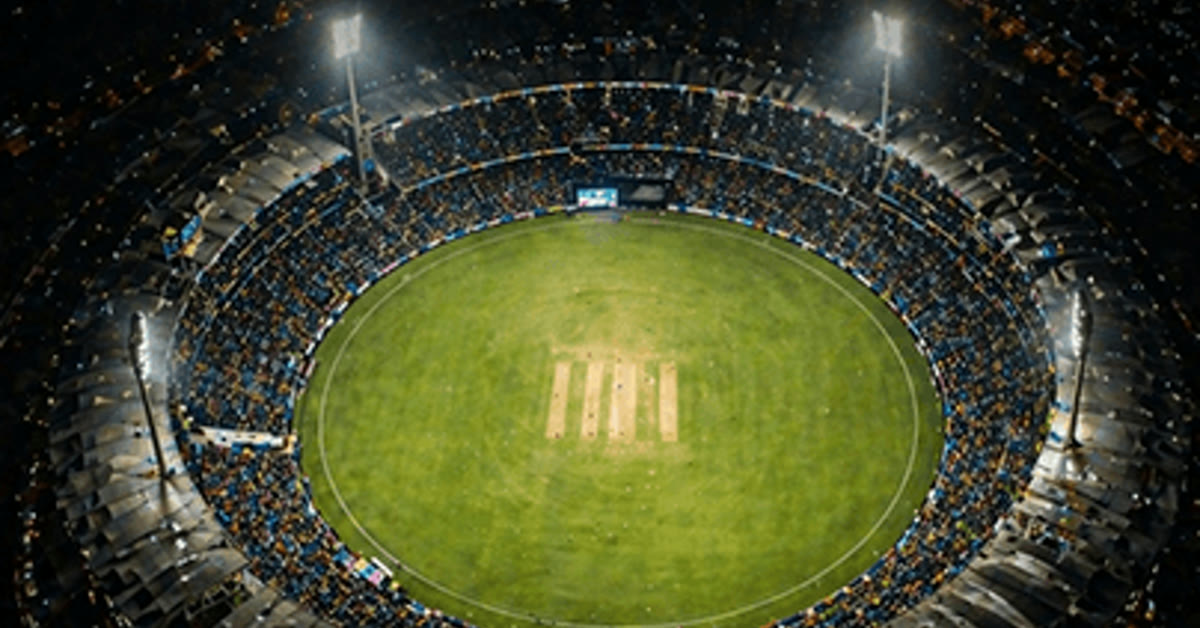
    Electrifying cricket stadium video made with the cricket stadium video editing prompt

    Introduction

    Cricket stadium video editing turns a match moment into a full championship experience. The crowd roars, floodlights blaze, and a batsman smashes a six while the camera tracks the ball into the stands. Slow-motion replays and confetti in team colors add the thrill that makes fans watch the clip again and again.

    This prompt is perfect for match highlights, fan edits, and tournament reels. The stadium atmosphere does the emotional work, so even a short clip feels huge. When the sound of the crowd meets the sight of the ball flying, the video becomes unforgettable.
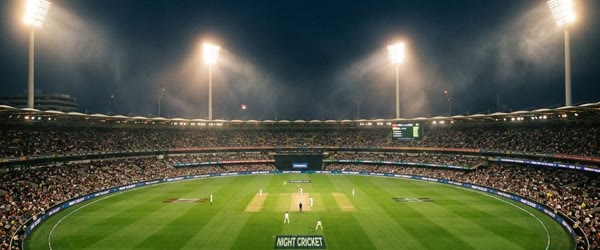
    Roaring crowd under floodlights for the cricket stadium video editing prompt video

    How to Use This Cricket Stadium Video Editing Prompt

    1. Paste the prompt into an AI video tool such as Kling or Runway and generate a 6 to 8 second stadium clip.
    2. Add crowd sound and a short commentary-style caption in your video editor, timing the slow-motion replay to the biggest cheer.
    3. Export in vertical format for reels and post it right after a big match moment for maximum reach.
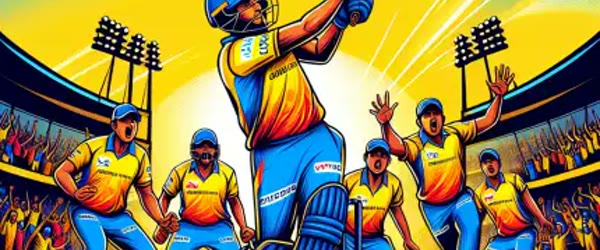
    Batsman smashing a six tracked by the camera in the cricket stadium video editing prompt clip

    The cricket stadium video editing approach works best when the big moment sits at the center of the frame.

    Copy-Paste Prompt

    Create an electrifying cricket stadium video with the crowd roaring, floodlights blazing, and a batsman smashing a six as the camera tracks the ball soaring into the stands. Add slow-motion replays, confetti in team colors, and a thrilling championship mood. Ultra-realistic, 4K, cinematic lighting.

    Pro Tips

    • Time your post with a live match. Stadium edits perform best while fans are already excited.
    • Keep the confetti in your team colors. Small details like this make fans feel the video is made for them.
    • Use the slow-motion replay only once. Repeating it too often slows the thrill instead of building it.
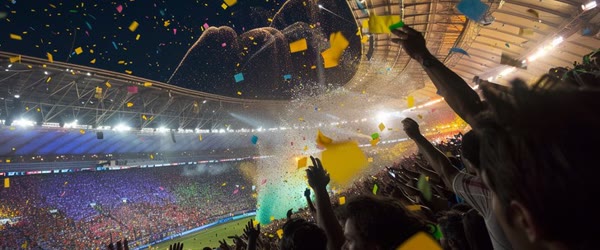
    Slow-motion replay and team color confetti from the cricket stadium video editing prompt

    With this cricket stadium video editing style, a phone clip gains the scale of a championship broadcast.

    The cricket stadium video editing look rewards clips where the celebration is genuine and loud.

    Keep the cricket stadium video editing prompt ready, because the next big match is never far away.

    More Prompts to Try

    The stadium has many moments: the winning six, the diving catch, the bowler’s celebration, the crowd wave, and the trophy lift. The variations below capture those moments as separate videos, so you can build a full match-day reel series from a single prompt style.

    Winning Six Slow Motion

    The most iconic cricket moment. A towering six, frozen at the peak of its flight, with the crowd rising as one.

    Create a thrilling cricket stadium video of a batsman smashing a towering winning six, the camera tracking the ball in slow motion as it soars over the boundary, the crowd rising and roaring, floodlights blazing. Add confetti in team colors and a championship celebration mood. Ultra-realistic, 4K, cinematic lighting.

    Diving Catch at the Boundary

    The athletic miracle. A fielder flying horizontally at the rope, ball in hand, crowd in disbelief.

    Create an electrifying cricket stadium video of a fielder diving full-length at the boundary to take a stunning catch, the camera following in slow motion, the crowd erupting, floodlights blazing. Add a replay angle, confetti, and a thrilling championship mood. Ultra-realistic, 4K, cinematic lighting.

    Bowler’s Wicket Celebration

    The bowler’s moment. Arms wide, teammates rushing in, and the stadium shaking with noise.

    Create an intense cricket stadium video of a bowler taking the final wicket, arms spread wide in celebration as teammates rush in, the crowd roaring under blazing floodlights. Add slow-motion replays, confetti in team colors, and a championship winning mood. Ultra-realistic, 4K, cinematic lighting.

    Crowd Wave Under Lights

    The crowd is the twelfth player. A Mexican wave rolling around a packed stadium under lights is pure atmosphere.

    Create a spectacular cricket stadium video of a crowd wave rolling around a packed stadium under blazing floodlights, fans standing and cheering in sequence, flags waving, confetti drifting. Add a joyful electric atmosphere and a thrilling championship mood. Ultra-realistic, 4K, cinematic lighting.

    Trophy Lift Finale

    The final image of every tournament. The captain lifts the trophy, gold confetti falls, and the stadium becomes one celebration.

    Create a triumphant cricket stadium video of the captain lifting the trophy as gold confetti rains down, teammates cheering around, the crowd roaring, floodlights blazing. Add slow-motion confetti, emotional close-ups, and a glorious championship mood. Ultra-realistic, 4K, cinematic lighting.

    Super Over Tension

    The super over is cricket’s most dramatic format. Every ball matters, and the stadium holds its breath. Many fans prepare their cricket stadium video editing setup before a big match even starts.

    Create a tense cricket stadium video of a super over final ball, the batsman swinging, the fielder sprinting, the crowd holding its breath under blazing floodlights, then erupting as the winning run is completed. Add slow-motion replays, confetti, and a heart-stopping championship mood. Ultra-realistic, 4K, cinematic lighting.

    In short, cricket stadium video editing turns one clip into a full stadium experience.

    How to Customize This Prompt

    Stadium videos are built from five ingredients: the moment, the camera, the crowd, the light, and the sound. Start with the moment, because it is the story. A six is triumph. A catch is athleticism. A wicket is drama. A trophy lift is glory. Choose one moment per video, because a video that tries to show everything shows nothing clearly. One moment, told well, is a complete reel.

    The camera is the second lever. A tracking shot following the ball feels cinematic and expensive. A slow-motion replay feels analytical and thrilling. A crowd-level handheld shot feels raw and real. A sweeping aerial feels epic and grand. Name the camera move in the prompt: “camera tracks the ball,” “slow-motion replay,” or “sweeping aerial over the stadium.” The camera move is what separates a video from a moving photo.

    The crowd is the third lever. The crowd’s reaction is the emotional score of a stadium video. A roar at the six, a gasp at the catch, a wave of noise at the wicket: each moment has its own sound. Describe the crowd’s reaction explicitly, because AI video tools render crowd energy from your words. “The crowd rises and roars” produces a very different video from “the crowd watches in silence.”

    The light is the fourth lever. Floodlights blazing is the signature stadium look: bright, dramatic, and night-time electric. Day matches need bright sun and sharp shadows. Dusk matches need a purple-orange sky behind the lights. Name the light, and the atmosphere follows.

    Finally, the sound completes the customization, even though the prompt itself is visual. Plan the audio before you generate: crowd noise, a commentary snippet, a beat drop at the six, or silence before the roar. The best stadium edits are edited to sound, so decide the audio arc first and cut the video to match it. The cricket stadium video editing look suits sixes, wickets, and last over finishes alike.

    Share a cricket stadium video editing result during a live match and it rides the excitement perfectly.

    Step-by-Step Guide

    Follow these steps to produce a stadium video that feels broadcast-quality, not AI-generated. If the crowd feels flat, cricket stadium video editing improves with brighter floodlights and stronger contrast.

    1. Choose one match moment. A six, a catch, a wicket, or a trophy lift. One moment per video is the rule that keeps stadium edits sharp and shareable.
    2. Open an AI video tool. Kling and Runway both handle stadium scenes well. Kling renders crowd motion more naturally, while Runway’s camera moves are smoother. Try Kling first for crowd-heavy scenes.
    3. Paste the full prompt. Include the moment, the camera move, the crowd reaction, and the floodlights. The cinematic feel comes from the combination, so do not trim the prompt.
    4. Generate at 6 to 8 seconds. Short clips loop better, render faster, and hold attention. A stadium moment does not need thirty seconds; six perfect seconds, looped, is the reel format that works.
    5. Check the ball and the players first. AI sports videos often garble the ball’s path or the players’ limbs. Watch the clip frame by frame. If the ball teleports or a limb bends wrong, regenerate. Sports errors are the most noticed flaws in this genre.
    6. Check the crowd second. The crowd should move as a mass, rising and falling together. If individual crowd members look distorted, keep the crowd slightly blurred or in the background, and let the players carry the foreground.
    7. Edit to sound. Import the clip into CapCut, add crowd noise, and cut a slow-motion replay to the peak cheer. Time the confetti burst to the beat drop. Sound editing is where a good stadium clip becomes a great reel.
    8. Post during or just after a live match. Stadium edits are news-adjacent content. Their reach multiplies when fans are already watching, celebrating, or arguing about the match. Timing is half the performance.

    Because it needs only one clip, cricket stadium video editing is ideal for quick match day posts.

    Common Mistakes to Avoid

    Showing too many moments. A video that crams a six, a catch, and a wicket into eight seconds feels rushed and confusing. One moment, one camera move, one cheer: that is the stadium formula.

    Ignoring the ball physics. A ball that changes direction mid-flight, grows, or vanishes breaks the illusion instantly. Sports fans notice ball errors before anything else. Always check the ball’s path frame by frame.

    Silent stadium videos. A stadium without crowd noise feels empty, no matter how good the visuals are. Always add crowd sound, even if it is a simple ambient bed. Sound is half the stadium experience.

    Overusing slow motion. Slow motion is thrilling once per clip. Used three times, it drags. Save the slow-motion replay for the single peak moment, and let the rest of the clip run at full speed.

    Posting days after the match. Stadium content decays fast. A highlight posted during the match rides the wave; the same highlight posted three days later is old news. Generate and post while the match is alive. This cricket stadium video editing style pairs well with slow motion right before the winning shot.

    Try cricket stadium video editing on a practice session clip for a fun before and after.

    Best Tools for This Edit

    Kling is the best AI video tool for stadium scenes because its crowd motion and camera tracking feel natural and broadcast-like. The roaring crowd, the tracking ball, and the floodlit atmosphere render with impressive realism, and its short clips loop cleanly for reels.

    Runway is the best alternative, especially for smooth camera moves and cinematic grading. Its slow-motion replays are buttery, and its stadium lighting has a polished, filmic quality. Use Runway when the camera move matters more than the crowd detail.

    CapCut is the essential finishing tool for stadium reels. It adds the crowd sound, the commentary-style captions, the slow-motion timing, and the confetti overlays that turn a raw AI clip into a match-day post. No stadium video is finished until CapCut has touched it.

    That big game energy is why cricket stadium video editing keeps trending through every season.

    Frequently Asked Questions

    How long should a stadium reel be?

    Six to eight seconds for a single moment, fifteen seconds maximum for a mini-compilation. Short loops outperform long edits because viewers watch them twice, and the second watch is what the algorithm rewards.

    Can I use real match footage instead?

    Real footage carries broadcast copyright, and reposting it can trigger claims. AI-generated stadium scenes avoid that problem entirely, which is why this prompt style exists. The AI stadium is inspired by the sport, not copied from a broadcast.

    Why does the ball look wrong in my video?

    Ball physics are the hardest part of AI sports video. Simplify the ball’s path: one clean arc, tracked by the camera, with no mid-flight tricks. Regenerate two or three times, and keep the version where the ball behaves.

    Can I add my team’s colors and logo?

    Colors, yes: name them explicitly, and the confetti, flags, and jerseys will follow. Logos are harder for AI tools to render accurately, so add the logo yourself in CapCut as an overlay. That keeps it sharp and correct. Every cricket stadium video editing result improves when the source clip is steady and well lit.

    What is the best caption for a stadium reel? The cricket stadium video editing approach also works for fan cams, team pages, and sports highlights.

    One line of commentary-style text: “The six that shook the stadium.” Commentary captions match the broadcast feeling and invite fans to relive the moment in the comments. Keep the original clip saved, because cricket stadium video editing restyles the whole scene.

    Creative Ideas to Try

    A stadium video becomes a series when you follow the match like a storyteller. One strong idea is the match-day trilogy: post the crowd wave before the match, the winning six during the match, and the trophy lift after it, each as its own short reel. The trilogy turns one prompt style into a full day of content, and followers return for the next chapter. Another idea is the fan cam: generate the stadium scene from the crowd’s point of view, looking down at the field through raised hands and flags, and caption it as if you were there. The fan perspective feels personal and shareable in a way broadcast angles never do.

    You can also try the rivalry pair: generate the same moment in two team colors, posted side by side, and let fans debate in the comments. Rivalry content drives engagement like nothing else in sport. Finally, try the season recap: collect the best stadium clips from across a tournament into one thirty-second compilation with a rising soundtrack, and post it as the season’s farewell. The recap honors the whole journey, and it performs beautifully as a shareable finale. Each idea starts from the same stadium prompt and the same video tools, but each one turns a single clip into a season of stories. For a poster finish, cricket stadium video editing benefits from confetti and fireworks at the peak moment.

    Final Words

    Cricket is noise, light, and one perfect hit. Capture all three, and your stadium edit will feel like the final itself. Build the six for triumph, the catch for athleticism, and the trophy lift for glory, and post each one while the match is still alive in every fan’s feed. The floodlights are blazing, the crowd is roaring, and the ball is in the air: your only job is to be ready when it lands. The cricket stadium video editing style is a fast way to relive a match you watched from home. Used on old match footage, cricket stadium video editing brings forgotten moments back to life.

    Once fans respond, cricket stadium video editing becomes part of your match day routine.
  • Viral Motu Patlu Invitation Video Prompt

    Viral Motu Patlu Invitation Video Prompt

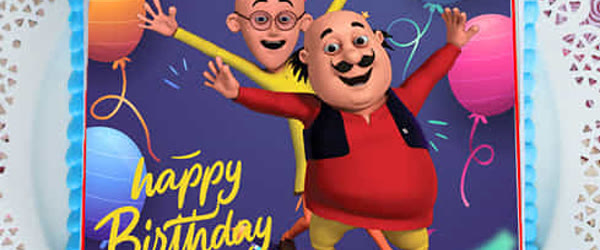
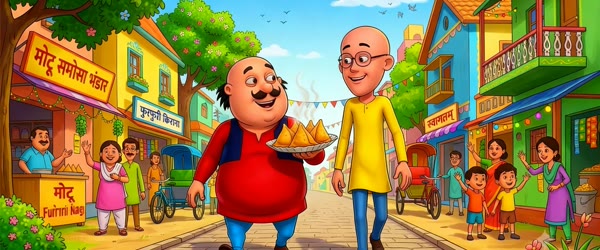
    Birthday invitation video made with the viral Motu Patlu invitation video prompt

    Introduction

    A birthday invitation should make guests smile before they even read the details, and this viral Motu Patlu invitation video prompt does exactly that. Motu and Patlu excitedly announce the party, hold a glowing invitation card, and celebrate with confetti and balloons. This viral motu patlu invitation video prompt makes the whole process faster and easier, even if you are editing for the very first time.

    The personal touch makes it special. Event details in colourful text on the glowing card turn a cartoon video into a real invitation that family and friends will remember. The prompt below builds the scene, and the steps show you how to add your details. This viral motu patlu invitation video prompt also works well when you want a consistent look across all your posts and reels.

    Motu and Patlu announcing a birthday party with a glowing invitation card

    How to Use This Viral Motu Patlu Invitation Video Prompt

    1. Generate the video from the prompt and check that the invitation card glows clearly and the characters look excited and cheerful. The card is the most important element, so it must be readable.
    2. Add your event details as on-screen text if the generated card text is unclear: name, date, time, and venue in large colourful letters. Keep the text on screen for at least three seconds.
    3. Export in vertical format and share the video on WhatsApp and social media. Send it a week before the party so guests have time to plan and reply.
    Confetti falling and balloons floating in a festive cartoon scene

    Copy-Paste Prompt

    Create a fun 3D cartoon invitation video where Motu and Patlu excitedly announce a birthday party, holding a glowing invitation card with the event details in colorful text. Confetti falls, balloons float up, and the camera circles them cheerfully. Bright festive lighting, playful expressions, ultra-realistic 3D style, 4K, cinematic lighting.

    Pro Tips

    • Keep the invitation details to four lines only, because guests remember a short card and ignore a crowded one.
    • Use bright festive colours for the text, since colourful lettering matches the confetti and balloons in the scene.
    • Send the video with a short personal message, because a cartoon invitation plus a warm note feels both fun and caring.
    Cheerful invitation video editing with bright festive lighting

    More Prompts to Try

    One birthday invitation can only announce one party. These five original variations keep the festive 3D cartoon style, the glowing invitation card, and the cheerful circling camera while changing the celebration, the details, and the surprise. Each one is a standalone video prompt. Using this viral motu patlu invitation video prompt is a simple way to get a clean, polished and professional finish.

    Wedding invitation from Motu Patlu Many people share this viral motu patlu invitation video prompt with friends because the results look far more advanced than the effort involved.

    Create a fun 3D cartoon invitation video where Motu and Patlu excitedly announce a wedding, holding a glowing invitation card with the couple's names in elegant golden text. Flower petals fall, lights twinkle, and the camera circles them cheerfully. Bright festive lighting, playful expressions, ultra-realistic 3D style, 4K, cinematic lighting.

    A wedding invitation needs elegance alongside the fun. Golden text and petals keep it celebratory while the characters keep it joyful. With a little practice, this viral motu patlu invitation video prompt becomes one of the quickest tools in your editing routine.

    Baby shower invitation

    Create a fun 3D cartoon invitation video where Motu and Patlu excitedly announce a baby shower, holding a glowing invitation card with the parents' names in soft pastel text. Balloons and tiny stars float up, and the camera circles them cheerfully. Bright festive lighting, playful expressions, ultra-realistic 3D style, 4K, cinematic lighting.

    Pastel colours and floating stars suit a baby celebration. The tone stays gentle and sweet rather than wild.

    Housewarming invitation

    Create a fun 3D cartoon invitation video where Motu and Patlu excitedly announce a housewarming party, holding a glowing invitation card with the new address in colourful text. Confetti falls, fairy lights glow, and the camera circles them cheerfully. Bright festive lighting, playful expressions, ultra-realistic 3D style, 4K, cinematic lighting.

    A new home deserves a warm, welcoming invitation. Fairy lights and confetti make the new house feel festive instantly.

    Graduation celebration invitation

    Create a fun 3D cartoon invitation video where Motu and Patlu excitedly announce a graduation party, holding a glowing invitation card with the graduate's name in bold celebratory text. Caps fly in the air, confetti falls, and the camera circles them cheerfully. Bright festive lighting, playful expressions, ultra-realistic 3D style, 4K, cinematic lighting.

    Flying caps are the perfect graduation visual. The bold text makes the graduate the star of the invitation.

    Festival gathering invitation

    Create a fun 3D cartoon invitation video where Motu and Patlu excitedly announce a Diwali gathering, holding a glowing invitation card with the family name in golden festive text. Diyas glow, sparkles fall, and the camera circles them cheerfully. Bright festive lighting, playful expressions, ultra-realistic 3D style, 4K, cinematic lighting.

    Diyas and sparkles carry the Diwali spirit. The golden text and warm light make the invitation feel auspicious and joyful.

    How to Customize This Prompt

    Start with the event, because the event decides everything else: the colours, the decorations, and the text style. A wedding needs gold and petals, a baby shower needs pastels and stars, and a graduation needs bold colours and flying caps. Name the event first and let it guide every other choice. The viral motu patlu invitation video prompt works best when you follow each step in order and adjust the small details to your own style.

    Choose the text on the card carefully. Names, dates, and venues must be short, because generated text is unreliable. Keep the card text to a name and a date, and add the full details afterwards in your editor or in the post caption. Short text renders correctly far more often than long paragraphs. If you follow the tips above, this viral motu patlu invitation video prompt will give you a reliable result every single time.

    Control the decorations to match the event. Confetti suits birthdays, petals suit weddings, stars suit baby showers, and diyas suit Diwali. One decoration theme per video keeps the invitation coherent. Mixing confetti, petals, and diyas in one video creates visual noise. This viral motu patlu invitation video prompt is designed to work on mobile, so you can finish the whole edit on your phone.

    Set the camera to circle cheerfully, as the original prompt does. A circling camera feels celebratory and shows the invitation card from every angle. Keep the circle slow and steady, because a fast spin makes the text unreadable and the characters blurry.

    Finally, keep the characters’ expressions joyful and welcoming. Motu and Patlu are inviting the viewer personally, so their faces should beam. A welcoming expression is what turns a funny video into an invitation people actually want to accept.

    Step-by-Step Guide

    1. Decide the event and the card text before you generate. Write down the event, one name, and one date. Keep the card text to under six words so it renders correctly.
    2. Pick the decoration theme that matches the event. Confetti, petals, stars, caps, or diyas — choose one theme and commit to it.
    3. Copy the matching prompt from the variations above, or adapt the original by changing only the event, the text, and the decorations. Keep the style, camera, and lighting phrases steady.
    4. Generate the first version and check the card text first. The names and date must be spelled correctly, because a misspelled invitation cannot be shared. Regenerate until the text is right, or add the text afterwards in your editor.
    5. Check the characters next. Motu and Patlu should look joyful and consistent, with the card held clearly toward the camera. If the card tilts away, regenerate with “holding the card facing the camera” emphasised.
    6. Export at the highest quality, add the full event details as text in your editor or in the post caption, and share. Keep the video short and cheerful so viewers watch it to the end.

    Common Mistakes to Avoid

    • Putting too much text on the card. Long addresses and paragraphs come out garbled. Keep the card to a name and a date, and put the rest in the caption.
    • Mixing decoration themes. Confetti plus petals plus diyas in one video looks chaotic. One theme per invitation is the rule.
    • Spinning the camera too fast. A fast circle blurs the card and the characters. A slow, steady circle keeps the invitation readable.
    • Forgetting the event details. A beautiful video without a date or venue does not invite anyone. Always add the details in the caption, even if they are not on the card.
    • Using dull lighting. Invitations need brightness and celebration. Keep the lighting bright and festive, never dark or moody.

    Best Tools for This Edit

    Kling handles festive 3D cartoon videos well, keeping the characters stable and the decorations bright. Its cheerful lighting suits invitations perfectly. Start with Kling for a reliable, colourful result. A good viral motu patlu invitation video prompt saves you time while still giving you full creative control over the final result.

    Runway gives you more control over the circling camera, letting you set the speed and the angle precisely. Use Runway when the camera movement matters as much as the characters. The real strength of this viral motu patlu invitation video prompt is how naturally it blends with your original photo or clip.

    CapCut finishes the invitation. Add the full event details as clean text overlays, trim the video to end on the brightest moment, and export vertical for sharing on WhatsApp and social media. Sharing the result of this viral motu patlu invitation video prompt is easy, and it is ready for any social platform you use.

    Frequently Asked Questions

    Will the names on the card be spelled correctly? Short names usually render correctly after a few tries, but always check. If the text keeps failing, generate the video without text and add the names afterwards in CapCut or Canva. That is exactly why this viral motu patlu invitation video prompt has become so popular with creators and editors right now.

    How long should an invitation video be? Eight to fifteen seconds is ideal. Short invitations are watched to the end and shared more often than long ones. You can personalise this viral motu patlu invitation video prompt with your own colours, text and music to make the edit truly yours.

    Can I add the venue and time to the video? Yes, afterwards in your editor. Clean text overlays in CapCut or Canva render perfectly, while generated text often misspells. Put the details in the caption as well. This viral motu patlu invitation video prompt keeps the subject sharp and natural while the background does all the dramatic work.

    Can I use Motu Patlu characters for invitations? Fan-made invitation videos for personal celebrations are common and widely shared. For commercial invitation services, check the character rights before selling the videos.

    Creative Ideas to Try

    Build an invitation series for the whole wedding season. Engagement, mehndi, wedding, and reception invitations, all with Motu and Patlu and the same festive style. A series makes the whole celebration feel coordinated and fun. You can reuse this viral motu patlu invitation video prompt for many different photos and clips with only small changes each time.

    Make a “save the date” teaser. A shorter, simpler version with just the names and the date, sent weeks before the full invitation. Teasers build excitement and give guests time to plan. This viral motu patlu invitation video prompt is a smart starting point before you move on to more advanced editing techniques.

    Create a thank-you video. After the event, reuse the same characters and style to thank the guests, with the same glowing card reading “Thank You.” A matching thank-you closes the celebration beautifully.

    Try a countdown series. One short video per week counting down to the event, with the characters getting more excited each time. Countdowns keep the event in guests’ minds and build anticipation.

    Going Further: Invitations as a Service

    Personalised invitation videos are a real business. Families pay for custom invitations, and cartoon characters make them memorable. If your Motu Patlu invitations get shared and praised, consider offering them as a service: a simple order form, a fixed price, and a three-day delivery. The workflow you built for one invitation scales directly. For the best results, try this viral motu patlu invitation video prompt on a clear and high-quality source image before anything else.

    Start by creating five sample invitations for different events: birthday, wedding, baby shower, graduation, and housewarming. Samples let customers see the range and choose confidently. Post the samples as a portfolio, and let the work sell itself. Editors keep coming back to this viral motu patlu invitation video prompt because it delivers the same quality again and again.

    Then standardise the process. A fixed set of questions — event, names, date, venue, decoration theme — gives you everything needed for one generation session. Standard questions mean faster delivery and fewer revisions, which is what makes a small service profitable.

    Finally, protect yourself legally. Fan characters are fine for personal gifts, but a paid service using copyrighted characters needs care. Consider developing your own original cartoon hosts alongside the fan versions, so the business can grow without rights issues. Original characters, built with the same prompt techniques, become assets you fully own.

    Troubleshooting

    If the video comes out wrong, check the card text first. When names are misspelled, shorten the text or add it afterwards in your editor. If the camera spins too fast, ask for a slow cheerful circle. When the characters look inconsistent, hold their descriptions constant and generate in the same session. If the decorations overwhelm the card, reduce them to one theme. When the lighting looks dull, ask for bright festive lighting explicitly. One fix at a time keeps the invitation cheerful. This viral motu patlu invitation video prompt is completely free to try and needs no advanced editing skills at all.

    Key Takeaways

    The heart of this invitation prompt is joyful clarity: one event, one short card message, one decoration theme, and a slow cheerful camera circle. Keep the card text to a name and a date so it renders correctly, put the full details in the caption, and let Motu and Patlu’s welcoming expressions do the inviting. Generate a few versions, check the spelling first, and pick the one with the brightest, clearest card.

    A matching set — invitation, countdown, and thank-you video — turns one celebration into a complete story that guests remember. Keep the lighting bright, the decorations themed, and the video short, and your invitation will be shared with a smile. Beginners love this viral motu patlu invitation video prompt because the steps are simple and the output looks impressive right away.

    Final Words

    This viral Motu Patlu invitation video prompt turns a birthday invite into a celebration. Keep the card glowing, the details clear, and the mood cheerful, and every guest will smile before the party even starts. Once you understand this viral motu patlu invitation video prompt, you can create a whole series of matching edits in minutes.

  • Oggy and Jack AI Video With City and Names

    Oggy and Jack AI Video With City and Names

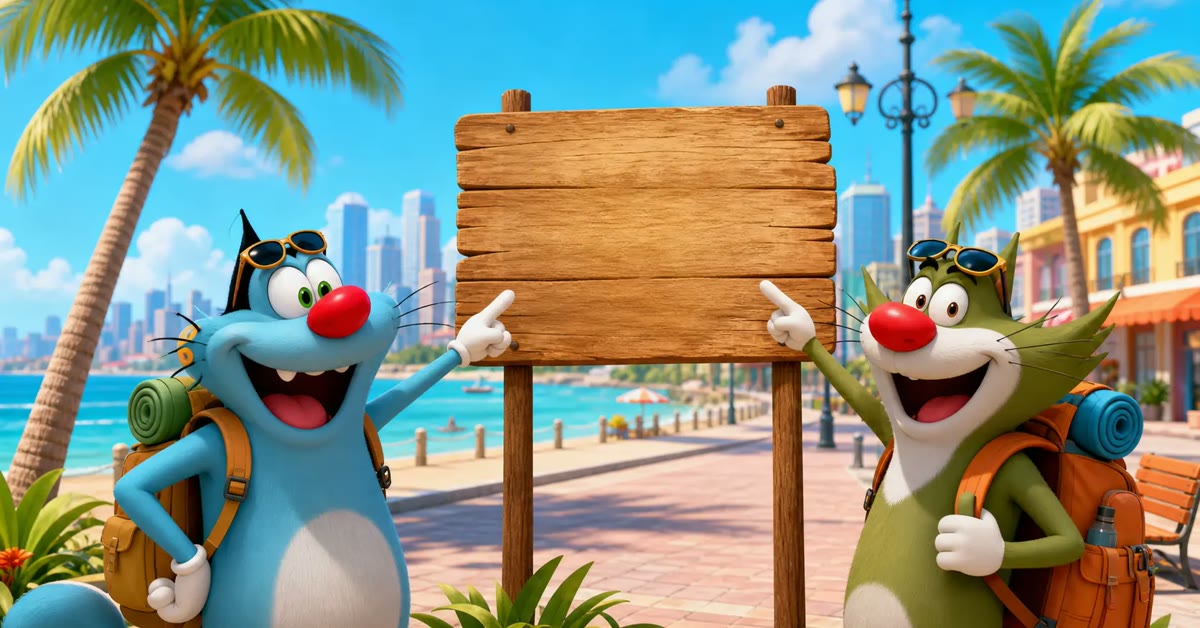
    Oggy and Jack city race video made with the Oggy and Jack AI video with city and names prompt

    Introduction

    Oggy and Jack chasing a cockroach through a neon city is instant cartoon comedy, and this Oggy and Jack AI video with city and names prompt adds a personal twist: their names glowing on a billboard as they zoom past. Fast tracking, comedic timing, and vibrant colours make it a reel kids and adults both enjoy.

    The billboard moment is the hook. A fast chase is fun, but names in glowing text make viewers stop, read, and replay. The prompt below builds the chase, and the steps show you how to edit it for maximum laughs. You do not need expensive software to get the most out of this Oggy and jack AI video with city and names.

    Oggy and Jack racing through a neon-lit city chasing a cockroach

    How to Use This Oggy and Jack AI Video With City and Names Prompt

    1. Generate the video from the prompt and check the billboard moment first. The names must be readable in glowing text as the characters zoom past, since that is the personal hook of the reel.
    2. Add bouncy cartoon music with a comic accent when the cockroach dodges. Keep the pace fast and the sound playful so the chase feels like classic cartoon comedy.
    3. Export in vertical format and post it with a caption asking viewers to spot the names. Short cartoon chases get replayed most, so keep the clip tight and funny.
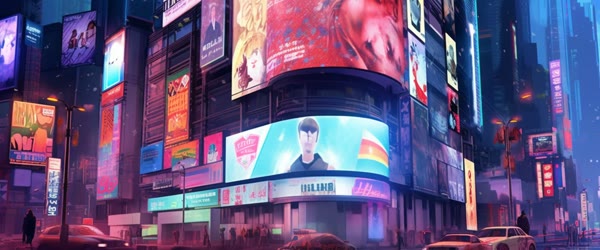
    Glowing billboard with cartoon names as characters zoom past traffic

    Copy-Paste Prompt

    Create a hilarious 3D cartoon video of Oggy and Jack racing through a neon-lit city at night, chasing a giant cockroach past skyscrapers and traffic. Add their names in bold glowing text on a billboard as they zoom by. Fast tracking camera, comedic timing, vibrant colors, motion blur, ultra-realistic 3D animation, 4K, cinematic lighting.

    Pro Tips

    • Keep the chase under twenty seconds, because fast cartoon comedy loses its punch when it runs long.
    • Make the cockroach just fast enough to escape, since a chase that never ends is funnier than one that finishes too soon.
    • Use the same city and characters for a series so viewers start recognising the billboard and waiting for the names.
    Cartoon video editing with fast tracking camera and vibrant colours

    More Prompts to Try

    One neon city chase can only be so wild. These five original variations keep the Oggy and Jack 3D cartoon style, the fast tracking camera, and the comedic timing while changing the chase, the city, and the gag. Each one is a standalone video prompt.

    Cockroach chase through a food market

    Create a hilarious 3D cartoon video of Oggy and Jack chasing a giant cockroach through a colourful night food market, knocking over fruit stalls and noodle carts, with their names in bold glowing text on a shop sign as they zoom by. Fast tracking camera, comedic timing, vibrant colors, motion blur, ultra-realistic 3D animation, 4K, cinematic lighting.

    A food market adds colour, steam, and flying produce. The chaos is visual and needs no dialogue to be funny.

    Rooftop chase at dawn

    Create a hilarious 3D cartoon video of Oggy and Jack racing across neon-lit rooftops at dawn chasing a giant cockroach, leaping between buildings as the sky turns pink. Add their names in bold glowing text on a rooftop billboard. Fast tracking camera, comedic timing, vibrant colors, motion blur, ultra-realistic 3D animation, 4K, cinematic lighting.

    Dawn light adds beauty to the chase. The leaps between rooftops give the camera dramatic vertical movement.

    Cockroach heist in a museum

    Create a hilarious 3D cartoon video of Oggy and Jack chasing a giant cockroach through a museum at night, sliding past dinosaur skeletons and ancient statues, with their names in bold glowing text on an exhibit sign. Fast tracking camera, comedic timing, vibrant colors, motion blur, ultra-realistic 3D animation, 4K, cinematic lighting.

    A museum adds grandeur and silly contrasts. The statue gags write themselves as the chase passes each exhibit.

    Beach boardwalk chase

    Create a hilarious 3D cartoon video of Oggy and Jack chasing a giant cockroach along a neon-lit beach boardwalk, dodging ice cream carts and beach balls, with their names in bold glowing text on a pier sign. Fast tracking camera, comedic timing, vibrant colors, motion blur, ultra-realistic 3D animation, 4K, cinematic lighting.

    The boardwalk adds bright holiday colours and fun obstacles. The pier sign is a natural place for the glowing names.

    Snowy city chase

    Create a hilarious 3D cartoon video of Oggy and Jack slipping and sliding through a snowy neon city chasing a giant cockroach, snowballs flying and skaters dodging, with their names in bold glowing text on an ice rink board. Fast tracking camera, comedic timing, vibrant colors, motion blur, ultra-realistic 3D animation, 4K, cinematic lighting.

    Snow adds slapstick slipping to every step. The cold blue and neon contrast looks stunning in 3D animation.

    How to Customize This Prompt

    Start with the chase route. A market, a rooftop, a museum, and a boardwalk each give the camera different movement: weaving, leaping, sliding, and dodging. Pick a route that keeps the camera moving forward, because a chase that stops feels broken. If a friend asks how you made the edit, this Oggy and jack AI video with city and names is the shortcut worth sharing.

    Choose one big gag per video. The flying fruit, the rooftop leap, the statue slide, and the snowball fight each carry one video on their own. Two big gags in one short clip split the audience’s attention and weaken both. This Oggy and jack AI video with city and names rewards a little patience, so preview the result before you export.

    Control the speed with camera language. “Fast tracking camera” keeps the energy high, while “motion blur” sells the speed. Ask for one speed phrase and one camera phrase, because too many camera directions create jumpy, broken motion. Overall, this Oggy and jack AI video with city and names turns a simple idea into a result that feels ready to post.

    Place the names deliberately. A billboard, a shop sign, or an exhibit board must be large and readable in the frame as the characters zoom past. Name the sign’s location in the prompt so the tool frames it correctly. This Oggy and jack AI video with city and names is worth bookmarking if you enjoy quick creative edits.

    Finally, keep the cockroach big and the stakes silly. A giant cockroach is funny because it is absurd, not frightening. Ask for a cartoonish, clumsy cockroach rather than a realistic one, so the chase stays comedy. This Oggy and jack AI video with city and names is built to deliver a polished result in just a few minutes.

    Step-by-Step Guide

    1. Write the chase in one sentence. “Oggy and Jack chase a giant cockroach through a night market” is enough. If the sentence needs more, simplify the route.
    2. Pick the route and the big gag. The route gives movement, the gag gives the laugh. Write both into the prompt before you generate.
    3. Copy the matching prompt from the variations above, or adapt the original by changing only the setting and the gag. Keep the style, camera, and name-sign phrases steady.
    4. Generate the first version and watch the speed. The chase should feel fast but readable. If the motion blurs into confusion, ask for a slightly slower tracking camera.
    5. Check the characters first. Oggy and Jack should stay recognisable and consistent in shape and colour throughout. If they morph, regenerate with the same character description.
    6. Export at the highest quality, add a funny caption and trending audio in your editor, and post. Keep the caption to one line so the video carries the comedy.

    Common Mistakes to Avoid

    • Making the chase too complicated. Three locations in one short video blur into noise. One route, one setting, one gag is the rule for short comedy.
    • Using a realistic cockroach. A realistic giant insect looks frightening, not funny. Always ask for a cartoonish, clumsy cockroach.
    • Asking for too many camera moves. Whip pans, spins, and crashes in one clip produce distorted frames. One tracking style per video is enough.
    • Hiding the name sign. If the glowing names flash by too fast or too small, viewers miss the personal touch. Ask for a large sign that fills the frame as they pass.
    • Forgetting the ending. A chase that simply stops feels unfinished. End on a clear beat: the cockroach escapes, the heroes crash, or the sign glows as they pass.

    Best Tools for This Edit

    Kling handles 3D cartoon chases well, keeping character shapes stable through fast motion. Its motion blur looks natural, which sells the speed of the chase. Start with Kling for colourful cartoon action. The real strength of this Oggy and jack AI video with city and names is how repeatable it is from one edit to the next.

    Runway gives finer control over the tracking camera, letting you set the speed and the path more precisely. Its motion controls suit a chase where the camera must follow a specific route. Use Runway when camera precision matters most. You can come back to this Oggy and jack AI video with city and names again and again whenever you need a fresh edit.

    CapCut finishes the reel. Trim to end on the funniest beat, add a whoosh sound on the pass, and lay trending audio underneath. Its speed controls also let you ramp the chase faster in the final seconds. What makes this Oggy and jack AI video with city and names so useful is how little manual work it needs.

    Frequently Asked Questions

    How long should an Oggy and Jack chase video be? Eight to fifteen seconds is ideal for a reel. Short chases land harder and loop better, which boosts views. When you want dependable results, this Oggy and jack AI video with city and names is a safe choice to start from.

    Why do the characters change shape mid-chase? Fast motion and complex routes strain character consistency. Simplify the route, hold the character descriptions constant, and generate in the same session. This Oggy and jack AI video with city and names can be adjusted for brighter, softer, or more dramatic results in seconds.

    Can I add my own name to the glowing sign? Yes. Replace the names in the prompt with any name you want, and keep the sign description large and readable. The personalised sign is what makes the video special for birthdays and dedications. Sharing your version of this Oggy and jack AI video with city and names is a good way to join the trend while it is still growing.

    Can I use Oggy and Jack commercially? Oggy and the Cockroaches is a copyrighted show. Fan-made reels for personal sharing are common, but commercial use may need permission. Check the rights before monetising. This Oggy and jack AI video with city and names holds up well even when you export at full resolution.

    Creative Ideas to Try

    Build a “city chase” series. One chase per city location — market, rooftops, museum, boardwalk, snowy streets — all with the same characters and camera style. A series builds a world that viewers return to. This Oggy and jack AI video with city and names is a smart pick when you want professional-looking results on a phone.

    Make a birthday special. Put the birthday person’s name on the glowing sign and end the chase with the cockroach delivering a cake. Personalised birthday videos are highly shareable and make the recipient feel celebrated. This Oggy and jack AI video with city and names works especially well when your source photo or clip is clear and well lit.

    Create a “cockroach wins” episode. For once, let the cockroach outsmart Oggy and Jack and escape with the cheese. A surprise ending breaks the pattern and delights viewers who expect the usual chase. Beginners often start with this Oggy and jack AI video with city and names because the steps stay simple from start to finish.

    Try a slow-motion replay. After the fast chase, add a slow-motion replay of the funniest crash. The contrast between speed and slow motion doubles the comedy of a single gag.

    Going Further: Building a Cartoon Chase Series

    One chase is a funny clip, but a chase series is a show. Oggy and Jack work best when viewers know the format and look forward to the next escape: the same heroes, the same giant cockroach, a new city location every episode. The format is simple and repeatable, which is exactly why it grows an audience. Once you try this Oggy and jack AI video with city and names, small tweaks let you create many variations from one idea.

    Start by mapping the city. List ten locations — market, rooftops, museum, boardwalk, snowy streets, harbour, airport, library, circus, and metro — and assign one chase to each. A map gives the series a sense of a world, and viewers enjoy guessing where the chase will go next. Ten locations is ten episodes, which is a solid season of content.

    Then fix the episode structure. Every episode opens with the cockroach stealing something small, follows with a two-location chase, and ends with a clear beat: the cockroach escapes, the heroes crash, or the sign glows as they pass. A fixed structure lets viewers relax into the comedy, because they know the rhythm and can enjoy the variations.

    Think about the personalised sign as your signature. The glowing names are what make these videos shareable for birthdays and dedications. Keep the sign large, readable, and in the same style every episode, so it becomes the visual trademark of the series. A trademark sign turns a funny video into a product people request.

    Finally, invite the audience to choose the next location. A poll between two cities or two settings gives viewers ownership of the series, and the winning location becomes the next episode. Audience-chosen episodes get more comments, more shares, and more loyal viewers than episodes chosen alone.

    Troubleshooting

    If a chase video comes out wrong, simplify the route first. When the motion looks jumpy, reduce the camera to one fast tracking style and remove extra camera directions. If the characters morph, hold their descriptions constant and generate in the same session. When the cockroach looks frightening, ask for a cartoonish, clumsy design explicitly.

    If the name sign flashes by unreadably, ask for a large sign that fills the frame as the characters pass. When the ending feels abrupt, add a clear final beat: an escape, a crash, or the glowing sign. One fix at a time keeps the chase funny. This Oggy and jack AI video with city and names keeps faces and key details natural while the style does the heavy lifting.

    Final Words

    This Oggy and Jack AI video with city and names prompt turns a classic chase into a personalised laugh. Keep the camera fast, the billboard glowing, and the timing comic, and the reel will race to views. This Oggy and jack AI video with city and names focuses on the small details that make an edit feel premium.

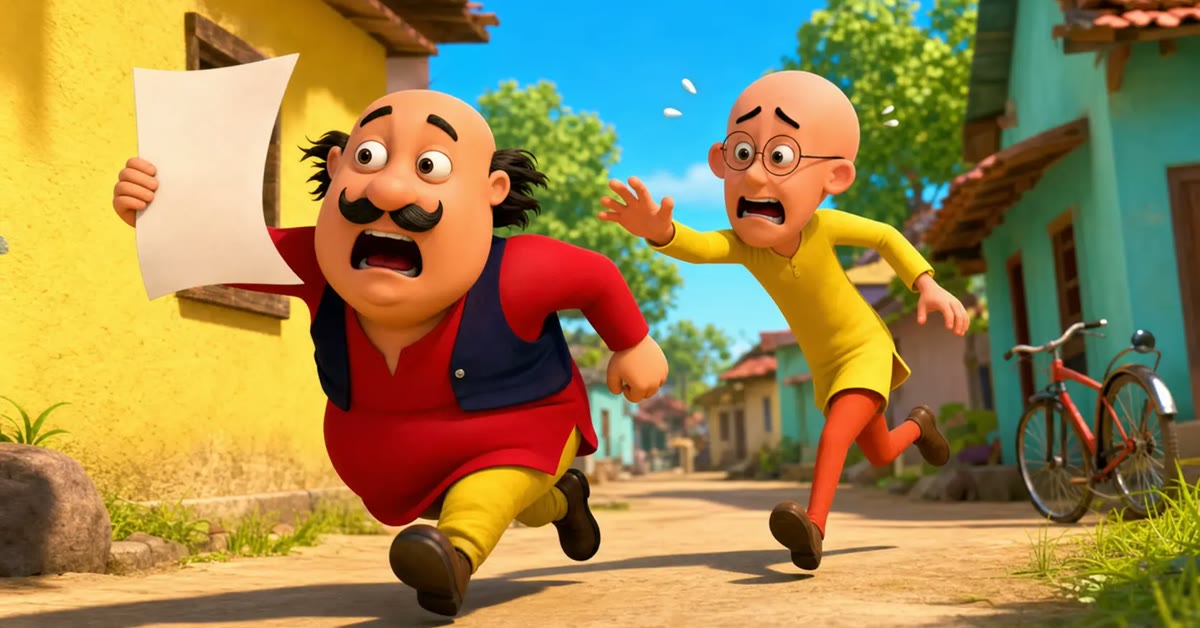
  • Motu Patlu Funny AI Video Prompt for Viral Reels

    Motu Patlu Funny AI Video Prompt for Viral Reels

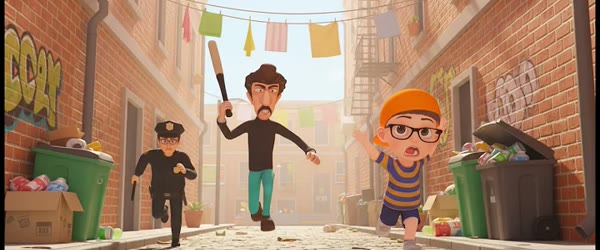
    Funny Motu Patlu video made with the Motu Patlu funny AI video prompt

    Introduction

    Motu and Patlu fighting over samosas is comedy gold, and this Motu Patlu funny AI video prompt turns that idea into an eight-second vertical video made for viral reels. Exaggerated expressions, playful music energy, and sudden slapstick chaos make it impossible to scroll past.

    The joke lands in three beats: the argument, the flying plate, and Patlu’s shocked face. A slow push-in builds the tension, and a whip-pan to the reaction delivers the punchline. The prompt below builds the whole scene, and the steps show you how to edit it. This Motu patlu funny AI video prompt is built to deliver a polished result in just a few minutes.
    Motu and Patlu arguing over samosas in a busy street market

    How to Use This Motu Patlu Funny AI Video Prompt

    1. Generate the video from the prompt and check the timing of the three comedy beats. The argument, the flying plate, and the shocked face must land in that order for the joke to work.
    2. Add playful background music with a comic accent on the moment the plate flies. Keep the music light and bouncy so the chaos feels fun rather than violent.
    3. Export in vertical format at eight seconds and post it as a reel with a funny caption about samosas. Short comedy clips get replayed most, so do not stretch the joke longer.
    Slapstick chaos as a plate flies in a cartoon 3D street scene

    Copy-Paste Prompt

    Create a funny 8-second vertical video of Motu and Patlu arguing over a plate of samosas in a busy Indian street market, with exaggerated expressions, playful background music energy, and sudden slapstick chaos when the plate flies. Camera slowly pushes in, then whip-pans to Patlu's shocked face. Bright daylight, cartoon 3D Pixar style, ultra-realistic textures, 4K, cinematic lighting.

    Pro Tips

    • Keep the market background busy but not distracting, because the crowd sells the street setting while the two characters carry the joke.
    • Make Patlu’s shocked face the final frame and hold it for a beat, since the reaction shot is what viewers remember and share.
    • Use the same characters for a series of food fights so followers start asking for the next episode.
    Funny cartoon video editing with bright daylight and Pixar style

    More Prompts to Try

    One samosa fight can only be so funny. These five original variations keep the Motu Patlu slapstick energy, the 3D Pixar style, and the 8-second vertical format while changing the gag, the setting, and the chaos. Each one is a standalone video prompt for a viral reel.

    Samosa race on bicycles

    Create a funny 8-second vertical video of Motu and Patlu racing on bicycles through a busy Indian market chasing a runaway samosa cart, exaggerated pedalling, playful music energy, and slapstick chaos when the cart tips. Camera tracks fast beside them, then whip-pans to the flying samosas. Bright daylight, cartoon 3D Pixar style, ultra-realistic textures, 4K, cinematic lighting.

    A race adds speed and motion to the comedy. The tipping cart is the visual punchline, so let the camera arrive there just as it tips.

    Motu stuck in a giant jalebi

    Create a funny 8-second vertical video of Motu stuck inside a giant sticky jalebi at a sweet shop while Patlu tries to pull him free, exaggerated expressions, playful music energy, and slapstick chaos when the jalebi wobbles. Camera slowly pushes in, then whip-pans to Patlu's shocked face. Bright daylight, cartoon 3D Pixar style, ultra-realistic textures, 4K, cinematic lighting.

    Sticky-sweet chaos is perfect slapstick. The wobble is the funniest moment, so hold the camera on it for a full beat.

    Chai stall explosion of laughter

    Create a funny 8-second vertical video of Motu and Patlu arguing over the last cup of chai at a roadside stall, exaggerated gestures, playful music energy, and slapstick chaos when the tea pot whistles and steam covers everyone. Camera circles them cheerfully, then whip-pans to the steaming pot. Bright daylight, cartoon 3D Pixar style, ultra-realistic textures, 4K, cinematic lighting.

    Chai is a universal Indian moment, so the joke lands instantly. The steam burst gives the video a natural visual climax.

    Motu and Patlu at the barber shop

    Create a funny 8-second vertical video of Motu getting a haircut while Patlu distracts the barber, exaggerated expressions, playful music energy, and slapstick chaos when Motu's moustache is shaved by mistake. Camera pushes in slowly, then whip-pans to the mirror. Bright daylight, cartoon 3D Pixar style, ultra-realistic textures, 4K, cinematic lighting.

    The mirror reveal is a classic comedy beat. Hold the reveal shot for a beat so viewers can enjoy Motu’s shocked face.

    Monsoon puddle splash battle

    Create a funny 8-second vertical video of Motu and Patlu splashing through monsoon puddles competing for one umbrella, exaggerated jumps, playful music energy, and slapstick chaos when both fall into the biggest puddle. Camera tracks low beside them, then whip-pans to the splash. Bright daylight, cartoon 3D Pixar style, ultra-realistic textures, 4K, cinematic lighting.

    Water adds joyful chaos to slapstick. The low camera angle makes the splash feel huge and cinematic.

    How to Customize This Prompt

    Start with the gag, not the characters. Motu and Patlu are funniest when the situation is simple and visual: one samosa, one umbrella, one haircut. A single clear gag beats a complicated plot, because viewers must understand the joke in the first two seconds. A big advantage of this Motu patlu funny AI video prompt is that it stays beginner friendly without looking basic.

    Choose the setting for colour and motion. A busy market gives colour and crowd energy, a sweet shop gives warm light and sticky chaos, and a monsoon street gives reflections and splashes. The setting should make the gag bigger, not distract from it. This Motu patlu funny AI video prompt gives your edit a consistent look that viewers recognize right away.

    Control the camera with two moves only. A slow push-in builds anticipation, and a whip-pan delivers the punchline. Asking for more camera moves in eight seconds creates jumpy, confusing motion. Two moves is the sweet spot for short comedy. You do not need expensive software to get the most out of this Motu patlu funny AI video prompt.

    Set the chaos moment precisely. Name the exact beat where everything goes wrong — the plate flies, the cart tips, the splash lands — and put it in the last two seconds. A comedy video needs its punchline at the end, not in the middle. This Motu patlu funny AI video prompt focuses on the small details that make an edit feel premium.

    Finally, keep the characters consistent. Describe Motu and Patlu the same way in every prompt: Motu round and hungry, Patlu thin and clever. Consistent descriptions keep the pair recognisable across a whole series of reels. When you want dependable results, this Motu patlu funny AI video prompt is a safe choice to start from.

    Step-by-Step Guide

    1. Write the gag in one sentence. “Motu and Patlu fight over one samosa and the plate flies” is enough. If the sentence needs two clauses, simplify it.
    2. Pick the setting and the chaos moment. The setting gives colour, the chaos moment gives the punchline. Write both into the prompt before you generate.
    3. Copy the matching prompt from the variations above, or adapt the original by changing only the gag and the setting. Keep the style, camera, and format phrases steady.
    4. Generate the first version and watch the timing. The setup should take five seconds and the chaos three. If the chaos comes too early, the joke feels rushed.
    5. Check the characters first. Motu and Patlu should look like themselves in every shot, with consistent shapes and colours. If they morph between shots, regenerate with the same character description.
    6. Export vertical at the highest quality, add trending audio in your editor if the generated audio is weak, and post with a short funny caption. Keep the caption to one line so the video does the comedy.

    Common Mistakes to Avoid

    • Explaining the joke in the prompt. A prompt that describes the humour in detail produces a confused video. Describe actions only, and let the actions be funny.
    • Cramming two gags into eight seconds. Two punchlines in eight seconds means neither lands. One gag, one punchline, every time.
    • Using fast, complex camera moves. Rapid pans and spins break in AI video and distort the characters. A slow push-in plus one whip-pan is enough.
    • Letting the characters change shape. If Motu’s size or Patlu’s height shifts between shots, the video feels broken. Hold the character descriptions constant.
    • Posting without watching the timing. If the punchline lands at second four and the video drags for four more seconds, viewers scroll away. Trim the tail so the video ends on the laugh.

    Best Tools for This Edit

    Kling handles cartoon slapstick well, because it keeps character shapes fairly stable and renders fast motion cleanly. Its 3D cartoon style suits Motu Patlu perfectly. Start with Kling if you want reliable, colourful comedy clips. If you post on social media often, this Motu patlu funny AI video prompt can save you a lot of editing time.

    Runway gives you more control over the camera moves, especially the slow push-in and the whip-pan. Its motion controls let you time the punchline precisely. Use Runway when the camera timing matters as much as the gag. This Motu patlu funny AI video prompt can be adjusted for brighter, softer, or more dramatic results in seconds.

    CapCut is where the reel comes together. Trim the clip to end exactly on the laugh, add a sound effect on the punchline, and lay trending audio underneath. Its vertical templates and captions make the final reel ready for posting in minutes. Sharing your version of this Motu patlu funny AI video prompt is a good way to join the trend while it is still growing.

    Frequently Asked Questions

    How long should a Motu Patlu comedy reel be? Eight to fifteen seconds is ideal. Short comedy lands harder, and viewers are more likely to watch it twice, which boosts the reel. What makes this Motu patlu funny AI video prompt so useful is how little manual work it needs.

    Why do the characters look different in each clip? AI video tools do not remember characters perfectly. Use one fixed description of both characters, generate in the same session, and reuse the same seed when the tool offers one. This Motu patlu funny AI video prompt works especially well when your source photo or clip is clear and well lit.

    Can I use real cartoon characters commercially? Motu Patlu are copyrighted characters. Fan-made reels for personal sharing are common, but commercial use or monetisation may need permission. Check the rights before you monetise. Beginners often start with this Motu patlu funny AI video prompt because the steps stay simple from start to finish.

    Which tool keeps cartoon characters most consistent? Kling and Runway both do well with fixed character descriptions. Kling is slightly better for 3D cartoon stability, while Runway is better for camera control. This Motu patlu funny AI video prompt keeps the original mood of your photo or clip while lifting the overall quality.

    Creative Ideas to Try

    Build a “Motu’s hunger” series. One food gag per episode — samosas, jalebis, chai, ice cream, mangoes — all in the same market, with the same camera style. A food series is endlessly renewable, and viewers return to see what Motu craves next. This Motu patlu funny AI video prompt is easy to adapt, so small changes still keep the same overall style.

    Make a festival special. Motu and Patlu celebrating Diwali with fireworks, Holi with colours, or Eid with sweets, always ending in gentle chaos. Festival specials are highly shareable and suit the characters’ joyful energy. This Motu patlu funny AI video prompt holds up well even when you export at full resolution.

    Create a “Patlu’s plan fails” series. Each episode, Patlu invents a clever plan that backfires spectacularly, and Motu saves the day by accident. The repeated structure becomes a running joke that loyal viewers love. The real strength of this Motu patlu funny AI video prompt is how repeatable it is from one edit to the next.

    Try a crossover episode. Motu and Patlu meeting another beloved cartoon pair in the same market, with a shared gag. Crossovers excite fans of both series and double the potential audience. This Motu patlu funny AI video prompt is a smart pick when you want professional-looking results on a phone.

    Going Further: Growing a Comedy Channel

    One funny reel is a spark, but a comedy channel is a fire that needs regular fuel. Motu Patlu reels work best as a series with a recognisable format, because viewers return for characters they know and jokes they can anticipate. The format is simple: one gag, one setting, one punchline, every episode. When viewers know the rhythm, they laugh sooner and share faster. Many creators keep this Motu patlu funny AI video prompt saved for quick, reliable edits on busy days.

    Start by building a content bank of gags. Write down twenty one-sentence gags — food fights, market chases, monsoon mishaps, festival chaos — before you generate anything. A bank means you never stare at a blank prompt, and you can pick the gag that fits the trending audio of the day. Twenty gags is a month of content at five reels a week.

    Then fix your production rhythm. Generate two or three clips in one session with the same character descriptions, then edit them all in CapCut in a second session. Batching the work keeps the characters consistent and the workflow fast. A single session that produces three reels beats three scattered sessions that produce one each.

    Think about sound as half the comedy. A slide whistle on the fall, a boing on the bounce, and a record scratch on the reveal turn a good visual into a great reel. Sound effects are free in CapCut, and they carry the joke even when viewers watch without reading the caption. Add one signature sound that recurs in every episode, and viewers will recognise your reels by ear.

    Finally, study what your audience replays. The reels with the most replays tell you which gags land: food gags, festival gags, or chase gags. Make more of what replays, and retire what does not. Comedy is a conversation with the audience, and the replay count is their loudest laugh.

    Troubleshooting

    If a video comes out wrong, check the timing first. When the punchline lands too early, trim the setup or regenerate with the chaos named in the last two seconds. If the characters morph between shots, hold the character descriptions constant and generate in the same session. When the camera motion looks jumpy, simplify to one slow push-in plus one whip-pan. If the gag is unclear, simplify the prompt to one sentence describing one action. When the audio feels flat, add a sound effect on the punchline in CapCut. One fix at a time keeps the comedy intact. This Motu patlu funny AI video prompt pairs well with a short caption and trending audio when you share the result.

    Final Words

    This Motu Patlu funny AI video prompt proves that a samosa fight is timeless comedy. Keep the expressions big, the chaos sudden, and the punchline on Patlu’s face, and the reel will fly like the plate. You can come back to this Motu patlu funny AI video prompt again and again whenever you need a fresh edit.

  • Create Couple Love Story AI Video Using Just One Prompt

    Create Couple Love Story AI Video Using Just One Prompt

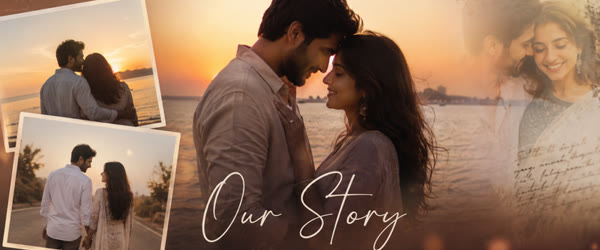
    Couple love story video made to create couple love story AI video using just one prompt

    Introduction

    A whole love story in one video sounds impossible, but you can create couple love story AI video using just one prompt when the idea is strong. Two strangers meet in a rainy bookshop, share one umbrella, and grow old together, and the seasons carry the story forward.

    The single-prompt method works because the idea already contains the arc: meeting, connection, and a lifetime together. One gentle camera flow through the seasons keeps it feeling like one film instead of separate clips. The prompt below holds the whole story, and the steps show you how to finish it. Beginners often start with this Create couple love story AI video using just one prompt because the steps stay simple from start to finish.

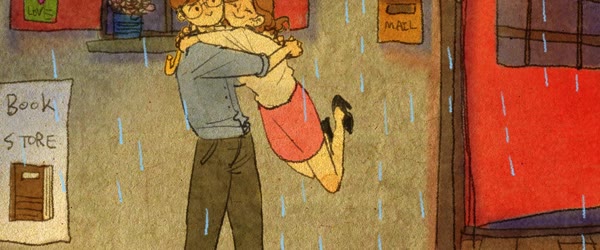
    Two strangers meeting in a rainy bookshop sharing one umbrella

    How to Create Couple Love Story AI Video Using Just One Prompt

    1. Paste the prompt into your AI video tool and generate the full clip. Watch the transitions between seasons closely, because smooth seasonal flow is what makes the lifetime arc believable.
    2. Add a soft piano or acoustic track and let it play gently under the whole story without sudden changes. The music should feel like one continuous emotion from meeting to old age.
    3. Export in vertical format and add a short caption about love and time. Post it in the evening when love story content gets the most saves and shares.
    Couple growing old together through changing seasons in a love story

    Copy-Paste Prompt

    Create a complete couple love story video from one idea: two strangers meet in a rainy bookshop, share one umbrella, and grow old together, gentle camera flow through the seasons, warm emotional arc, ultra-realistic motion, 4K, cinematic lighting.

    Pro Tips

    • Keep the couple visually consistent by checking faces at each season change, since character drift breaks the lifetime illusion fastest.
    • Let the umbrella reappear in later seasons as a small visual anchor that ties the whole story together.
    • End on the elderly couple together, because the final frame of a lifetime shared is the image viewers remember.
    Love story video editing with warm emotional arc and gentle camera flow

    More Prompts to Try

    One prompt can only tell one love story. These six original variations keep the same idea — a whole romance in one video — while changing the meeting, the setting, and the ending. Each one works as a single prompt for an AI video tool, and each one gives the camera a clear emotional arc to follow.

    First meeting in a quiet cafe

    Create a complete couple love story video from one idea: a shy writer and a barista meet daily in a small cafe, share one table through winter, and marry in the same cafe years later. Gentle camera flow through the seasons, warm emotional arc, ultra-realistic motion, 4K, cinematic lighting.

    This version works well because the single location makes the time jumps easy to follow. The cafe stays the same while the couple changes.

    Long-distance letters

    Create a complete couple love story video from one idea: two lovers separated by cities exchange handwritten letters, meet at a train station in the rain, and grow old reading those letters together. Soft camera movement, tender emotional arc, ultra-realistic motion, 4K, cinematic lighting.

    Letters give the video a natural voice and a reason for the time jumps. The rain reunion is the emotional peak, so let the camera slow down there.

    Monsoon train journey

    Create a complete couple love story video from one idea: two strangers share a window seat on a monsoon train, laugh through delays, part at the last station, and reunite on the same train ten years later. Flowing camera through the journey, hopeful emotional arc, ultra-realistic motion, 4K, cinematic lighting.

    The moving train keeps the video visually alive. Rain on the window and passing lights add motion even in quiet moments.

    Wedding vows in the hills

    Create a complete couple love story video from one idea: a couple meets on a mountain trail, hikes together through every season, and exchanges vows on the same peak at sunrise. Sweeping camera movement, joyful emotional arc, ultra-realistic motion, 4K, cinematic lighting.

    Hills and sunrise give the video scale. Keep the couple small against the landscape in wide shots, then move close for the vows.

    Old-age park bench

    Create a complete couple love story video from one idea: a couple meets on a park bench as students, returns to the same bench every decade, and sits there as grandparents holding hands. Slow gentle camera, nostalgic emotional arc, ultra-realistic motion, 4K, cinematic lighting.

    The bench is a perfect anchor for a lifetime story. The same framing across decades makes the ageing feel touching rather than confusing.

    Proposal under the stars

    Create a complete couple love story video from one idea: two friends stargaze every summer, slowly fall in love, and one proposes under the same night sky years later. Dreamy camera drift, romantic emotional arc, ultra-realistic motion, 4K, cinematic lighting.

    Stars and night skies photograph beautifully in AI video. Keep the camera slow and let the sky do the emotional work.

    How to Customize This Prompt

    Start with the meeting. The first scene decides whether viewers care, so make it specific and visual: a rainy bookshop, a crowded train, a quiet cafe. A specific meeting beats a generic one every time, because the audience can picture it instantly. This Create couple love story AI video using just one prompt focuses on the small details that make an edit feel premium.

    Choose the time span next. A story that covers one evening feels light and sweet, while a story that covers decades feels epic and moving. Name the span in the prompt — “through the seasons” or “over ten years” — so the video tool plans the transitions. When you want dependable results, this Create couple love story AI video using just one prompt is a safe choice to start from.

    Set the emotional arc in one phrase. Gentle and warm suits a soft romance, hopeful suits a reunion story, and joyful suits a wedding story. One clear arc keeps the tone consistent from the first shot to the last. This Create couple love story AI video using just one prompt can be adjusted for brighter, softer, or more dramatic results in seconds.

    Control the camera with simple directions. Slow push-ins feel intimate, gentle orbits feel dreamy, and wide sweeping shots feel epic. Ask for one camera style per video rather than mixing many, because mixed camera directions often produce jumpy motion. Sharing your version of this Create couple love story AI video using just one prompt is a good way to join the trend while it is still growing.

    Finally, adjust the ending. A reunion, a wedding, or a quiet old-age scene all close the story differently. Pick the ending first when you write the prompt, because the tool builds toward it, and a clear ending makes the whole video feel complete. This Create couple love story AI video using just one prompt holds up well even when you export at full resolution.

    Step-by-Step Guide

    1. Write the story in one sentence before you touch any tool. A sentence like “two strangers meet in a bookshop and grow old together” is enough. If you cannot say it in one sentence, the video will wander.
    2. Pick the three key moments: the meeting, the turning point, and the ending. Three moments are enough for a short video, and they give the tool a clear structure to follow.
    3. Choose your video tool. Kling, Runway, and Luma all handle one-prompt stories well. Use the tool you already know, because a familiar tool beats a new one when you are iterating.
    4. Paste the full prompt and generate the first version. Watch it once without judging, just to see whether the story reads from start to finish.
    5. Check the characters first. Faces and outfits change most often between scenes in AI video. If the couple looks different in every scene, regenerate with the same seed or the same character description held constant.
    6. Fix the weakest moment with a targeted follow-up prompt. Instead of regenerating everything, describe only the scene that failed and ask the tool to redo that section in the same style.
    7. Edit the clips together in CapCut or a similar editor. Trim slow starts, add a gentle fade between decades, and keep the total length tight so the emotion stays strong.
    8. Add music last. A soft piano or acoustic track lifts a love story enormously. Keep the volume low under any dialogue, and let the music swell only at the ending moment.

    Common Mistakes to Avoid

    • Cramming too many events into one prompt. Five meetings, three cities, and two breakups will blur into noise. Three key moments is the sweet spot for a short video.
    • Changing the characters between scenes. If the prompt describes the couple differently in each part, the video will show different people. Keep one fixed description of both characters throughout.
    • Asking for fast or complex camera moves. Whip pans and rapid cuts often break in AI video and produce distorted frames. Slow, simple camera movement is far more reliable.
    • Forgetting the ending. A video that simply stops feels unfinished. Always name the final image in the prompt so the story lands.
    • Overusing effects and transitions. Sparkles, flashes, and heavy filters distract from the romance. One gentle style, held consistently, moves viewers more than ten effects.

    Best Tools for This Edit

    Kling is a strong choice for realistic couple videos, because it handles gentle motion and emotional close-ups well. Its character consistency across scenes is better than most tools, which matters enormously in a story that jumps through time. Start with Kling if realism is your priority. This Create couple love story AI video using just one prompt gives your edit a consistent look that viewers recognize right away.

    Runway suits you if you want more control over the camera. Its motion controls let you set slow push-ins and orbits precisely, and the results look cinematic. Runway works best when you pair a clear prompt with a reference image for the couple, so the faces stay stable. The real strength of this Create couple love story AI video using just one prompt is how repeatable it is from one edit to the next.

    CapCut is where the story comes together. Even if you generate clips in another tool, assemble them in CapCut: trim the slow parts, add fades between decades, and lay the music underneath. Its templates also help if you want a trending vertical format for reels. This Create couple love story AI video using just one prompt is a smart pick when you want professional-looking results on a phone.

    Frequently Asked Questions

    How long should a one-prompt love story video be? Thirty to sixty seconds works best for reels and shorts. That is long enough for three key moments and short enough to hold attention to the ending. If you post on social media often, this Create couple love story AI video using just one prompt can save you a lot of editing time.

    Why do the characters look different in each scene? AI video tools do not remember faces perfectly across generations. Use one fixed character description, the same seed when the tool offers one, and generate all scenes in the same session to reduce the drift. This Create couple love story AI video using just one prompt is easy to adapt, so small changes still keep the same overall style.

    Can I add dialogue to the video? Most tools generate silent clips. Add dialogue as captions or a voiceover in your editor afterwards. Keep any spoken lines very short so they fit the visuals. Many creators keep this Create couple love story AI video using just one prompt saved for quick, reliable edits on busy days.

    Which tool is best for beginners? Kling or Luma, because both accept a single plain-language prompt and return usable clips quickly. Start there, and move to Runway when you want finer camera control. This Create couple love story AI video using just one prompt pairs well with a short caption and trending audio when you share the result.

    Can I post this video commercially? Check the terms of the tool you used. Most tools allow personal posting, while commercial use may need a paid plan. Read the licence before you monetise the video. A big advantage of this Create couple love story AI video using just one prompt is that it stays beginner friendly without looking basic.

    Creative Ideas to Try

    Once the basic love story works, the format can grow into a whole channel of romantic videos. The one-prompt structure is flexible, and small changes in setting, era, or perspective create stories that feel completely new while using the same reliable workflow. You do not need expensive software to get the most out of this Create couple love story AI video using just one prompt.

    Try an era-hopping romance. Set the meeting in the 1960s, the middle in the 1990s, and the ending in the present day, with the same couple and the same bench, cafe, or bookshop. Changing the clothes, the vehicles, and the colours of each era makes the time jumps instantly readable. The audience enjoys spotting the era details, and the love story gains an epic, timeless quality. Once you try this Create couple love story AI video using just one prompt, small tweaks let you create many variations from one idea.

    Make a version from the other person’s point of view. Tell the same meeting and reunion, but show it through the second character’s eyes: their nervousness, their waiting, their joy. The same scenes feel new when the camera follows the other person, and viewers who loved the first video will watch the second to compare. This Create couple love story AI video using just one prompt keeps faces and key details natural while the style does the heavy lifting.

    Build a festival series around the couple. Diwali lights, Holi colours, a monsoon reunion, and a winter wedding give you four seasonal videos with the same characters. Festivals provide ready-made colour and emotion, and a series keeps viewers returning to see the couple’s next chapter. If a friend asks how you made the edit, this Create couple love story AI video using just one prompt is the shortcut worth sharing.

    Try a silent-film version with no dialogue at all. Let the music, the expressions, and the camera carry the whole story. Silent storytelling forces you to make every shot clear and emotional, and the result often feels more cinematic than a video with captions explaining everything. This Create couple love story AI video using just one prompt rewards a little patience, so preview the result before you export.

    Finally, invite your audience to choose the next chapter. Post the first video, then ask viewers to vote on the couple’s next meeting place or next milestone. Audience-chosen stories build a loyal following, because viewers feel they helped create the romance they are watching.

    Final Words

    To create couple love story AI video using just one prompt, trust one strong idea and let the seasons tell the rest. Keep the camera gentle, the arc warm, and the ending together, and the story will move everyone. This Create couple love story AI video using just one prompt keeps the original mood of your photo or clip while lifting the overall quality.

  • Create Bollywood Cinematic AI Video

    Create Bollywood Cinematic AI Video

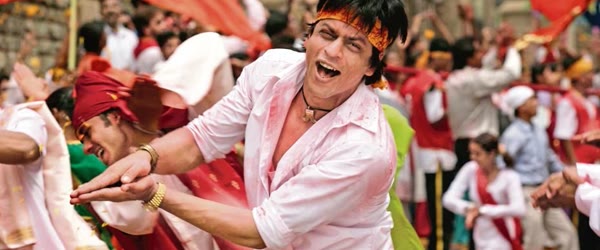
    Bollywood cinematic video made with create Bollywood cinematic AI video prompts

    Introduction

    A Bollywood hero entry is pure cinema: the crowd parts, the music swells, and colour fills the air. To create Bollywood cinematic AI video magic, you need that one dramatic moment, and this prompt builds it as a festival street scene in slow motion.

    The scale makes it work. A crowded street, colourful powder, and an epic background score feeling turn a short clip into a movie moment. The prompt below creates the entry, and the steps show you how to edit it into a reel that feels larger than life.

    Hero entry through a crowded festival street in slow motion

    How to Create Bollywood Cinematic AI Video Reels

    1. Generate the video from the prompt and watch the crowd movement closely. The crowd should part smoothly and the hero should walk through the gap with slow, confident steps.
    2. Add an epic Bollywood-style background score with a strong build, timed so the music peaks as the hero reaches the centre of the frame. Let the powder burst land on the biggest beat.
    3. Trim to the best fifteen to twenty seconds and export vertical. One dramatic entry with clean slow motion will outperform a longer video with uneven pacing.
    Colourful powder in the air with a vibrant festive crowd

    Copy-Paste Prompt

    Create a Bollywood-style cinematic video with a dramatic hero entry through a crowded festival street, slow-motion crowd parting, colourful powder in the air, epic background score feel, vibrant festive mood, ultra-realistic motion, 4K, cinematic lighting.

    Pro Tips

    • Keep the hero in the centre of the frame throughout the entry, because centred framing makes the moment feel powerful and iconic.
    • Use slow motion only for the entry itself, since a short slow-motion peak feels more dramatic than a whole video in slow motion.
    • Add a slight colour boost after generation to make the festival powder pop against the crowd without looking artificial.
    Bollywood video editing with epic score feel and vibrant colours

    More Prompts to Try for Bollywood Cinematic AI Videos

    Bollywood cinema is emotion at full volume: drama, colour, music, and movement, all at once. These original create bollywood cinematic ai video prompts explore different Bollywood moods, from hero entries to romantic dances, so you can build a series that feels like a film festival in your feed. Keep the camera dynamic, the colours rich, and the emotion big, and every video will feel like a scene from the movies. Used well, the create bollywood cinematic ai video can make the whole result feel more polished and professional. Used well, the create bollywood cinematic ai video can make the whole result feel more polished and professional.

    Hero Entry Through Festival Street

    The definitive Bollywood moment: the hero arrives, and the crowd parts.

    Create a Bollywood-style cinematic video with a dramatic hero entry through a crowded festival street, slow-motion crowd parting, colourful powder in the air, epic background score feel, vibrant festive mood, ultra-realistic motion, 4K, cinematic lighting.

    The crowd parting is the visual signature. It must happen slowly, in slow motion, with the crowd moving aside like water around a stone. The powder in the air adds colour and celebration, and the hero must walk through it unhurried, because the hero never rushes his own entry. The camera should track low, making the hero tower over the crowd.

    Romantic Monsoon Dance

    A classic Bollywood romance: two lovers dancing in the rain.

    Create a Bollywood-style cinematic video of a couple dancing romantically in monsoon rain, wet saris and shirts clinging, slow circling camera, rain drops catching light, passionate romantic mood, ultra-realistic motion, 4K, cinematic lighting.

    Rain is Bollywood’s oldest romantic device, and it works because it makes everything glisten. The circling camera should move slowly around the couple, never rushing, so the dance feels like it exists outside time. The rain must fall steadily, not in a storm, because romance needs gentleness even in the rain.

    Train Station Farewell

    An emotional Bollywood goodbye, full of longing and drama.

    Create a Bollywood-style cinematic video of lovers parting at a crowded train station, the train pulling away slowly, one running alongside, hands reaching, emotional orchestral feel, heartbreaking romantic mood, ultra-realistic motion, 4K, cinematic lighting.

    The train’s movement is the clock of the scene. It must pull away slowly, giving the running figure time to reach, touch, and lose the hand. The camera should track alongside the train, so the viewer feels the separation physically. The crowd should blur past, because the lovers are the only sharp things in the frame.

    Wedding Celebration Dance

    A joyful, colourful wedding sequence with family and friends dancing together.

    Create a Bollywood-style cinematic video of a joyful wedding celebration with family dancing together, colourful outfits, flower petals falling, fast energetic camera moves, festive music feel, happy celebratory mood, ultra-realistic motion, 4K, cinematic lighting.

    Wedding dances need energy and numbers. The camera should move fast and freely, weaving through the dancers, because the joy is contagious and the camera must catch it. Petals should fall continuously but gently, and every face should smile. This is the most shareable version, because weddings are universally joyful.

    Action Rooftop Chase

    A high-octane Bollywood action sequence across city rooftops.

    Create a Bollywood-style cinematic video of a hero chasing a villain across city rooftops at sunset, leaping gaps, fast dynamic camera, dust and debris, epic action score feel, thrilling heroic mood, ultra-realistic motion, 4K, cinematic lighting.

    The chase needs continuous motion. The camera must leap with the hero, never cutting away at the jump, because the audience must feel the gap. Sunset light makes the rooftops glow and the silhouettes dramatic. Keep the leaps believable, one gap at a time, because Bollywood action is spectacular but never weightless.

    Village Fair Romance

    A sweet, earthy romance set in a village fair, with rides and lights.

    Create a Bollywood-style cinematic video of a young couple at a village fair, riding a Ferris wheel at dusk, fairy lights glowing, shy smiles, slow gentle camera, sweet nostalgic mood, ultra-realistic motion, 4K, cinematic lighting.

    The fair gives you lights, colour, and gentle motion for free. The Ferris wheel’s slow rise mirrors the romance’s gentle growth, and the fairy lights create the warm glow that defines the scene. The smiles must be shy, because village romance is tender, not bold. This is the sweetest version, ideal for nostalgic audiences.

    How to Customize This Bollywood Video Prompt

    Customisation starts with the genre. Bollywood contains many genres, action, romance, family drama, comedy, and musical, and each needs different pacing, colour, and camera work. A romantic prompt with action pacing will feel wrong, and an action prompt with romantic pacing will feel dull. Choose the genre first, name it in your planning, and let it govern every choice. When genre and execution agree, the video feels like a real film scene. That is exactly why the create bollywood cinematic ai video has become a favourite with so many creators. That is exactly why the create bollywood cinematic ai video has become a favourite with so many creators.

    Next, control the scale of emotion. Bollywood emotion is big, but it must be earned. A hero entry needs a crowd, a farewell needs a train, and a dance needs rain or a festival. The scale of the setting must match the scale of the feeling, or the emotion will feel unearned. Build the setting first, then place the emotion inside it, and the audience will believe both.

    The music is the third lever, and in Bollywood it is half the film. The background score feel must be named in the prompt: epic orchestral for entries, romantic melody for dances, emotional strings for farewells, festive dhol for weddings, and driving beats for chases. The music should arrive at the peak moment, not before it, because Bollywood peaks are built, not announced. Time the swell to the entry, the touch, or the leap.

    Finally, keep the colours rich and warm. Bollywood’s visual identity is saturation done well: deep reds, golds, greens, and blues, all glowing under warm light. Avoid muted or desaturated grades, because they will make the video look like a Western indie film, not Bollywood. Rich colour is not a flaw in this genre; it is the genre.

    Step-by-Step Guide to Creating the Bollywood Video

    Follow these steps in order. Bollywood videos fail on scale more than on anything else, so the setting steps matter most. With a little practice, the create bollywood cinematic ai video becomes quick and easy to repeat. With a little practice, the create bollywood cinematic ai video becomes quick and easy to repeat.

    1. Choose the genre, setting, and emotional peak before generating. Write down all three, and pick the matching prompt from this article. The three choices together define the video, and deciding them first prevents the generic results that make Bollywood prompts feel like random Indian imagery.
    2. Write the prompt with the characters, the action, the camera, and the music feel. Include all four explicitly. A prompt missing the camera move will produce a static scene; one missing the music feel will produce a video with no rhythm. The action must be one clear sequence: entry, dance, farewell, or chase.
    3. Open your AI video tool and generate a short clip first. Use Flow AI or any image-to-video tool that accepts text prompts. Generate five to eight seconds, and check the scale, the colours, and the camera movement before committing longer.
    4. Check the scale and the crowd first. Bollywood needs scale: crowds, streets, fairs, and rooftops must feel populated and vast. If the scene feels empty or small, strengthen the crowd and setting words and regenerate. Emptiness is the enemy of Bollywood.
    5. Check the colours and the light. The palette must be rich and warm, with glowing highlights and deep shadows. If the colours look muted or cold, add warm light and rich colour words and regenerate. Bollywood light is golden, never grey.
    6. Extend the best clip or generate a matching second shot. If the short clip works, generate a second shot with the same characters, setting, and light descriptions, such as a close-up after the wide entry. Cut between wide and close, so the video breathes like a real film scene.
    7. Add music and sound timed to the peak. Place the track so its swell lands on the entry, the touch, or the leap. Keep the music rich and full, because Bollywood music is meant to be felt. Add ambient sound, crowd noise, rain, or festival sounds, kept low under the music, for realism.
    8. Export in vertical 1080 by 1920 and watch on a phone. Bollywood videos are watched on phones, often with family, often with sound. Check that the scale reads clearly on the small screen, the colours glow, and the peak lands hard before posting.

    Common Mistakes to Avoid

    Making the scene too small. A hero entry with three people in an empty lane is not Bollywood; it is a short film. Bollywood needs crowds, streets, and scale. If the scene feels small, add crowd and setting words until it feels like a world, not a room. The create bollywood cinematic ai video works best when you keep the setup simple and follow the steps in order. The create bollywood cinematic ai video works best when you keep the setup simple and follow the steps in order.

    Muting the colours. Desaturated, grey, or overly realistic grades will make the video feel like a documentary, not Bollywood. Rich, warm, glowing colour is the genre’s identity. Push the warmth and saturation confidently, and check that the skin tones stay natural while the world glows.

    Rushing the peak. Bollywood peaks are built slowly and delivered fully. An entry that happens in two seconds, or a farewell that cuts before the hand drops, wastes the build. Hold the peak for a full beat longer than feels comfortable, because the audience needs time to feel it.

    Mixing genres in one clip. Romance with action pacing, or action with romantic music, will confuse the viewer. One clip, one genre, from the first frame to the last. The genre must be decided before generating, not discovered afterwards.

    Forgetting the crowd’s reaction. In Bollywood, the crowd reacts: they part, they cheer, they watch, they cry. A crowd that stands still and expressionless will make the scene feel staged. Describe the crowd’s reaction explicitly, and the scene will come alive.

    Best Tools for This Edit

    Flow AI is the best tool for generating Bollywood cinematic videos from these prompts, because it renders crowds, colour, and dynamic camera movement with cinematic scale. Its wide shots hold crowds convincingly, and it keeps characters consistent when descriptions match. Generate short clips first and extend the ones where the scale feels real. Many beginners start with the create bollywood cinematic ai video because the results look clean and natural. Many beginners start with the create bollywood cinematic ai video because the results look clean and natural.

    CapCut is the best editor for assembling Bollywood clips, timing the music swell to the peak, and adding crowd sound. Its transitions are bold enough for Bollywood pacing, and its audio tools let you layer music and ambience cleanly. Use CapCut to join the wide establishing shot and the close emotional shot into one film-like scene.

    VN Video Editor suits editors who want precise control over the grade and the pacing. Its colour tools let you build the rich golden Bollywood grade exactly, and its speed controls let you ramp into the peak moment. VN is ideal when the generated footage is good but needs its colour unified into one cinematic look.

    Frequently Asked Questions

    Can AI really capture Bollywood’s scale? Yes, for short clips with one clear scene. The failures come from long sequences with multiple locations and crowd changes in one clip. Keep each clip to one location, one crowd, and one action, five to eight seconds, and the scale will hold. A careful pass with the create bollywood cinematic ai video can lift an ordinary attempt into something special. A careful pass with the create bollywood cinematic ai video can lift an ordinary attempt into something special.

    What if the crowd looks fake or repetitive? Simplify the crowd description and keep the crowd in the background, soft and moving, while the hero stays sharp in front. The audience watches the hero, not the crowd, so a soft, impressionistic crowd reads as real while a sharp, detailed one exposes flaws. Once you try the create bollywood cinematic ai video, you can adjust the small details to match your own style. Once you try the create bollywood cinematic ai video, you can adjust the small details to match your own style.

    Should I use famous Bollywood music? Famous film songs may be copyrighted, so use original music with a similar Bollywood energy instead: epic orchestral, romantic melody, or festive dhol, as the scene needs. The audience will feel the genre without the legal risk, and the video will be safe to monetise. In short, the create bollywood cinematic ai video keeps the whole process fast, free and fun. In short, the create bollywood cinematic ai video keeps the whole process fast, free and fun.

    How long should a Bollywood video be? Twenty to forty seconds is ideal. That covers the setup, the build, and the peak, with room for the music to swell. Shorter videos rush the build; longer videos need a second scene or a story arc. One scene, told fully, is the format. For a reliable finish, save the create bollywood cinematic ai video and reuse it whenever you need this look. For a reliable finish, save the create bollywood cinematic ai video and reuse it whenever you need this look.

    Can I post Bollywood videos outside India? Yes, and they perform well globally, because the emotion, colour, and scale are universal. Add English captions for the story, keep the visuals big and clear, and the video will travel. Bollywood’s grammar of emotion needs no translation. That simple approach is what makes the create bollywood cinematic ai video so popular right now. That simple approach is what makes the create bollywood cinematic ai video so popular right now.

    Final Words

    A create bollywood cinematic ai video prompt is a film in miniature: one genre, one world, and one peak delivered with full colour and full feeling. Keep the scale big, the colours rich, and the camera moving with the emotion, and the video will feel like a scene audiences have loved for decades. Try the different genres across the month, from hero entries to monsoon dances, and let each video honour the cinema that taught the world to feel in colour. Shared widely by creators, the create bollywood cinematic ai video keeps delivering consistent results.

    Bollywood is not a style; it is a way of believing that emotion deserves scale, and a careful edit gives it exactly that. To create Bollywood cinematic AI video reels, trust one big entry moment and give it room to breathe. Keep the crowd parting, the powder flying, and the music epic, and the hero moment will land. If you want a dependable option, the create bollywood cinematic ai video is hard to beat for this style.

  • Spider Man AI Video Editing Prompts

    Spider Man AI Video Editing Prompts

    Spider man ai video editing prompts example

    Introduction

    Spider-Man swinging through a city at sunset is the kind of shot that stops thumbs mid-scroll. Spider Man AI video editing prompts create that action with fast dynamic cameras, rushing wind, and glowing city lights far below.

    The energy comes from speed and height. A camera that follows the swing closely, a skyline that rushes past, and golden sunset light make the viewer feel the flight. The prompt below builds the swing, and the steps show you how to edit it into a reel fans will replay.

    Spider-Man swinging between city skyscrapers at sunset

    How to Use These Spider Man AI Video Editing Prompts

    1. Generate the video from the prompt and watch the web-swinging motion closely. The swing arc should feel smooth and physical, with the city moving naturally in the background.
    2. Add a heroic music track with a strong beat and a wind sound effect layered underneath. Let the music peak as Spider-Man swings closest to the camera for maximum impact.
    3. Trim to the best ten to twenty seconds and export vertical. One clean swing sequence with good light will beat a longer video with shaky motion.
    Dynamic camera following a superhero swing over glowing city lights

    Copy-Paste Prompt

    Create an action video of Spider-Man swinging between city skyscrapers at sunset, fast dynamic camera following the swing, wind rushing, epic superhero energy, glowing city lights below, ultra-realistic motion, 4K, cinematic lighting.

    Pro Tips

    • Generate at sunset light settings, because the golden sky and early city lights give the swing a cinematic comic-book glow.
    • Keep the camera behind and slightly below Spider-Man, since that angle makes the viewer feel like they are flying with him.
    • Cut on the beat of the music at the fastest moment of the swing to make the action feel even more powerful.
    Action superhero video editing with epic energy and cinematic light

    More Prompts to Try for Spider-Man AI Videos

    Spider-Man is the perfect AI video hero, because swinging gives you motion, height, and freedom in every shot. These original spider man ai video editing prompts explore different Spider-Man moments, from city swings to quiet rooftop pauses, so you can build an action series that never repeats the same swing. Keep the camera dynamic, the city glowing, and the energy heroic, and every video will feel like a blockbuster. Used well, the spider man ai video editing prompts can make the whole result feel more polished and professional. Used well, the spider man ai video editing prompts can make the whole result feel more polished and professional.

    Sunset Swing Through the City

    The signature Spider-Man shot: swinging between skyscrapers as the sun sets.

    Create an action video of Spider-Man swinging between city skyscrapers at sunset, fast dynamic camera following the swing, wind rushing, epic superhero energy, glowing city lights below, ultra-realistic motion, 4K, cinematic lighting.

    The following camera is the key. It must move with the swing, diving and rising in the same arc, so the viewer feels the momentum. The sunset light makes the glass towers glow, which gives the whole shot its blockbuster colour. Keep the swing continuous, because a cut mid-swing breaks the physics the audience feels in their stomach.

    Rooftop Perch Pause

    A quiet, characterful moment between the action, showing the hero at rest.

    Create an action video of Spider-Man crouching on a city rooftop edge at dusk, mask half lifted, city lights spreading below, slow push-in camera, calm thoughtful mood before the next leap, ultra-realistic motion, 4K, cinematic lighting.

    The pause gives the action meaning. Without quiet moments, swinging becomes noise; with them, the hero becomes a person. The push-in must be very slow, arriving at the masked face exactly as the clip ends. The city lights below do the storytelling, so keep them bright and endless.

    Web Rescue Dive

    A heroic rescue: diving to catch someone falling, with the city rushing past.

    Create an action video of Spider-Man diving from a skyscraper to rescue a falling person, fast plunging camera, wind and city blurring past, web shooting at the last moment, heroic tense energy, ultra-realistic motion, 4K, cinematic lighting.

    The dive needs speed and a clear goal. The camera must plunge with the hero, so the city blurs and the falling person grows larger. The web shot is the payoff, and it must land exactly at the last possible moment. Time it late, because a late save feels heroic and an early save feels easy.

    Rain Swing Battle

    A wet, dramatic version with rain, lightning, and a villain silhouette.

    Create an action video of Spider-Man swinging through heavy rain and lightning, chasing a dark villain silhouette across rooftops, fast dynamic camera, wet suit glistening, intense storm energy, ultra-realistic motion, 4K, cinematic lighting.

    Rain adds danger and texture. The wet suit catches the lightning, the rooftops go slick, and the villain silhouette gives the chase a target. Keep the chase continuous, because cutting away will lose the tension. The lightning should flash, never stay, so the darkness keeps returning and the danger keeps renewing.

    Morning Patrol Glide

    A calm, beautiful version of the hero surveying his city at dawn.

    Create an action video of Spider-Man gliding smoothly above the city at dawn, golden light on the towers, gentle soaring camera, peaceful watchful mood, quiet hero energy, ultra-realistic motion, 4K, cinematic lighting.

    The glide is the opposite of the swing: smooth, slow, and serene. Dawn light makes the city look hopeful, and the hero’s calm patrol tells the audience the city is safe. This is the version to post in the morning, when viewers want inspiration rather than adrenaline.

    Alley Landing Impact

    A grounded, powerful version ending with a heroic three-point landing.

    Create an action video of Spider-Man dropping from above into a dark alley, landing in a heroic crouch, dust and debris bursting outward, slow-motion impact, camera circling low, powerful dramatic energy, ultra-realistic motion, 4K, cinematic lighting.

    The landing is the entire video. Everything before it, the drop, the blur, the rush, exists to make the landing feel powerful. Slow the impact to half speed, let the dust ring expand, and circle the camera slowly around the crouch. Hold the final pose for a full beat, because the pose is the poster.

    How to Customize These Spider-Man Video Prompts

    Customisation starts with the suit. The classic red and blue, the black symbiote, the Iron Spider, and the homemade suit each tell a different Spider-Man story, and fans will notice which one you use. Name the suit explicitly, because a generic “Spider-Man suit” prompt will produce a random version that may not match your series. The suit decides the colour palette, the mood, and the audience’s expectations, so choose it before anything else. That is exactly why the spider man ai video editing prompts has become a favourite with so many creators. That is exactly why the spider man ai video editing prompts has become a favourite with so many creators.

    Next, control the city. New York skyscrapers, a generic glowing metropolis, a rainy noir city, and a dawn-lit skyline each create a different Spider-Man world. The city is the stage, and it must match the action: tall towers for swinging, rooftops for pauses, alleys for landings. Name the city’s character in one phrase, and the AI will build the right skyline.

    The camera is the third lever, and it matters more in Spider-Man videos than in any other genre. Following cameras create speed, push-ins create intimacy, plunging cameras create danger, and circling cameras create power. Choose one camera move per video and hold it, because switching moves mid-swing breaks the physics. The camera should move like it is flying with the hero, never like it is watching from a tripod.

    Finally, tune the energy arc. Every Spider-Man video needs one peak: the swing’s apex, the rescue’s catch, the landing’s impact. Build the whole clip toward that single peak, and let everything before it be preparation. A video with three peaks feels scattered; a video with one peak feels like a scene from a film.

    Step-by-Step Guide to Creating the Spider-Man Video

    Follow these steps in order. Superhero videos fail on physics more than on anything else, so the movement steps matter most. With a little practice, the spider man ai video editing prompts becomes quick and easy to repeat. With a little practice, the spider man ai video editing prompts becomes quick and easy to repeat.

    1. Choose the suit, city, and action before generating. Write down all three, and pick the matching prompt from this article. The three choices together define the video, and deciding them first prevents the mismatched results that make superhero videos look cheap.
    2. Write the prompt with the hero, the action, the camera, and the light. Include all four explicitly. A prompt missing the camera move will produce a static shot; one missing the light will produce a flat video. The action must be one clear movement: swing, dive, glide, or land.
    3. Open your AI video tool and generate a short clip first. Use Flow AI or any image-to-video tool that accepts text prompts. Generate five to eight seconds, and check the suit, the swing physics, and the camera speed before committing longer.
    4. Check the suit and the body first. The suit’s colours and web pattern must stay consistent, and the body must move like a human athlete, not a rubber doll. If the limbs bend wrongly or the suit shifts colour, simplify the action and regenerate.
    5. Check the physics of the movement. The swing must arc, the dive must accelerate, and the landing must impact. If the movement floats or stutters, the video will feel weightless and fake. Strengthen the motion words with “dynamic”, “fast”, and “momentum” and regenerate.
    6. Extend the best clip or generate a matching second shot. If the short clip works, generate a second shot with the same suit, city, and light descriptions, such as a pause after the swing. Cut between action and pause, so the video breathes like a real film scene.
    7. Add sound and music timed to the peak. A whooshing swing sound, a deep impact thud, and an epic orchestral swell timed to the peak moment will sell the physics. Keep the music heroic but not overwhelming, because the movement should lead and the music should follow.
    8. Export in vertical 1080 by 1920 and watch on a phone. Superhero videos are watched on phones, often with sound, often in feeds full of competing action. Check that the hero reads clearly on the small screen, the swing feels fast, and the peak lands hard before posting.

    Common Mistakes to Avoid

    Letting the suit change mid-clip. A suit that shifts from red-blue to black, or loses its web pattern halfway, destroys the illusion instantly. Name the suit explicitly in every prompt, and check it in every frame. Consistency of costume is the foundation of superhero video. The spider man ai video editing prompts works best when you keep the setup simple and follow the steps in order. The spider man ai video editing prompts works best when you keep the setup simple and follow the steps in order.

    Breaking the physics. Floating swings, weightless landings, and instant stops all read as fake. The movement must accelerate, arc, and impact like a real body in motion. If the physics feel wrong, simplify the action to one movement and regenerate.

    Using a static camera. A still camera watching Spider-Man swing feels like security footage, not cinema. The camera must fly with the hero, following, diving, or circling. Stillness kills superhero action faster than any other mistake.

    Overloading the scene with villains and explosions. One villain silhouette is enough; five villains, three explosions, and a collapsing building will bury the hero. The hero is the star. Keep the scene to the hero, the city, and one clear action.

    Forgetting the quiet moment. Non-stop action becomes noise. Every action series needs a pause: the rooftop perch, the dawn glide, or the breath before the leap. The quiet moment makes the action meaningful, so include one in every series, even if it is only the final frame.

    Best Tools for This Edit

    Flow AI is the best tool for generating Spider-Man videos from these prompts, because it renders dynamic camera movement, city scale, and heroic motion with cinematic realism. Its following cameras track the swing smoothly, and it keeps the suit consistent when descriptions match. Generate short clips first and extend the ones where the physics hold. Many beginners start with the spider man ai video editing prompts because the results look clean and natural. Many beginners start with the spider man ai video editing prompts because the results look clean and natural.

    CapCut is the best editor for assembling Spider-Man clips, timing the music to the peak, and adding sound effects. Its speed controls let you ramp into the swing and slow the landing impact, and its transitions are clean enough for action pacing. Use CapCut to join an action shot and a pause shot into one film-like scene.

    VN Video Editor suits editors who want precise control over the grade and the speed ramping. Its colour tools let you build the sunset glow or the storm grade exactly, and its keyframe controls give you command over zooms. VN is ideal when the generated footage is good but needs its colour unified into one blockbuster look.

    Frequently Asked Questions

    Can AI really render convincing Spider-Man swinging? Yes, for short clips with one clear swing. The failures come from long sequences with multiple swings, direction changes, and landings in one clip. Keep each clip to one swing or one landing, five to eight seconds, and the physics will hold. A careful pass with the spider man ai video editing prompts can lift an ordinary attempt into something special. A careful pass with the spider man ai video editing prompts can lift an ordinary attempt into something special.

    What if the suit keeps changing? Describe the suit identically in every prompt, including colours and pattern, and simplify the action. If drift persists, generate the clip as an image first, confirm the suit, and animate that image. Image-to-video holds costume identity better than text-to-video. Once you try the spider man ai video editing prompts, you can adjust the small details to match your own style. Once you try the spider man ai video editing prompts, you can adjust the small details to match your own style.

    Should I add the Spider-Man theme music? Famous theme music may be copyrighted, so use original epic orchestral music with a similar heroic energy instead. The audience will feel the heroism without the legal risk, and the video will be safe to monetise. Choose music that swells at the peak moment. In short, the spider man ai video editing prompts keeps the whole process fast, free and fun. In short, the spider man ai video editing prompts keeps the whole process fast, free and fun.

    How long should a Spider-Man video be? Fifteen to twenty-five seconds is ideal. That covers one swing or one rescue with a peak and a breath, without repeating the action. Longer videos need a second action or a story beat, or they will feel repetitive. For a reliable finish, save the spider man ai video editing prompts and reuse it whenever you need this look. For a reliable finish, save the spider man ai video editing prompts and reuse it whenever you need this look.

    Can children watch these videos? Yes, all the versions in this article are action-packed but family-friendly, with no graphic content. The rescue and patrol versions are especially suitable for younger viewers. Keep captions fun and heroic, and the series will build a young, loyal audience. That simple approach is what makes the spider man ai video editing prompts so popular right now. That simple approach is what makes the spider man ai video editing prompts so popular right now.

    Final Words

    Spider man ai video editing prompts turn text into flight: a swing through sunset towers, a dive to a rescue, a landing that shakes the alley. Keep the suit consistent, the physics believable, and the camera flying with the hero, and the video will feel like a scene from the films. Build a series that alternates action and pause, swing and perch, and let the hero become familiar to your audience. Shared widely by creators, the spider man ai video editing prompts keeps delivering consistent results.

    The best Spider-Man video is not the longest one; it is the one where a single swing makes the viewer feel, for five seconds, that they are flying too. Spider-Man AI video editing prompts work when the swing feels fast and the city feels huge. Keep the camera close, the sunset golden, and the energy epic, and fans will watch it again and again. Pair the finished clip with a second swing from a different angle, and the two shots together will feel like a full superhero sequence made for the big screen. If you want a dependable option, the spider man ai video editing prompts is hard to beat for this style.

  • Romantic Couple AI Video Editing Prompt

    Romantic Couple AI Video Editing Prompt

    Romantic couple dance video made with the romantic couple AI video editing prompt

    Introduction

    A slow dance under fairy lights is one of the most romantic scenes you can film, and this romantic couple AI video editing prompt creates it with dreamy light and gentle motion. A circling camera, golden bokeh, and soft smiles make a reel that feels like a wedding film.

    The mood must stay soft from start to finish. Slow movement, warm dusk light, and a tender song carry the romance without any drama. The prompt below builds the dance, and the steps show you how to finish it as a reel for anniversaries, proposals, or Valentine’s posts.

    Couple slow dancing under fairy lights in a garden at dusk

    How to Use This Romantic Couple AI Video Editing Prompt

    1. Generate the video from the prompt and watch the dance movement closely. The couple should sway smoothly together and the camera circle should feel slow and steady.
    2. Add a soft romantic song and let the music start quietly, swelling gently as the camera completes its circle. Keep the volume warm and low so the scene stays intimate.
    3. Export in vertical format and add a short caption with a date or a single romantic line. Post it in the evening when romantic content gets the most saves and shares.
    Golden bokeh and warm dusk light around a dancing couple

    Copy-Paste Prompt

    Create a romantic video of a couple slow-dancing under fairy lights in a garden at dusk, gentle circling camera, warm golden bokeh, soft smiles, dreamy loving mood, ultra-realistic motion, 4K, cinematic lighting.

    Pro Tips

    • Keep the video between twenty and thirty seconds, because a short romantic moment feels more precious than a long one.
    • Use warm fairy lights only and avoid cool white light, since golden tones are what make the bokeh feel romantic.
    • End on the couple smiling at each other, because that final frame is the one viewers will screenshot and share.
    Romantic video editing with dreamy loving mood and soft light

    More Prompts to Try for Romantic Couple Videos

    Romance on video lives in small, quiet moments: a dance, a look, a hand held a beat too long. These original romantic couple ai video editing prompts explore different romantic moods, from fairy-light gardens to rainy streets, so you can build a love series that never repeats the same scene. Keep the camera gentle, the light warm, and the couple’s connection central, and every video will feel intimate. Used well, the romantic couple ai video editing prompt can make the whole result feel more polished and professional. Used well, the romantic couple ai video editing prompt can make the whole result feel more polished and professional.

    Fairy Light Garden Dance

    The classic romantic image: a couple slow-dancing under lights at dusk.

    Create a romantic video of a couple slow-dancing under fairy lights in a garden at dusk, gentle circling camera, warm golden bokeh, soft smiles, dreamy loving mood, ultra-realistic motion, 4K, cinematic lighting.

    The circling camera mirrors the dance, so let it move continuously and slowly, completing only half a circle across the clip. The fairy lights should glow warmly in the background, creating bokeh that softens everything except the couple. The smiles must be soft, because the mood is tenderness, not performance.

    Rainy Street Umbrella

    A cinematic, film-like version with rain and one shared umbrella.

    Create a romantic video of a couple sharing one umbrella walking through gentle rain on a quiet street at night, reflections on wet pavement, slow tracking camera, warm streetlight glow, tender intimate mood, ultra-realistic motion, 4K, cinematic lighting.

    One umbrella forces closeness, which is the entire story. The couple must stay close under it, shoulders touching, while the rain falls around them. The wet pavement reflections double the streetlight, creating the cinematic glow. Keep the walk slow, because the romance lives in the unhurried pace.

    Sunrise Beach Walk

    A fresh, hopeful version with the ocean and the first light of day.

    Create a romantic video of a couple walking hand in hand along a beach at sunrise, gentle waves, soft pink and gold sky, slow gliding camera, peaceful loving mood, ultra-realistic motion, 4K, cinematic lighting.

    Sunrise gives the video its hope. The couple should walk away from the camera or alongside it, never toward it, so the viewer feels like they are witnessing a private moment rather than a performance. The waves should be gentle, and the sky should stay soft, because harsh light would break the tenderness.

    Cafe Window Rain

    A cosy, intimate version inside a warm cafe while rain falls outside.

    Create a romantic video of a couple sitting by a cafe window sharing coffee, rain on the glass, warm interior light, soft laughter, slow push-in camera, cosy loving mood, ultra-realistic motion, 4K, cinematic lighting.

    The window creates the contrast: cold rain outside, warm love inside. The rain on the glass should stay soft and blurred, framing the couple without hiding them. The push-in must be very slow, arriving at the shared smile exactly as the clip ends. The coffee cups give the hands something natural to do.

    Mountain Sunset Embrace

    An epic, sweeping version with a vast landscape and a small, close couple.

    Create a romantic video of a couple embracing on a mountain viewpoint at sunset, vast golden valley below, wind moving hair and fabric, slow aerial pull-back, epic tender mood, ultra-realistic motion, 4K, cinematic lighting.

    The pull-back is the signature move: it starts close on the embrace and reveals the vast valley, so the love feels both intimate and immense. The wind adds movement to hair and fabric, which keeps the wide shot alive. The embrace must hold throughout, because it is the anchor of the whole image.

    First Snow Together

    A playful, joyful version with snowflakes and warm laughter.

    Create a romantic video of a couple laughing together in gently falling snow, catching snowflakes, warm winter clothing, rosy cheeks, soft twinkling lights behind, joyful loving mood, ultra-realistic motion, 4K, cinematic lighting.

    Snow makes people playful, and playfulness is the most charming romantic mood. The laughter must be genuine and unposed, with snowflakes catching the light around them. Keep the camera close and steady, because the joy lives in the faces. The twinkling lights behind add the festive warmth that completes the scene.

    How to Customize This Romantic Couple Prompt

    Customisation starts with the couple’s story. Every couple has a character: playful, quiet, adventurous, or deeply romantic. The video must match that character, because a quiet couple in a dramatic epic video will feel false, and a playful couple in a solemn video will feel dull. Think of the real couple, name their character in one word, and choose the version whose mood matches it. That is exactly why the romantic couple ai video editing prompt has become a favourite with so many creators. That is exactly why the romantic couple ai video editing prompt has become a favourite with so many creators.

    Next, control the intimacy level. Some couples are comfortable with close embraces on camera; others prefer hand-holding and shared glances. The prompt should match the couple’s real comfort, because forced intimacy reads as awkward. State the closeness explicitly: “holding hands”, “slow dancing”, or “gentle embrace”, and the AI will honour it. Authenticity beats drama in romantic content.

    The setting is the third lever. Gardens suit tenderness, streets suit cinema, beaches suit hope, cafes suit intimacy, mountains suit epic love, and snow suits joy. The setting tells the love story’s genre, so pick the one that matches the couple’s real memories. A real place, even described simply, will always beat a generic beautiful background.

    Finally, keep the light warm and soft in every version. Romantic videos need golden, warm, or fairy light, never harsh midday sun or cold blue tones. Warmth is the visual language of love, and it must be present in every frame. If the light cools, the romance cools with it, no matter how perfect the couple’s poses are.

    Step-by-Step Guide to Creating the Romantic Video

    Follow these steps in order. Romantic videos depend on gentleness and timing, so the pacing steps matter most. With a little practice, the romantic couple ai video editing prompt becomes quick and easy to repeat. With a little practice, the romantic couple ai video editing prompt becomes quick and easy to repeat.

    1. Choose the couple’s character and the setting before generating. Write down one mood word and one setting from this article. The two choices together define the video, and deciding them first prevents the mismatched results that make romantic videos feel generic.
    2. Write the prompt with the couple, the action, the camera, and the light. Include all four explicitly: who they are, what they do, how the camera moves, and what light surrounds them. A prompt missing the camera move will produce a static scene; one missing the light will produce a flat video.
    3. Open your AI video tool and generate a short clip first. Use Flow AI or any image-to-video tool that accepts text prompts. Generate five to eight seconds, and check the couple’s connection, the camera’s gentleness, and the light’s warmth before committing longer.
    4. Check the connection first. The couple must look connected: eye contact, touch, or shared smiles that feel real. If they look like strangers placed together, the video has failed, no matter how beautiful the setting is. Adjust the action words to be more specific about the connection.
    5. Check the camera movement for gentleness. The circling, tracking, or push-in must be slow and smooth. If the camera moves fast or jerks, the romance breaks. Regenerate with “very slow” added to the camera description until the movement feels like a caress.
    6. Extend the best clip or generate a matching second shot. If the short clip works, generate a second shot with the same couple descriptions, light, and mood, so the two shots cut together as one scene. Consistency of description is what keeps the couple identical.
    7. Add music that matches the mood. A soft piano or acoustic guitar suits tenderness, a gentle orchestral swell suits epic love, and a light playful melody suits snow and laughter. Time the music’s swell to the closest moment, the embrace or the shared laugh, because the music and the touch together create the peak.
    8. Export in vertical 1080 by 1920 and watch on a phone. Romantic videos are watched on phones, often shared privately between couples. Check that the faces read clearly, the light stays warm, and the ending feels complete on the small screen before posting.

    Common Mistakes to Avoid

    Rushing the camera. Fast camera movement destroys intimacy. Romantic cameras must move slowly, smoothly, and gently. If the movement feels exciting, it is too fast. Slow down until the camera feels like it is holding its breath. The romantic couple ai video editing prompt works best when you keep the setup simple and follow the steps in order. The romantic couple ai video editing prompt works best when you keep the setup simple and follow the steps in order.

    Making the couple look like strangers. If the couple does not touch, look at each other, or share an expression, the video reads as two models, not a couple. State the connection explicitly in every prompt: holding hands, dancing close, or sharing a smile. Connection must be written, not assumed.

    Using cold or harsh light. Cold blue light and harsh midday sun kill romance instantly. Keep the light warm, golden, soft, or fairy-lit in every version. If the result looks cold, add warm light words and regenerate. Warmth is non-negotiable in romantic videos.

    Overloading the scene with effects. Petals, fireworks, doves, and sparkles all at once will bury the couple. Pick one atmospheric element at most, and let the couple carry the rest. Intimacy lives in simplicity, not in spectacle.

    Ending abruptly. Romantic videos must end on the closest, warmest moment, held for a full beat. Cutting mid-action or fading on a wide shot leaves the viewer unsatisfied. End on the embrace, the smile, or the touch, and hold it.

    Best Tools for This Edit

    Flow AI is the best tool for generating romantic couple videos from these prompts, because it renders gentle camera movement, warm light, and subtle expressions with cinematic realism. Its slow moves suit the intimacy of romance, and it keeps couples consistent when descriptions match. Generate short clips first and extend the ones whose connection feels real. Many beginners start with the romantic couple ai video editing prompt because the results look clean and natural. Many beginners start with the romantic couple ai video editing prompt because the results look clean and natural.

    CapCut is the best editor for assembling romantic clips, timing the music to the closest moment, and adding restrained text. Its transitions are gentle enough for romantic pacing, and its audio tools let you shape the music’s swell precisely. Use CapCut to join two shots into one flowing love story.

    VN Video Editor suits editors who want precise control over the grade and the pacing. Its colour tools let you build the warm golden grade exactly, and its speed controls let you slow the camera further without stutter. VN is ideal when the generated footage is good but needs its warmth unified into one romantic look.

    Frequently Asked Questions

    Can I use real photos of a couple as the starting point? Yes, and that is the best use. Upload a photo of the real couple, and the AI will animate their connection while keeping their identities. Real couples carry authentic chemistry that no generated couple can match, and the video will feel personal rather than generic. A careful pass with the romantic couple ai video editing prompt can lift an ordinary attempt into something special. A careful pass with the romantic couple ai video editing prompt can lift an ordinary attempt into something special.

    Will the AI keep the couple looking the same across clips? Yes, if you describe both people identically in every prompt: same ages, hair, clothing, and distinguishing features. Copy the descriptions word for word, and the couple will stay recognisable. Changing even one word can drift a face. Once you try the romantic couple ai video editing prompt, you can adjust the small details to match your own style. Once you try the romantic couple ai video editing prompt, you can adjust the small details to match your own style.

    What music works best for romantic videos? Soft piano, acoustic guitar, or gentle strings, depending on the mood. Tenderness suits piano, epic love suits strings, and joy suits light acoustic. Keep the music low before the peak and let it swell only at the closest moment. The music should feel like it is coming from the scene. In short, the romantic couple ai video editing prompt keeps the whole process fast, free and fun. In short, the romantic couple ai video editing prompt keeps the whole process fast, free and fun.

    How long should a romantic video be? Twenty to thirty seconds is ideal. That covers the approach, the connection, and the peak moment, without repeating the action. Longer videos need a second scene or a story arc, or they will feel stretched. One moment, told gently, is the format. For a reliable finish, save the romantic couple ai video editing prompt and reuse it whenever you need this look. For a reliable finish, save the romantic couple ai video editing prompt and reuse it whenever you need this look.

    Can I post romantic videos for anniversaries? Yes, they are perfect for anniversaries. Choose the version that matches a real memory, generate it from a real photo of the couple, and add the date as the only text. A personal, specific video will mean far more than a generic romantic post. That simple approach is what makes the romantic couple ai video editing prompt so popular right now. That simple approach is what makes the romantic couple ai video editing prompt so popular right now.

    Final Words

    A romantic couple ai video editing prompt is a small love story told gently: one connection, one warm light, and one camera that moves like it does not want to disturb the moment. Keep the touch real, the light warm, and the movement slow, and the video will feel like a memory rather than a production. Shared widely by creators, the romantic couple ai video editing prompt keeps delivering consistent results.

    Try the different moods across the year, keep each video to one moment, and let the series become a record of love in all its seasons. The best romantic video is the one that makes the couple watching it hold hands a little tighter. This romantic couple AI video editing prompt turns a simple dance into a dreamy film moment. Keep the camera slow, the lights golden, and the smiles soft, and the romance will shine through. If you want a dependable option, the romantic couple ai video editing prompt is hard to beat for this style.

  • Viral BMW Car Driving AI Video Editing Prompt

    Viral BMW Car Driving AI Video Editing Prompt

    BMW coastal drive video made with the viral BMW car driving AI video editing prompt

    Introduction

    A BMW on a coastal highway at sunset is pure car content, and this viral BMW car driving AI video editing prompt creates that scene with speed and shine. Low tracking shots, ocean spray, and glossy paint reflections make a short clip feel like a car commercial. Once you understand how the viral bmw car driving ai video editing prompt works, adjusting small details becomes much easier.

    The thrill comes from the camera staying close to the car while the coast rushes past. Dynamic low angles and golden sunset light do the work, and the engine sound finishes the feeling. The prompt below builds the drive, and the steps show you how to edit it. In short, the viral bmw car driving ai video editing prompt does the heavy lifting while you stay in control of the look. That balance of speed and quality is what makes the viral bmw car driving ai video editing prompt stand out from generic alternatives.

    BMW driving fast along a coastal highway at sunset

    How to Use This Viral BMW Car Driving AI Video Editing Prompt

    1. Generate the video from the prompt and check the car shape carefully. The BMW must keep its grille and body lines consistent as the camera tracks alongside it.
    2. Add engine audio and a driving beat, with the loudest moment landing on the fastest-looking stretch of road. Sound is what turns a pretty drive into a thrilling one.
    3. Trim to the best ten to fifteen seconds and export vertical. One clean coastal run with good light will outperform a longer edit with weak shots.
    Low tracking shot of a car with ocean spray in the background

    Copy-Paste Prompt

    Create a slick video of a BMW driving fast along a coastal highway at sunset, dynamic low tracking shots, ocean spray in the background, engine roar energy, glossy paint reflections, thrilling mood, ultra-realistic motion, 4K, cinematic lighting.

    Pro Tips

    • Generate during sunset light settings only, because the low golden sun creates the glossy reflections that make the paint look expensive.
    • Keep the camera at wheel height, since low tracking shots feel much faster than high angles.
    • End the clip as the car passes the camera, because a strong exit leaves the viewer wanting to watch it again.
    Car video editing with glossy paint reflections and thrilling mood

    More Prompts to Try for BMW Driving Videos

    A BMW driving video is a statement about precision, power, and style. These original viral bmw car driving ai video editing prompts give you different driving stories, from coastal highways to city nights, so you can build a driving series that never repeats the same road. Keep the tracking shots low, the paint glossy, and the sunset light warm, and every video will feel like a commercial.

    Coastal Sunset Drive

    The signature BMW video: a fast coastal run at golden hour.

    Create a slick video of a BMW driving fast along a coastal highway at sunset, dynamic low tracking shots, ocean spray in the background, engine roar energy, glossy paint reflections, thrilling mood, ultra-realistic motion, 4K, cinematic lighting.

    The coastal highway gives you two heroes: the car and the ocean. The low tracking shot keeps the car dominant, while the ocean provides the beauty. Sunset light makes the paint glow, which is the detail that separates a BMW video from a generic car video. Keep the car in the lower third of the frame so the ocean and sky have room to breathe.

    City Night Cruise

    A sleek, neon version for night audiences and urban style.

    Create a slick video of a black BMW cruising through neon-lit city streets at night, reflections sliding across glossy paint, low tracking camera, wet pavement, engine purr, stylish night mood, ultra-realistic motion, 4K, cinematic lighting.

    Night city driving needs the wet pavement. The reflections turn the street into a mirror, and the BMW’s paint becomes a canvas for the neon. Keep the speed smooth and unhurried, because cruising, not racing, is the mood. The reflections should slide, never flicker, or the realism breaks.

    Mountain Pass Attack

    A dynamic, driver-focused version on twisting mountain roads.

    Create a slick video of a BMW attacking a mountain pass, precise cornering, fast tracking camera through hairpins, golden morning light, tyre grip and engine precision, thrilling focused mood, ultra-realistic motion, 4K, cinematic lighting.

    The mountain pass shows off handling, which is BMW’s identity. The tracking camera must follow the car through the corners, staying level and smooth, so the precision reads clearly. Morning light keeps the road bright and the colours crisp, which suits the focused, technical mood.

    Desert Highway Run

    A wide, free version with open road and endless horizon.

    Create a slick video of a BMW running fast down an empty desert highway, heat shimmer, dust trailing, wide aerial tracking shot, harsh golden light, free powerful mood, ultra-realistic motion, 4K, cinematic lighting.

    The desert gives you scale and solitude. The aerial shot shows the road stretching to the horizon, and the car becomes a small, fast point of purpose in a vast landscape. The heat shimmer adds realism, but keep it subtle, or the car will waver. The dust trail should be thin and long, marking the car’s path like a signature.

    Rain City Sprint

    A dramatic, cinematic version with rain and reflections.

    Create a slick video of a BMW sprinting through rain-soaked city streets, water spray from the tyres, wipers working, low tracking camera, dark storm light with neon accents, intense cinematic mood, ultra-realistic motion, 4K, cinematic lighting.

    Rain adds drama and difficulty, which makes the driving look skilled. The spray from the tyres should be continuous and realistic, and the wipers must move at a believable rhythm. Keep the car controlled and precise, because a sliding BMW in the rain reads as danger, not skill.

    Autumn Forest Drive

    A beautiful, calm version with golden leaves and soft light.

    Create a slick video of a BMW driving gently through an autumn forest road, golden leaves falling, soft dappled light, smooth tracking camera, peaceful refined mood, ultra-realistic motion, 4K, cinematic lighting.

    The forest version trades speed for beauty. The drive should be smooth and unhurried, the leaves falling gently, and the light soft through the canopy. This is the most elegant version, ideal for audiences who value refinement over adrenaline. The BMW’s quiet precision shines here more than its power.

    How to Customize This BMW Driving Prompt

    Customisation starts with the model and colour. A black M4, a white 3 Series, and a blue X5 each tell a different story, and the audience for BMW content knows the difference. Name the model and colour explicitly, because a generic “BMW” prompt will produce a generic car that fans will not recognise. The model decides the body shape, the colour decides the reflections, and both decide whether the video feels real.

    Next, control the road. Coastal highways, city streets, mountain passes, deserts, rain, and forests each create a different driving film. The road is the stage, and it must match the mood: coast for freedom, city for style, mountains for precision, desert for power, rain for drama, forest for refinement. Pick the road that matches the story, and describe it in one clear phrase.

    The camera is the third lever. Low tracking shots make the car heroic, aerial shots show scale, and interior shots show the driving experience. Choose one camera approach per video and hold it, because switching approaches mid-drive breaks the sense of speed. The camera should move with the car, at the car’s speed, so the viewer feels like they are driving alongside.

    Finally, tune the light to the time of day. Sunset makes paint glow, night makes neon reflect, morning makes roads crisp, harsh sun makes deserts blaze, storm light makes rain dramatic, and dappled light makes forests soft. Match the light to the road, and the video will feel photographed at a real time in a real place. Plenty of creators treat the viral bmw car driving ai video editing prompt as their default starting point for this style. If the first attempt feels slightly off, run the viral bmw car driving ai video editing prompt once more with a different source.

    Step-by-Step Guide to Creating the BMW Driving Video

    Follow these steps in order. Car videos fail on the car’s shape more than on anything else, so the checking steps matter most. Used well, the viral bmw car driving ai video editing prompt can completely change the feel of the final result. Readers keep coming back to the viral bmw car driving ai video editing prompt because the results stay consistent from one try to the next.

    1. Choose the model, colour, road, and light before generating. Write down all four, and pick the matching prompt from this article. The four choices together define the video, and deciding them first prevents the generic results that make car videos forgettable.
    2. Write the prompt with the car, the road, the camera, and the light. Include all four explicitly. A prompt missing the camera move will produce a static shot; one missing the light will produce a flat video. The car’s model and colour must be named exactly.
    3. Open your AI video tool and generate a short clip first. Use Flow AI or any image-to-video tool that accepts text prompts. Generate five to eight seconds, and check the car’s shape, the paint reflections, and the camera speed before committing longer.
    4. Check the car first, frame by frame. The BMW’s shape, grille, headlights, and wheels must stay correct through the whole clip. AI video often warps cars in motion, and a warped BMW destroys the illusion instantly. If the car deforms, simplify the prompt and regenerate.
    5. Check the reflections and the speed. The paint should reflect the environment smoothly, and the camera should move at the car’s speed. If the reflections flicker or the camera lags, the video will feel wrong even if the car looks right. Strengthen the reflection and camera words and regenerate.
    6. Extend the best clip or generate a matching second angle. If the short clip works, generate a second shot from a different angle with the same model, colour, road, and light descriptions. Cut between the two angles at a natural point, such as a corner entry, so the edit feels like a real car shoot.
    7. Add engine sound and music timed to the drive. A deep BMW engine note under a driving track suits these videos perfectly. Time the music’s energy to the car’s speed: rising with acceleration, holding on the cruise, and swelling on the final shot. Keep the engine audible, because silence makes car videos feel empty.
    8. Export in vertical 1080 by 1920 and watch on a phone. Car videos are watched on phones, often with sound, often in feeds full of motion. Check that the car reads clearly on the small screen, the paint glows, and the speed feels real before posting.

    Common Mistakes to Avoid

    Letting the BMW deform in motion. AI video struggles with fast cars, and grilles, wheels, and body lines often warp. Check the car at the fastest moment of the clip. If it deforms, simplify the action, slow the described speed slightly, and regenerate. A clean cruise beats a warped sprint. That is exactly why the viral bmw car driving ai video editing prompt keeps getting shared among creators.

    Using a generic car description. “A car driving” will produce a forgettable vehicle. Name the BMW model and colour exactly, and describe the paint as glossy. Fans recognise the details, and generic descriptions are the fastest way to lose them.

    Making the reflections flicker. Flickering reflections break realism instantly. If the paint flickers, simplify the environment: fewer neon signs, steadier light, and a smoother camera. Stable reflections beat busy ones, because the eye reads stability as reality.

    Choosing the wrong music. Soft music over a fast drive, or frantic music over a calm cruise, will confuse the viewer. Match the music’s energy to the car’s speed, and time the peaks to the driving moments. The music should feel like the engine sounds.

    Overloading the scene. A BMW, a helicopter, fireworks, and a crowd will bury the car. The car is the star. Keep the scene to the car, the road, and the light, and let the driving carry the video. For consistent output, pair the viral bmw car driving ai video editing prompt with a clean, high-quality source file.

    Best Tools for This Edit

    Flow AI is the best tool for generating BMW driving videos from these prompts, because it renders cars, paint reflections, and tracking camera moves with cinematic realism. Its motion handling suits driving speed, and it keeps cars consistent when descriptions match. Generate short clips first and extend the ones where the BMW holds its shape. If you want a reliable starting point, the viral bmw car driving ai video editing prompt is a safe choice.

    CapCut is the best editor for assembling driving clips, timing the music to the speed, and adding engine sound. Its speed controls let you ramp into acceleration smoothly, and its beat detection places the music peaks on the driving moments. Use CapCut to join two angles into one continuous drive.

    VN Video Editor suits editors who want precise control over the grade and the speed ramping. Its colour tools let you build the sunset glow or the neon night grade exactly, and its keyframe controls give you command over zooms. VN is ideal when the generated footage is good but needs its colour unified into one commercial look. The viral bmw car driving ai video editing prompt works best when you generate two or three versions and keep the strongest one.

    Frequently Asked Questions

    Can AI really render a convincing BMW? Yes, for short clips with one clear driving action. The failures come from long sequences with multiple manoeuvres and camera changes. Keep each clip to one road, one camera move, and five to eight seconds, and the BMW will hold its shape. Many beginners get their best first result simply by following the viral bmw car driving ai video editing prompt closely.

    What if the car keeps changing model mid-clip? Describe the model and colour identically in every prompt, and simplify the action. If drift persists, generate the clip as an image first, confirm the BMW, and animate that image. Image-to-video holds the car’s identity better than text-to-video. The real strength of the viral bmw car driving ai video editing prompt is how little setup it needs before you start.

    Should I use real driving footage instead? Both work, and many creators mix them: real footage for the hero angle and AI for the impossible angle. AI gives you locations and camera moves you cannot film safely, while real footage gives you authentic engine sound. The audience cares about the feeling of driving, not the source. When you apply the viral bmw car driving ai video editing prompt carefully, the small details start to look far more polished.

    How long should a BMW driving video be? Fifteen to twenty-five seconds is ideal. That covers the acceleration, the cruise, and the final hero shot, with the music peaking on the drive. Longer videos need a second road or a second angle, or they will feel repetitive. This is where the viral bmw car driving ai video editing prompt saves you a lot of trial and error.

    Why does my driving video get views but no follows? Usually the series has no identity. Post BMW videos as a series with a consistent model, grade, and music style, so viewers recognise your content instantly. A single viral drive is luck; a consistent series is a channel. Done right, the viral bmw car driving ai video editing prompt produces a result that looks planned rather than accidental.

    Final Words

    A viral bmw car driving ai video editing prompt turns text into the feeling of driving: glossy paint, a low camera, and a road that opens ahead. Keep the BMW correct, the reflections smooth, and the camera moving at the car’s speed, and the video will feel like a commercial for the drive itself. Build a series around one model and one grade, time every peak to the road, and let the driving do the talking. Keep the viral bmw car driving ai video editing prompt saved in your notes so you can reuse it whenever you need it.

    The best BMW video is not the fastest one; it is the one where the car, the light, and the road arrive together in perfect balance. This viral BMW car driving AI video editing prompt turns one coastal drive into a thrilling reel. Keep the camera low, the sunset golden, and the engine loud, and the clip will drive itself to views. Most people end up recommending the viral bmw car driving ai video editing prompt to friends after trying it once.

  • 15 August Cinematic AI Video Drone Flag Edit

    15 August Cinematic AI Video Drone Flag Edit

    Patriotic drone video made with the 15 August cinematic AI video drone flag edit

    Introduction

    Nothing says Independence Day like a flag flying high over a fort, and this 15 August cinematic AI video drone flag edit creates that shot without a real drone. A sweeping aerial move, a giant waving flag, and tricolour smoke trails make a proud video for the 15th of August. Used well, the 15 august cinematic ai video drone flag edit can completely change the feel of the final result.

    The scale is what makes this edit special. Wide aerial framing, bright morning light, and slow confident camera moves give the flag a heroic feeling. The prompt below builds the scene, and the steps show you how to finish it as a shareable reel. This is where the 15 august cinematic ai video drone flag edit saves you a lot of trial and error. That is exactly why the 15 august cinematic ai video drone flag edit keeps getting shared among creators.

    Drone soaring over a giant national flag waving on a fort

    How to Use This 15 August Cinematic AI Video Drone Flag Edit

    1. Generate the video from the prompt and check that the flag waves naturally and stays correctly shaped. The flag is the hero, so any warping in the fabric will stand out immediately.
    2. Add a proud instrumental track with drums and let the biggest musical moment land on the widest aerial shot. Keep the music strong but let the visuals lead.
    3. Export in vertical format and add a short caption wishing everyone a happy Independence Day. Post it early on 15 August morning for the best reach.
    Tricolour smoke trails sweeping across a bright morning sky

    Copy-Paste Prompt

    Create a patriotic 15 August video with a drone soaring over a giant national flag waving on a fort, tricolour smoke trails, sweeping aerial moves, bright morning light, proud celebratory mood, ultra-realistic motion, 4K, cinematic lighting.

    Pro Tips

    • Keep the camera moves slow and sweeping, because fast drone moves make the flag harder to follow and the video feel rushed.
    • Generate the edit a few days before 15 August so you have time to pick the best flag shot from several versions.
    • Avoid adding text over the flag itself, since the clean flag shot is more powerful and more shareable without words on it.
    Patriotic aerial video editing with proud celebratory mood

    More Prompts to Try for 15 August Patriotic Videos

    The 15 August flag is a symbol that carries enormous emotion, and the drone’s eye view gives it scale. These original 15 august cinematic ai video drone flag edit prompts explore different flag moments, from forts to schools to city skylines, so you can build a patriotic series for Independence Day week without repeating the same shot.

    Fort Flag at Sunrise

    The most majestic version: a giant flag over a historic fort in the first light.

    Create a patriotic 15 August video with a drone soaring over a giant national flag waving on a fort, tricolour smoke trails, sweeping aerial moves, bright morning light, proud celebratory mood, ultra-realistic motion, 4K, cinematic lighting.

    The fort gives the flag history, and the sunrise gives it hope. The drone should rise slowly, revealing the fort first and the flag second, so the reveal feels earned. Tricolour smoke should trail behind the flag, not cover it, because the flag must stay sharp and readable throughout.

    School Children Flag March

    A joyful, innocent version with children carrying the flag in a school parade.

    Create a patriotic 15 August video of school children marching with small flags in a school ground, drone rising slowly above them, morning assembly light, colourful uniforms, joyful proud mood, ultra-realistic motion, 4K, cinematic lighting.

    Children’s parades need bright, clean light and a rising camera that reveals the formation. The formation itself is the visual payoff, so keep the children in neat rows and the flags high. This version suits family audiences and school sharing perfectly.

    City Skyline Flag

    A modern version with the flag flying over a contemporary city.

    Create a patriotic 15 August video of a giant flag waving from a tall city skyscraper, drone circling slowly, tricolour lights on buildings, evening sky, proud modern mood, ultra-realistic motion, 4K, cinematic lighting.

    The city version says the nation is modern and forward-looking. The circling drone should be slow and majestic, and the tricolour building lights should glow as dusk falls. Keep the flag large in the frame, because a small flag over a big city will disappear.

    Village Flag Hoisting

    A warm, rooted version with a village flag ceremony.

    Create a patriotic 15 August video of a flag hoisting ceremony in a village square, elders and children gathered, drone rising gently, warm morning light, community pride mood, ultra-realistic motion, 4K, cinematic lighting.

    The village version is about community, not scale. Keep the camera low at first, among the people, then rise gently to reveal the square and the flag. The warmth comes from the gathering, so hold the wide shot long enough for viewers to feel the togetherness.

    River Flag Reflection

    A beautiful, poetic version with the flag reflected in water.

    Create a patriotic 15 August video of a national flag waving beside a wide river, its reflection shimmering in the water, drone gliding low over the surface, golden morning light, serene proud mood, ultra-realistic motion, 4K, cinematic lighting.

    The reflection doubles the flag for free, and the low glide makes the viewer feel like they are skimming the water. Keep the water calm, because ripples will break the reflection. This is the most artistic version, ideal for covers and opening shots.

    Mountain Peak Flag

    An epic, adventurous version with the flag on a high summit.

    Create a patriotic 15 August video of a flag planted on a mountain peak, wind whipping it strongly, drone circling in thin mountain air, dramatic clouds below, triumphant proud mood, ultra-realistic motion, 4K, cinematic lighting.

    The mountain version is about achievement and aspiration. The clouds below the peak create the sense of height, and the strong wind makes the flag snap and crack. Keep the circling slow, because fast movement at altitude feels dangerous rather than triumphant.

    How to Customize This 15 August Drone Flag Prompt

    Customisation starts with the flag itself. The flag must be correct: the right colours, the right proportions, and the right symbol, waving fully open. Name the colours explicitly in every prompt, such as “saffron, white, and green with a navy wheel”, because the AI cannot guess which nation’s flag you mean. A wrong flag is the one mistake that will overshadow everything else in the video, so check it first in every generated clip.

    Next, choose the location to match the story. A fort says history, a school says the future, a city says progress, a village says roots, and a mountain says aspiration. The location is the message, so pick it deliberately rather than defaulting to the most dramatic option. The most shared 15 August videos are often the village and school versions, because viewers see themselves in them.

    The drone movement is the third lever. Rising reveals scale, circling creates majesty, gliding creates poetry, and push-ins create intimacy. Choose one movement per video and hold it for the whole clip. Mixing movements in a short patriotic video feels restless, while one slow, deliberate move feels ceremonial. Ceremony is the correct feeling for a flag video.

    Finally, match the light to the time of day. Morning light suits hoisting ceremonies and school parades, golden light suits forts and rivers, and dusk suits city skylines. The light should agree with the location and the mood, because a mismatch, such as harsh noon light on a solemn ceremony, will feel wrong even if viewers cannot say why. Done right, the 15 august cinematic ai video drone flag edit produces a result that looks planned rather than accidental. If you want a reliable starting point, the 15 august cinematic ai video drone flag edit is a safe choice.

    Step-by-Step Guide to Creating the Flag Video

    Follow these steps in order. Flag videos are ceremonial, and ceremony depends on slowness and correctness. Keep the 15 august cinematic ai video drone flag edit saved in your notes so you can reuse it whenever you need it.

    1. Choose the location and the flag description before generating. Write down the location, the flag’s colours, and the drone movement in one sentence. Check the flag description against the real flag, because accuracy is non-negotiable here.
    2. Write the prompt with the flag, the location, the movement, and the light. Include all four explicitly. A prompt missing the movement will produce a static shot; one missing the light will produce a flat video. The flag must be described as fully open and waving, never limp or folded.
    3. Open your AI video tool and generate a short clip first. Use Flow AI or any image-to-video tool that accepts text prompts. Generate five to eight seconds, and check the flag’s correctness, the movement’s smoothness, and the light before committing longer.
    4. Check the flag first, frame by frame. The colours must be right, the symbol must be present, and the flag must wave fully open throughout the clip. If the flag warps, folds, or changes colour, regenerate with the description strengthened. Never post a wrong flag.
    5. Check the drone movement for smoothness. The rise, circle, or glide must be slow and steady, with no jumps or stutters. If the movement jerks, simplify the movement words and regenerate. Ceremonial movement must feel effortless.
    6. Extend the best clip or generate a matching second angle. If the short clip works, generate a second shot from a different height with the same flag, location, and light descriptions. Cut between the two angles at the music’s swell, so the edit feels like a real drone shoot.
    7. Add patriotic music timed to the reveal. A slow orchestral or classical Indian instrumental suits flag videos best. Time the swell to the moment the flag is fully revealed, because the reveal and the music together create the emotional peak. Keep the music dignified, never loud or frantic.
    8. Export in vertical 1080 by 1920 and watch on a phone. Flag videos are shared widely on phones, often in family groups. Check that the flag reads clearly on the small screen, the movement is smooth, and the mood feels proud before posting.

    Common Mistakes to Avoid

    Getting the flag wrong. Wrong colours, a missing symbol, or a distorted shape will dominate every comment and overshadow the video. Always name the colours explicitly, and check the flag in every frame before posting. Accuracy is respect. Most people end up recommending the 15 august cinematic ai video drone flag edit to friends after trying it once.

    Flying the drone too fast. Fast drone movement turns ceremony into a thrill ride. Patriotic videos need slow, majestic movement. If the drone feels exciting, it is too fast. Slow down until the movement feels like a salute.

    Covering the flag with smoke. Tricolour smoke should trail behind or below the flag, never across it. Smoke across the flag hides the symbol and confuses the colours. If the smoke covers the flag, regenerate with the smoke positioned explicitly behind it.

    Using loud or inappropriate music. Heavy bass or party music over a flag video feels disrespectful. Choose dignified, orchestral, or classical music that matches the ceremony. The music should elevate the flag, not compete with it.

    Posting without checking the whole clip. AI video sometimes warps the flag mid-clip, even when the first frame is perfect. Watch the entire clip before posting, not just the thumbnail. A flag that warps halfway through is worse than no video at all. In short, the 15 august cinematic ai video drone flag edit does the heavy lifting while you stay in control of the look.

    Best Tools for This Edit

    Flow AI is the best tool for generating 15 August drone flag videos, because it renders aerial movement, large flags, and cinematic light with impressive realism. Its slow drone moves are smooth, and it keeps the flag consistent when the description is precise. Generate short clips first and extend the ones where the flag stays correct. For consistent output, pair the 15 august cinematic ai video drone flag edit with a clean, high-quality source file.

    CapCut is the best editor for assembling the clips, timing the music swell to the reveal, and adding restrained text such as the date. Its transitions are gentle enough for ceremonial pacing, and its text tools suit elegant patriotic captions. Use CapCut to join the wide reveal and the closer flag shot into one flowing video.

    VN Video Editor suits editors who want precise control over the grade and the pacing. Its colour tools let you build a warm, proud grade, and its speed controls let you ease the drone movement further. VN is ideal when the generated footage is good but needs its colour unified into one ceremonial look. Plenty of creators treat the 15 august cinematic ai video drone flag edit as their default starting point for this style.

    Frequently Asked Questions

    Can I use these prompts for Republic Day as well? Yes, with the date and context changed. The flag, the ceremony, and the drone movements suit 26 January equally well. Adjust any text or captions to Republic Day, and keep the flag description identical, because accuracy matters on both days. The 15 august cinematic ai video drone flag edit works best when you generate two or three versions and keep the strongest one.

    Will the AI render the flag correctly? Usually yes, when the colours and symbol are named explicitly and the flag is described as fully open. Always check every frame, because the flag can warp mid-clip. If it warps, regenerate with the description strengthened, and never post a clip with a wrong flag. Once you understand how the 15 august cinematic ai video drone flag edit works, adjusting small details becomes much easier.

    What if I want a real drone shot instead? Real drone footage of a flag needs permissions, safety planning, and calm weather, and flying near forts or crowds may be restricted. AI video gives you the same majesty without the logistics or the risk. For personal and social posts, AI is the practical choice. That balance of speed and quality is what makes the 15 august cinematic ai video drone flag edit stand out from generic alternatives.

    How long should the flag video be? Twenty to thirty seconds is ideal. That covers the rise, the reveal, and the hold on the waving flag, with the music swell on the reveal. Longer videos need a second location or a story, or they will feel stretched. One flag, one reveal, one hold is the format. If the first attempt feels slightly off, run the 15 august cinematic ai video drone flag edit once more with a different source.

    Can I add a quote or a caption? Yes, one short patriotic line at the end, in an elegant font, held long enough to read twice. Never cover the flag with text, and never add more than one line. The flag is the message; the text is only the signature. Readers keep coming back to the 15 august cinematic ai video drone flag edit because the results stay consistent from one try to the next.

    Final Words

    A 15 august cinematic ai video drone flag edit turns a symbol into a ceremony: one slow rise, one correct flag, and one swell of music at the reveal. Keep the flag accurate, the movement majestic, and the light warm, and the video will make viewers feel pride in seconds. A little patience with the 15 august cinematic ai video drone flag edit usually pays off in the final result.

    Build the series across the week, from fort to school to village, and let each video honour a different face of the nation. The flag deserves slowness and correctness, and a careful edit gives it both. This 15 August cinematic AI video drone flag edit turns a simple idea into a proud celebration. Keep the flag big, the sky bright, and the camera slow, and the video will honour the day. The 15 august cinematic ai video drone flag edit is also a friendly learning tool if you are new to AI editing.