
Introduction
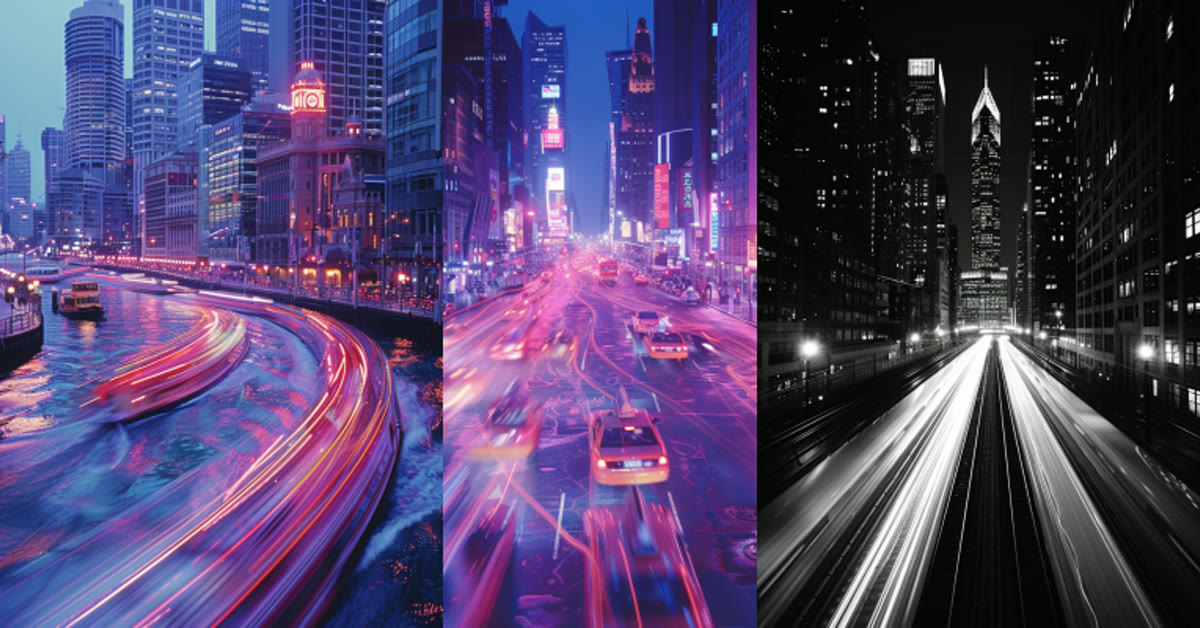
A long exposure AI photo editing prompt brings the magic of slow shutter photography to any photo. The prompt below creates silky smooth water trails, glowing light streaks from passing cars, and a still, sharp subject standing calmly amid the motion, all in dreamy blue hour tones.
Long exposure shots are loved because they turn motion into art. Light becomes a ribbon, water becomes silk, and the still subject stands out even more against the blur. With AI, you get this effect without a tripod, a slow shutter, or a long wait in the cold. If a friend asks how you made the edit, this Long exposure AI photo editing prompt is the shortcut worth sharing.
Table of Contents
How to Use This Prompt
- Upload a clear photo with a visible subject to your AI editor and paste the full prompt.
- Generate the first version and check that the subject stays sharp while the light and water blur smoothly.
- If the subject also blurs, generate again, then pick the version with the sharpest person and smoothest trails.
Copy-Paste Prompt
Transform this photo into a long-exposure style shot with silky smooth water trails, glowing light streaks from passing cars, a still sharp subject standing calmly amid the motion, deep blue hour tones, dreamy atmosphere, ultra-realistic, 4K, cinematic lighting.
Pro Tips for Long Exposure AI Photo Editing Prompt
- Night or dusk starting photos give the AI the best base for glowing light streaks.
- A standing, calm pose works best, since the contrast with the motion is the whole effect.
- Keep the composition simple, with the subject clearly separated from the light trails.
More Prompts to Try
Long exposure is not one look. It is a whole family of effects, and each prompt below explores a different corner of it. Some chase water, some chase city light, and some chase stars. All seven are original variations built on the same idea: a sharp, still subject inside a world of smooth motion. Paste each one whole into your AI editor and compare the moods. Save the ones that match the photos you actually take. This Long exposure AI photo editing prompt holds up well even when you export at full resolution.
Silky Waterfall Portrait
A nature version where the subject stands calmly beside a waterfall that has turned to silk, with mist and soft green light. The real strength of this Long exposure AI photo editing prompt is how repeatable it is from one edit to the next.
Transform this photo into a long-exposure style portrait beside a waterfall with silky smooth flowing water, soft mist in the air, a still sharp subject standing calmly on a rock, lush green tones, dreamy forest light, ultra-realistic, 4K, cinematic lighting.
City Light Trails at Night This Long exposure AI photo editing prompt is a smart pick when you want professional-looking results on a phone.
The classic urban version, with car headlights painting long ribbons of white and red through a dark city street.
Create a long-exposure style night portrait of a person standing still on a city sidewalk while car headlights paint long glowing ribbons of white and red light behind them, sharp subject, dark blue night tones, reflections on wet pavement, ultra-realistic, 4K, cinematic lighting.
Star Trails Sky Portrait
A night-sky version where the stars streak in circles above a still subject, perfect for a dreamy, epic profile picture.
Transform this photo into a long-exposure night sky portrait with stars trailing in soft circular arcs overhead, a still sharp subject gazing upward, dark mountain silhouette below, deep navy sky, quiet wonder mood, ultra-realistic, 4K, cinematic lighting.
Ocean Waves Silk Portrait
A coastal version where waves smooth into mist around rocks while the subject stands still on the shore.
Create a long-exposure style coastal portrait of a person standing still on a rocky shore while ocean waves smooth into soft mist around the rocks, golden sunset light, sea spray softly blurred, calm powerful mood, ultra-realistic, 4K, cinematic lighting.
Rain Streaks Window Portrait
An indoor version with rain streaking down a window and city lights smearing softly behind a calm subject.
Transform this photo into a long-exposure style portrait beside a rain-covered window with rain streaks and smeared city lights behind the glass, a still sharp subject in calm profile, warm indoor light against cool blue night, cozy melancholic mood, ultra-realistic, 4K, cinematic lighting.
Festival Light Motion Portrait
A celebration version with spinning sparklers and festival lights drawing glowing patterns around a still, smiling subject.
Create a long-exposure style festival portrait of a person standing still and smiling while sparkler trails and festival lights draw glowing patterns in the air around them, sharp subject, warm golden and magenta light, joyful night celebration mood, ultra-realistic, 4K, cinematic lighting.
Clouds in Motion Mountain Portrait
A slow, majestic version where clouds stream across the sky above a mountain ridge while the subject stands motionless in the wind.
Transform this photo into a long-exposure mountain portrait with clouds streaming softly across the sky, a still sharp subject standing on a ridge in a flowing coat, dramatic peaks below, soft dawn light, epic peaceful mood, ultra-realistic, 4K, cinematic lighting.
How to Customize This Prompt
The heart of a long exposure edit is the contrast between stillness and motion. Customize the motion first. Water, light trails, clouds, stars, and rain all blur differently, and each one changes the story. Water feels calm and natural. Light trails feel urban and energetic. Star trails feel vast and dreamy. Pick the motion that matches your subject’s mood, and name it clearly. Vague wording like “blurry background” gives vague results, while “silky water trails” gives the AI a precise effect to build. Beginners often start with this Long exposure AI photo editing prompt because the steps stay simple from start to finish.
Next, customize the subject’s stillness. The prompt works because the person does not move while the world does. A standing pose with relaxed arms reads as calm. A walking pose with one foot forward reads as a journey through motion. A seated pose on a rock or a wall reads as contemplation. Tell the prompt what the subject is doing, and keep it simple. The simpler the pose, the sharper the AI renders it. Many creators keep this Long exposure AI photo editing prompt saved for quick, reliable edits on busy days.
Time of day is the third lever. Blue hour, the twenty minutes after sunset, is the classic long exposure hour, with deep blue skies and glowing lights. Golden hour gives warm, soft motion with less contrast. Full night gives the strongest light trails and the darkest skies. Dawn gives cool, quiet motion with soft pink edges. Match the motion to the hour: light trails belong at night, water belongs at dawn or dusk, and clouds belong at any hour with sky. This Long exposure AI photo editing prompt pairs well with a short caption and trending audio when you share the result.
Color grading ties it together. Deep blue hour tones feel cinematic and cool. Warm golden tones feel nostalgic. Teal and orange feels like a film poster. Keep one dominant tone and let the motion carry the accent colors. If the grade fights the motion, for example neon pink water trails, the image looks artificial. Finally, adjust the strength of the effect. Words like “subtle,” “gentle,” or “dreamy” soften the blur. Words like “dramatic,” “sweeping,” or “intense” strengthen it. One strength word is enough. The AI reads it as a dial, not a decoration. A big advantage of this Long exposure AI photo editing prompt is that it stays beginner friendly without looking basic.
Step-by-Step Guide
Follow these steps to get a convincing long exposure effect without the subject blurring into the motion. This Long exposure AI photo editing prompt keeps the original mood of your photo or clip while lifting the overall quality.
- Choose a photo with a clear, separated subject. The person should stand out from the background, ideally with space around them. A subject pressed against a wall gives the AI nowhere to put the motion. Space around the subject becomes the canvas for trails and silk.
- Decide the motion before you write. Pick water, light, clouds, or stars, and pick the hour. Write these two choices into the prompt if you are customizing it. Decisions made before generating save you from ten random versions afterward.
- Upload and paste the full prompt. Open your AI editor, upload the photo, and paste the complete prompt. Include the quality tags. The words “still sharp subject” are the most important in the whole prompt, so never delete them when trimming.
- Check sharpness first, beauty second. On the first version, zoom to the face and hands. If they are sharp, the edit is working. If the face smeared, the AI blurred the wrong thing, and no amount of beautiful light trails will save it. Generate again until the subject is sharp.
- Judge the motion quality. Good motion looks smooth and continuous, like silk or ribbons. Bad motion looks like random smudges or duplicated shapes. If the trails look choppy, add “smooth” or “silky” to a follow-up instruction and regenerate.
- Compare three versions side by side. Long exposure results vary wildly. One version may nail the light but blur the coat. Another may keep the subject perfect but make the water look like fog. Pick the version where both halves work, even if neither half is perfect alone.
- Fix the balance with follow-ups. If the effect is too strong, ask to “reduce the blur and keep the subject sharper.” If it is too weak, ask to “strengthen the light trails.” One targeted fix at a time keeps the good version from collapsing into a new random result.
- Export at full resolution and crop carefully. Long exposure images reward wide crops, since the motion needs room. Export the full frame first, then crop a vertical version for stories if needed. Never crop so tight that the trails disappear, because the trails are the photograph.
Common Mistakes to Avoid
Blurring the subject along with the background. This is the number one failure. The whole effect depends on a sharp person inside soft motion. If the face, hands, or clothes smear, the image reads as a mistake, not an effect. Always keep “still sharp subject” in the prompt, and reject any version where the person blurred. If you post on social media often, this Long exposure AI photo editing prompt can save you a lot of editing time.
Asking for too many effects at once. Water trails plus light trails plus star trails plus rain in one prompt overloads the AI, and the result looks like a collage of accidents. One motion type per image. If you want two effects, generate two images and choose the better one. This Long exposure AI photo editing prompt gives your edit a consistent look that viewers recognize right away.
Using a low-resolution starting photo. Blur hides detail, so a soft starting photo plus AI blur equals mush. The subject needs all the detail it can get, since the effect will soften everything around it. Start with the sharpest, highest-resolution photo you have. You do not need expensive software to get the most out of this Long exposure AI photo editing prompt.
Ignoring the light direction. If the starting photo has noon sunlight but the prompt asks for blue hour, the AI has to rebuild all the light, and shadows often land in impossible places. Start with a photo shot near the target hour, dusk for blue hour, evening for night trails, so the AI enhances real light instead of inventing it. This Long exposure AI photo editing prompt focuses on the small details that make an edit feel premium.
Overdoing the glow. Glowing trails are beautiful, but when every light blooms into a huge halo, the image looks like a filter exploded. Ask for “soft glow” rather than “intense glow” unless you want a fantasy look. Restraint makes the light feel real. When you want dependable results, this Long exposure AI photo editing prompt is a safe choice to start from.
Best Tools for This Edit
ChatGPT image editing is the most forgiving tool for long exposure prompts. Its conversational flow lets you iterate naturally: generate, check sharpness, ask for smoother trails, generate again. It keeps the subject recognizable across versions, which matters more here than in any other style, since the subject must survive the blur. This Long exposure AI photo editing prompt is easy to adapt, so small changes still keep the same overall style.
Gemini renders motion blur with a particularly photographic quality. Water turns to convincing silk, and light trails keep a natural falloff instead of looking painted on. If your first versions in another editor look digital or harsh, try Gemini with the exact same prompt. The same words often produce a softer, more believable result there. This Long exposure AI photo editing prompt can be adjusted for brighter, softer, or more dramatic results in seconds.
A traditional editor like Lightroom or Snapseed is useful after the AI step, and sometimes instead of it. Real long exposure can be faked convincingly with motion blur brushes and careful masking, and a quick vignette plus a blue-hour white balance shift sells the mood. Use it to polish the AI result: deepen the blues, recover detail in the subject, and add a touch of clarity only to the person, not the trails. Sharing your version of this Long exposure AI photo editing prompt is a good way to join the trend while it is still growing.
Frequently Asked Questions
Can AI really recreate a true long exposure look?
It can come very close for most subjects. The AI understands the visual language of long exposure, smooth water, streaking light, a sharp subject, and it reproduces it convincingly. A trained photographer may spot differences in how real light accumulates, but for social posts, profile pictures, and prints, the AI version is more than good enough, and it needs no tripod or waiting. This Long exposure AI photo editing prompt is worth bookmarking if you enjoy quick creative edits.
Why does my subject keep blurring?
The AI sometimes applies the blur globally instead of protecting the person. Strengthen the protection by writing “the subject stays perfectly sharp and in focus” and by starting with a photo where the person is large in the frame. If it still blurs, generate again. Sharpness varies between versions, and a sharp one usually appears within three tries. This Long exposure AI photo editing prompt is built to deliver a polished result in just a few minutes.
Does this work on a daytime photo?
It works, but the result looks different. Daytime long exposure in real life needs dark filters, and the AI version often looks unnaturally bright with smeared highlights. For the classic look, start with a dusk, evening, or night photo. If you only have a daytime photo, ask for a dusk conversion first, then apply the long exposure effect in a second pass. You can come back to this Long exposure AI photo editing prompt again and again whenever you need a fresh edit.
Can I use this prompt for landscapes without people?
Yes, and it works beautifully. Remove the subject wording and describe the scene: a waterfall, a shoreline, or a road with light trails. Without a person, the AI can push the motion further, and the result often looks like a genuine slow-shutter landscape. Landscapes are also more forgiving, since there is no face to protect. What makes this Long exposure AI photo editing prompt so useful is how little manual work it needs.
What size should I export?
Export the largest size your editor offers, and keep the original aspect ratio of the generation. Long exposure images lose their magic when compressed heavily, since compression breaks smooth gradients into bands. If you must compress for a platform, use the highest quality setting and avoid re-saving the same file multiple times. This Long exposure AI photo editing prompt works especially well when your source photo or clip is clear and well lit.
Final Words
Motion turns to silk, light turns to ribbons, and you stand still in the middle of it all, now with a whole set of variations to explore. Paste the main prompt, try the water, the city, or the stars, and keep the version where the subject is sharp and the motion flows like a dream. A great long exposure portrait is a study in contrast: stillness against movement, calm against energy, one quiet person inside a world that will not sit still. Share the version that captures that contrast best, and let your photo feel like time itself slowed down to watch. This Long exposure AI photo editing prompt rewards a little patience, so preview the result before you export.
Motion turns to silk, light turns to ribbons, and you stand still in the middle of it all. Paste this prompt, choose your dreamiest version, and share a long exposure photo full of calm and wonder. Overall, this Long exposure AI photo editing prompt turns a simple idea into a result that feels ready to post.