

Introduction
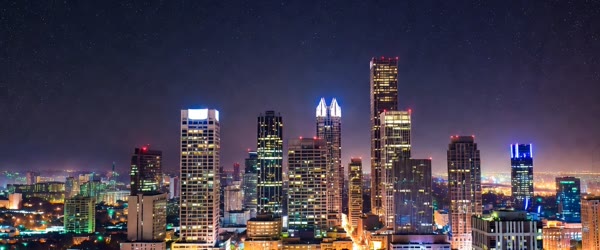
Sometimes the photo is perfect and only the background needs to change. This happy new year photo editing background prompt replaces a dull backdrop with a dazzling fireworks display over a city skyline at midnight, complete with golden bursts, soft smoke, and celebratory lights. A joyful glow wraps around you, so the portrait feels festive without changing your face at all. A festive happy new year photo editing background can turn an ordinary portrait into a greeting card in minutes.
Background swaps are the fastest New Year edit you can make. The prompt works in ChatGPT and in any AI photo editor that accepts text prompts. Upload a sharp photo with a clean edge around you, paste the words, and the midnight skyline appears behind you in minutes. Overall, this Happy new year photo editing background turns a simple idea into a result that feels ready to post.

Table of Contents
- How to Use This Happy New Year Photo Editing Background
- Copy-Paste Prompt
- Pro Tips
- More Prompts to Try
- How to Customize This Prompt
- Step-by-Step Guide
- Common Mistakes to Avoid
- Best Tools for This Edit
- Frequently Asked Questions
- Creative Ideas to Try
- Troubleshooting
- When to Regenerate Instead of Refining
- Final Words
How to Use This Happy New Year Photo Editing Background
- Upload a sharp photo with a plain background and clean edges around your hair and shoulders for the smoothest swap.
- Paste the full prompt exactly as written and generate the first version before changing any detail.
- If the edges look rough, ask for smoother blending or a softer glow, fixing one element at a time.
Copy-Paste Prompt
Transform this photo by replacing the background with a dazzling New Year fireworks display over a city skyline at midnight. Add golden bursts, soft smoke, celebratory lights, and a joyful glow around the subject. Keep the face crisp and natural, blend edges smoothly, ultra-realistic, sharp 4K detail, cinematic lighting.
Pro Tips
- Match your photo’s lighting to night, since a bright daylight face looks pasted against a midnight skyline.
- Ask for fewer fireworks if the skyline disappears, because the city lights deserve room to shine too.
- Save the result at full resolution, since edge blending and firework detail both suffer in small files.
More Prompts to Try
Midnight Rooftop Countdown
Use this when you want the countdown feeling without a skyline, and keep the fireworks smaller so your face stays the centre of the frame. This Happy new year photo editing background can be adjusted for brighter, softer, or more dramatic results in seconds.
Replace the background with a rooftop terrace at midnight, string lights overhead, a few golden fireworks in the far distance, and a warm glow around the subject. Keep the face crisp and natural, blend edges smoothly, ultra-realistic, sharp 4K detail, cinematic night lighting.
Golden Hour Before Midnight Sharing your version of this Happy new year photo editing background is a good way to join the trend while it is still growing.
Use this for a warmer, softer New Year portrait that suits family greetings, with the fireworks kept to a single burst behind you. Many creators pick a happy new year photo editing background with golden fireworks for their party photos.
Replace the background with a golden New Year evening sky, one large golden firework burst, soft city lights below, and warm celebratory light on the subject. Keep the face natural and glowing, blend edges smoothly, ultra-realistic, sharp 4K detail, cinematic lighting.
Confetti and Champagne Glow
Use this for a party portrait, and ask for restrained confetti so the celebration reads as elegant rather than chaotic.
Replace the background with a festive New Year party scene, floating gold confetti, warm bokeh lights, and a soft celebratory glow around the subject. Keep the face crisp and natural, blend edges smoothly, ultra-realistic, sharp 4K detail, cinematic lighting.
Snowy New Year Night
Use this when your New Year is a cold one, and let the snow soften the fireworks so the whole portrait feels calm and magical.
Replace the background with a snowy New Year night, gentle falling snow, distant fireworks over rooftops, warm window lights, and a soft glow around the subject. Keep the face natural and warm, blend edges smoothly, ultra-realistic, sharp 4K detail, cinematic lighting.
Fireworks Reflection Portrait
Use this for a dramatic close portrait, with the fireworks reflected in a window or water so the celebration doubles without crowding the frame.
Replace the background with a window view of New Year fireworks reflected in glass, golden bursts mirrored softly, deep night blue tones, and a joyful glow on the subject. Keep the face crisp and natural, blend edges smoothly, ultra-realistic, sharp 4K detail, cinematic lighting.
Minimal Countdown Portrait
Use this when you prefer restraint, with a single clock motif and one firework, so the portrait feels editorial rather than festive. You can pair a happy new year photo editing background with bold text to make a shareable countdown post.
Replace the background with a minimal New Year midnight scene, a softly glowing clock showing midnight, one distant firework, dark elegant tones, and a gentle glow around the subject. Keep the face natural and calm, blend edges smoothly, ultra-realistic, sharp 4K detail, cinematic lighting.
How to Customize This Prompt
The background swap prompt is a template, and five small changes make it yours. Change the city by naming a skyline style — a riverside town, a coastal skyline, or a mountain village — because the fireworks read differently against each. Change the firework palette from gold to rose, silver, or multicolour to match your outfit or your greeting card. Change the lighting by asking for warm, cool, or neutral glow, since the glow around you sets the whole mood. This Happy new year photo editing background pairs well with a short caption and trending audio when you share the result.
Change the crowd level by adding or removing distant silhouettes, string lights, and party details, depending on whether you want a lone, cinematic portrait or a celebration scene. Change the mood from joyful to serene by softening the fireworks, dimming the city, and asking for calm, quiet light. Each change is one sentence in a follow-up, and each keeps the face untouched while the night around you shifts. A big advantage of this Happy new year photo editing background is that it stays beginner friendly without looking basic.
- City style: name the skyline — riverside, coastal, mountain town — for a background that feels like a real place.
- Firework colours: gold for classic, rose for soft, silver for elegant, multicolour for festive.
- Glow temperature: warm glow for celebration, cool glow for a modern editorial look.
- Detail level: fewer elements for elegance, more elements for a party feeling.
Step-by-Step Guide
- Choose a sharp starting photo taken in even light, with a plain background and clean edges around your hair and shoulders, because edge quality decides how believable the swap looks.
- Open ChatGPT or your AI photo editor and upload the photo at full resolution, so the tool has real detail to blend at the edges.
- Paste the full prompt exactly as written, without shortening it, and generate the first version before judging anything.
- Inspect the edges first: zoom into the hair, shoulders, and any jewellery, and look for halos, hard cut lines, or leftover background colour.
- Fix one problem at a time in follow-up prompts — smoother blending first, then glow, then firework density — because changing everything at once makes it impossible to see what helped.
- Match the face lighting to the night scene by asking for a softer, warmer light on the face if the daylight brightness survives the swap.
- Reduce the fireworks if they crowd the skyline, and add a little smoke for depth, since a sky with breathing room looks more photographic than a sky packed with bursts.
- Save the final portrait at full resolution, keep a copy of the original, and share the version whose edges and glow both survive a full-screen check.
Common Mistakes to Avoid
- Starting with a busy background. A cluttered original background confuses the edge detection and leaves ghost colours around your hair. Start plain.
- Using a low-resolution photo. Small files blur at the edges, and no prompt can restore detail the file never had.
- Changing everything at once. Five simultaneous follow-up changes hide which one fixed the problem, and the edit drifts away from the original face.
- Accepting a pasted-on look. If the face lighting still reads as daylight against a midnight skyline, ask for night-matched light before you accept the result.
- Overfilling the sky. A sky packed edge to edge with fireworks reads as a poster, not a photograph. Fewer, larger bursts look real.
Best Tools for This Edit
ChatGPT handles this background swap cleanly because it accepts an uploaded photo and a long, detailed prompt in one step, and its follow-up conversation lets you refine the edges and glow without re-uploading. It is the best choice when you want the whole edit done in one place. If you post on social media often, this Happy new year photo editing background can save you a lot of editing time.
Gemini is a strong alternative when the first tool struggles with edge blending, since its image model often preserves faces well and responds precisely to short refinement prompts. Run the same prompt there and compare the edges before deciding which result to keep. This Happy new year photo editing background gives your edit a consistent look that viewers recognize right away.
CapCut is the right finishing tool after the swap, for cropping to a story or post ratio, adding a subtle vignette, or balancing brightness without touching the fireworks. Keep its adjustments gentle, because the generated background should carry the celebration, not the filters. You do not need expensive software to get the most out of this Happy new year photo editing background.
Frequently Asked Questions
Will the background swap change my face? It should not, and the prompt explicitly asks the tool to keep the face crisp and natural. If the face shifts, regenerate with the sentence about preserving the face repeated, and use a sharper starting photo. You can come back to this Happy new year photo editing background again and again whenever you need a fresh edit. A soft blurred lights happy new year photo editing background keeps the focus on the person in front.
Why do the edges look cut out? Edge problems come from a busy or low-resolution starting photo. Re-upload a sharper photo with a plain background, and ask for smoother blending in a single follow-up. What makes this Happy new year photo editing background so useful is how little manual work it needs.
Can I use a group photo? Yes, but the edges around every person must be clean, and faces at the edges of a group photo blend less reliably. Edit one portrait at a time for the safest result. This Happy new year photo editing background works especially well when your source photo or clip is clear and well lit.
Do the fireworks need to be gold? No. Name any palette in a follow-up — rose, silver, or multicolour — and the tool will recolour the bursts while keeping the skyline and glow intact. Beginners often start with this Happy new year photo editing background because the steps stay simple from start to finish.
What size should I share? Share the full-resolution export. Firework detail and edge blending both degrade visibly at small sizes, and a New Year portrait is worth the larger file. This Happy new year photo editing background keeps the original mood of your photo or clip while lifting the overall quality. For family pictures, a warm happy new year photo editing background adds a cozy celebration feel.
Creative Ideas to Try
Make a countdown series by generating four versions of the same portrait — dusk, first firework, midnight burst, and quiet after — and post them as a carousel that tells the evening’s story. Create a matched pair with a family member, using the same skyline and palette so the two portraits sit together in a greeting card. Build a wallpaper version in a wide crop for your phone’s lock screen, keeping the face centred and the fireworks high. Or generate a black-and-gold variant for a formal New Year card, where the restraint makes the celebration feel expensive rather than loud. This Happy new year photo editing background is easy to adapt, so small changes still keep the same overall style.
Troubleshooting
If the skyline looks pasted behind you, ask for haze and smoke between you and the city, because atmospheric depth is what separates a composite from a photograph. If the glow around you looks like a halo, ask for a softer, wider glow with lower intensity. If the tool keeps the old background, repeat the replacement instruction as its own sentence at the start of the follow-up, since some tools treat the first instruction as the strongest.
If the fireworks come out as dots, ask for larger bursts with visible trails. If the face turns waxy, ask the tool to preserve skin texture and reduce smoothing in a follow-up. Many creators keep this Happy new year photo editing background saved for quick, reliable edits on busy days.
When to Regenerate Instead of Refining
Follow-up prompts fix most problems, but some results are cheaper to regenerate than to repair. Regenerate from scratch when the face has shifted noticeably, because no refinement reliably restores a changed face, and each follow-up drifts it further from the original. Regenerate when the background swap failed outright and the old background is still visible, since a failed swap is a baseline problem, not a detail. This Happy new year photo editing background focuses on the small details that make an edit feel premium.
Regenerate when the edges are broken in several places at once, because fixing hair, shoulders, and jewellery one at a time takes longer than a fresh generation with a better starting photo. Keep refining when the result is close and only one element is wrong — the glow is too strong, the fireworks too many, the skyline too bright — because single-element fixes are exactly what follow-ups do well. The rule is simple: one wrong thing means refine, several wrong things mean regenerate, and a wrong face always means regenerate with a sharper starting photo. When you want dependable results, this Happy new year photo editing background is a safe choice to start from.
Final Words
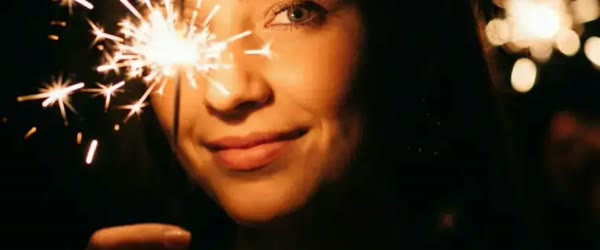
A new background can make an old photo feel brand new. Swap in the fireworks, check the edges, and welcome the new year in style. This Happy new year photo editing background is worth bookmarking if you enjoy quick creative edits. Try a dark happy new year photo editing background if you want the sparklers and lights to stand out.
Background swaps work best when the starting photo is sharp, so take a fresh portrait in even light before you generate the skyline. A clean, well-lit photo gives the tool a crisp edge to blend, and the fireworks will sit naturally behind you instead of looking pasted on. If the skyline looks too bright, ask for a dimmer city glow, since the fireworks should be the stars of the midnight sky. Save the master file, because a good New Year background portrait works again every single year. This Happy new year photo editing background is built to deliver a polished result in just a few minutes.