Introduction
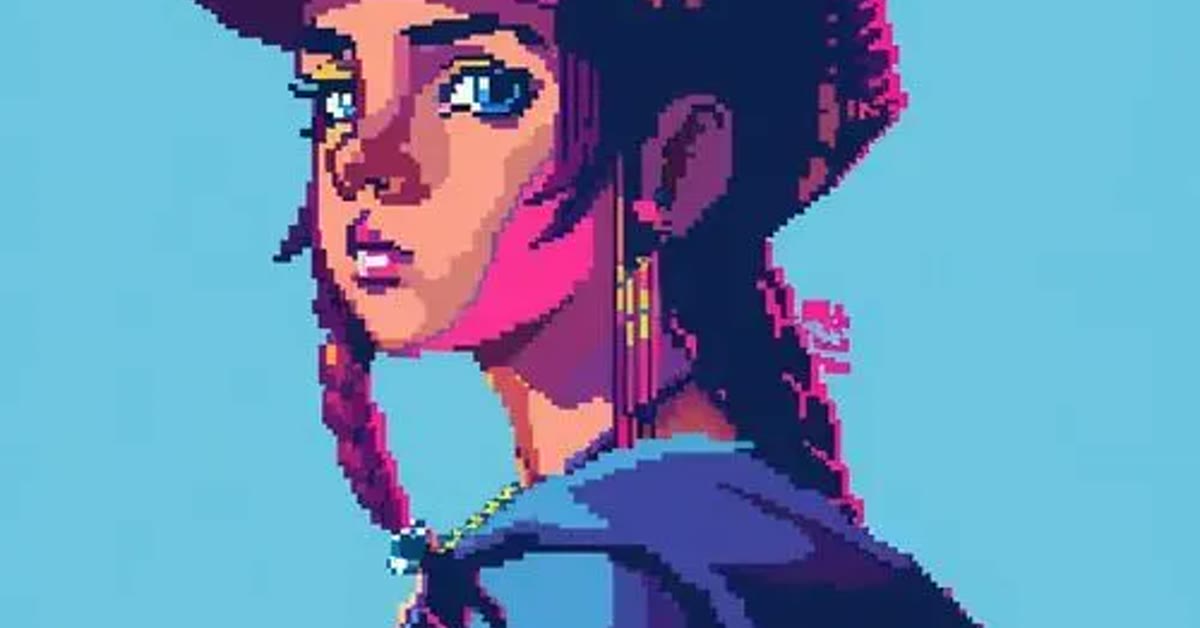
The aesthetic pixel art photo style prompt turns an ordinary photo into a charming retro illustration that looks like a scene from a classic video game. The crisp 16-bit blocks, soft pastel colors, and dreamy mood give every picture a warm nostalgic feeling. It is a fun way to make profile pictures and wallpapers that stand out in a feed full of realistic photos. A good aesthetic pixel art photo style prompt removes the guesswork and lets you focus on the final look.
This style works well for portraits, pets, and street scenes. Because the pixel shading stays clean and simple, the subject remains easy to recognize even after the transformation. The result feels playful, cozy, and a little bit like a memory from childhood gaming.
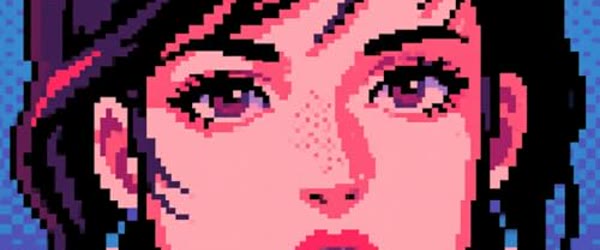
Table of Contents
How to Use This Aesthetic Pixel Art Photo Style Prompt
- Upload your photo to an AI image editor such as ChatGPT or Gemini and paste the full prompt exactly as written above.
- If the first result looks too blocky, ask for softer shading or larger pixel blocks until the face stays clear and recognizable.
- Download the best version and use it as a profile picture, poster, or phone wallpaper.
Copy-Paste Prompt
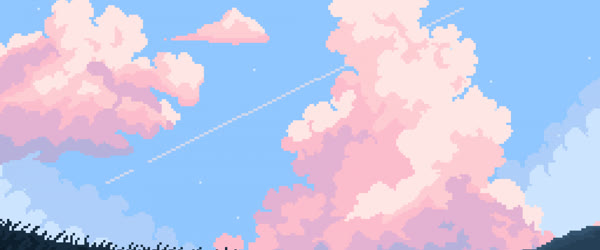
Transform this photo into a charming pixel-art illustration with crisp retro 16-bit blocks, soft pastel colors, and a nostalgic video-game feel. Keep the subject recognizable with clean pixel shading, a simple gradient sky, and a cozy dreamy mood. Ultra-detailed pixel work, 4K, cinematic lighting.
Pro Tips
- Start with a photo that has a clear, well-lit subject. Busy backgrounds turn into messy pixels.
- Ask for a pastel palette in your follow-up edit if the colors come out too harsh or dark.
- Keep the background simple. A plain sky or wall lets the pixel style shine without clutter.
More Prompts to Try
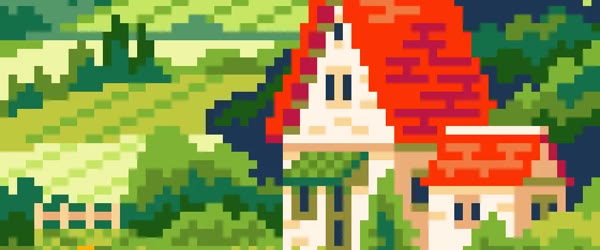
The original aesthetic pixel art photo style prompt is only the beginning. Pixel art has many sub-styles, and each variation below changes the mood, the palette, or the setting while keeping the crisp retro blocks that make the style recognizable. Try each prompt on the same photo first, so you can compare the styles fairly, and then use your favorite on different photos. All of these prompts are original variations written for this article, and each one works as a direct copy-paste prompt in ChatGPT or Gemini. You can personalise this aesthetic pixel art photo style prompt with your own photo to make the result feel truly yours.
Cozy Room Pixel Scene
Turn a portrait into a warm indoor scene with a window, a lamp, and soft evening light, all rendered in chunky retro pixels.
Transform this photo into a cozy pixel-art scene set in a small warm room, with a glowing lamp, a window showing a pastel evening sky, and soft 16-bit shading. Keep the subject recognizable and centered, use warm amber and peach tones, and add tiny pixel details like books and a cup of tea. Retro game style, clean pixel blocks, dreamy and peaceful mood, 4K.
Pixel City at Dusk This aesthetic pixel art photo style prompt has become popular because it delivers consistent quality every single time.
Place the subject in a tiny pixel city with neon signs and a purple-orange sunset sky for a cyber retro feeling.
Transform this photo into a retro pixel-art portrait set in a tiny neon city at dusk, with glowing shop signs, small pixel buildings, and a gradient purple-orange sky. Keep the face clear and recognizable with crisp 16-bit blocks, soft neon reflections, and a calm dreamy mood. Ultra-detailed pixel work, cinematic lighting, 4K.
Forest Adventure Pixels
A nature version with pixel trees, a path, and morning light filtering through leaves, ideal for outdoor photos.
Transform this photo into a pixel-art adventure scene in a quiet forest, with blocky green trees, a winding dirt path, fireflies, and soft morning light between the leaves. Keep the subject recognizable with clean pixel shading and a fresh hopeful mood. Retro 16-bit style, pastel greens, cozy and dreamy, 4K.
Ocean Pixel Portrait
A seaside version with pixel waves, a lighthouse, and gulls, perfect for holiday and travel photos. Beginners often choose this aesthetic pixel art photo style prompt because the steps are simple and the payoff is big.
Transform this photo into a pixel-art seaside portrait with gentle blocky waves, a small lighthouse in the distance, soft pastel clouds, and a calm blue ocean. Keep the subject clear and recognizable, use cool aqua and peach tones, and create a relaxed holiday mood. Crisp retro pixels, cinematic lighting, 4K.
Winter Pixel Wonderland
A seasonal version with snow, warm lights, and a cozy coat, ideal for December profile pictures and greeting cards.
Transform this photo into a pixel-art winter scene with soft falling snow, warm glowing windows, a cozy coat and scarf on the subject, and a pastel twilight sky. Keep the face recognizable with clean 16-bit shading, gentle snow sparkle, and a warm festive mood. Retro game art style, ultra-detailed, 4K.
Space Explorer Pixels
A playful sci-fi version with stars, a tiny planet, and a glowing helmet reflection for a fun futuristic profile picture. When you use this aesthetic pixel art photo style prompt carefully, the final result looks natural and eye catching.
Transform this photo into a pixel-art space explorer portrait with a starry sky, a small ringed planet, a glowing helmet visor, and soft purple-blue nebula colors. Keep the subject recognizable with crisp retro pixel blocks and a curious adventurous mood. 16-bit style, cinematic lighting, ultra-detailed, 4K.
Pixel Pet Portrait
A pet version that keeps the animal’s expression clear while turning the background into a simple pastel game scene.
Transform this pet photo into a charming pixel-art portrait with crisp 16-bit blocks, a simple pastel garden background, tiny pixel flowers, and soft warm light. Keep the pet's face and expression clearly recognizable, use gentle colors, and create a playful cozy mood. Retro illustration style, clean shading, 4K.
How to Customize This Prompt
Customization in pixel art starts with the size of the pixels. Large chunky blocks feel like an old 8-bit game and hide small details, which suits simple portraits and bold compositions. Smaller, finer blocks feel like modern 16-bit art and keep faces, glasses, and jewelry recognizable.
If your first result loses the face, ask for finer pixels or larger pixel resolution in a follow-up. If the result looks too smooth and realistic, ask for chunkier blocks and stronger outlines. One follow-up sentence is usually enough to shift the balance. This aesthetic pixel art photo style prompt pairs well with your favourite editing app and takes only a few simple steps.
Next, customize the palette. The original prompt uses soft pastels, but pixel art also shines in other palettes. A sunset palette of peach, coral, and purple feels romantic. A forest palette of sage, moss, and cream feels calm. A neon palette of cyan, magenta, and deep blue feels energetic and modern. Name the palette directly in your follow-up, for example by asking for a warm autumn palette or a cool ocean palette.
The AI will recolor the whole scene consistently, which is much faster than recoloring by hand. This aesthetic pixel art photo style prompt is a great choice when you want professional results without expensive software. The aesthetic pixel art photo style prompt gives you a strong starting point that you can refine to match your own style.
The background is the third lever. A simple gradient sky keeps the focus on the subject and reads well at small sizes like profile pictures. A detailed scene with buildings, trees, or a room tells a bigger story and suits wallpapers and posters. If the background competes with the face, ask for a simpler background with fewer details and softer colors. If the background feels empty, ask for two or three small pixel props, such as stars, flowers, or a distant mountain line. Many users return to this aesthetic pixel art photo style prompt whenever they need a dependable creative boost.
You can also customize the subject itself. Ask for an outfit change, such as a denim jacket, a winter coat, or a retro dress, and the pixel style will absorb the change naturally. Ask for a different expression, like a gentle smile or a thoughtful look, if the original photo feels stiff. Keep changes to one or two per follow-up. Changing everything at once makes it hard to tell which instruction caused a problem, while single changes are easy to keep or undo. This aesthetic pixel art photo style prompt is worth trying if you enjoy experimenting with new looks and fresh trends.
Finally, customize the output format. Ask for a square version for profile pictures, a tall version for phone wallpapers, or a wide version for banners. Mention the intended use in the prompt itself, such as profile picture or wallpaper, because the AI will then compose the subject with the right amount of space around it.
A centered subject with breathing room works for almost every use, so when in doubt, ask for the subject centered with a simple background. The aesthetic pixel art photo style prompt keeps the original mood of your photo while lifting the overall quality. With a little patience, this aesthetic pixel art photo style prompt can produce results that look far more advanced than they are.
Step-by-Step Guide
Follow these steps to get a clean, recognizable pixel art result on the first or second try. This aesthetic pixel art photo style prompt keeps everything simple while still delivering a premium finish.
- Choose the right photo. Pick a photo with a clear, well-lit subject and a simple background. Face the camera or turn slightly to the side, and avoid sunglasses, heavy shadows, or busy crowds behind you. A plain wall, an open sky, or a quiet street makes the best starting point for pixel conversion.
- Open your AI image editor. Open ChatGPT, Gemini, or any image editor that accepts text prompts with photo uploads. Upload the photo at full resolution. Low-resolution uploads force the AI to invent details, which often changes the face.
- Paste the full prompt. Copy the aesthetic pixel art photo style prompt exactly as written and paste it with the photo. Do not shorten it, because the details about pixel size, palette, and mood are what separate a good result from a generic cartoon filter.
- Review the first result carefully. Check three things: is the face recognizable, are the pixel blocks crisp rather than blurry, and does the background stay simple? If all three pass, you are done. If the face changed too much, note exactly what changed before regenerating.
- Refine with one follow-up at a time. Ask for one change per follow-up, such as finer pixel blocks, a pastel palette, or a simpler sky. Regenerate and compare with the previous version side by side. Keep the version you like best before asking for the next change, so you never lose a good result.
- Try a variation prompt. Once the base style works, paste one of the variation prompts from this article on the same photo. This shows you the range of the style quickly and often reveals a version you like even more than the original.
- Upscale and clean up. Download the best result at the highest available resolution. If the pixels look soft after download, apply a single sharpening pass or re-upload and ask for crisper pixel edges. Avoid running the image through multiple beauty filters, which melt the pixel blocks.
- Crop for your use. Crop a square version for profile pictures, keeping the face centered with space above the head. Crop a tall version for wallpapers, keeping the full scene. Save the original uncropped file as well, so you can re-crop later without regenerating.
Common Mistakes to Avoid
Starting with a dark or blurry photo. Pixel art needs clear edges to work. A dark photo forces the AI to guess where the face ends and the background begins, and the guess is often wrong. A blurry photo turns into mushy blocks instead of crisp pixels. Choose your brightest, sharpest photo, even if it is not your favorite composition. The style will add the charm. Sharing the result of this aesthetic pixel art photo style prompt on social media can help your post reach more people. The aesthetic pixel art photo style prompt is a favourite among creators who post regularly and always need fresh ideas.
Asking for too many changes at once. A prompt that asks for a new outfit, a new background, a new palette, a new pose, and a new aspect ratio in one go usually fails at two or three of them. The AI spreads its attention too thin. Change one thing at a time with follow-ups, and keep the version that works before moving on. Once you try this aesthetic pixel art photo style prompt, it is easy to see why it keeps trending online.
Choosing a busy background. Crowds, trees full of detail, and patterned walls all turn into visual noise when pixelated. The subject disappears into the blocks. Start simple. A plain sky, a wall, or a beach horizon lets the pixel style shine and keeps the subject readable at a glance. This aesthetic pixel art photo style prompt helps you achieve a cohesive look across your whole feed.
Over-sharpening or over-filtering after generation. Running the result through beauty filters, HDR effects, or heavy sharpening melts the crisp pixel edges that define the style. One gentle sharpening pass is enough. If the image needs more help than that, regenerate with a clearer instruction instead of filtering the output. This aesthetic pixel art photo style prompt saves time because the hard creative decisions are already made for you. A thoughtful aesthetic pixel art photo style prompt like this one rewards small adjustments with noticeably better results.
Using the wrong aspect ratio. A wide banner crop makes a bad profile picture because the face gets pushed to the edge or cut off. Decide the use before generating, and say so in the prompt. Square for profiles, tall for wallpapers, wide for banners. Regenerating in the right shape is always better than cropping a wrong shape later.
Best Tools for This Edit
ChatGPT handles this prompt very well because it follows long descriptive prompts closely and keeps the subject recognizable across regenerations. Its image editing accepts follow-up instructions in plain language, so refining the pixel size or palette feels like a conversation. The main limitation is that very long sessions can drift from the original face, so save good versions early and start a fresh chat if the face begins to change.
Gemini is a strong alternative, especially for pastel colors and dreamy lighting. It tends to produce softer, more painterly pixel art with gentle gradients, which suits the cozy mood of this style. Gemini also handles aspect ratio requests cleanly. Its results can sometimes be too smooth, so add the words crisp blocks and sharp pixel edges explicitly if the first result looks like a painting rather than pixel art. A well made aesthetic pixel art photo style prompt can turn an ordinary photo into something people stop scrolling for.
Bing Image Creator and other free generators work for the variation prompts when you want quick experiments without a chat session. They are less reliable at keeping a specific face recognizable, so use them for landscapes, pets, and scenes rather than portraits of people you know. For portraits, ChatGPT or Gemini remain the safer choices. Whichever tool you use, keep the prompt text identical for fair comparisons, and judge the result at the size where it will be seen.
Frequently Asked Questions
Will this prompt keep my face recognizable? Usually yes, if you start with a clear, well-lit, front-facing photo. Pixel art simplifies features by design, so expect a stylized version of your face rather than a perfect likeness. If the face drifts, ask for finer pixel blocks and the face kept unchanged, and regenerate. Two or three tries normally land on a version that friends recognize instantly. This aesthetic pixel art photo style prompt is especially useful when you want a fresh look for a special occasion.
Can I use this style for a logo or brand image? Yes, for informal brands, gaming channels, and personal projects it works beautifully. Keep the design simple, with one subject and a plain background, so it reads at small sizes. For a formal business logo, ask for flat vector style instead, because pixel art can look playful in contexts that need a serious tone.
Why does my result look like a cartoon instead of pixel art? The cartoon look happens when the prompt’s pixel instructions are weak or when a beauty filter softens the blocks. Make sure the words crisp 16-bit blocks and retro pixel art are in the prompt, and avoid any smoothing or beautify step afterward. If the tool still smooths the result, add sharp square pixels, visible grid, and no soft shading to the follow-up.
Can I print pixel art as a poster? Yes. Generate at the highest resolution available, then print at a size where the pixel blocks stay crisp, such as A4 or A3 for most generators. Check the print preview at full size before ordering. If the blocks look soft in the preview, upscale once with a pixel-preserving upscaler rather than a smoothing one, so the retro edges stay sharp on paper. You do not need advanced editing skills to get the most out of this aesthetic pixel art photo style prompt.
Does the prompt work on old or black-and-white photos? It works well on old photos because pixel art hides scratches and softness behind the retro style. For black-and-white photos, ask the AI to add a pastel color palette, or keep it monochrome for a classic game look. Either way, start with the cleanest scan you have, and expect one or two follow-ups to settle the colors.
Final Words
Pixel art is proof that simple can be beautiful, and this prompt proves it again with every photo it touches. Try it on your favorite picture, compare the variations, and enjoy the retro look it brings back. Keep the subject clear, the background simple, and the pixels crisp, and the result will feel like a small game world built just for you. Share the version that makes you smile, and keep the original photo safe so you can revisit the style whenever a new variation catches your eye.
Leave a Reply